Overview
External auth providers connect ToBeAlert to enterprise identity systems so users can sign in with LDAP or SAML instead of (or alongside) local username and password. Providers appear as buttons on the login page, can sync directory users into ToBeAlert, and optionally map directory groups to views and roles.
| Step | What you configure | Menu / route | Documentation |
|---|---|---|---|
| 1 | LDAP — directory connection, bind, user search, mappings | Access Control → External Providers → /external-providers | LDAP provider |
| 2 | SAML — IdP metadata, SP URLs, security options, mappings | Same → /external-providers | SAML provider |
| 3 | Enable and verify on the login page | Provider list or editor header | This page |
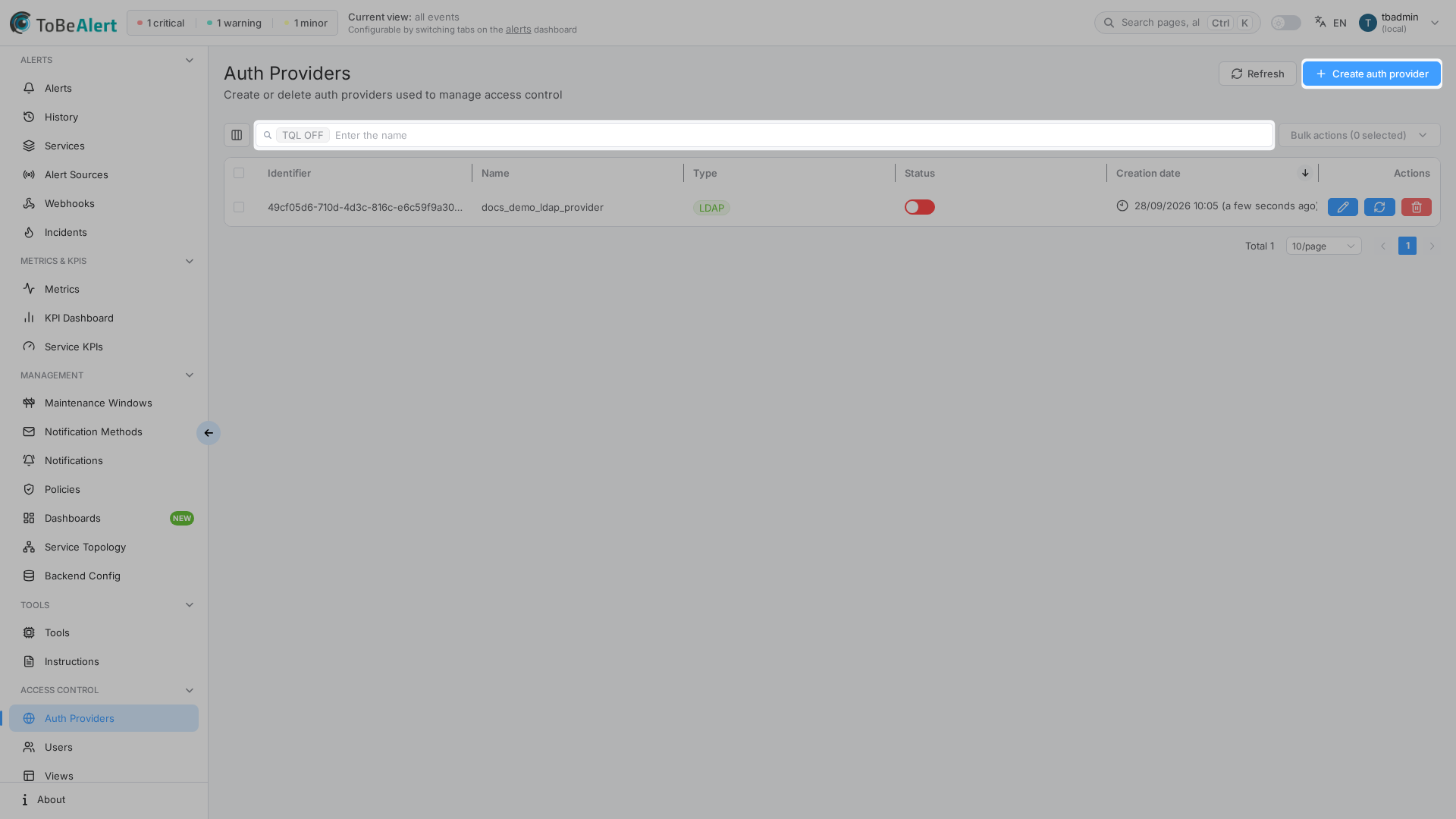
Where to find it in the UI
In the sidebar under Access Control:
- External Providers →
/external-providers
The page title in the UI is Auth Providers. Header actions:
| Button | Purpose |
|---|---|
| Refresh | Reload the provider table |
| Create auth provider | Dropdown to start Configure LDAP or Configure SAML |
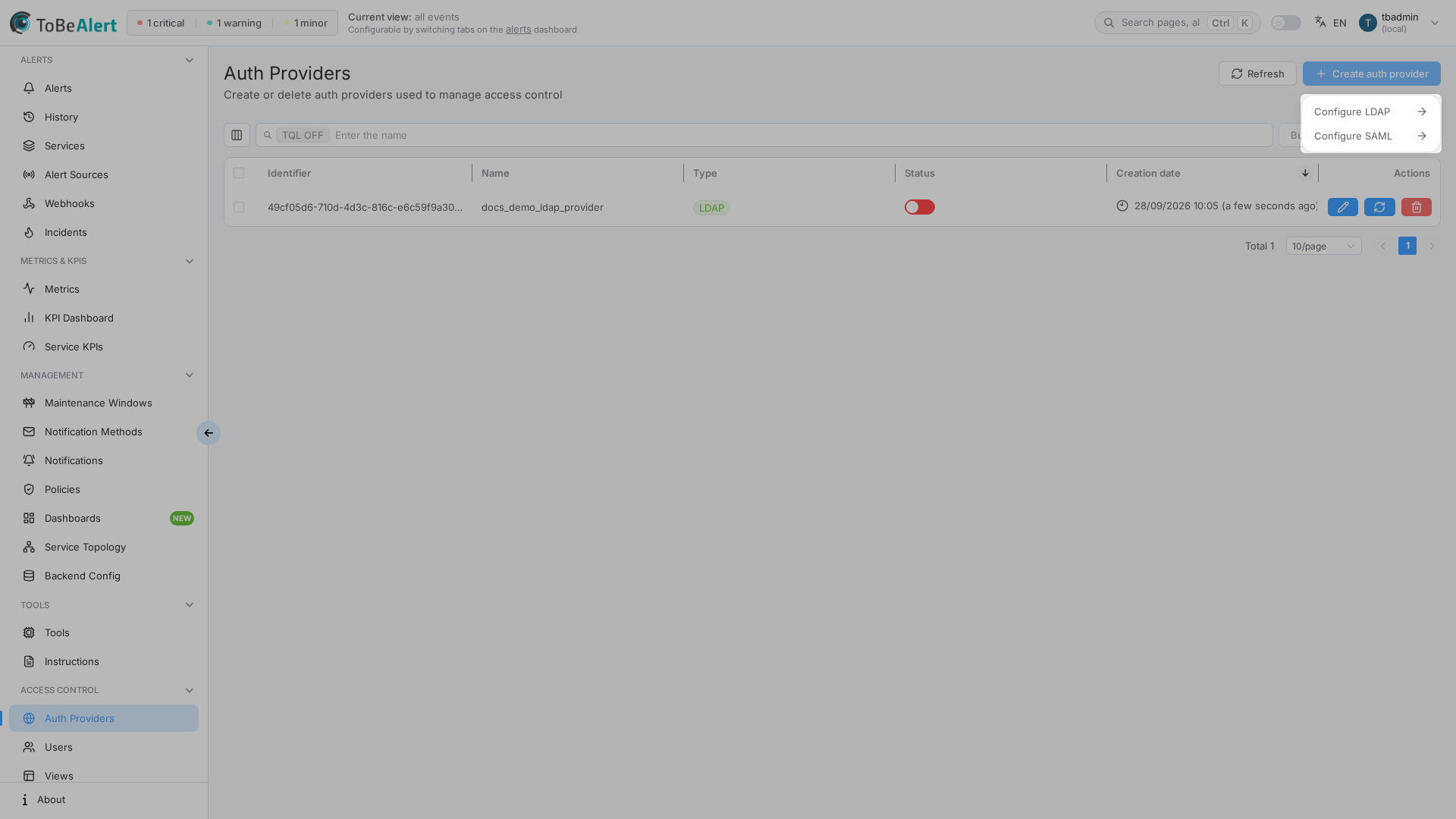
The provider list uses the standard configurable table (search, TQL, row selection, bulk toolbar, context menu) — see TQL search and filters and List tables and bulk actions. Double-click a row or use Configure to open the full-page editor at /external-providers/ldap/<id> or /external-providers/saml/<id>.
The LDAP/SAML editors show a breadcrumb that links back to Auth Providers (not the longer documentation section title).
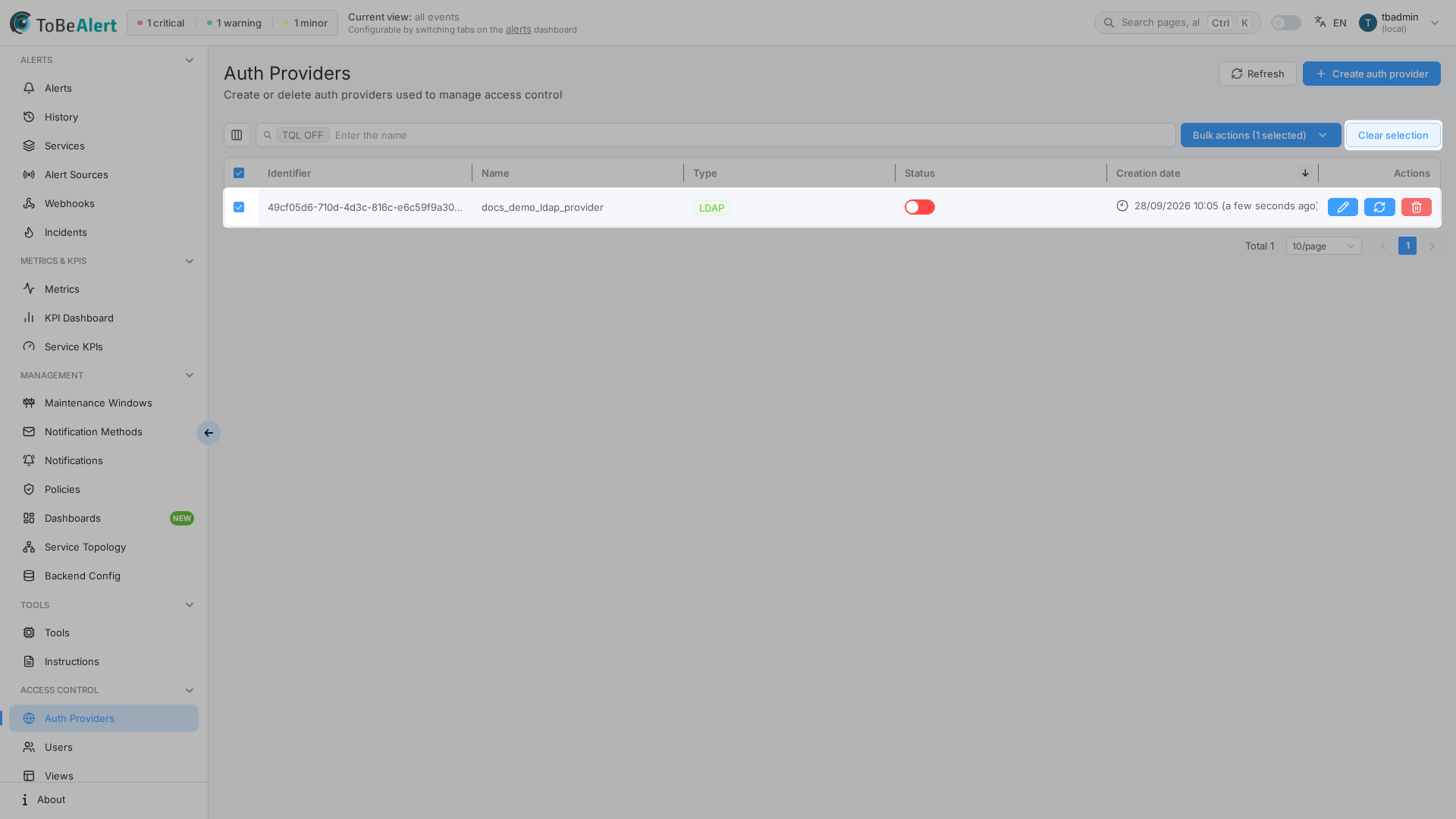
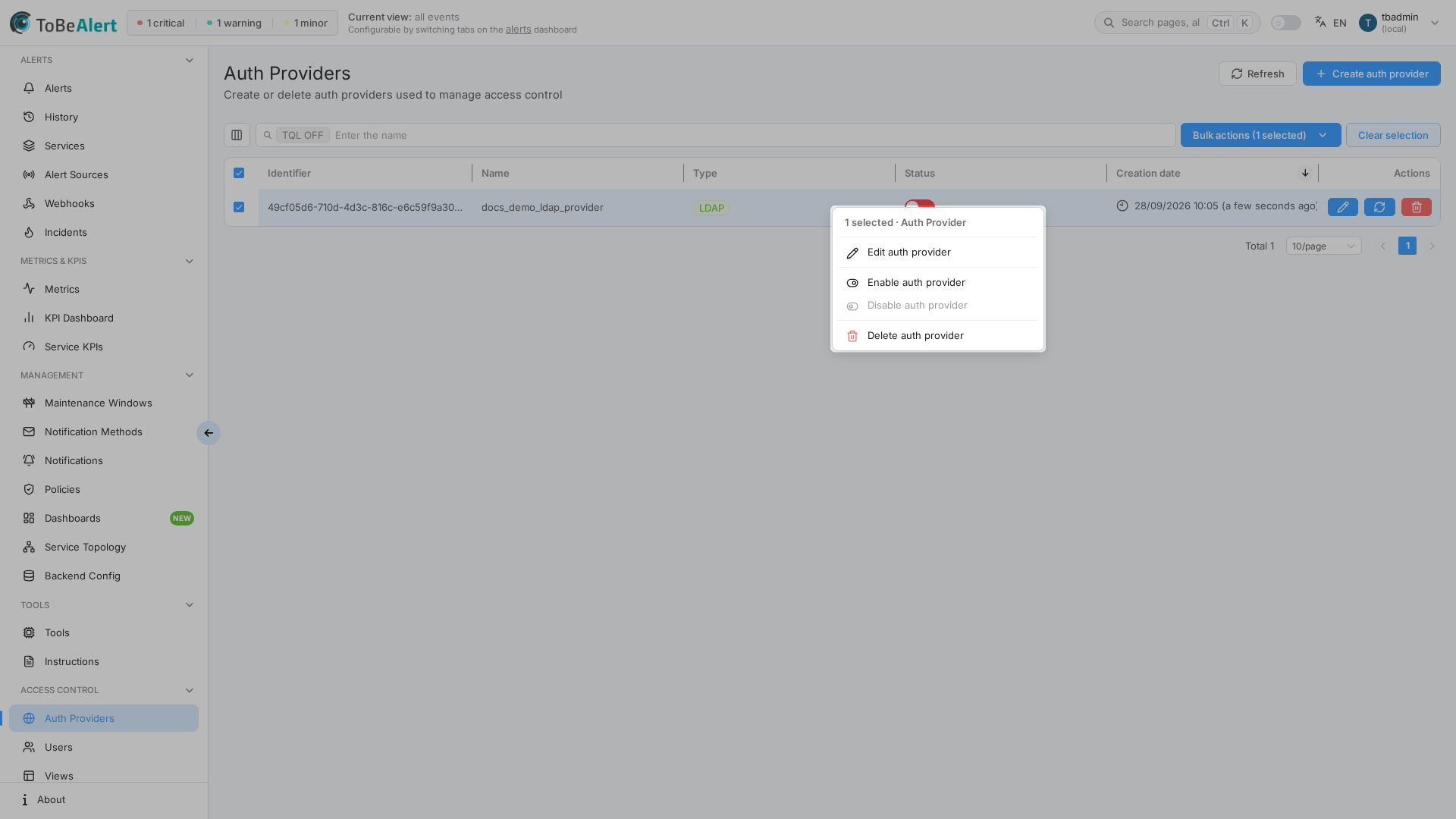
Right-click a selected row (or open the row context menu) for the same bulk actions as the toolbar when rows are selected.
This area requires administrator access. Non-admins do not see Access Control or External Providers in the sidebar. If Create auth provider or provider types are disabled (crown icon), your license may not include that provider type — contact your administrator or vendor.
How providers fit together
Typical LDAP rollout:
- Create an LDAP provider and complete the four-step wizard (server → bind → user search → mappings).
- Map at least Login and Name to LDAP attributes; optional group mappings assign views and roles after sync.
- Enable the provider and use Sync Users on the list row to import directory accounts.
- Keep local login enabled in Backend Config → Authentication until you confirm LDAP login works.
Typical SAML rollout:
- Create a SAML provider with IdP metadata (URL or XML upload).
- Copy ACS URL and Entity ID into your identity provider.
- Save the provider, optionally run Test connection, then map IdP attributes to user fields.
- Enable the provider; users see a Continue with SSO (or custom label) button on the login page.
Misconfigured LDAP bind credentials, wrong search bases, or disabling local_login_enabled before SAML/LDAP is verified can prevent all users from signing in. Test with a dedicated admin account, keep a local fallback until production cutover, and coordinate with Authentication settings.
Provider list reference
| Column | Description |
|---|---|
| Identifier | Internal identifier; click to open the editor |
| Name | Display name shown in lists and breadcrumbs |
| Type | LDAP or SAML |
| Status | Enable/disable toggle (SAML requires login and name mappings before enable) |
| Creation date | When the provider was created |
Row and bulk actions
| Action | Applies to | Description |
|---|---|---|
| Configure | One row | Open the LDAP or SAML editor |
| Sync Users | LDAP only | Import or refresh users from the directory |
| Delete | One or more | Removes the provider (confirmation dialog) |
| Enable / Disable | Bulk (one selected) | Same as the status toggle |
Deleting a provider may affect users provisioned through it. The confirmation flow checks synced users linked to the selection.
License limits
| Provider type | When limited |
|---|---|
| LDAP | Configure LDAP in the create dropdown is disabled (premium feature indicator) |
| SAML | Configure SAML in the create dropdown is disabled (premium feature indicator) |
When limited, existing rows may also disable Configure, Sync Users, and Delete for that type.
Related modules
| Module | Relationship |
|---|---|
| Users | Synced users, manual roles, and permissions |
| Views | Views assignable in group mappings |
| Backend Config — Authentication | Auth Required, local_login_enabled, token expiry |
| Settings & environment variables | Deployment-time auth options not exposed in the Web UI |
Best practices
- Keep local login enabled until external auth is tested end-to-end.
- Run connection tests in the LDAP wizard before saving; use SAML Test connection when you have an IdP test account.
- Map Login and Name before enabling SAML or saving LDAP step 4.
- Use descriptive connection names (for example
corp-ldap-prod,okta-sso) to tell environments apart. - Limit LDAP search scope with precise base DNs and filters.
- Review group mappings after the first sync — use
*as the group name only when every synced user should receive the same views and roles. - Schedule sync after directory changes; LDAP does not auto-sync on every login.
- Document IdP URLs (ACS URL, Entity ID) in your runbook alongside the SAML provider name.