Applying views on the dashboard
Route: /dash
The Alerts dashboard loads alerts through the active view tab. Each tab corresponds to one view your user can use — assigned directly, received through one of your roles, or marked All users.
See also: Overview · Sidebar filters · Creating and managing views
View tabs
After login, open Alerts → Dashboard (/dash).
- One tab appears per view currently open on the dashboard (for example Production events, Staging platform).
- Tab labels use the view Name (shown in uppercase).
- Alert counts beside tabs reflect the view query plus any active sidebar filters.
- Drag tabs to reorder; order is saved in your user settings.
- Tabs are closable (× on the tab). Closing a tab removes it from the bar for this session until you add it again.
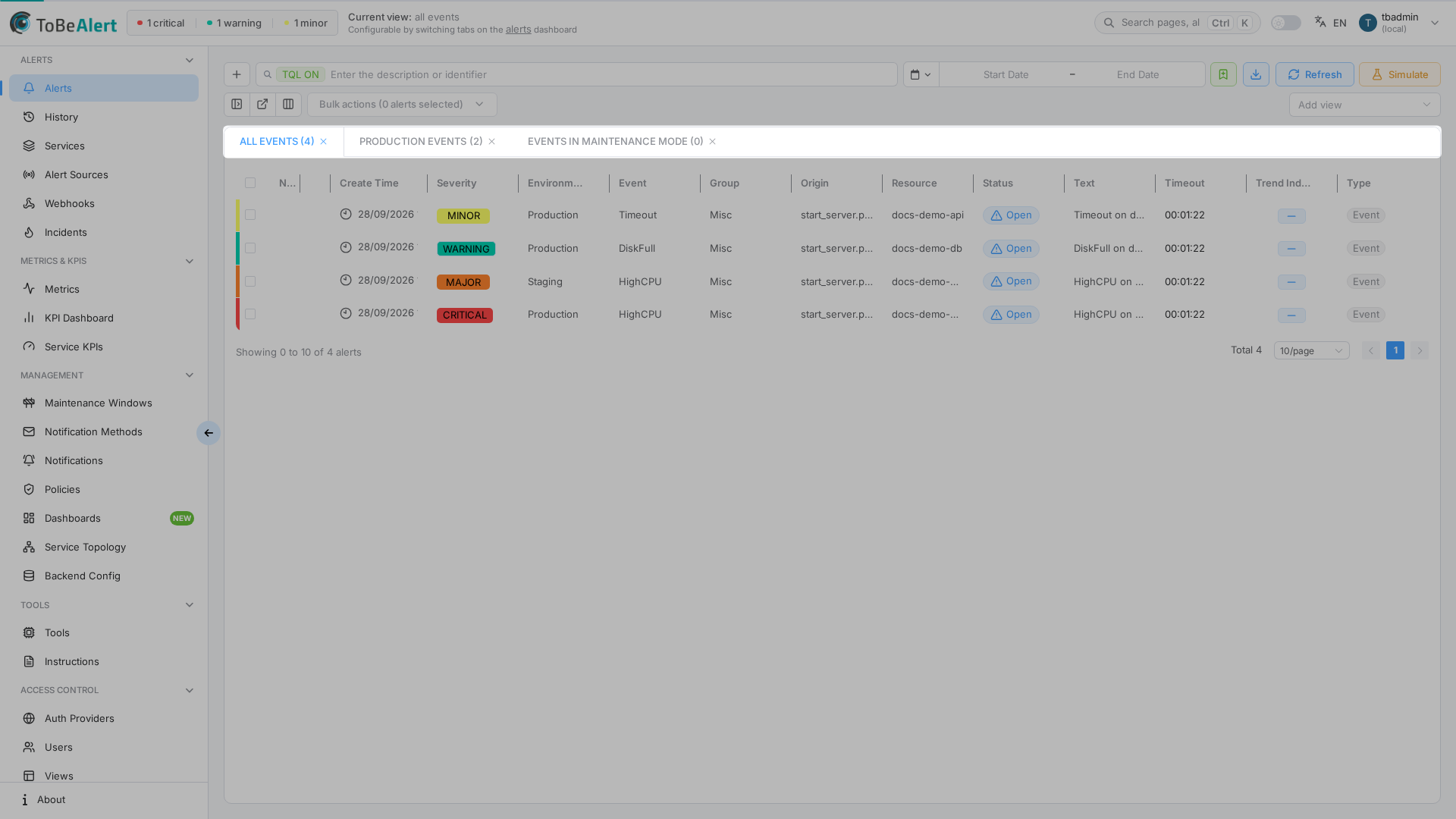
Click a tab to switch current view. The alert table refreshes to show only alerts allowed by that view’s Alerts Query.
Add view (toolbar)
There is no “+” control on the tab bar. To open another assigned view as a tab, use the Add view dropdown on the right side of the dashboard toolbar (above the alert table):
- Open the Add view select.
- Choose a view from the list (views available to you — directly, via role, or All users — that are not already open as tabs).
- The new tab appears and becomes active.
Creating or assigning views is done under Access Control → Views (or Allowed views on a role), not from this dropdown.
Views vs sidebar filters
| Layer | What it does | Where |
|---|---|---|
| View | Access boundary — which alerts you may see at all | Dashboard tabs (from Access Control views) |
| Sidebar filters | Optional narrowing (severity, status, time range, custom filters) | Filters panel on the dashboard |
| TQL search | Table search within the current view + filters | Dashboard toolbar |
Example: a user with view Production events sees production open/critical alerts. Adding a sidebar filter for severity = critical further limits the table without changing their access scope.
Saved default filters in user settings apply on top of the active view; they do not replace view assignment.
Built-in All events tab
The All events view shows every alert (SELECT * FROM Alerts). Users with this view still benefit from sidebar filters and TQL for day-to-day work.
External and compressed dashboard
The external dashboard route (/dash/external) keeps the same view scoping. Toolbar actions such as opening an external window or compressing the layout do not change which alerts the view allows.
If a tab disappears
When an administrator removes a view from your user, or removes a role that granted it, the tab is removed on the next sync. The dashboard selects another assigned tab if one remains; otherwise you may see No default view found. Contact an administrator to assign a view.
Best practices
- Pick the right tab first — operational work usually starts with the narrowest view (team/environment), not All events.
- Use filters for shifts — time range and severity filters are ideal for temporary focus within a view.
- Do not confuse saved filters with views — filters personalize the table; views require an admin under Access Control.
- Reorder tabs to match your most-used views on the left.
- Watch tab counts after incidents — a sudden zero may mean an overly strict view query or filters.