KPI dashboard
Route: /kpi-dashboard
See also: Overview · Viewing KPI alerts · Service KPIs
The KPI Dashboard shows calculated uptime for every active KPI you can access. Use summary cards and toolbar filters to focus on services or groups that need attention, then open individual KPI cards or table rows for details.
Summary cards
Four cards appear at the top of the page:
| Card | Description | Interaction |
|---|---|---|
| Total KPIs | Count of all KPIs you can access | Click to toggle a status filter (All KPIs ↔ show all) |
| Meeting Target | KPIs whose current uptime meets the configured target | Click to filter the list to KPIs meeting target; click again to clear |
| Below Target | KPIs below target | Click to filter to KPIs below target; click again to clear |
| Services | Number of distinct services represented in the dashboard | Display only — not clickable |
Active filter cards show a highlighted border. The Filter by status dropdown stays in sync with card clicks.
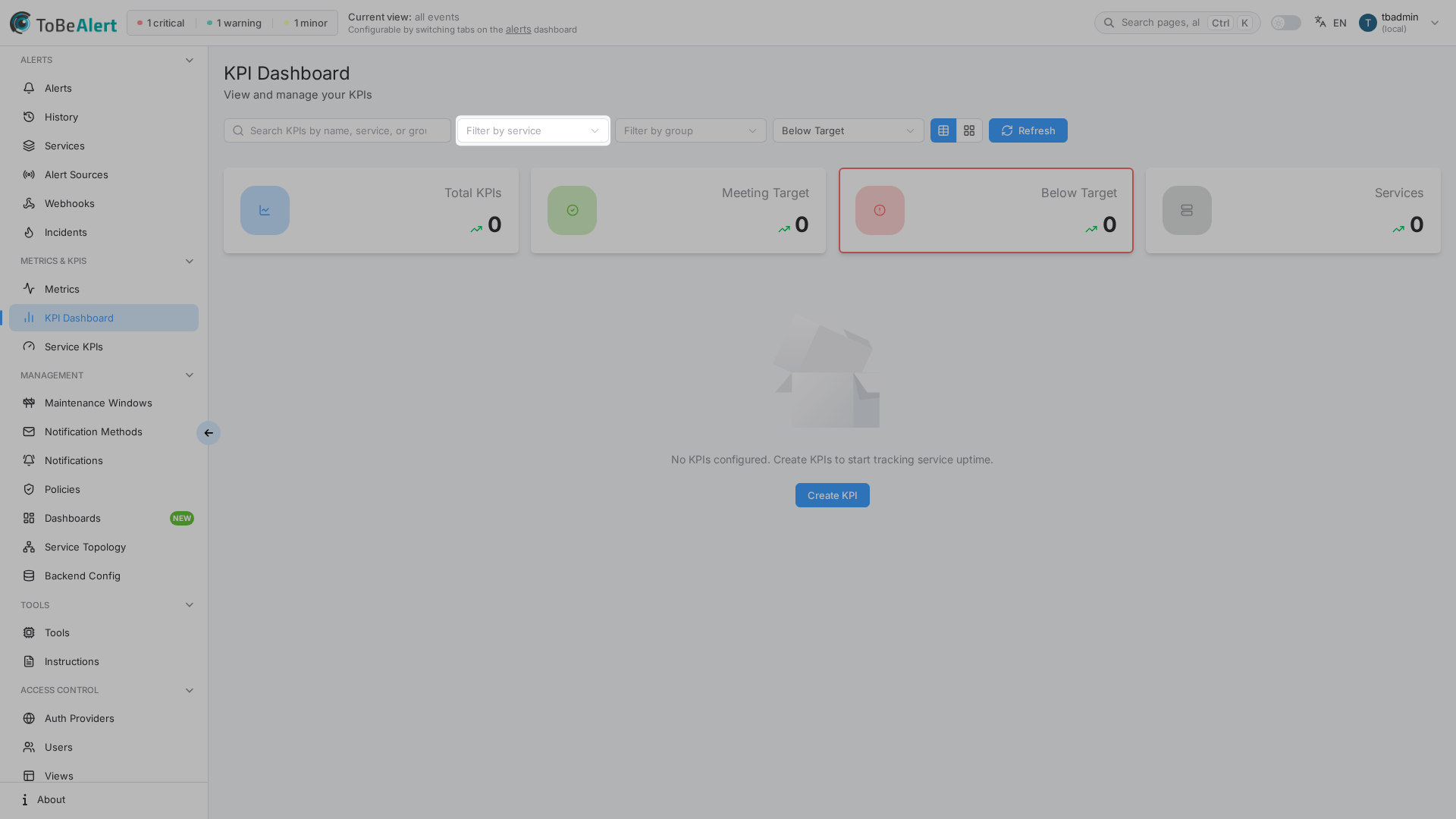
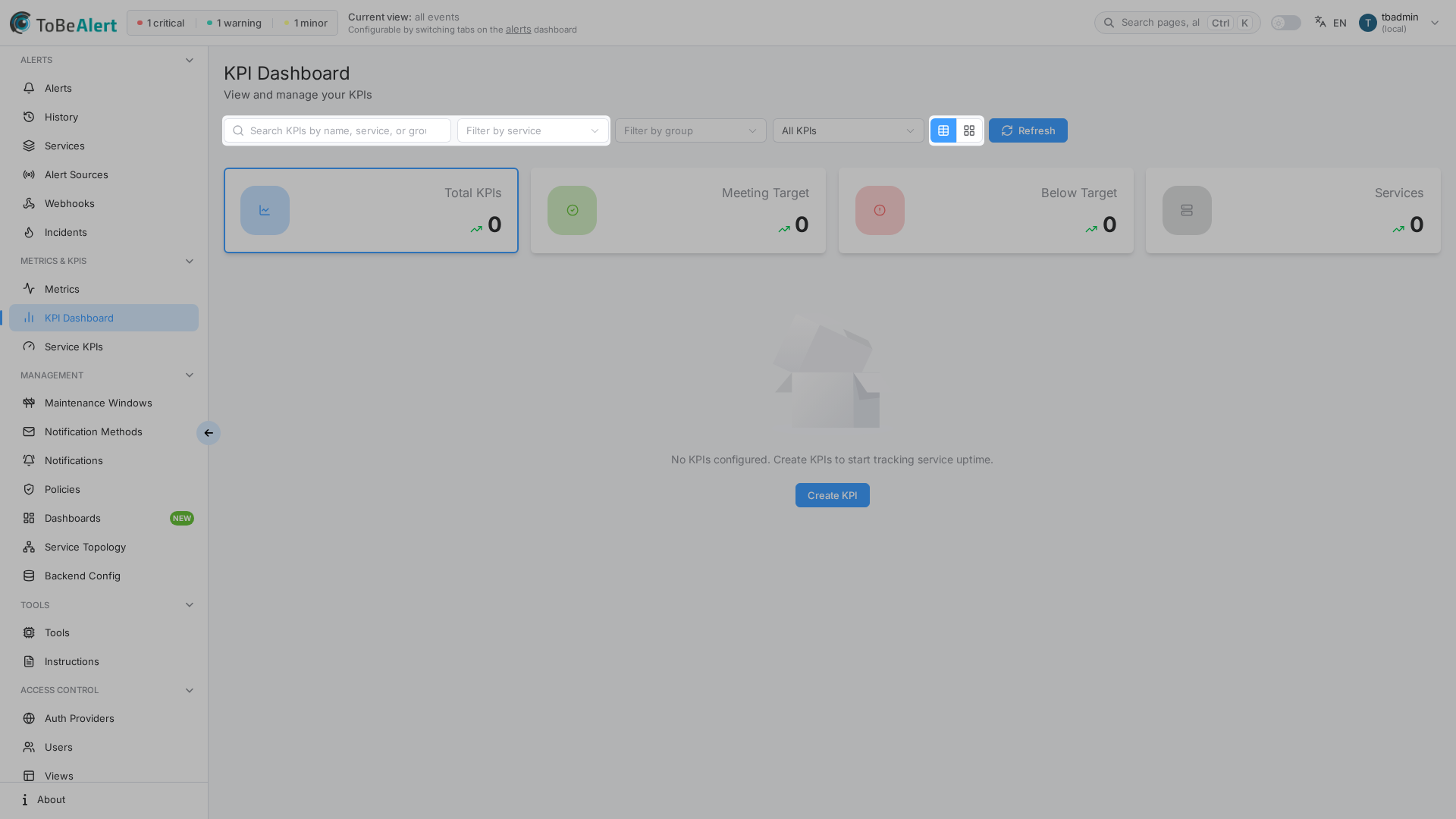
Toolbar: search, filters, and view modes
| Control | Description |
|---|---|
| Search KPIs by name, service, or group | Free-text filter across KPI name, service name, and group names |
| Filter by service | Dropdown of services present in your KPI set |
| Filter by group | Dropdown of KPI groups |
| Filter by status | All KPIs, Meeting Target, or Below Target |
| Table / Cards toggle | Switch between grouped table and cards layout |
| Refresh | Reload dashboard calculations |
Search and dropdown filters combine (logical AND). If nothing matches, the page shows No KPIs match the current filters with Clear Filters.
Cards view
KPIs are grouped by KPI group name. Each group header shows the group name and a count tag (for example 3 KPI(s)). KPIs without a group appear under Ungrouped.
Each KPI card shows:
| Area | Content |
|---|---|
| Header | KPI name and service tag |
| Meta | Date range preset used for the calculation (for example Last 7 days, This year) |
| Stats | Target (%), Alerts count, Method (Time Based or Count Based) |
| Uptime panel | Current Uptime (%), color-coded by thresholds, and Meets Target / Below Target status |
| Thresholds | Visual list of Current Uptime, Target, and configured Warning / Critical thresholds |
| Actions | View Alerts when the KPI has alerts and calculation succeeded (see Viewing KPI alerts) |
If calculation fails for a KPI, the card shows Error instead of a percentage.
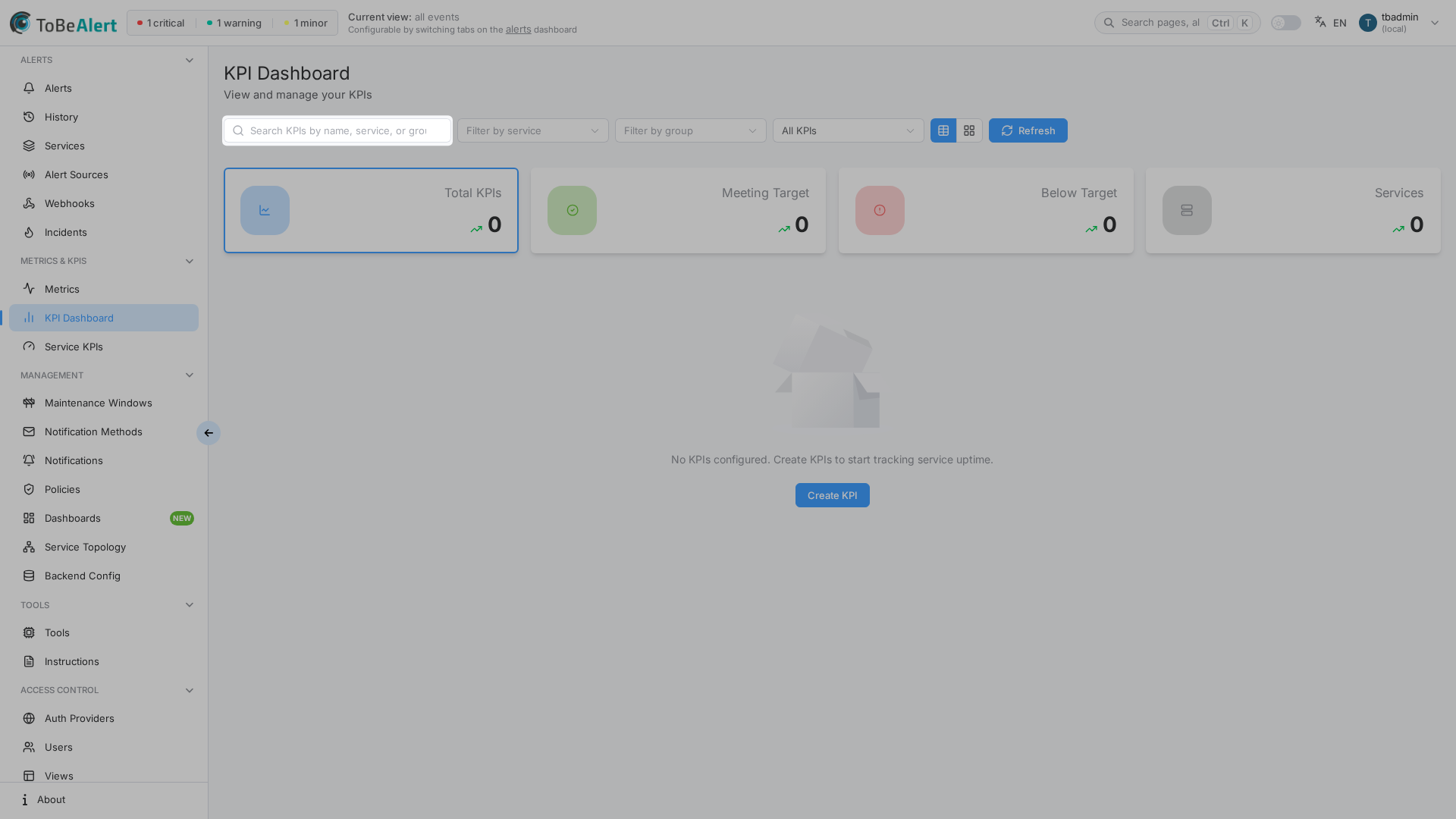
Table view
Click the table icon in the toolbar to switch layout. The table lists KPI groups as top-level rows:
| Column | Description |
|---|---|
| Group | Group name (or Ungrouped) |
| Total KPIs | KPI count in the group |
| Meeting Target | Count meeting target |
| Below Target | Count below target |
Expand a group row to see KPIs with columns for KPI Name, Service, Date Range, Alerts, Method, Current Value, Target Value, Warning, Critical, Status, and Actions.
Row Actions:
| Button | Purpose |
|---|---|
| Eye (view) | Open the KPI in Service KPIs (read-only detail) |
| Edit | Open the KPI editor in Service KPIs |
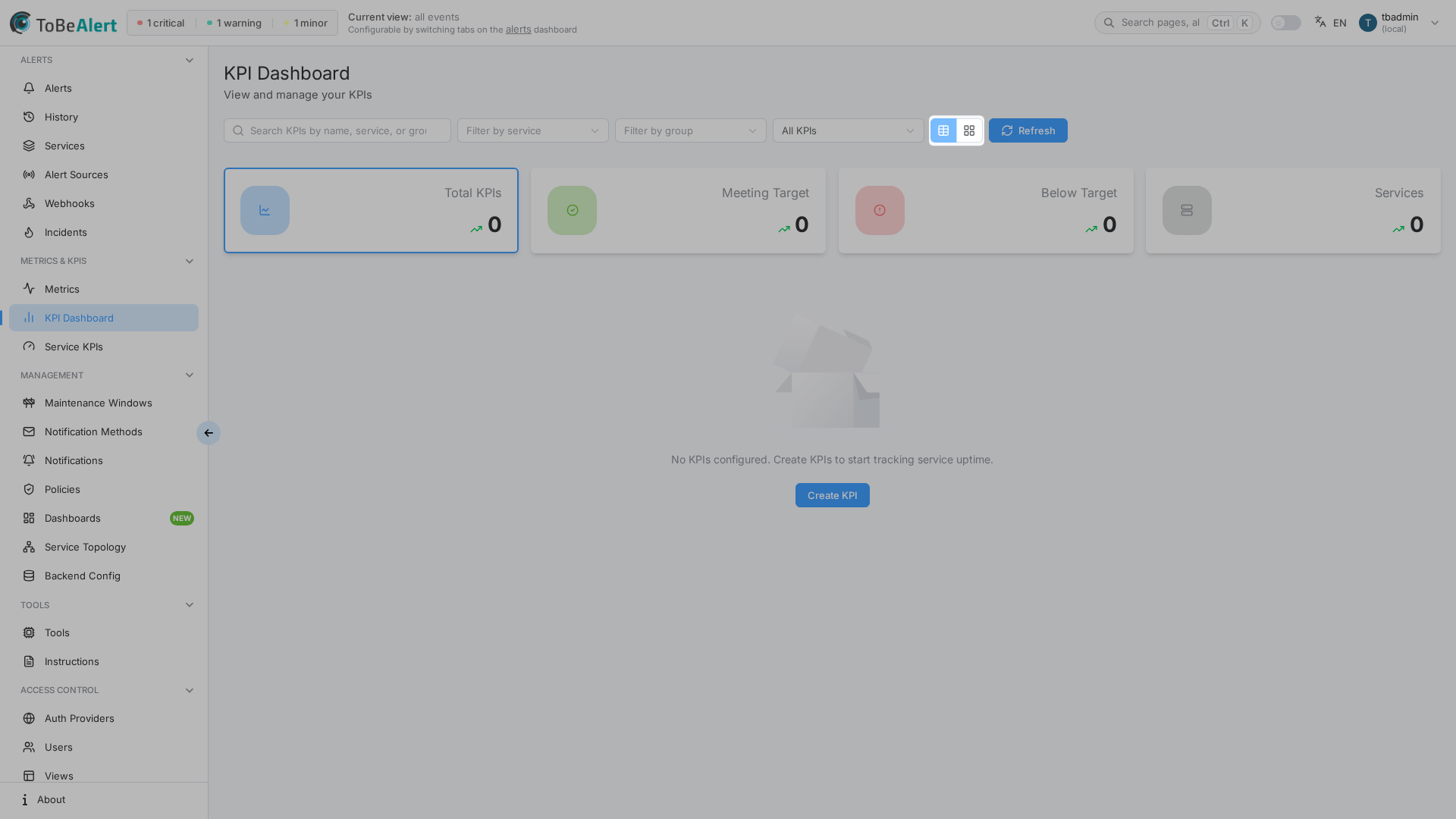
Empty and no-access states
| State | What you see |
|---|---|
| No KPIs configured | No KPIs configured. Create KPIs to start tracking service uptime. with Create KPI (requires write:kpis) — navigates to Service KPIs |
| No KPIs visible for your role | No KPIs found or you don't have access to view them. — check Allowed KPI Groups (All (Full Access), named groups, or empty for ungrouped KPIs only) |
| Filters exclude all KPIs | No KPIs match the current filters. with Clear Filters |
Create and edit KPIs
The dashboard is read-only for KPI configuration. To add or change KPIs:
- Click Create KPI on the empty state, or open Metrics & KPIs → Service KPIs.
- Define the KPI in Service KPIs (service, filters, target, groups, thresholds).
- Return to KPIs (
/kpi-dashboard) and click Refresh.
See Service KPIs for the full create and edit workflow.
Best practices
- Start with summary cards to see how many KPIs are below target before drilling into groups.
- Combine service and group filters when many teams share the same dashboard.
- Prefer cards view for threshold colors and View Alerts; use table view for side-by-side numeric comparison.
- Use Refresh after maintenance windows end or large alert batches close — uptime presets are fixed per KPI but values change with alert data.
- Keep group names consistent in Service KPIs so filters and table grouping stay predictable.