Current alerts metrics
Route: /metrics (header mode Current Alerts)
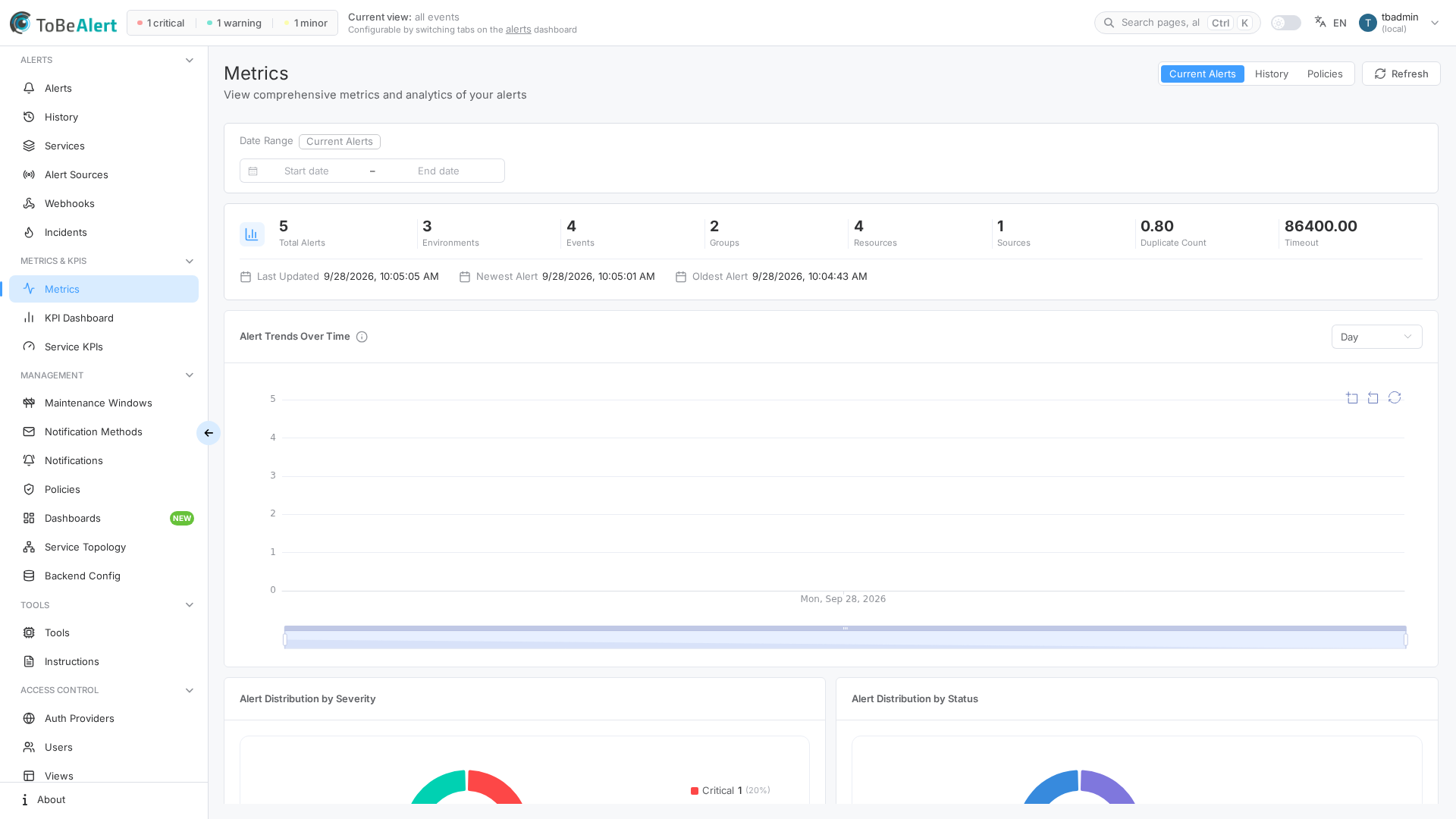
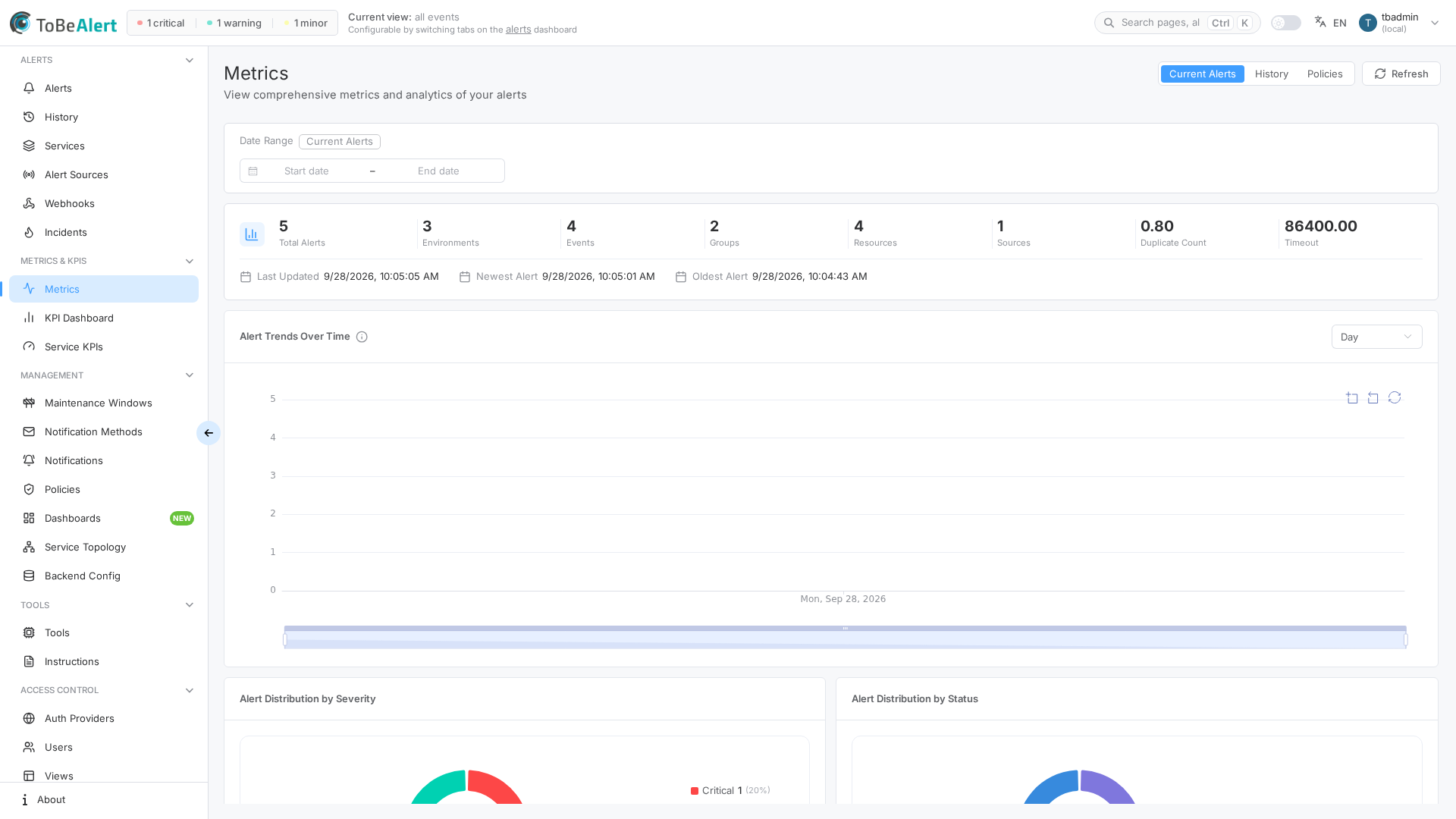
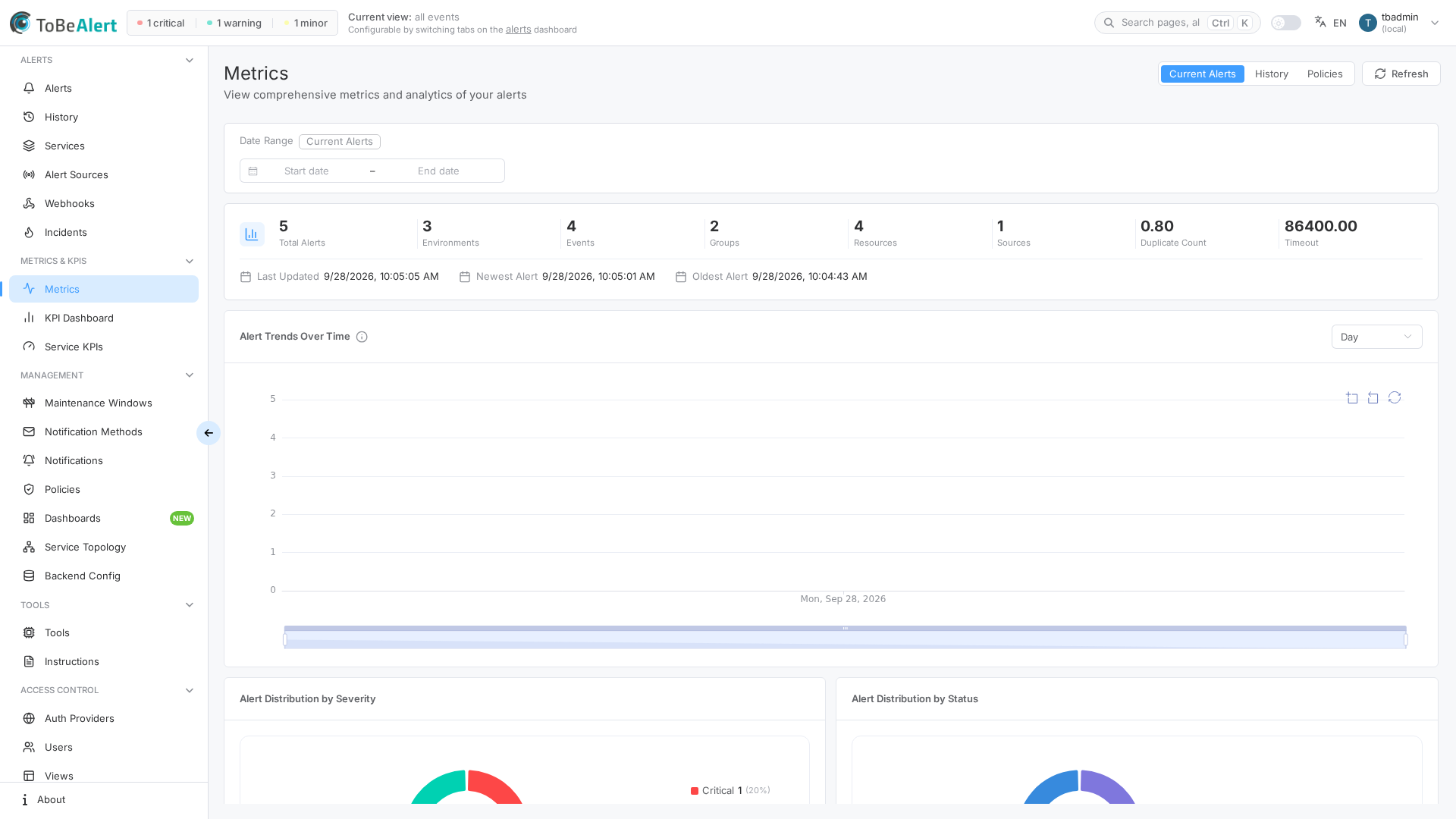
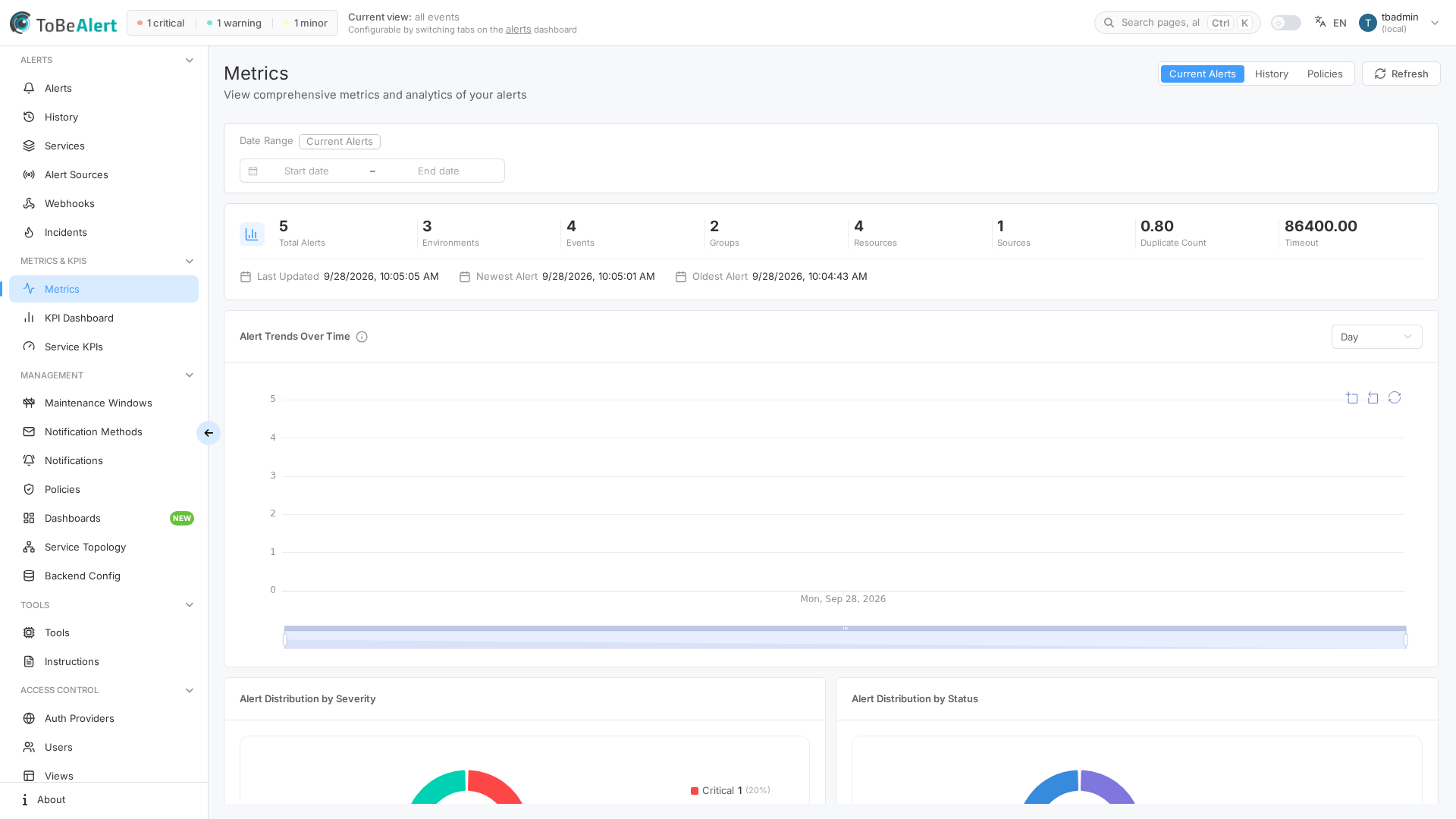
Current Alerts summarizes open alerts on a single scrollable page: KPI cards, an interactive trends chart, donut charts, horizontal bar charts, and a Flapping Alerts list all appear together (no separate sub-tabs). Switch modes with the header segmented control; use Refresh to reload.
See also: Overview · Historical metrics
Page sections
Scrolling down the Current Alerts mode shows, in order:
| Section | What it shows |
|---|---|
| KPI cards | Total open alerts, unique dimension counts, averages, and time range |
| Alert Trends Over Time | Interactive line chart of alert counts, groupable by Hour/Day/Week/Month |
| Distributions | Donut charts by severity and status |
| Top List | Top-N bar charts by source, environment, service, resource, event, and group |
| Flapping Alerts | Table of open alerts with flapping trend |
A Date Range control at the top (default label Current Alerts) and a Show Top selector (10, 20, 50, 100) above the bar charts affect the whole page. Highest first / Lowest first toggles sort order, and 2 columns / 3 columns changes the bar-chart grid layout.
KPI cards
The top of the page shows:
| Section | Content |
|---|---|
| Total Alerts | Count of open alerts |
| Overview cards | Unique Environments, Sources, Resources, Events, and Groups |
| Averages | Mean Duplicate Count and Timeout across open alerts |
| Time Range | Oldest Alert, Newest Alert, and Last Updated timestamps |
Alert Trends Over Time
Below the KPI cards, an interactive line chart plots alert counts over time, bucketed by a group-by selector:
| Group by | Buckets trends by |
|---|---|
| Hour | One-hour windows |
| Day | Calendar days |
| Week | Seven-day windows |
| Month | Calendar months |
The chart is interactive rather than a static table:
| Interaction | Effect |
|---|---|
| Drag on the chart | Filters the KPI cards, donuts, and bar charts below to the selected time window |
| Shift + drag | Pans horizontally along the timeline without changing the filter |
| Mouse wheel | Zooms the chart view only (does not change the filter) |
| Bottom slider | Also sets the filtered range |
Distributions
Two donut charts below the trends chart:
| Chart | Description |
|---|---|
| Alert Distribution by Severity | Share of open alerts per severity |
| Alert Distribution by Status | Share of open alerts per status |
Hover a segment to see the count (tooltip suffix alerts).
Top List
Horizontal bar charts titled Top 10 alerts by dimension (count follows the Show Top selector: 10, 20, 50, or 100):
| Chart title | Dimension |
|---|---|
| Top 10 alerts by Source | Alert source |
| Top 10 alerts by Environment | Environment |
| Top 10 alerts by Service | Service |
| Top 10 alerts by Resource | Resource |
| Top 10 alerts by Event | Event |
Highest first / Lowest first control sort order; 2 columns / 3 columns control the chart grid layout. Values appear on the bars.
Flapping Alerts
Lists open alerts whose trend indicator is flapping — alerts that change severity or status repeatedly. The header shows Total flapping count.
| Column | Description |
|---|---|
| Alert ID | Alert identifier |
| Resource | Resource name |
| Event | Event type |
| Environment | Environment |
| Severity | Current severity (tag) |
| Status | Current status (tag) |
Refresh data
- Open Metrics & KPIs → Metrics.
- Stay on Current Alerts.
- Click Refresh in the page header.
The page caches its data until you refresh, change the drag-filtered range, or navigate away and back.
Best practices
- Scan the KPI cards daily for a quick health snapshot before stand-ups.
- Pair Distributions with Top List — charts show shape; bar charts name the top offenders.
- Investigate Flapping Alerts before escalating — they often indicate duplicate ingest or unstable upstream checks.
- Pick the right group-by on the trends chart — Hour for incidents, Day or Week for capacity planning.
- Refresh after bulk closes or imports so totals match the dashboard.