Custom tools integration
Overview
ToBeAlert's Custom Tools feature provides a powerful way to extend the platform's functionality through custom scripts and integrations. This feature allows you to automate alert processing, connect with external systems, and implement organization-specific workflows.
Understanding custom tools
What are custom tools?
Custom tools in ToBeAlert are user-defined scripts that can:
- Process alerts programmatically
- Perform automated actions on alerts
- Integrate with external systems
- Implement custom business logic
- Extend ToBeAlert's native capabilities
Supported languages
ToBeAlert supports multiple programming languages for custom tools:
- JavaScript
- Python
- Shell scripts
Creating custom tools
Tool development process
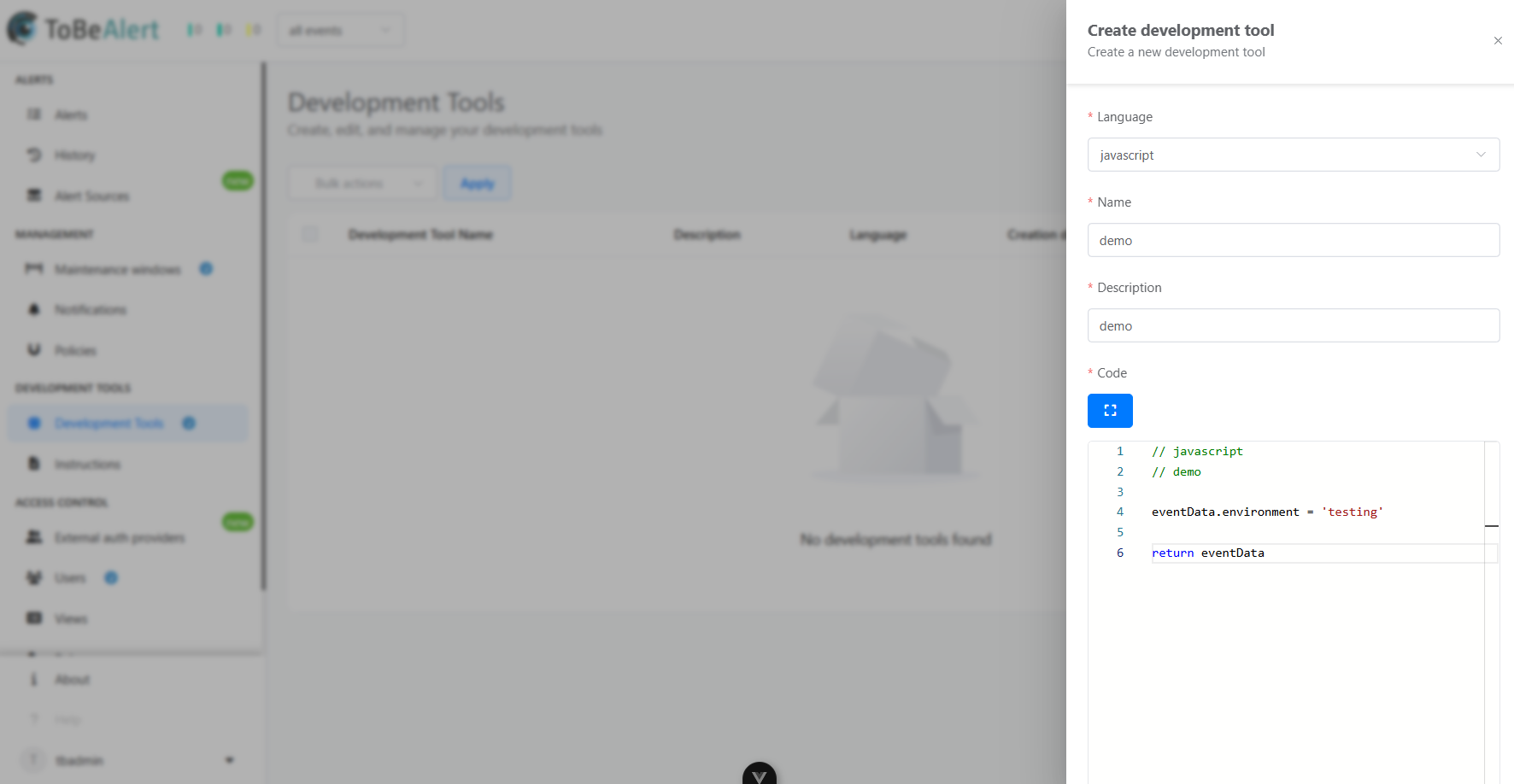
To create a new custom tool:
- Navigate to the development tools view
- Click the "Create development tool" button
- Select the programming language
- Enter a name and description
- Write or paste your code in the editor
- Save the tool configuration
Tool structure
Each tool in ToBeAlert consists of:
| Component | Description |
|---|---|
| Name | A unique identifier for the tool |
| Description | An explanation of what the tool does |
| Language | The programming language used |
| Source Code | The actual code that implements the tool's functionality |
Code editor features
The built-in code editor provides several helpful features:
- Syntax highlighting - Visual cues for code structure
- Auto-completion - Suggestions for code completion
- Error checking - Basic validation of code syntax
- Protected sections - System-defined code that shouldn't be modified
Tool development
Available APIs
When developing custom tools, you have access to:
- Alert object - Complete access to alert properties and methods
- System API - Functions for interacting with ToBeAlert
- HTTP client - For making external API calls
- Utility functions - Helper methods for common operations
Example: Basic tool structure
// Tool: Enrich Alert with External Data
// Description: Adds additional context from an external API

r = axios.get("https://get.geojs.io/v1/ip").then((res) => {
  console.log("result", res.data);
});

// eventData returns all values from alert
return eventData.text;
Using custom tools
Execution methods
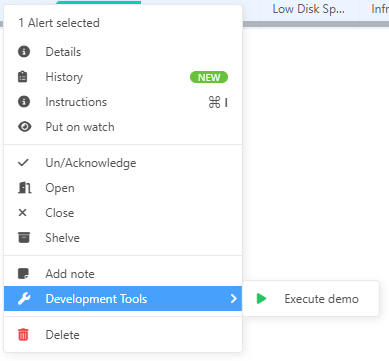
Tools can be executed in several ways:
- Manually - Run a tool on demand from the alert context menu
- Automatically - Configure tools to run based on alert conditions via policies
Tool execution context
When a tool runs, it has access to:
- The complete alert object
- Current user context
- System configuration
- External resources (if configured)
Viewing tool results
After a tool executes:
- Results are displayed in the UI
- Actions are recorded in the alert history
- Any errors are logged for troubleshooting
- Alert changes are immediately visible
Integration examples
External system integration
Connect ToBeAlert with other systems:
// Tool: ServiceNow Ticket Creator
function process(alert) {
  // Create ticket in ServiceNow
  const ticketId = createServiceNowTicket(alert);

  // Update alert with ticket reference
  alert.attributes.ticketId = ticketId;
  alert.attributes.ticketUrl = `https://service-now.example.com/ticket/${ticketId}`;

  return {
    success: true,
    message: `ServiceNow ticket ${ticketId} created`,
  };
}

// Call the function with alert data
process(eventData);
Alert enrichment
Add additional context to alerts:
// Tool: GeoIP Enrichment
function process(alert) {
  // Extract IP from alert
  const ip = extractIpFromAlert(alert);

  // Get location data
  const geoData = lookupGeoIp(ip);

  // Add to alert attributes
  alert.attributes.location = geoData.city + ", " + geoData.country;
  alert.attributes.coordinates = [geoData.longitude, geoData.latitude];

  return {
    success: true,
    message: "Alert enriched with location data",
  };
}

// Call the function with alert data
process(eventData);
Security considerations
When developing tools, keep these security considerations in mind:
- Tools run with system privileges and can access sensitive data
- Validate and sanitize any external inputs
- Be cautious with external API calls and authentication
- Follow the principle of least privilege in your code
- Regularly review and update tools to address security concerns
Best practices
For effective tool development:
- Keep tools focused - Each tool should have a specific purpose
- Add error handling - Account for potential failures and edge cases
- Document your code - Include comments explaining the logic
- Test thoroughly - Verify tool behavior with different alert types
- Consider performance - Optimize for efficiency with large alert volumes
- Version control - Maintain tool code in a version control system
- Peer review - Have colleagues review tool code before deployment