LDAP provider
Route: /external-providers/ldap/new (create) · /external-providers/ldap/<id> (edit)
An LDAP provider authenticates users against a directory service (for example Active Directory or OpenLDAP), adds a login button on the sign-in page, and supports Sync Users to import directory accounts into ToBeAlert with optional view and role assignments.
See also: Overview · SAML provider
Configuration overview
Configuration is a four-step wizard on a full-page editor. Each connection step must pass its test before the next section unlocks. A progress panel on the right shows Server connection, Directory bind, User search, and Attribute mapping.
| Step | Section | Test button | Unlocks |
|---|---|---|---|
| 1 | General settings + server | Try connection | Step 2 |
| 2 | Directory bind | Test User | Step 3 |
| 3 | User search | Search Users | Step 4 |
| 4 | Attribute and group mappings | — (save from header) | Enable + sync |
If you change fields in a step that already passed its test, the UI shows Test pending until you run that step’s test again. Do not enable the provider until all required steps are verified.
The SAML provider uses a single-page editor with grouped cards instead of a stepped wizard. Connection tests and mappings follow the same general pattern but are not gated step-by-step.
Create an LDAP provider
- Open Access Control → External Providers (
/external-providers). - Click Create external auth provider → Configure LDAP.
- On General settings, enter connection details and optional login button branding, then click Try connection.
- Complete Directory bind and click Test User.
- Complete User search and click Search Users (at least one user must be found).
- On Attribute mappings, map Login and Name (required), then optional email and group mappings.
- Optional: add Group and role mappings for directory groups.
- Click Create in the page header (available on step 4 after prior steps succeed).
After creation you return to the provider list. Open the provider again to enable it, adjust mappings, or run Sync Users.
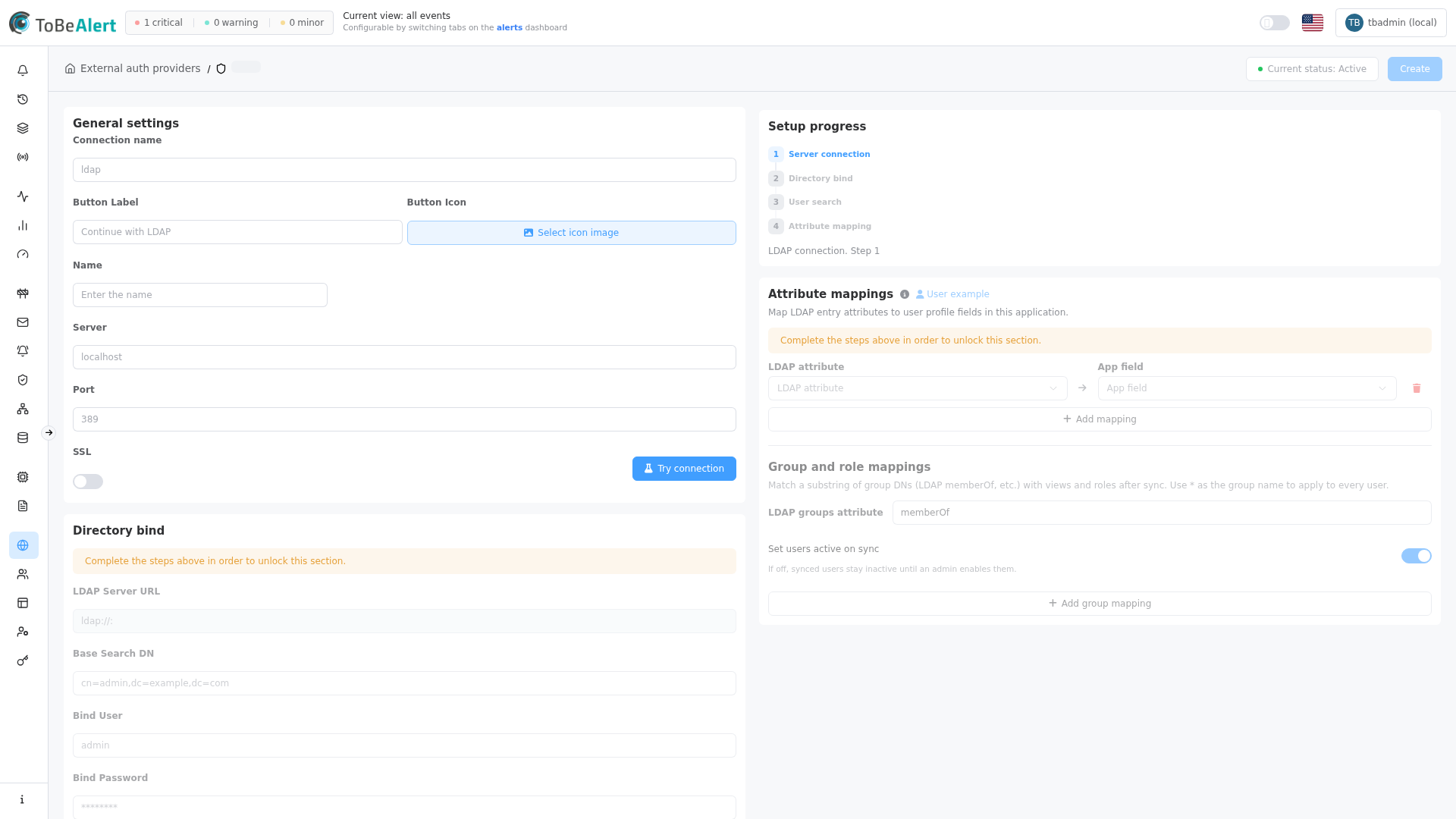
General settings
Step 1 of the wizard. Server fields and login button branding live in the same card.
| Field | Description |
|---|---|
| Connection name | Internal label for this LDAP integration |
| Button Label | Text on the login button (default placeholder: Continue with LDAP) |
| Button Icon | Optional image (max 2 MB) shown beside the label on the login button |
| Name | Provider display name in lists and breadcrumbs |
| Server | LDAP host name or IP address |
| Port | LDAP port (commonly 389 plain/STARTTLS, 636 SSL) |
| SSL | Encrypt the connection with SSL/TLS |
Login button branding
Button Label and Button Icon control how this provider appears on the sign-in page:
| Control | Description |
|---|---|
| Button Label | Short text users click to start LDAP sign-in (for example Continue with LDAP or your company name) |
| Button Icon | Optional logo or icon (max 2 MB, image formats). Click Select icon image to upload; after upload the preview shows Icon ready to use. Click the preview or Remove to change or clear it |
If you leave Button Label empty, the placeholder Continue with LDAP is shown. If you omit Button Icon, the button shows label text only.
Directory connection
Directory bind
Unlocked after Try connection succeeds.
| Field | Description |
|---|---|
| LDAP Server URL | Read-only URI built from server and port |
| Base Search DN | Distinguished name where searches start (pre-filled from the server response when available) |
| Bind User | Service account user name for LDAP bind |
| Bind Password | Password for the bind account (masked on edit; leave unchanged to keep existing) |
| Bind DN | Read-only full DN (cn=<Bind User>,<Base Search DN>) |
User search
Unlocked after Test User succeeds.
| Field | Description |
|---|---|
| User DN Search Base | Starting DN for user entry searches (autocomplete from directory bind) |
| User Search Filter | LDAP filter (for example (objectClass=person)) |
| User DN Pattern | Optional pattern to build a user DN directly |
Test connection
Each wizard step has its own test. Run them in order before saving or enabling the provider.
| Step | Button | Success criteria |
|---|---|---|
| General settings + server | Try connection | Server is reachable; wizard advances to directory bind |
| Directory bind | Test User | Bind credentials are valid; user search bases are suggested |
| User search | Search Users | At least one directory user is returned (otherwise No users found) |
Re-run the relevant test if you change connection, bind, or search settings and the UI shows Test pending.
On step 4, use User example (after a successful search) to inspect sample attribute names from the directory before finalizing mappings.
Attribute mappings
Map LDAP attribute (left) to App field (right):
| App field | Purpose |
|---|---|
| Login | Required — unique sign-in identifier |
| Name | Required — display name |
| Optional contact address | |
| Description | Optional profile text |
Click Add mapping for additional rows. Login and Name are required before Create or Update configuration.
Group and role mappings
Optional rules applied after Sync Users (LDAP does not assign groups on every login).
| Field / control | Description |
|---|---|
| LDAP groups attribute | Attribute holding group membership (default memberOf) |
| Set users active on sync | When off, synced users stay inactive until an admin enables them |
| LDAP group (substring in DN) | Match a substring of group DNs (use * for all users) |
| Assign views | Views granted when the group matches |
| Assign roles | Roles granted when the group matches |
Click Add group mapping for more rules.
SAML applies group mappings when users sign in through SSO, based on the Groups attribute mapping. LDAP requires Sync Users on the provider list to import accounts and apply group rules.
Security settings
LDAP providers do not expose SAML-style signature toggles. Use SSL on step 1 and restrict bind account permissions in your directory instead.
Edit, enable, and sync
From the provider list or editor header:
| Action | Description |
|---|---|
| Current status / status toggle | Enable or disable the provider |
| Update configuration | Save changes on step 4 (header button) |
| Sync Users (list row) | Import or refresh LDAP users for this provider |
Re-run step tests if you change connection, bind, or search settings.
Best practices
- Use a dedicated bind account with read-only access to the user subtree — not personal admin credentials.
- Prefer SSL for production directories; verify firewall paths for the chosen port.
- Customize login button branding so users recognize the corporate LDAP option on the sign-in page.
- Narrow User DN Search Base to the OU that contains application users only.
- Inspect User example before finalizing attribute mappings.
- Test login with a non-admin directory account before disabling local login.
- Run Sync Users after changing group mappings so view and role assignments apply to imported accounts.
- Leave Set users active on sync off when you want manual approval of new directory users.