SAML provider
Route: /external-providers/saml/new (create) · /external-providers/saml/<id> (edit)
A SAML provider enables single sign-on through your identity provider (IdP). Users sign in from a button on the login page; ToBeAlert acts as the service provider (SP) and maps assertion attributes to user profiles, views, and roles.
See also: Overview · LDAP provider
Configuration overview
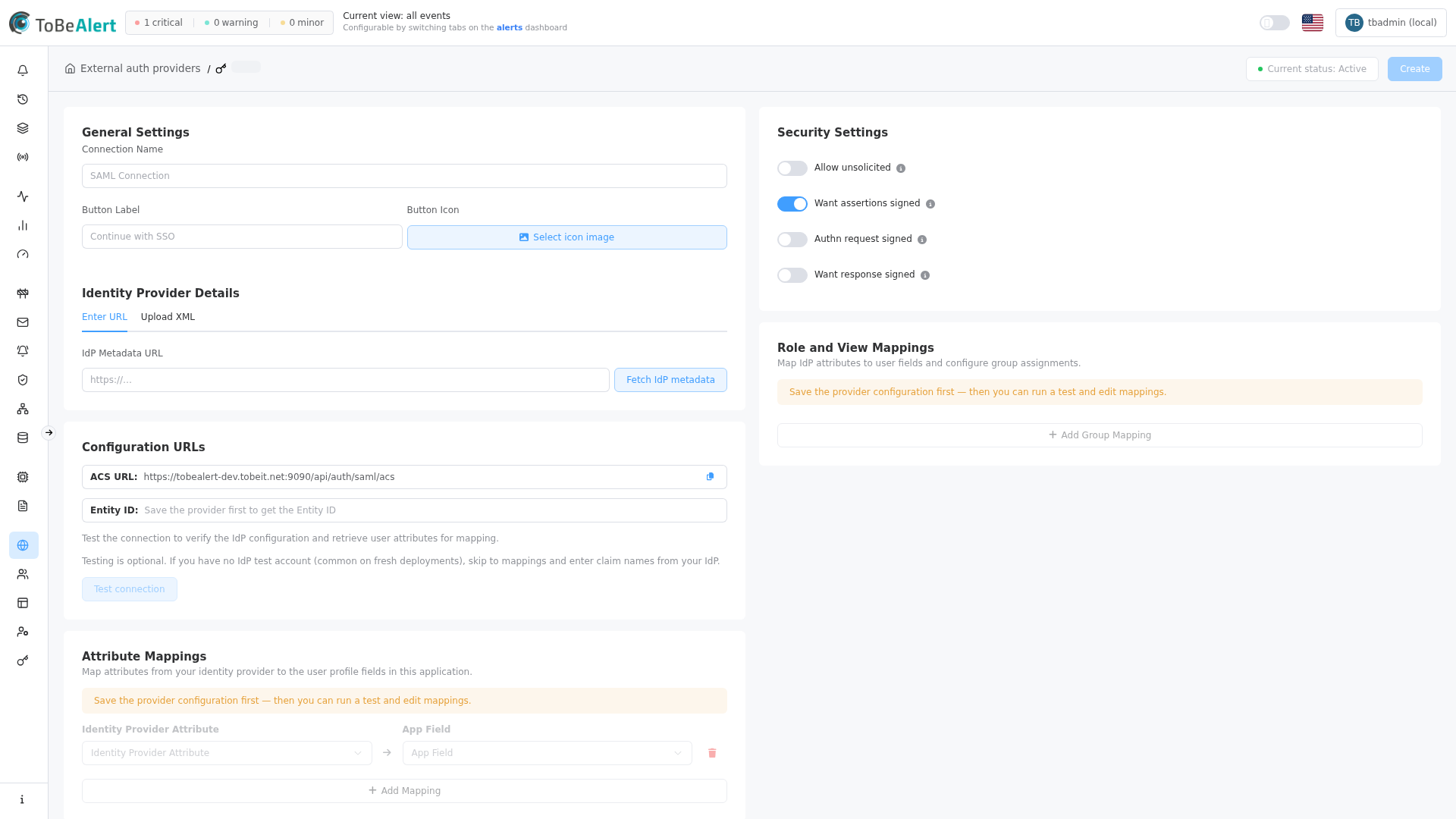
The editor is a single page with grouped cards (not a stepped wizard). All sections are visible; attribute and group mappings unlock after the first save.
| Area | Purpose |
|---|---|
| General settings | Connection name, login button label/icon, IdP metadata |
| Configuration URLs | ACS URL and Entity ID to register in the IdP; optional Test connection |
| Security settings | Signature and unsolicited-response options |
| Attribute mappings | Map IdP claims to Login, Name, Email, Groups |
| Role and view mappings | Map SAML group names to views and roles |
The LDAP provider uses a four-step wizard where each step must pass a connection test before the next unlocks. SAML saves metadata first, then you register SP URLs in the IdP and optionally run Test connection.
Create a SAML provider
- Open Access Control → External Providers (
/external-providers). - Click Create external auth provider → Configure SAML.
- On General settings, enter Connection Name and optional login button branding.
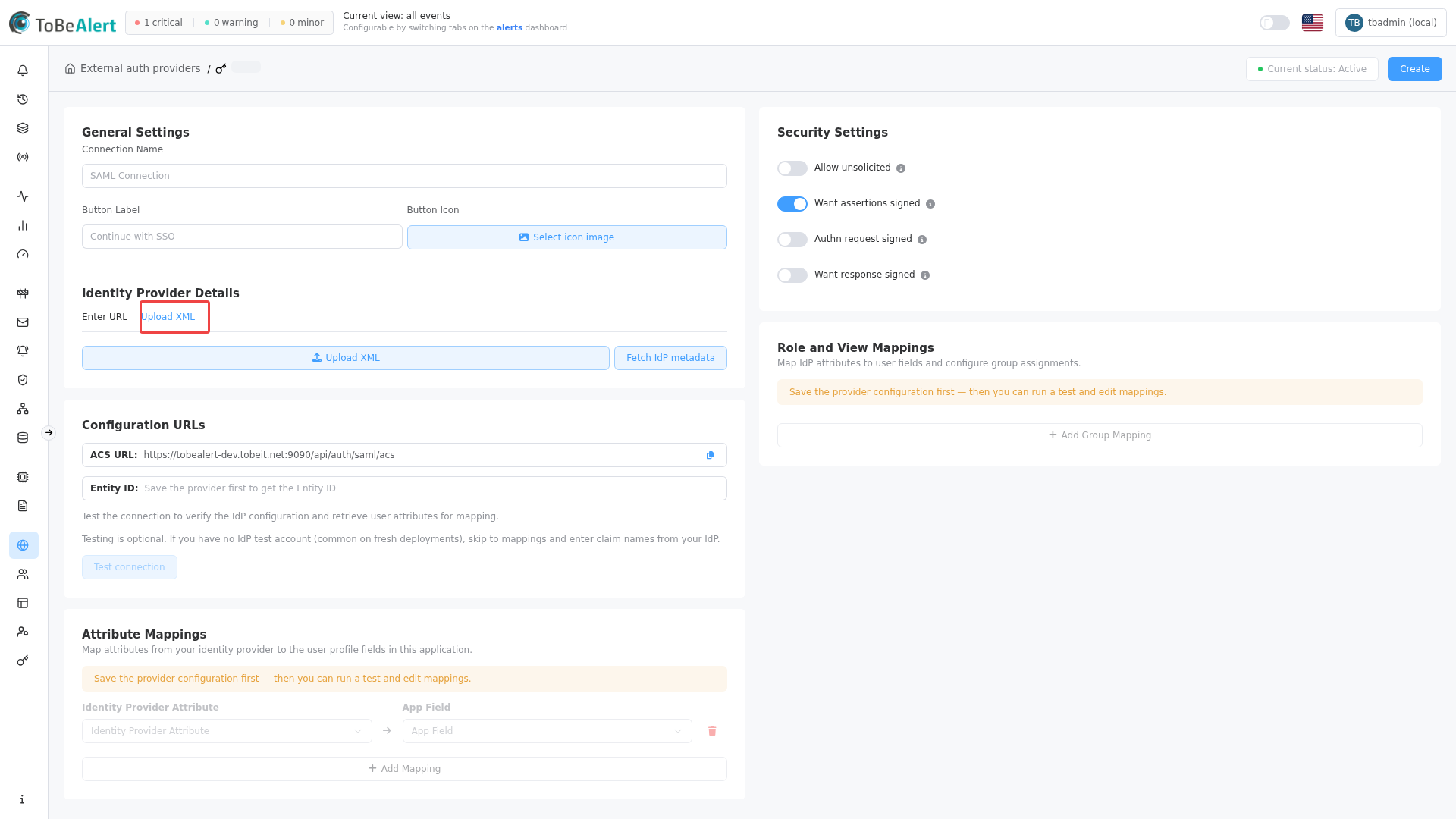
- Under Identity Provider Details, provide metadata using Enter URL or Upload XML, then click Fetch IdP metadata.
- Click Create in the page header to save the provider and generate Entity ID.
- Copy ACS URL and Entity ID from Configuration URLs into your IdP application settings.
- Optional: click Test connection to complete an IdP login and populate attribute suggestions.
- Configure Attribute mappings (at least Login and Name required to enable).
- Optional: add Role and view mappings for SAML groups.
- Click Update configuration, then enable the provider from Current status or the list toggle.
Entity ID appears after the first save. Before save, the field shows Save the provider first to get the Entity ID.
General settings
| Field | Description |
|---|---|
| Connection Name | Internal label (for example Okta prod, Azure AD SSO) |
| Button Label | Login button text (placeholder: Continue with SSO) |
| Button Icon | Optional image (max 2 MB) shown beside the label on the login button |
Login button branding
Button Label and Button Icon control how this provider appears on the sign-in page:
| Control | Description |
|---|---|
| Button Label | Short text users click to start SSO (for example Continue with SSO or your IdP name) |
| Button Icon | Optional logo or icon (max 2 MB, image formats). Click Select icon image to upload; after upload the preview shows Icon ready to use. Click the preview or remove the icon to change or clear it |
If you leave Button Label empty, the placeholder Continue with SSO is shown. If you omit Button Icon, the button shows label text only.
Identity provider setup
Identity Provider Details
Provide IdP metadata before the first Create.
| Tab | Field / action | Description |
|---|---|---|
| Enter URL | IdP Metadata URL | HTTPS URL that returns the IdP SAML metadata document |
| Enter URL | Fetch IdP metadata | Load metadata from the URL |
| Upload XML | Upload XML | Select the IdP metadata file from disk |
| Upload XML | Fetch IdP metadata | Confirm the uploaded XML is ready |
Configuration URLs
After save, register these values in your IdP:
| Value | Description |
|---|---|
| ACS URL | Assertion Consumer Service endpoint ToBeAlert exposes to the IdP |
| Entity ID | SP entity identifier for this provider |
Use the copy buttons beside each field.
Test connection
Test connection is in the Configuration URLs card. It opens the IdP login flow in a new window. When login succeeds, attribute names appear in mapping dropdowns and a Test successfully loaded tag is shown.
Testing is optional — if you lack an IdP test account, enter claim names manually from IdP documentation.
You cannot enable a SAML provider until Login and Name attribute mappings are configured. The list toggle and Current status show an error if mappings are missing.
LDAP runs separate tests per wizard step (Try connection, Test User, Search Users). SAML uses a single optional Test connection after the provider is saved.
Attribute mappings
Map Identity Provider Attribute (left) to App Field (right):
| App field | Purpose |
|---|---|
| Login | Required — unique user identifier |
| Name | Required — display name |
| Optional email address | |
| Groups | Optional groups or roles claim for group mapping |
Click Add Mapping for additional rows. Dropdowns list attributes from the last successful Test connection; you can also type claim names manually.
Group and role mappings
| Field | Description |
|---|---|
| SAML group name | Group name from the IdP (for example Domain Admins) |
| Assign views | Views granted to members of that group |
| Assign roles | Roles granted to members of that group |
Click Add Group Mapping for more rules. Group mappings apply based on the Groups attribute mapping when users sign in through SAML.
LDAP group mappings apply after Sync Users. SAML applies mappings at sign-in when the Groups claim is present in the assertion.
Security settings
| Setting | Description |
|---|---|
| Allow unsolicited | Allow IdP-initiated login without a prior AuthnRequest from ToBeAlert |
| Want assertions signed | Require signed SAML assertions from the IdP |
| Authn request signed | Sign AuthnRequest messages from ToBeAlert; IdP must trust the SP certificate |
| Want response signed | Require signed SAML response envelopes |
Match these toggles to what your IdP supports and your security policy requires.
These toggles are SAML-specific. LDAP providers use SSL on the server connection step instead of assertion signing options.
Edit and enable
| Control | Description |
|---|---|
| Update configuration | Saves changes (enabled when the form differs from last save) |
| Current status | Toggle active/inactive (requires login + name mappings to enable) |
| List Status toggle | Same enable/disable behavior from the provider table |
To change IdP metadata after creation, update the URL or re-upload XML, then Fetch IdP metadata and Update configuration.
Sync Users is available for LDAP providers only. SAML users are created or updated when they sign in through SSO.
Best practices
- Register ACS URL and Entity ID in the IdP immediately after the first save — mismatched URLs are the most common SSO failure.
- Customize login button branding so users recognize the SSO option on the sign-in page.
- Start with Want assertions signed enabled unless the IdP documentation specifies otherwise.
- Run Test connection when possible to avoid guesswork on claim names.
- Use separate providers for production and staging IdP applications.
- Keep local login enabled in Backend Config until SAML login is verified for multiple users.
- Align security toggles with IdP metadata (signed assertions, signed responses, AuthnRequest signing).
- Review role and view mappings with your IdP group naming before enabling for all users.