License setup
After you install ToBeAlert, the UI opens License setup until a valid license is in place. The screen has two modes:
| Mode | When to use | What you provide |
|---|---|---|
| Online | The host can reach the licensing server | Your License Key |
| Offline | Air-gapped or restricted egress | The offline license file from the customer portal |
You can switch modes at any time with the Online / Offline control at the top of the form. You do not need both.
License setup is the first-run screen (before login). You can activate or install without an account only while the UI sends you there: there is no license file yet, or the file does not belong to this machine. After that, License setup is no longer an unauthenticated path.
Later, if a license expires or becomes not active, signed-in users see an in-app overlay instead — see After first run. From then on, activate and install (overlay or any other client) require an admin account. A standard user cannot complete those actions.
Refresh license from cloud (superadmin, About) on an instance that already had a license is not first-run License setup. If the licensing server says the license is expired or not found, the in-session license is invalidated and the same License expired / License not active overlay appears. A timeout or transport error does not invalidate the license.
For the rest of the install, see Docker, Linux, Windows, or Kubernetes.
What you need
- A running ToBeAlert stack (open
BASE_URL— you should land on License setup, not login) - Online: the license key from your subscription
- Offline: access to the ERP customer portal, plus the offline license file downloaded there (treat it like a secret)
If you cannot find the key or the file, contact your account manager or support@tobealert.com.
Online — activate with a license key
- Open the UI (
BASE_URL). You should see License setup. - Leave the mode on Online (default).
- Enter your License Key.
- Click Activate License.
- On success you are redirected to login.
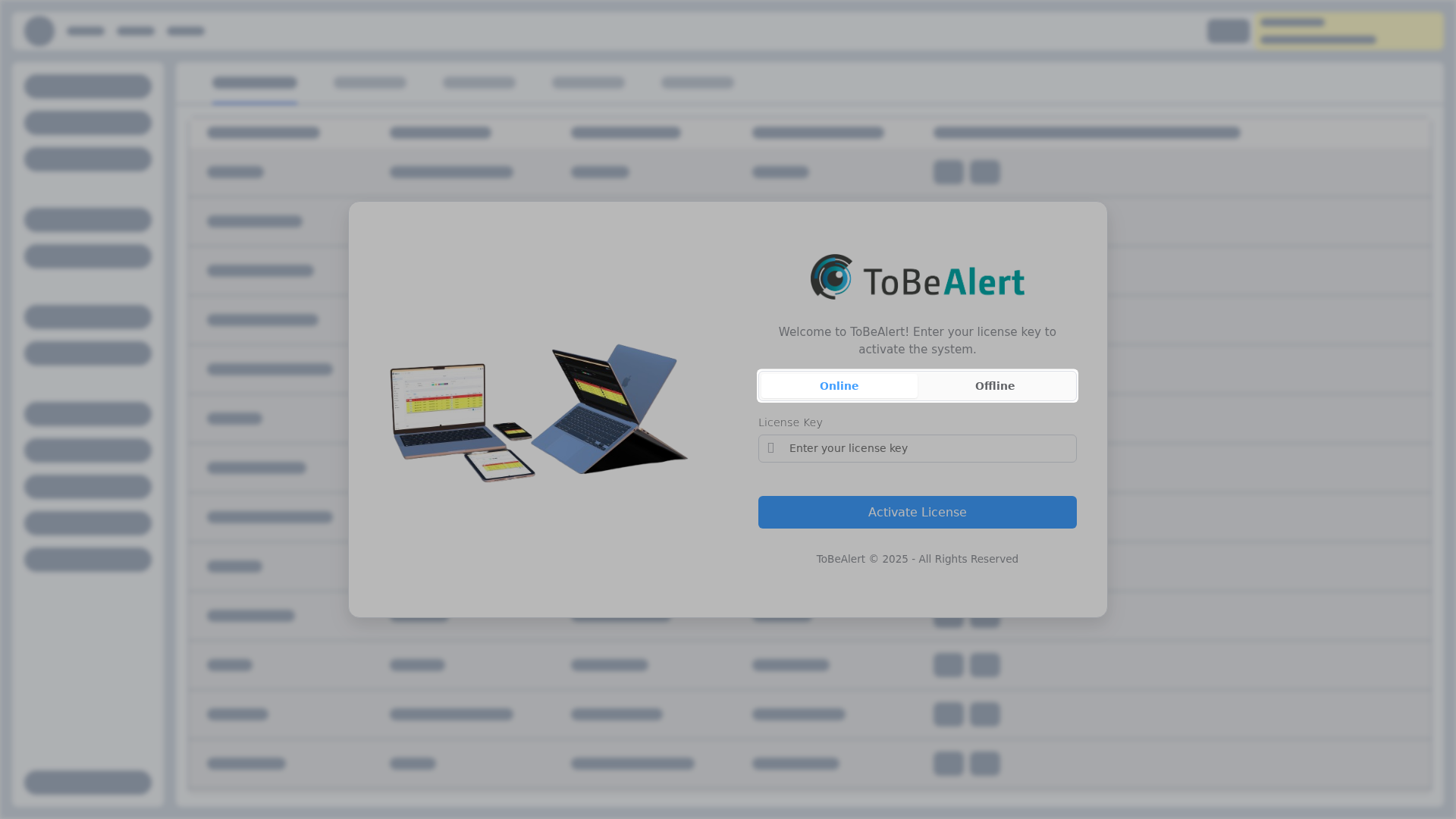
The host must be able to contact the licensing server for this path. If activation fails with a connection error, use Offline instead.
Offline — install a license file
Use this when the instance cannot reach the licensing server.
Download the file
- Sign in to the ERP customer portal for your ToBeAlert account.
- Open your product / licenses and download the offline license file.
- Store it securely. Do not commit it to git or paste it into tickets.
Install from License setup (recommended)
- Open the UI (
BASE_URL). You should see License setup. - Click Offline. The hint changes to explain that this host will not contact the licensing server.
- Click Choose the offline key file and select the file from the portal. The file name appears under the drop area.
- Click Install offline license.
- On success you are redirected to login. You do not need to rename the file to
keyfor this path.
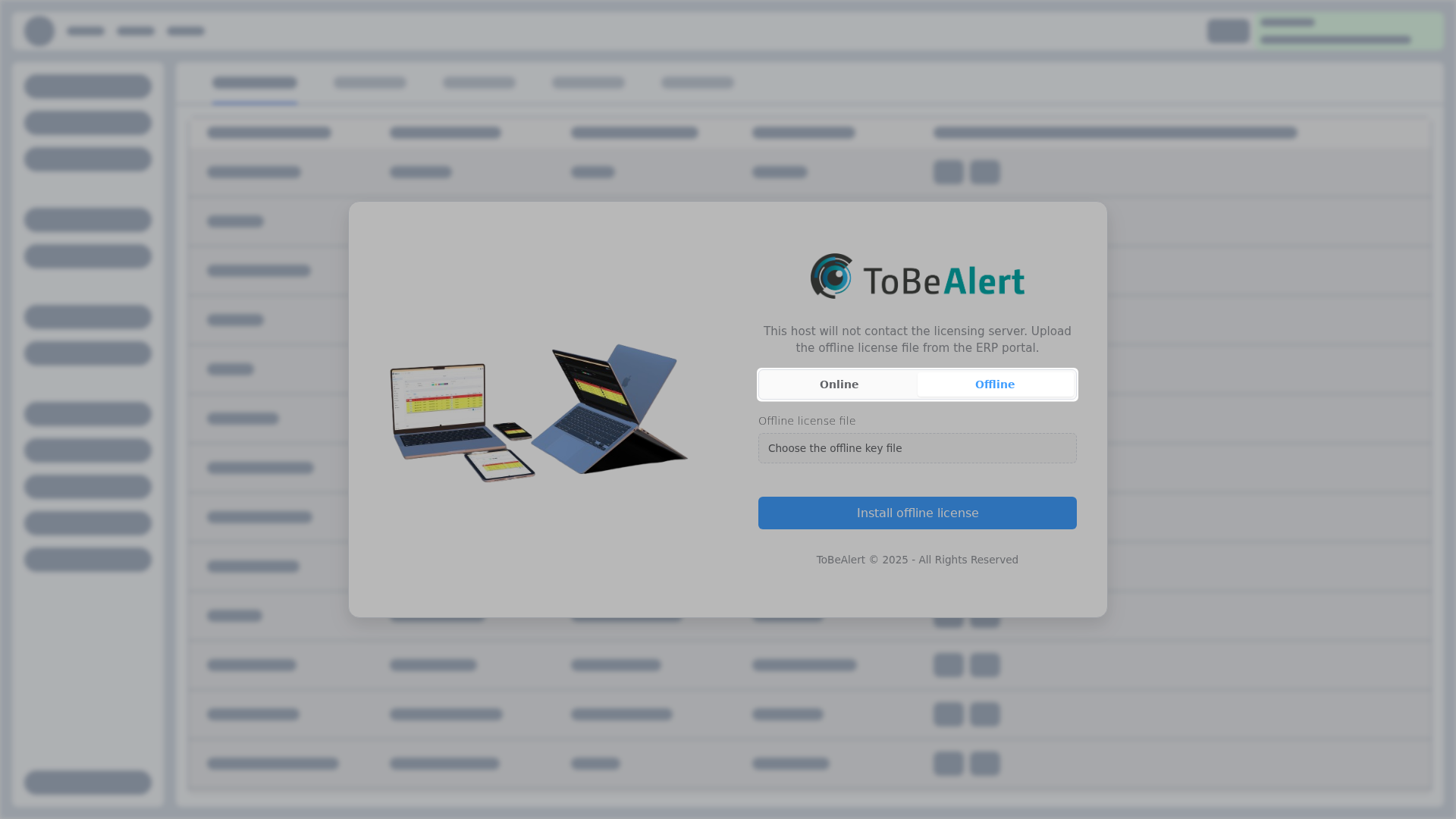
If License setup is not reachable, copy the file onto the backend as below.
Place the file by hand (fallback)
The backend reads a single file at this path inside the container or host:
/tobealert/license/key
That directory is the persistent license volume mounted in Compose and Kubernetes as /tobealert/license.
On disk the file must be named key (no extension). If the portal downloads a different name, rename it to key before or while copying.
Docker Compose
With the stack from the install guides (container name tobealert-backend):
# From the directory that contains your downloaded file (rename to key if needed)
docker cp ./key tobealert-backend:/tobealert/license/key
docker compose restart tobealert-backend
If you prefer Compose’s copy helper (run from $INSTALL_PATH):
docker compose cp ./key tobealert-backend:/tobealert/license/key
docker compose restart tobealert-backend
To install the file before the first start when using a host bind mount for the license directory (instead of the named volume license_data), put key on the host path you mount at /tobealert/license, then start the stack.
Kubernetes
Copy into the running backend pod (adjust namespace and pod name), then restart the deployment so license state reloads:
kubectl cp ./key tobealerta-interno/<backend-pod>:/tobealert/license/key
kubectl rollout restart deployment tobealerta-backend -n tobealerta-interno
If you use a host-path PersistentVolume for license data (as in the Kubernetes guide), you can also place key directly on that host directory (for example /tmp/tobealerta-license/key) and restart the backend pod.
Confirm activation
- Open the UI (
BASE_URL). You should reach login instead of remaining on License setup. - Sign in as a superadmin.
- Open About (sidebar footer) and check License Information:
- Status should be ACTIVE
- Offline License shows whether this instance is using an offline file
After first run — expired or inactive license
Once the instance already had a license and users can sign in, License setup is no longer the path. If the license later expires or is not active, the Web UI shows an overlay after login (same Online / Offline modes as this page). The same overlay appears if a superadmin uses Refresh license from cloud and the licensing server reports the license as expired or not found. The same admin requirement applies if the file is present but unusable (corrupted, invalid, or not active): unauthenticated License setup is not offered.
The server enforces this — not only the overlay. Activate and install after first run are admin only. Signing in as a standard user is not enough.
- Admin users can reactivate there: Online (license key + Activate License) or Offline (ERP portal file + Install offline license). The host does not contact the licensing server in Offline mode.
- Users who are not admin see License expired or License not active and must contact their administrator. They do not get a key field or file upload.
- Superadmin is a different role: About → License Information is for status and maintenance when the license is valid. Overlay reactivation is an admin action. Details: About.
Replace or refresh a license
| Situation | What to do |
|---|---|
| License expired or not active (users can still log in) | Admin: overlay after login — Online or Offline, same as this page. Non-admin: contact an administrator |
| Refresh license from cloud and the licensing server says the license is expired or not found | The in-session license is invalidated. The License expired / License not active overlay appears. An admin reactivates there (Online or Offline). This is not License setup. |
| Refresh license from cloud fails (timeout or cannot reach the licensing server) | Error toast on About. The license is not invalidated. |
| New offline file (renewal, tier change) while the license is still valid | Superadmin → About → Delete License, then install the new file from License setup, or replace /tobealert/license/key and restart the backend |
| New online key while the license is still valid | Superadmin → About → Change License, or Delete License and activate the new key on License setup |
| Temporary internet access to pull cloud updates | Superadmin → About → Refresh license from cloud |
Refresh license from cloud is the only Offline path that contacts the licensing server. Day-to-day validation of an offline file stays local. When that refresh succeeds, License Information on About updates. When the licensing server reports the license as expired or not found, the in-session license is invalidated and the License expired / License not active overlay appears — not License setup. When the refresh cannot reach the licensing server, the license stays as it is.
Troubleshooting
| Symptom | Likely cause |
|---|---|
| License setup still appears | Online: key rejected or licensing server unreachable. Offline: file rejected, missing on disk, not named key (manual copy), or not under /tobealert/license |
| Connection error on Activate License | Host cannot reach the licensing server — switch to Offline |
| Please choose an offline license file | You clicked Install offline license without selecting a file |
| Blackbox error page | Local licensing component not running or not reachable on the backend host |
| License invalid / corrupted | Truncated download, file meant for another product or machine, or file edited by hand |
| Works after copy but fails after recreate | License volume not persisted — check Compose volumes / PVC binding |
Need help? support@tobealert.com.
Related guides
- About — license details and maintenance actions in the UI
- Settings & environment variables — Compose and runtime configuration
- Sending your first event — next step after a valid license