Overview
Roles bundle permissions that control what users can see and do in ToBeAlert, and can grant alert views (Allowed views) to every member. Each user can hold one or more roles. Roles also support automatic assignment through a Match Pattern and manual assignment of specific users.
| Step | What you configure | Menu / route | Documentation |
|---|---|---|---|
| 1 | Built-in roles — review defaults before changing access | Access Control → Roles → /roles | This page |
| 2 | Custom roles — name, permissions, KPI scope, Allowed views | Same | Creating and managing roles |
| 3 | Permission reference — values shown in the Permissions field | Role drawer | Permissions reference |
| 4 | Assign roles to users — per user or via role membership | Access Control → Users → /users | Users |
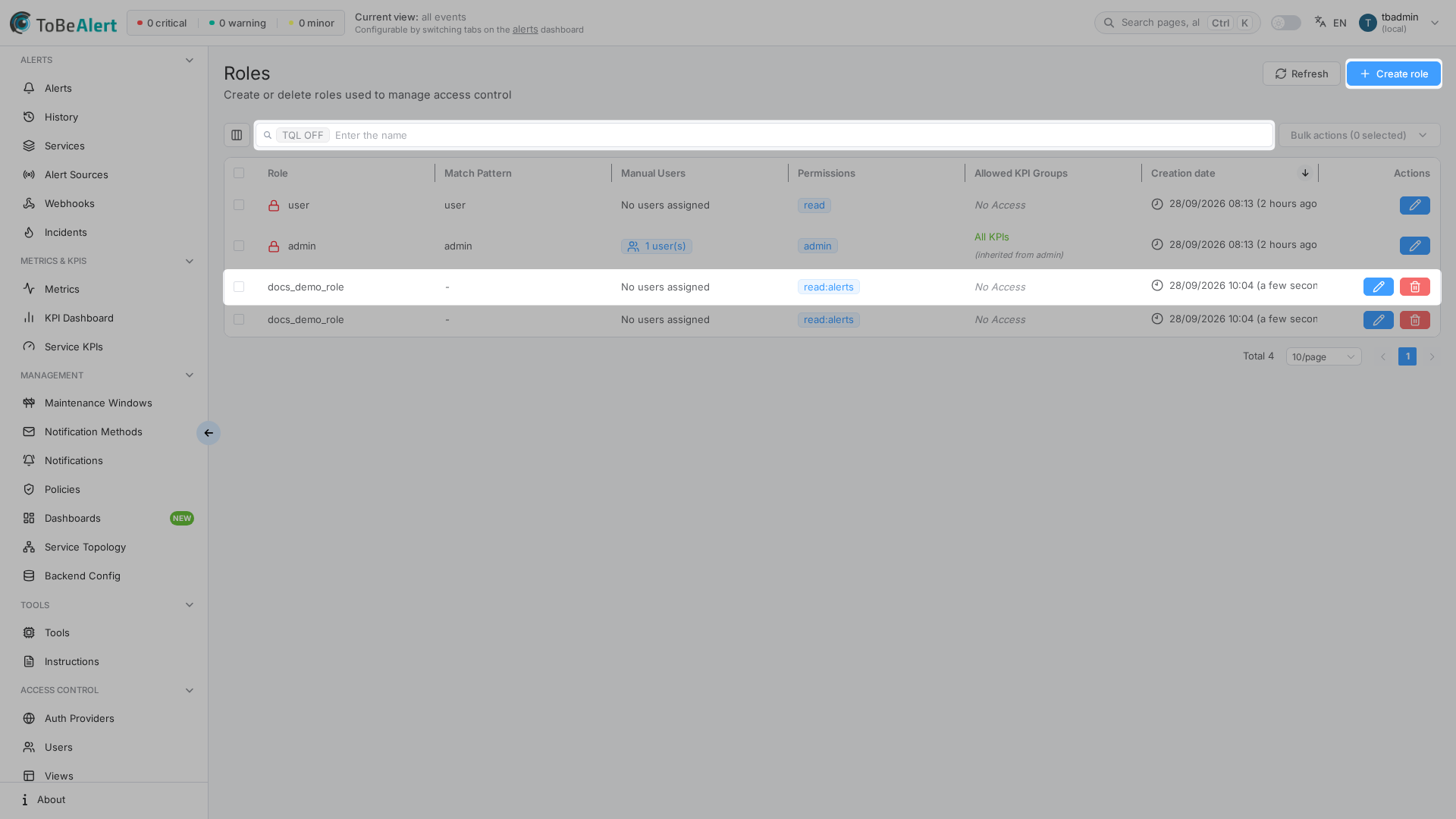
Where to find it in the UI
In the sidebar under Access Control:
- Roles →
/roles
The page title is Roles. Header actions:
| Button | Purpose |
|---|---|
| Refresh | Reload the roles table |
| Create role | Open the side drawer to define a new role |
Table search, sorting, pagination, and bulk selection follow the shared list pattern — see TQL search and filters and List tables and bulk actions. Double-click a row or click the role Name to edit.
The Roles page requires administrator access. Users without sufficient permissions do not see Access Control or Roles in the sidebar. If Create role is disabled, your license may have reached the roles limit — contact your administrator.
Built-in roles
ToBeAlert ships two built-in roles (lock icon in the Role column):
| Role | Typical use |
|---|---|
| admin | Full platform access; includes global admin permission, KPI access to All KPIs, and every view |
| user | Standard operator access (alerts, limited management) |
Built-in roles cannot be deleted or duplicated. In the editor, Name, Permissions, Match Pattern, Manual Users, and Allowed KPI Groups are read-only for built-in roles.
How roles fit together
Typical rollout:
- Review built-in admin and user permissions in the table.
- Create a custom role (for example
on-call-lead) with alert and notification permissions — see Creating and managing roles. - Assign the role on the Users page or set a Match Pattern such as
*@ops.company.comfor directory users. - Map LDAP/SAML groups to roles in External auth providers when using enterprise login.
Roles work together with Views (alert visibility) and Groups (notification recipients). A user needs both the right permissions and the right views to work effectively. A role can grant views directly through Allowed views — every member of the role gets them on the dashboard, marked via role on the Users page — see Assigning views to roles.
Table columns
| Column | Description |
|---|---|
| Role | Role name; built-in roles show a lock icon |
| Match Pattern | Auto-assignment pattern (robot icon when set) |
| Manual Users | Count of users assigned directly, or No users assigned |
| Permissions | Permission tags (first two shown, remainder in tooltip) |
| Allowed KPI Groups | KPI scope summary when KPI permissions apply |
| Create time | When the role was created |
Related modules
| Module | Relationship |
|---|---|
| Users | Create users and assign roles on the Users tab |
| Views | Control which alerts a user sees; a role grants views to its members through Allowed views |
| Keys | API keys use the same permission labels as roles |
| External auth providers | Map directory groups to roles after sync |
| Notifications | Requires notification permissions on the role |
| Policies | Requires policy permissions; manual Run needs run:policies and also write:alerts; optional per-policy execute:policies:<suffix> when a policy sets Permission (those execute scopes also need write:alerts) |
| Maintenance windows | Requires maintenance window permissions |
| Tools | write:alerts + read:tool + execute:tool for tools with empty Permission; exact execute:tool:<suffix> (or admin:tool / admin) when a tool sets Permission — execute:tool does not include those suffixes. Global All executions needs read:tools_history or read:tools_all_history, not read:tool |
Best practices
- Start from built-in roles — duplicate behavior by creating new roles rather than expecting to edit built-in permission sets.
- Least privilege — grant only the permissions needed for each job function; use Permissions reference when in doubt.
- Prefer match patterns for directory users — use Match Pattern for SSO/LDAP populations and Manual Users for exceptions.
- Separate duties — roles for alert handling, notification configuration, and access-control administration should differ.
- Review KPI access — when granting KPI permissions, set Allowed KPI Groups to All (Full Access) or named groups. Empty still allows KPIs with no group.
- Document custom roles — use clear names (
noc-operator,notification-admin) so assignments stay auditable.