Creating and managing views
Route: /views
A view is a named alert filter plus the users and roles who inherit that visibility. The Alerts Query determines which rows appear when someone uses that view on the dashboard.
See also: Overview · Assigning views to users · Applying views on the dashboard · List tables and bulk actions
Table columns
| Column | Description |
|---|---|
| Name | View name; built-in views show a Built-in lock icon |
| Description | Short explanation of the view |
| Alerts Query | Shown as SELECT * FROM Alerts WHERE … (or SELECT * FROM Alerts for All events) |
| Users | Member count, or No users assigned |
| Create Time | When the view was created |
Create a view
- Open Access Control → Views.
- Click Create view. The app opens the full-page editor at
/views/new(not a drawer). - Fill in:
- Name (required)
- Description (required)
- Authorized users (optional) — multi-select ToBeAlert accounts, including All users. Users are optional: you can save with none assigned, but see the confirm step below.
- Roles (optional, below Authorized users) — roles whose members can use the view. Any user who holds one of the selected roles gets the view, including users who receive the role at login from an identity provider. This is the same setting as Allowed views on the role editor (see Assigning views to roles). All users still overrides everything: a view marked All users is visible to everyone regardless of users or roles.
- Alerts Query — TQL (default) or SQL. The line
SELECT * FROM Alerts WHERE …updates as you type. Impacted alerts (live preview) shows matching alerts (resource, event, environment, severity, status, dates) so you can see which dashboard tab those users would get.
- Click Create. Cancel returns to the list.
- If at least one user is selected, or All users is chosen, the view saves immediately.
- If Authorized users and Roles are both empty and All users is not selected, a warning dialog asks Save without users? with the message Are you sure you want to save? You have no users assigned to this view. Choose Confirm to create the view anyway, or Cancel (or close the dialog) to stay on the editor without saving.
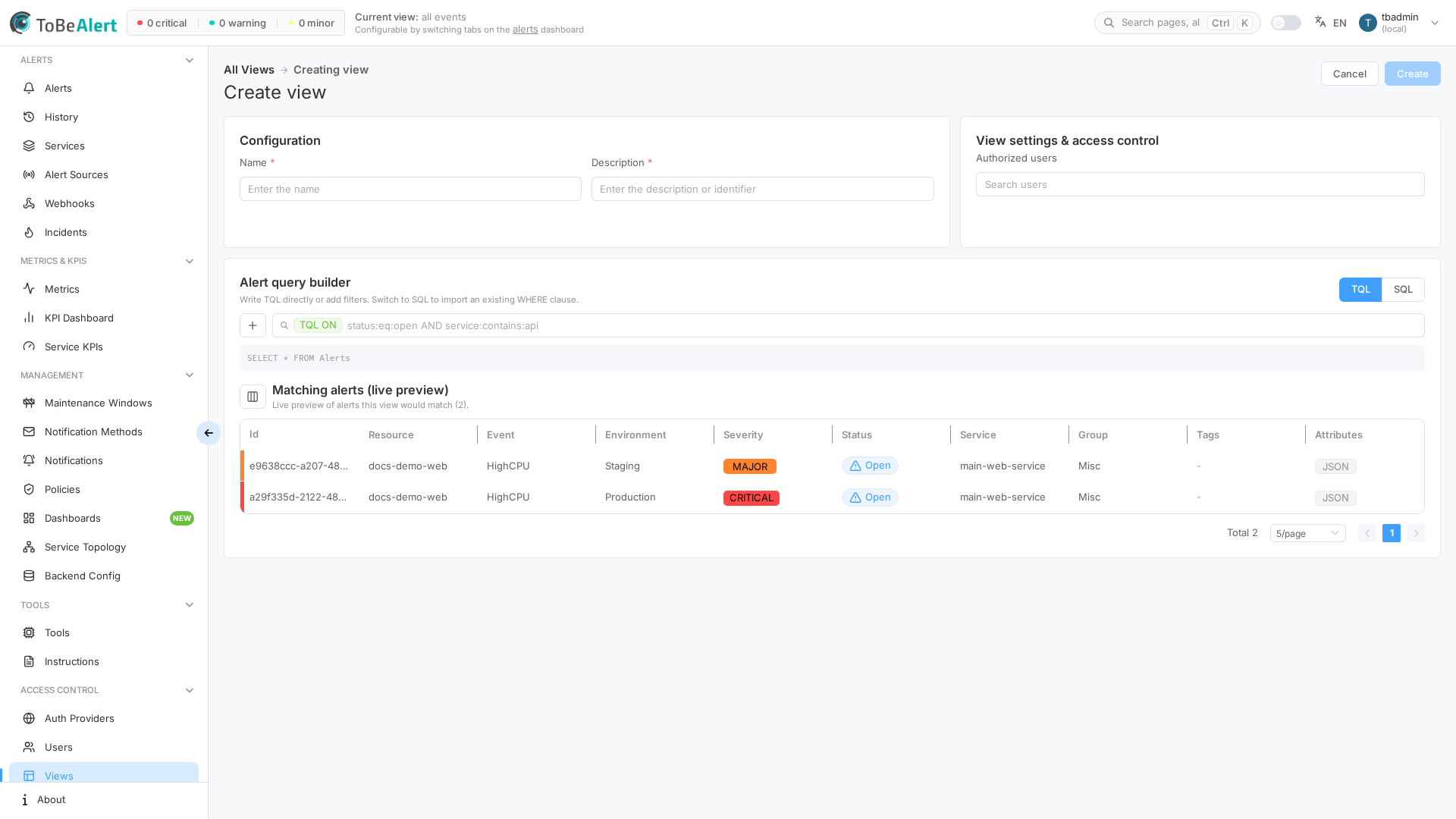
Alerts Query — TQL
By default the editor uses TQL with the shared search bar (same family as TQL search and filters) plus the visual filter builder.
The preview line above the live table shows: SELECT * FROM Alerts WHERE followed by the generated clause.
Filterable fields include severity, status, environment, resource, event, service, tags, attributes (with a key), origin, type, value, timestamps such as createTime and updateTime, the computed durations Open for (openFor) and Silent for (silentFor), and the cause/effect fields causeId, suppressed, effectCount, isEffect, and isCause (see Cause and effect alerts).
Three kinds of conditions are evaluated when the view is queried rather than when it is saved, so the view stays correct over time (see TQL search and filters — Relative time and Numeric comparisons on text values):
- Open for / Silent for with a duration —
openFor:gt:1din TQL, Open for Greater than1din the builder. - A relative date on any date column —
createTime:lt:now-1d; in the builder, turn on the Relative switch next to the date picker. - Greater than / Less than on
valueor an attribute —value:gt:97compares the first number in the text (98%matches,n/anever does).
On severity (and previous/first severity) the visual builder and TQL also offer Is more severe than / Is less severe than. Rank comes from the product map (security = 0 … unknown = 10). Example: severity:more_severe_than:major matches security and critical only. The stored SQL is a normal IN (...) list so the query engine does not learn a new token.
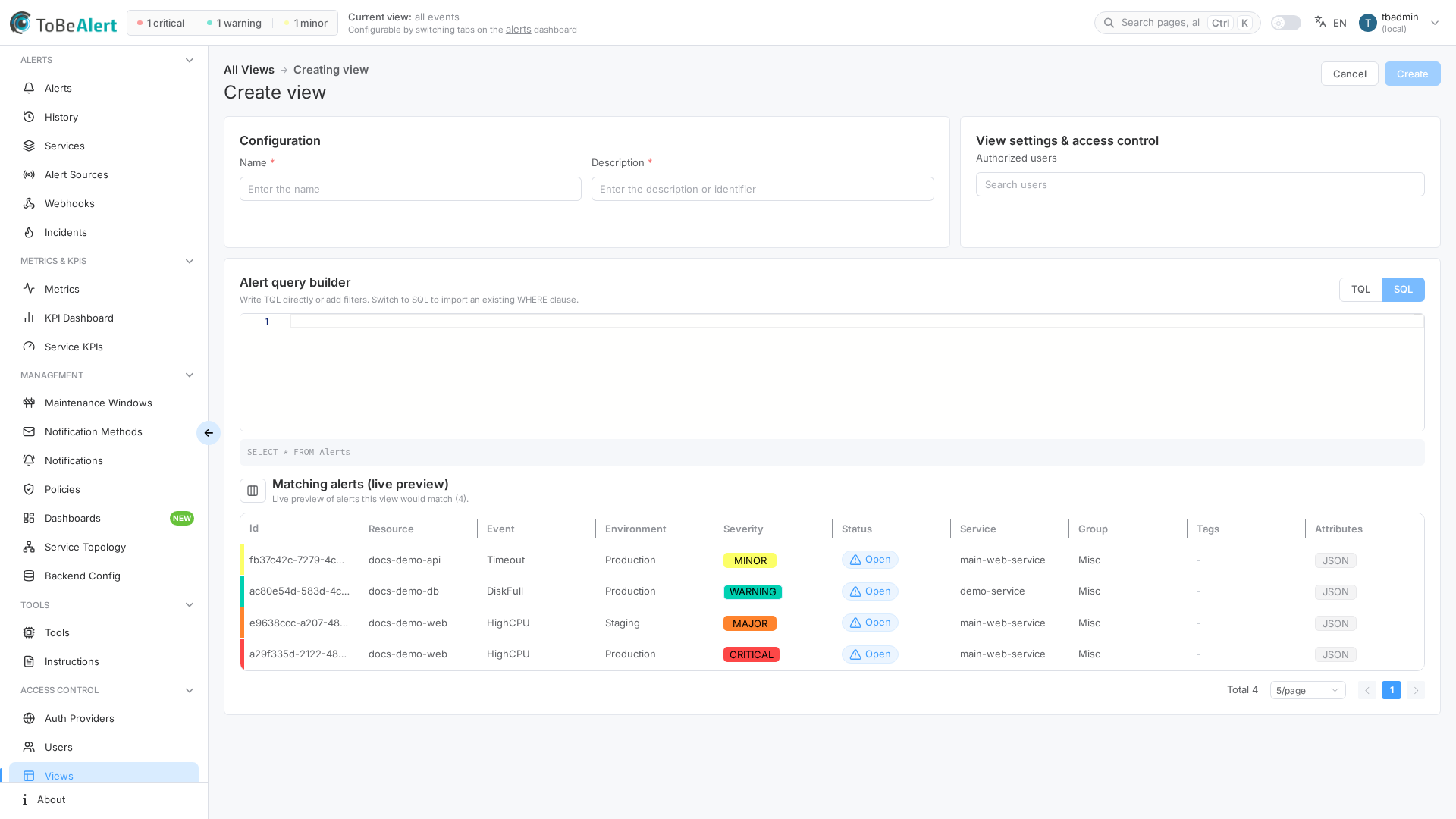
Alerts Query — SQL
- Click SQL (next to TQL) to open the Monaco editor.
- Edit the query (
SELECT * FROM Alerts WHERE …). Completions use qualified columns (alerts.tags), not camelCase keys. Cause/effect columns arealerts.cause_id,alerts.suppressed,alerts.effect_count,alerts.is_effect, andalerts.is_cause— for examplealerts.is_cause = true OR alerts.is_effect = true(the query of the built-in Cause and effect events view) oralerts.suppressed = false. - Click TQL to return to the search bar.
Views built in TQL or in the builder are stored as SQL, so these conditions appear in the editor as plain expressions you can also write by hand:
| Condition | Stored SQL |
|---|---|
openFor:gt:1d | EXTRACT(EPOCH FROM (now() - alerts.create_time)) > 86400 |
silentFor:gte:2h | EXTRACT(EPOCH FROM (now() - alerts.last_receive_time)) >= 7200 |
createTime:lt:now-1d | create_time < (now() - interval '86400 seconds') |
value:gt:97 | tobealert_numeric(value) > 97 |
attributes.usage:gte:80 | tobealert_numeric(attributes->>'usage') >= 80 |
tobealert_numeric(text) is a database function shipped with ToBeAlert that returns the first number in a text ('97%' → 97, '1,5 GB' → 1.5) or NULL when there is none, so a value without a number never matches. Durations are stored in seconds.
Invalid filter combinations show a validation warning before save.
Edit, duplicate, and delete
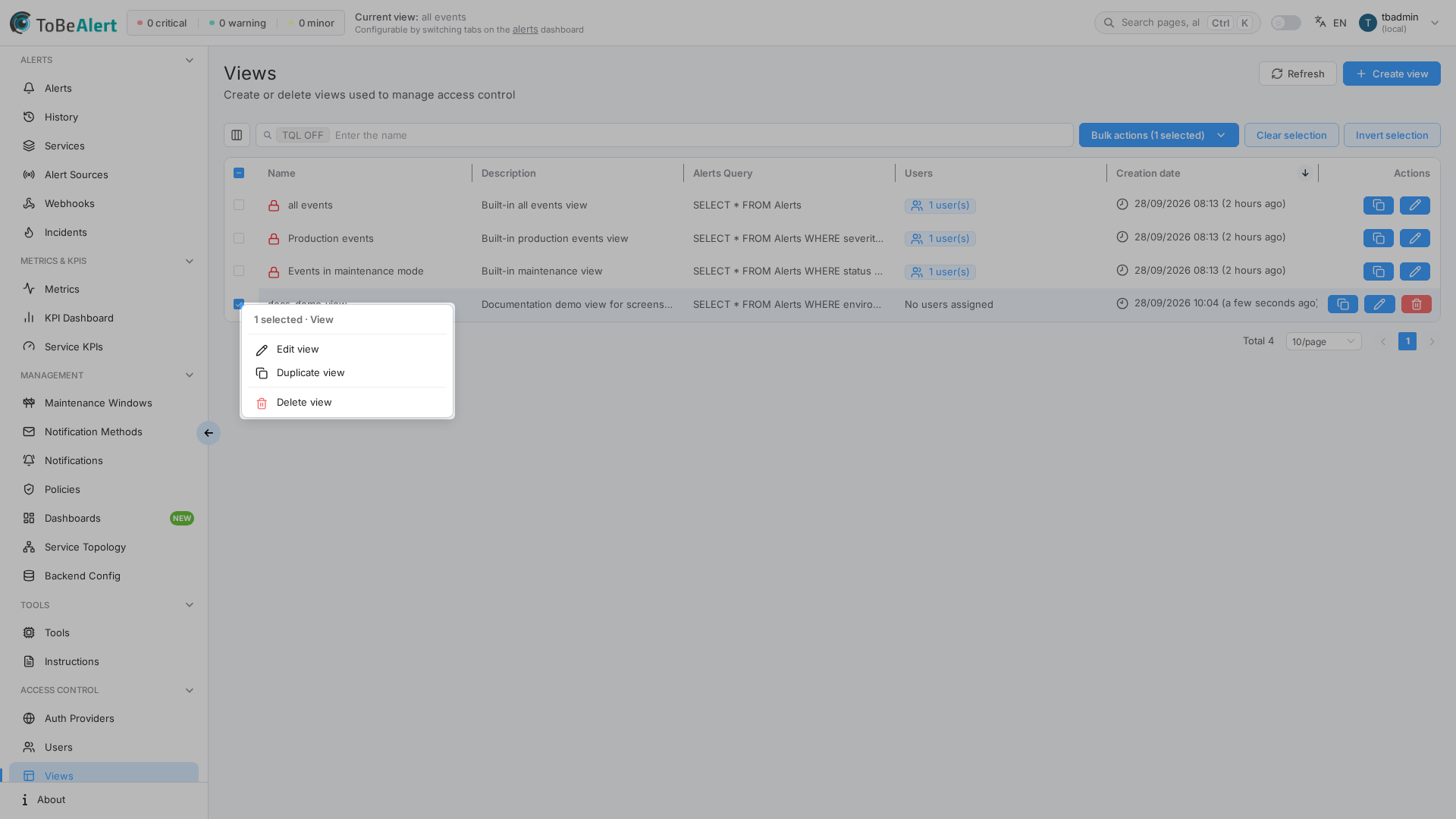
Select custom views with the checkbox column, then use the bulk actions dropdown or context menu — see List tables and bulk actions.
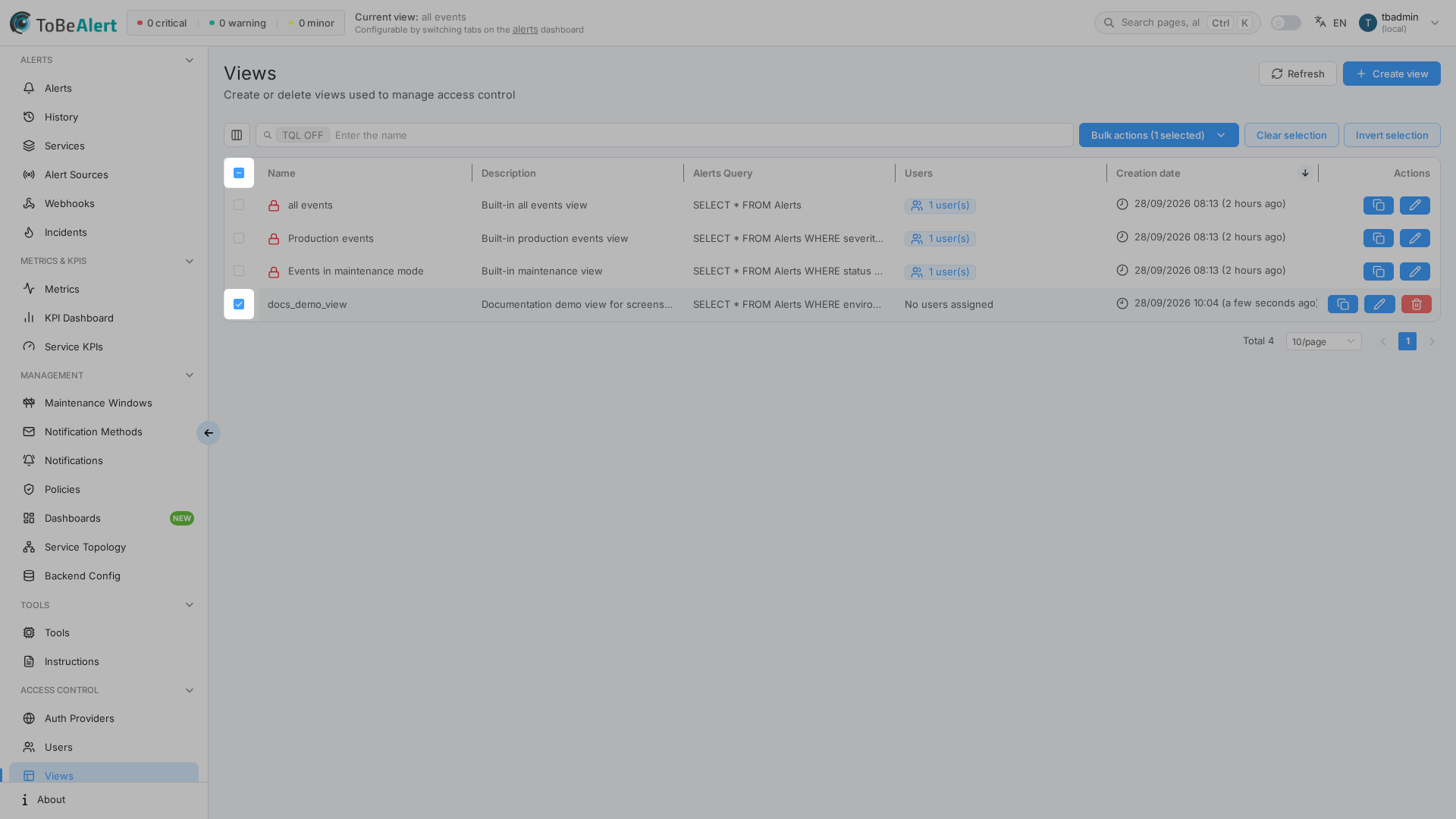
Right-click a custom view row (built-in rows disable Duplicate and Delete in the menu; Edit still opens the editor for membership):
| Action | How |
|---|---|
| Edit | Click the name, double-click the row, or row Edit — opens /views/{id} (Editing view) |
| Duplicate | Bulk action, context menu, or duplicate from selection — copies name (with copy suffix), description, users, roles, and query |
| Delete | Row delete, bulk Delete view, or context menu — confirm in the dialog |
| Copy ID | Row Copy ID button — copies the full SELECT * FROM Alerts WHERE … text for the row |
Built-in views disable Duplicate and Delete. You can open a built-in view (name, double-click, or Edit) to change Authorized users, including All users. On that editor page, only Authorized users is editable; Name, Description, and Alerts Query (TQL/SQL) stay locked. Built-in views such as All events and Cause and effect events are All users views, so they need no roles.
On the edit page, click Update to save. The same empty-users warning applies for custom and built-in views: if no users and no roles are assigned and All users is not selected, Save without users? appears (Confirm updates; Cancel or close leaves the view unchanged). If users or roles are already assigned, or All users is selected, Update saves without that dialog.
Changing Roles on a view takes effect for every member of those roles: users added to a role later get the view automatically, and users removed from the role lose it. Accounts listed under Authorized users keep the view regardless of role changes.
After you save a view, users who are logged in may need to refresh the dashboard to see tab or membership changes.
Best practices
- Start in TQL and watch Impacted alerts (live preview); use SQL for queries you cannot express in TQL.
- Name views after team, environment, or function (
production-oncall,security-triage). - Prefer assigning at least one User or Role (or All users) on the view, or on each user record, so the view appears on the dashboard. Saving with no users is allowed after you confirm Save without users?.
- Use Roles for teams and Authorized users for exceptions — see Assigning views to roles.
- Use Duplicate as a template when many views share similar queries.
- Export or document queries with Copy ID when sharing filter logic with colleagues (support tickets, runbooks).