Creating and managing views
Route: /views
A view is a named alert filter plus a list of users who inherit that visibility. The Alerts Query determines which rows appear when someone uses that view on the dashboard.
See also: Overview · Assigning views to users · Applying views on the dashboard · List tables and bulk actions
Table columns
| Column | Description |
|---|---|
| Name | View name; built-in views show a Built-in lock icon |
| Description | Short explanation of the view |
| Alerts Query | Shown as SELECT * FROM Alerts WHERE … (or SELECT * FROM Alerts for all events) |
| Users | Member count, or No users assigned |
| Create Time | When the view was created |
Create a view
- Open Access Control → Views.
- Click Create view.
- Fill in:
- Name (required)
- Description (required)
- Users (optional) — multi-select ToBeAlert accounts
- Alerts Query — at least one filter clause is required unless the query is the built-in “all alerts” pattern (
*/ all events)
- Click Create.
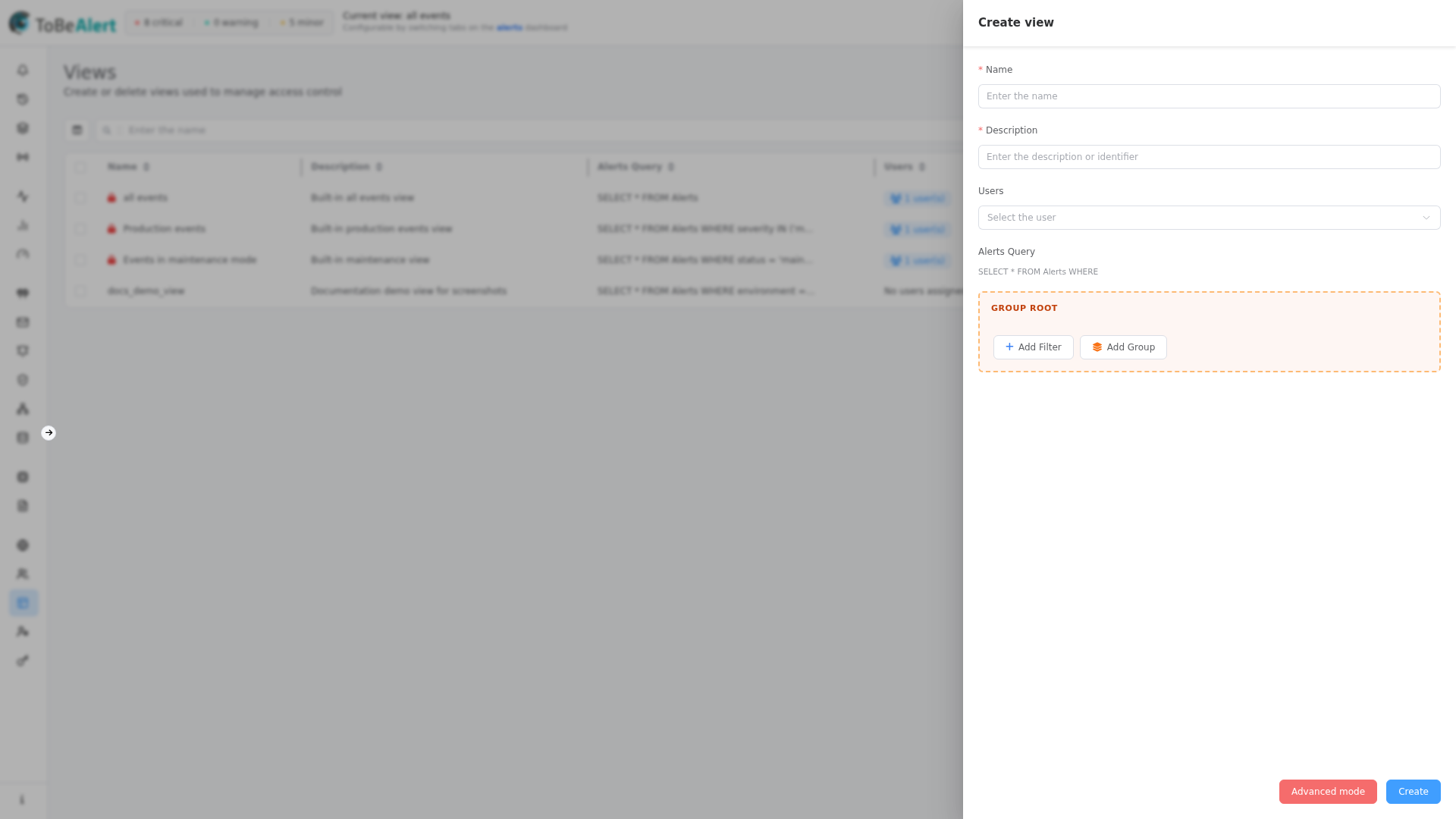
Alerts Query — Easy mode
By default the drawer uses Easy mode with the visual query builder (same family of control as policy conditions and notification rule conditions).
| Control | Description |
|---|---|
| Group Root | Top-level AND/OR group |
| Add Filter | Condition on an alert field |
| Add Group | Nested AND/OR logic |
| AND / OR | Combine sibling conditions |
The preview line above the builder shows: SELECT * FROM Alerts WHERE followed by the generated clause.
Filterable fields include severity, status, environment, resource, event, service, tags, attributes (with a key), origin, type, and timestamps such as createTime and updateTime. Operators depend on field type (Equals, Contains, Is in, Greater than, and others).
Alerts Query — Advanced mode
- In the drawer footer, click Advanced mode.
- Edit the Alerts Query text directly in the textarea (WHERE clause only, without the
SELECTprefix). - To return to the builder, click Easy mode (footer shows Easy mode while in advanced state).
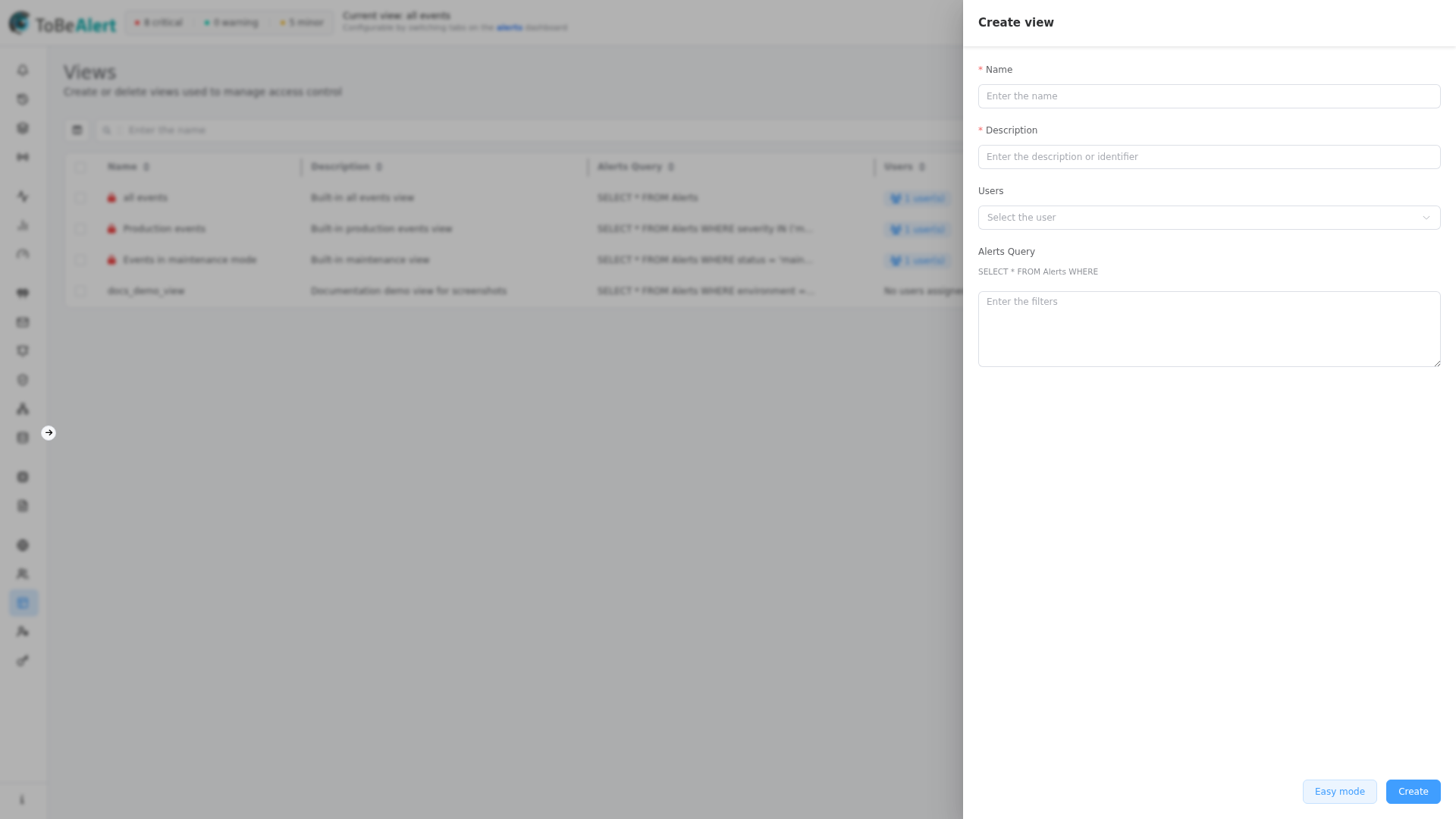
Invalid filter combinations show a validation warning before save.
Edit, duplicate, and delete
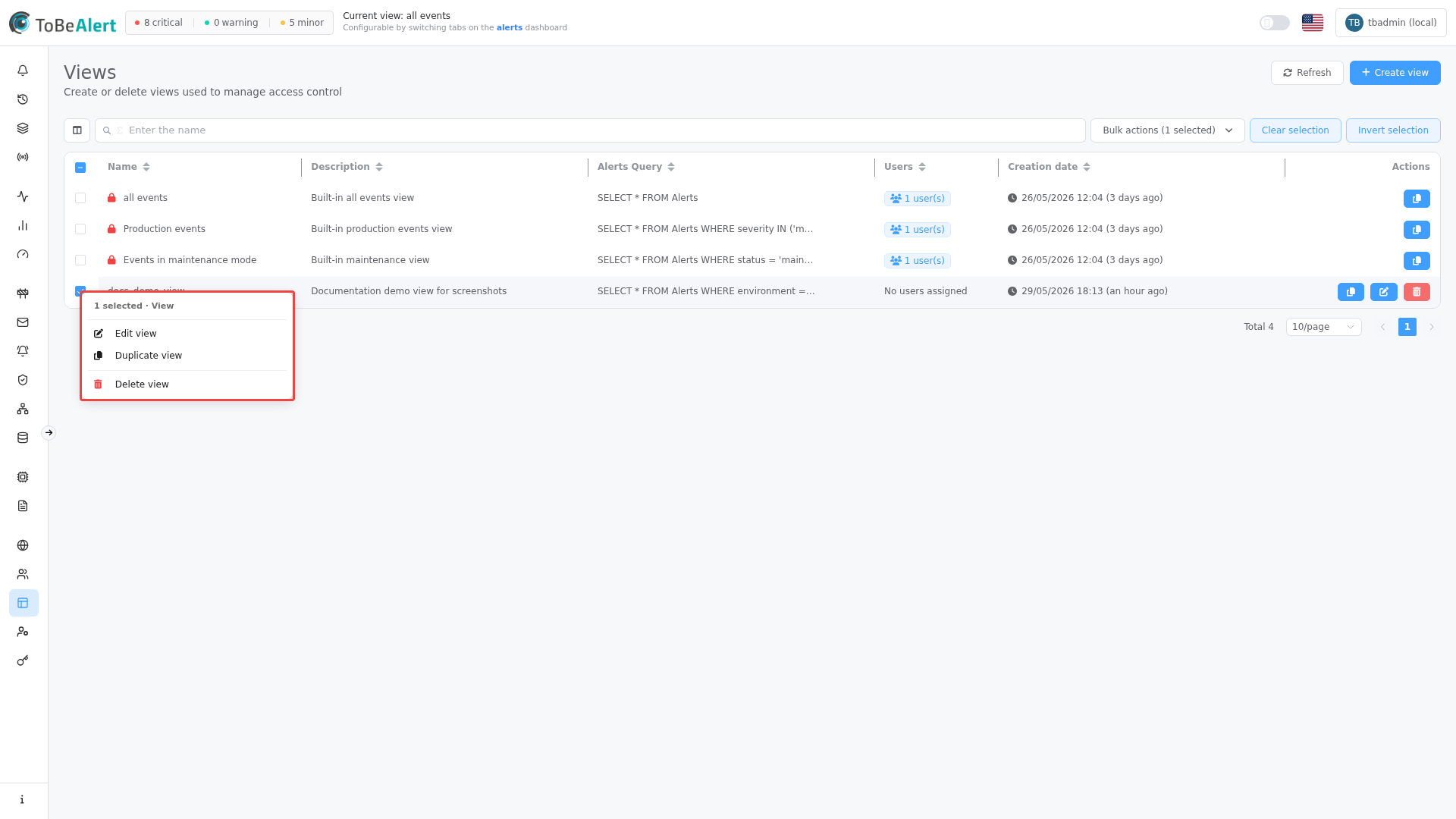
Select custom views with the checkbox column, then use the bulk actions dropdown or context menu — see List tables and bulk actions.
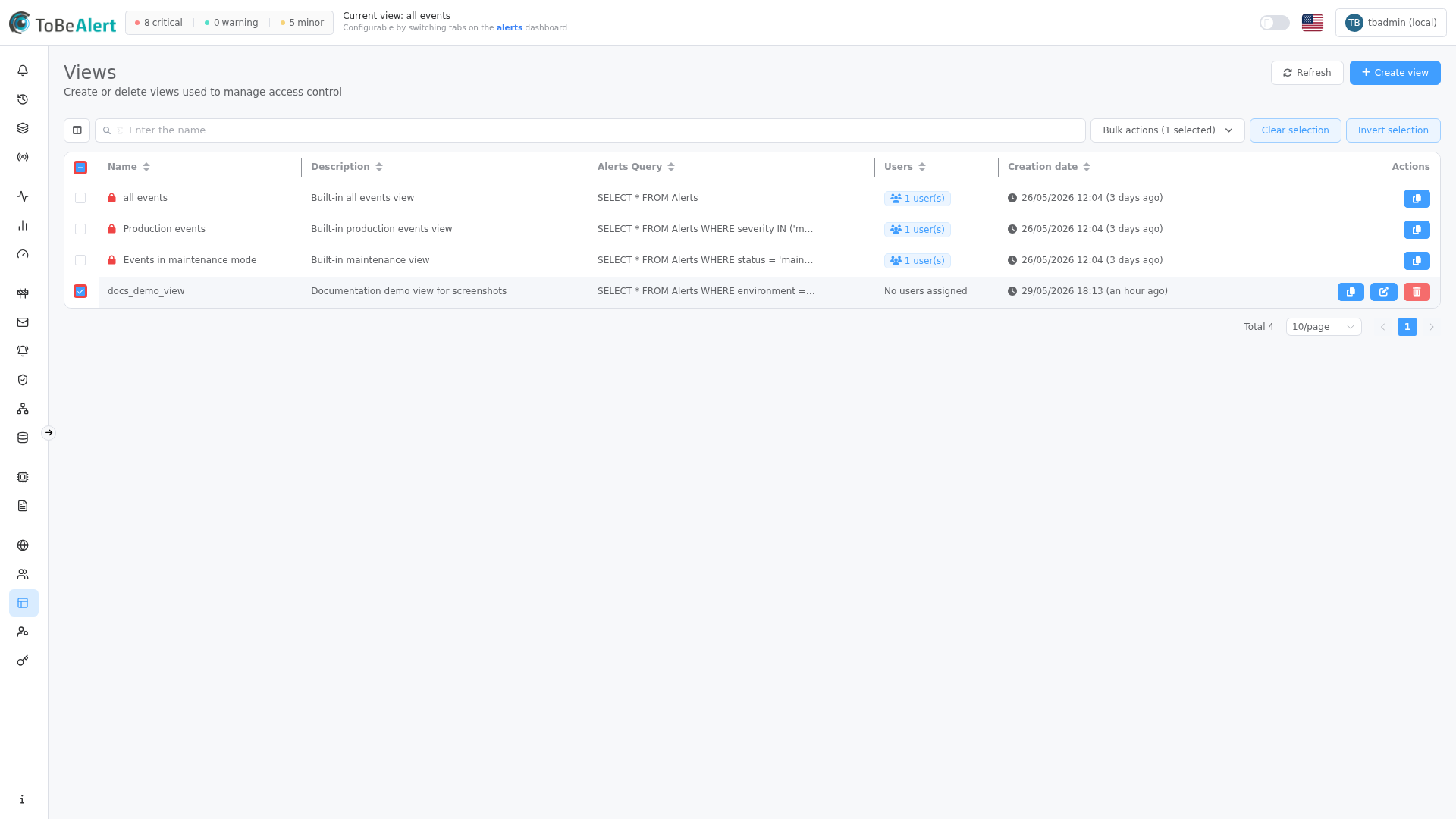
Right-click a custom view row (built-in rows disable Edit, Duplicate, and Delete in the menu):
| Action | How |
|---|---|
| Edit | Click the name, double-click the row, row Edit button, bulk Edit view, or context menu — opens `Edit {name}` |
| Duplicate | Bulk action, context menu, or duplicate from selection — copies name (with copy suffix), description, users, and query |
| Delete | Row delete, bulk Delete view, or context menu — confirm in the dialog |
| Copy ID | Row Copy ID button — copies the full SELECT * FROM Alerts WHERE … text for the row |
Built-in views disable Edit, Duplicate, and Delete.
After you save a view, users who are logged in may need to refresh the dashboard to see tab or membership changes.
Best practices
- Start in Easy mode; use Advanced mode for queries you cannot express in the builder.
- Name views after team, environment, or function (
production-oncall,security-triage). - Assign at least one User on the view or on each user record so the view appears on the dashboard.
- Use Duplicate as a template when many views share similar queries.
- Export or document queries with Copy ID when sharing filter logic with colleagues (support tickets, runbooks).