Settings
Route: /settings
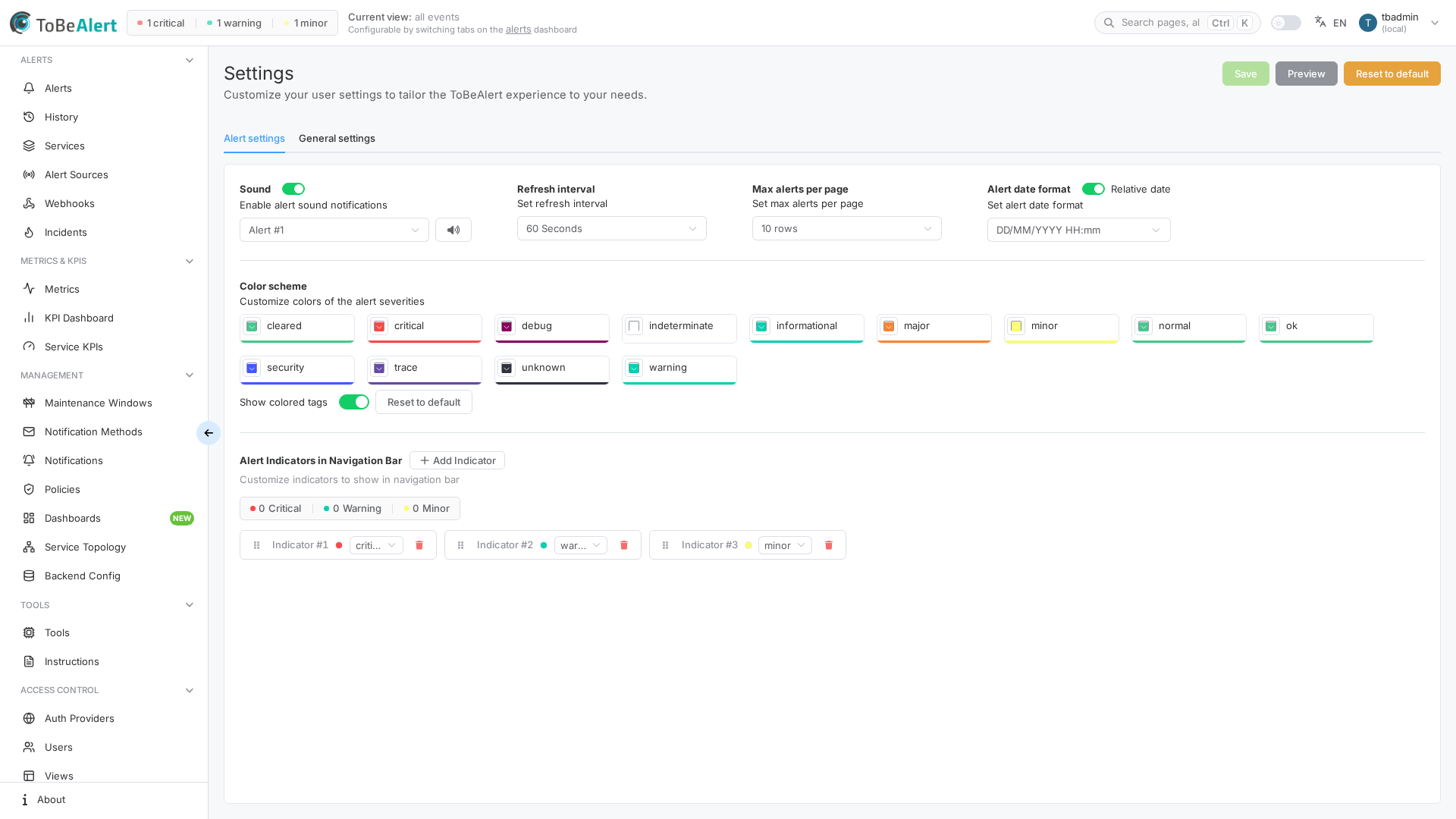
Settings stores per-user preferences for alerts display, sounds, refresh, severity colors, navbar indicators, and general date/display options. Changes apply to your account after you click Save.
See also: Overview · Top bar and search · Alerts dashboard
Page actions
| Button | Description |
|---|---|
| Save | Persists changes (enabled when something changed) |
| Preview | Opens a sample alerts table with your current settings |
| Reset default | Restores defaults for the active tab |
Tabs
| Tab | Purpose |
|---|---|
| Alert settings | Sounds, refresh interval, rows per page, alert date format, severity colors, navbar indicators |
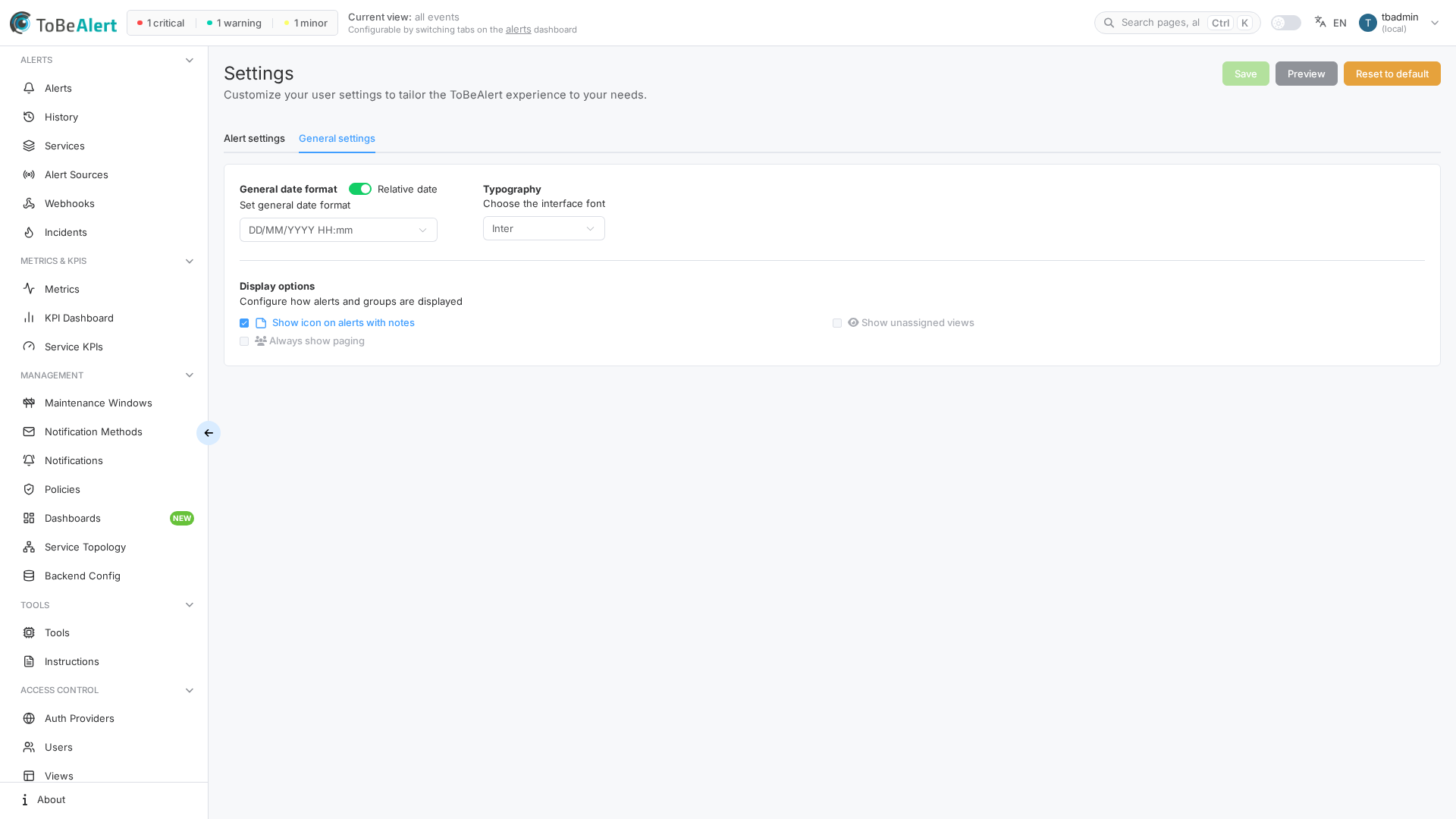
| General settings | General date format, Typography, display options (some options may be read-only) |
Permissions
All signed-in users can open Settings. Options that are disabled or read-only in the UI reflect product or role restrictions — contact your administrator if you need a change you cannot save.
Configure alert behavior
- Open the user menu → Settings, or go to
/settings. - On Alert settings, adjust:
- Enable alert sound notifications and notification sound
- Refresh interval
- Max alerts per page
- Alert date format and Relative date
- Customize colors of the alert severities and Show colored tags
- Alert Indicators in Navigation Bar — Add Indicator, drag to reorder, pick severity per chip
- Click Save.
Configure general display
- Open Settings → General settings.
- Set General date format and Relative date as needed.
- Under Typography, choose the interface font: Inter (default), System (original), or Poppins. Families are bundled with the app.
- Review Display options (for example Show icon on alerts with notes, Show unassigned views, Always show paging). Some options may be read-only.
- Click Save.
Alert Indicators in Navigation Bar (reference)
| Control | Description |
|---|---|
| Add Indicator | Adds another severity chip to the top bar |
| (defaults) | New accounts start with critical, major and minor. The chips show live counts for the current view: they refresh with the alert refresh interval on every page (the dashboard refreshes them itself), and immediately after you change the list. |
| Show alert indicators in the navigation bar (General settings → Display options) | Untick to hide the chips completely; the setting is per user. |
| Indicator #N | Severity selector bound to your color scheme |
| Drag handle | Reorders indicators left-to-right |
| Trash icon | Removes an indicator (at least one remains) |
Best practices
- Save after changing colors or indicators so the top bar and dashboard stay consistent.
- Use Preview before saving large row-count or color changes.
- Keep Refresh interval aligned with operational needs — very low values increase load.
- Pair navbar indicators with the severities you filter on most in the dashboard.