Overview
The Alerts dashboard is the main workspace after login. It shows open alerts in a sortable table, scoped by your assigned views (tabs), with sidebar filters, TQL search, bulk actions, and a details drawer for each alert.
| Step | What you do | Menu / route | Documentation |
|---|---|---|---|
| 1 | Work within an assigned view tab | Alerts (default /dash) | View tabs |
| 2 | Narrow alerts with sidebar filters or TQL | Same page | Sidebar filters · Search (TQL) |
| 3 | Sort, paginate, and customize columns | Same page | Alerts table · Cause and effect alerts |
| 4 | Acknowledge, run tools, export, and more | Row selection or context menu | Bulk actions and context menu |
| 5 | Inspect fields, notes, and raw data | Double-click a row | Alert details drawer |
| 6 | Generate test alerts (admin) | Simulate in the top toolbar | Simulate alerts |
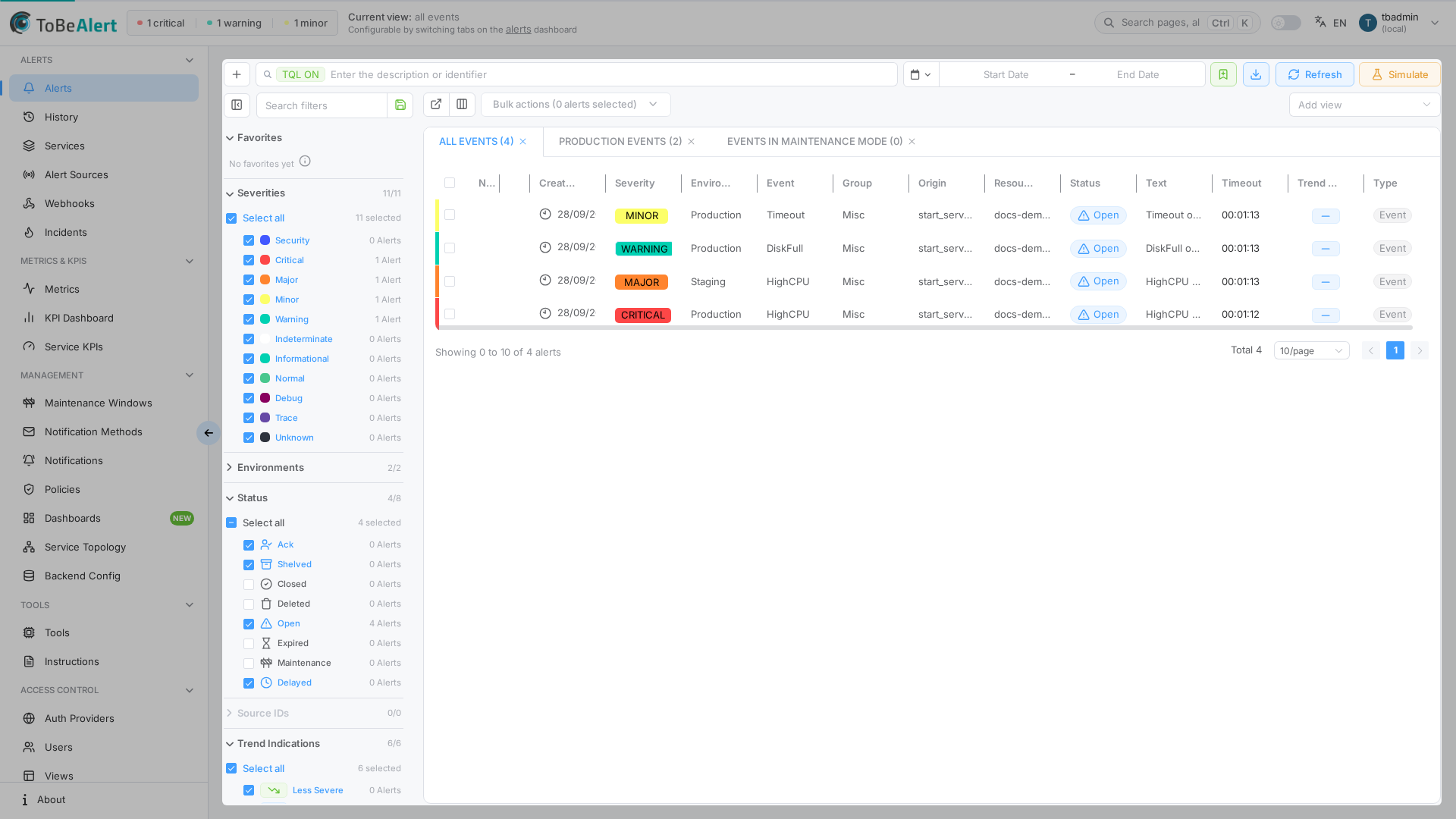
Where to find it in the UI
| Entry point | How |
|---|---|
| Sidebar | Alerts — opens /dash (also the default route after login) |
| External view | Open in external view on the table toolbar → /dash/external (no app sidebar; suited to wall displays) |
| Filtered URL | /dash with optional query parameters (q, filters, page) |
Top toolbar (standard dashboard): Add filter, TQL search, Time range, bookmark (Save current filters), Export (download), Refresh, and Simulate (admin only). The bookmark saves a named set under Favorites in the filter sidebar — see Bookmarks. A thin progress bar at the top shows time until the next automatic refresh.
View tabs come from Access Control → Views assigned to your user — they define which alerts you may see. Sidebar filters and TQL narrow results within the active view tab. See Applying views on the dashboard.
How the parts fit together
Typical operator flow:
- Select the view tab that matches your team (for example
NOCorProduction). - Apply sidebar filters (severity, status, time range) or type a TQL filter such as
severity:eq:critical. - Sort by Last Update, select rows, and Acknowledge or run a tool from bulk actions.
- Double-click an alert to open the details drawer, add a note, or click a field value to add it as a filter.
- Use Export filtered to download the current view for reporting.
Alerts refresh automatically on an interval configured in Settings. New alerts may blink briefly and play a sound if enabled. Watch alerts can trigger browser notifications when severity changes.
Limits and permissions
| Feature | When unavailable |
|---|---|
| View tabs | No views assigned — tab area shows No assigned views |
| Simulate | Visible only to admin users |
| History, Tools, KPIs, Service topology in bulk/context menus | Requires the corresponding read/write permission |
| Delete alerts | Depends on your role; always asks for confirmation |
Related modules
| Module | Relationship |
|---|---|
| TQL search and filters | Shared TQL syntax; dashboard toolbar is TQL-only |
| List tables and bulk actions | Shared table chrome; alert-specific actions on the bulk page |
| History | Audit trail; open from bulk actions, context menu, or drawer |
| Services | Service column and service-based filtering |
| Incidents | Add to incident from the context menu; list and editor at /incidents |
| Alert sources | Source filter category and source icon column |
| Views | One dashboard tab per assigned view |
| Policies | Mark as effect groups symptom alerts under their cause on the table |
| Running tools on alerts | Tools bulk action and drawer tools panel |
| Instructions from alerts | Instructions action (single alert) |
| Maintenance windows | Alerts in maintenance may be hidden by default status filters |
Best practices
- Pick the right view tab first, then filter — views set the access boundary; filters refine within it.
- Save default filters on the sidebar when you always exclude certain statuses (for example Closed).
- Save named bookmarks for filter sets you switch between — see Bookmarks. The URL
qparameter is for sharing a one-off view, not for that list. - Save column layout when you resize columns (drag or double-click autofit on a header border) or reorder tabs — a yellow Changes detected banner prompts Save changes.
- Train on bulk actions and the context menu — same actions, different entry points.
- Use external view on a second monitor or videowall; Compress view hides the search bar and table toolbar for maximum table space.