Managing dashboards
Route: /dashboards
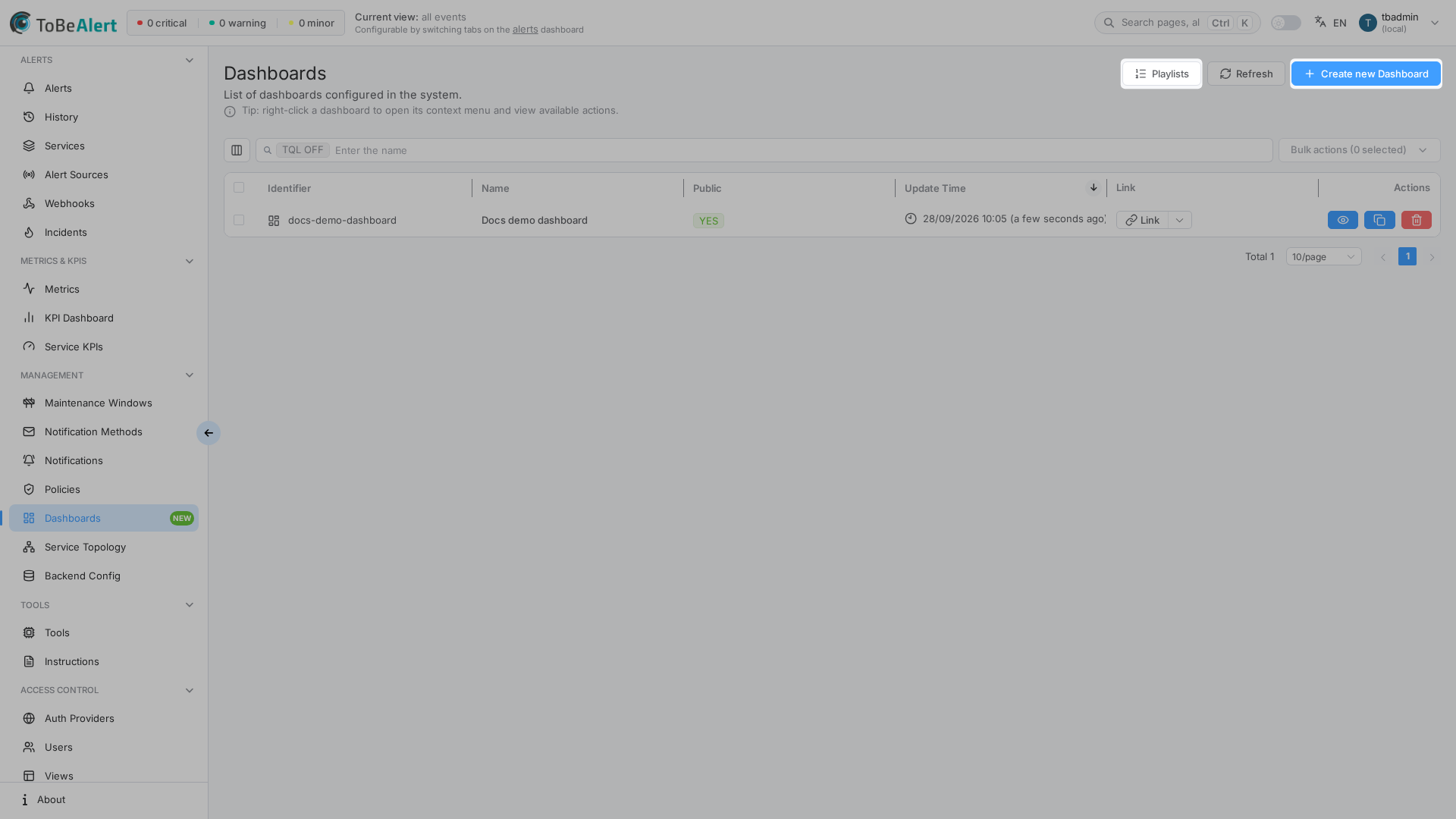
Create, duplicate, delete, and open dashboards. Search and bulk actions follow the shared list chrome — see TQL search and filters and List tables and bulk actions.
See also: Overview · Editing a dashboard · Playlists
List columns
| Column | Description |
|---|---|
| Id | Stable identifier (assigned on create) |
| Name | Display name; click to open the editor. Unnamed rows can use Set name |
| Public | Yes / No — list flag; full visibility is set in Dashboard settings |
| Update time | Last save |
| Link | For shareable dashboards: split button to open or Copy link / Open in new tab |
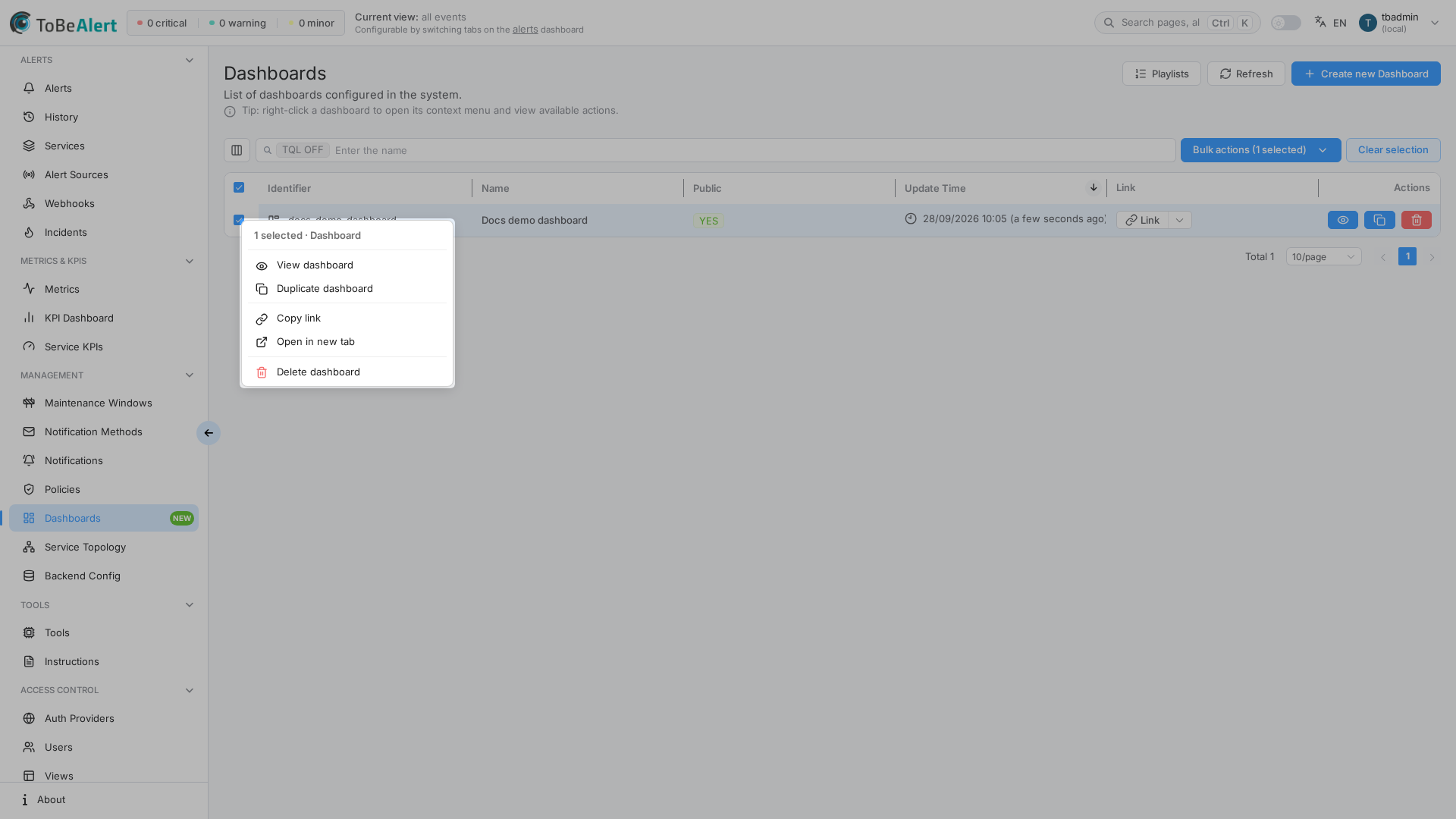
Row actions: View, Duplicate, Delete. Right-click for the same actions plus Copy link and Open in new tab (those two need a shareable dashboard).
Create a dashboard
- Open Management → Dashboards.
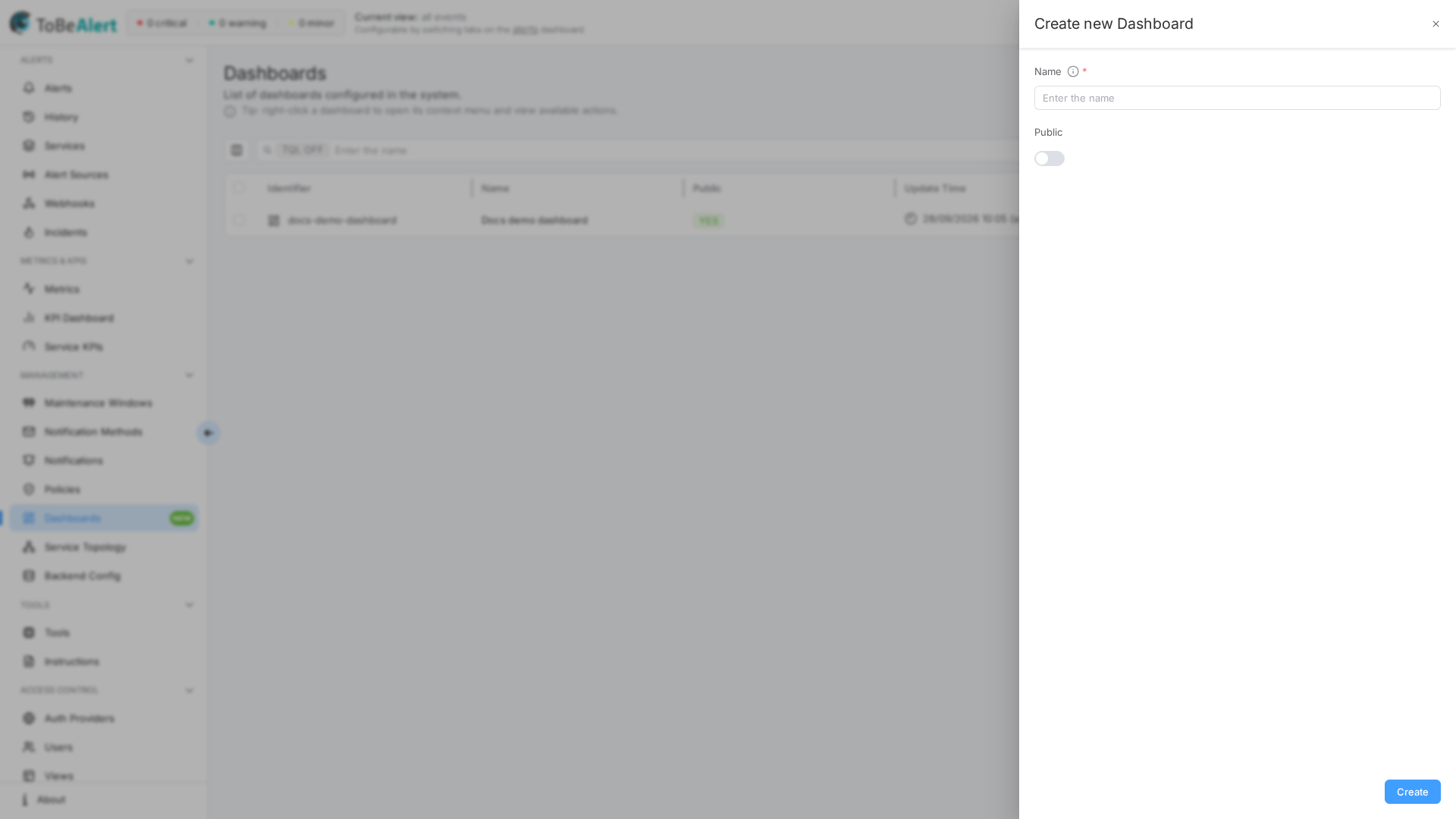
- Click Create new Dashboard.
- Enter Name (used in the public URL when you share the dashboard).
- Optionally turn on Public.
- Click Create.
- Open the new row (View or double-click) to add panels.
tip
The Name tooltip explains it is the name shown in the URL when copying the public link.
Duplicate and delete
- Duplicate dashboard copies the config under a new id.
- Delete asks for confirmation. You can delete one row or a bulk selection.
Visibility and public links
The list Public column is a shortcut. In the editor, Settings → Visibility has three modes:
| Visibility | Who can open the share URL (/dashboard/<name-slug>) |
|---|---|
| Management only | No public link. Users open it from Dashboards in the app |
| Open public link | Anyone with the URL can view (some panels may still require an account) |
| Authenticated users only | The URL works, but visitors must sign in |
Copy link / Open in new tab on the list are enabled when the dashboard is shareable (not management-only).
Best practices
- Create the shell (name + visibility) first, then edit the grid.
- Repair Unnamed rows with Set name before sharing a link.
- Do not treat Public = Yes as “no login” — check Visibility in settings.