Playlists
Route: /playlists (from Playlists on /dashboards)
A playlist cycles through selected dashboards. Use it for a NOC wall or kiosk. Play authenticated at /playlists/<id>/play, or use the public player /playlist/<slug> when the playlist is public.
See also: Overview · Managing dashboards
Open playlists
- Open Management → Dashboards.
- Click Playlists (hidden if you cannot read playlists).
- Refresh and Create new Playlist appear in the header.
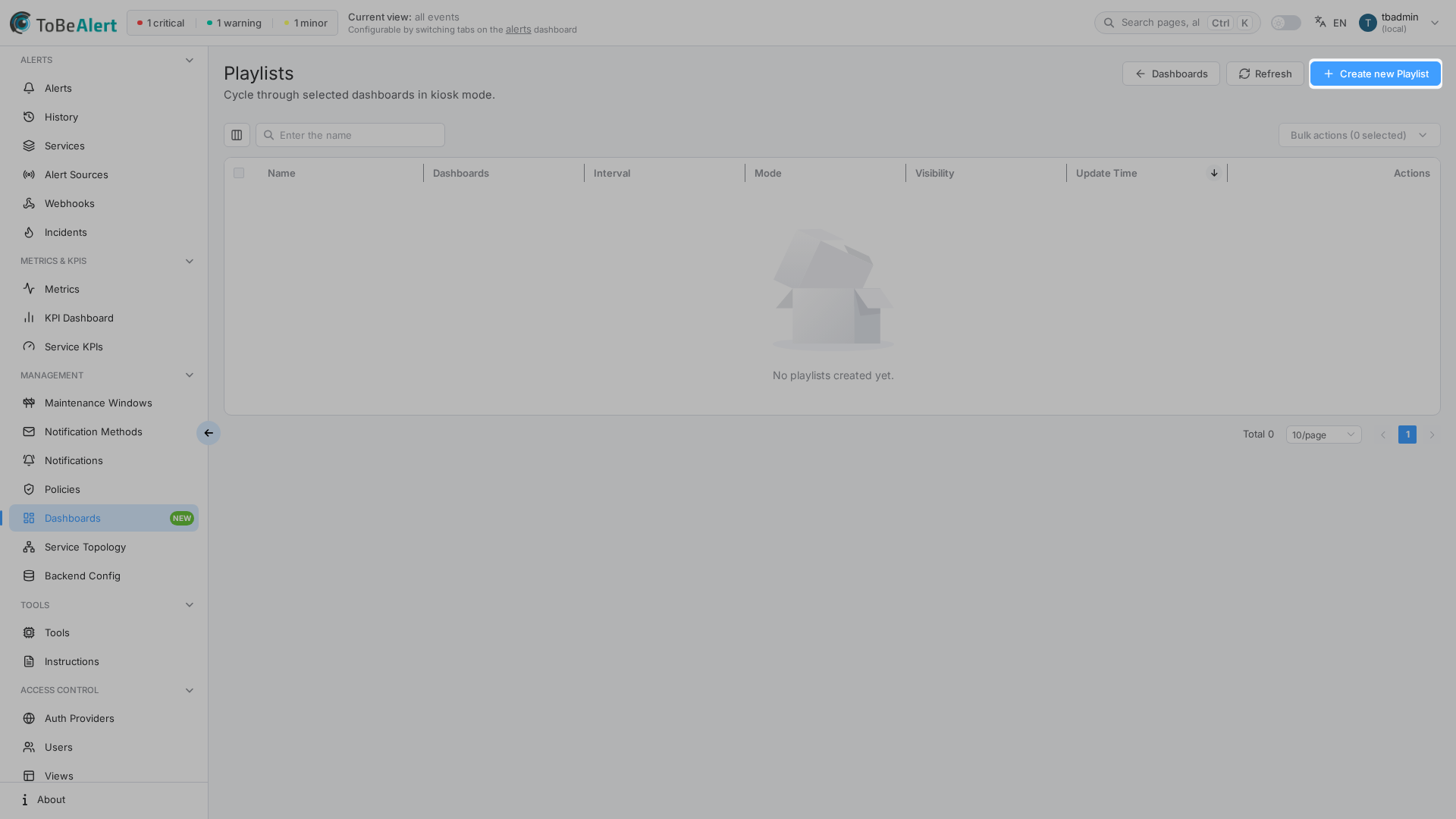
The table includes Name, Dashboards (count), Interval, Mode, Visibility, and update time. Visibility is Public only when every dashboard in the playlist is shareable; otherwise Private (sign-in required).
Search uses the shared list chrome — see TQL search and filters.
Create a playlist
- Click Create new Playlist.
- Enter Name.
- Under Dashboards, select at least one dashboard and drag to set order.
- Set Default interval (seconds).
- Choose Mode: Kiosk or Normal.
- Optionally enable Auto-play on open, Loop, and Show navigation controls.
- Click Create.
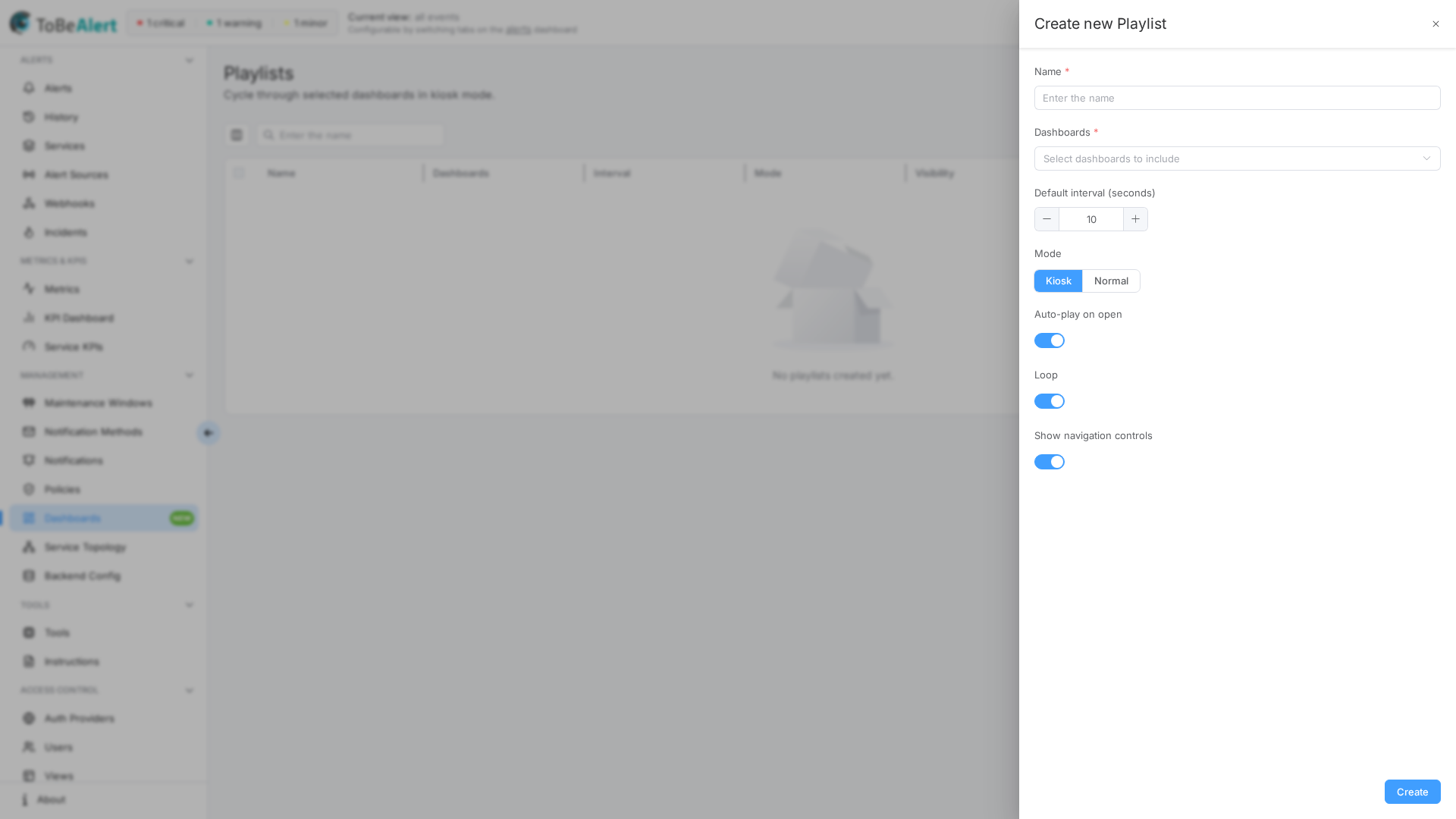
The drawer shows whether the playlist can use a public link (all dashboards public) or stays private.
Play
- Play on a row starts the authenticated player (
/playlists/<id>/play). - A public playlist can use
/playlist/<slug>without opening Dashboards. - Back to playlists returns to the list.
- Private playlists that include private dashboards ask visitors to sign in.
Best practices
- Put only Open public link dashboards in a playlist you will share without login.
- Use Kiosk plus Loop for unattended screens.
- Keep the default interval long enough to read charts (often 15–30 seconds).