Creating and managing roles
Route: /roles
A role is a named set of permissions plus optional user assignment rules and Allowed views. Use roles to standardize access and alert visibility for teams instead of tuning permissions and views per user.
See also: Overview · Permissions reference · List tables and bulk actions
Role properties
| Field | Required | Description |
|---|---|---|
| Name | Yes | Unique role name shown in lists and user forms |
| Permissions | Yes | One or more values from the dropdown, including dynamic execute:tool:… and execute:policies:… entries (see reference) |
| Allowed KPI Groups | When KPI permissions apply | Restricts which KPIs the role can see; shown only if permissions include KPI read/write/run/admin |
| Allowed views | No | Views every member of the role can use on the dashboard, or All views. Same setting as Roles on the view editor — see Allowed views |
| Match Pattern | No | Wildcard pattern for automatic role assignment at login |
| Manual Users | No | Search and pick users who receive this role (chips + scroll-load list) |
Create a role
- Open Access Control → Roles.
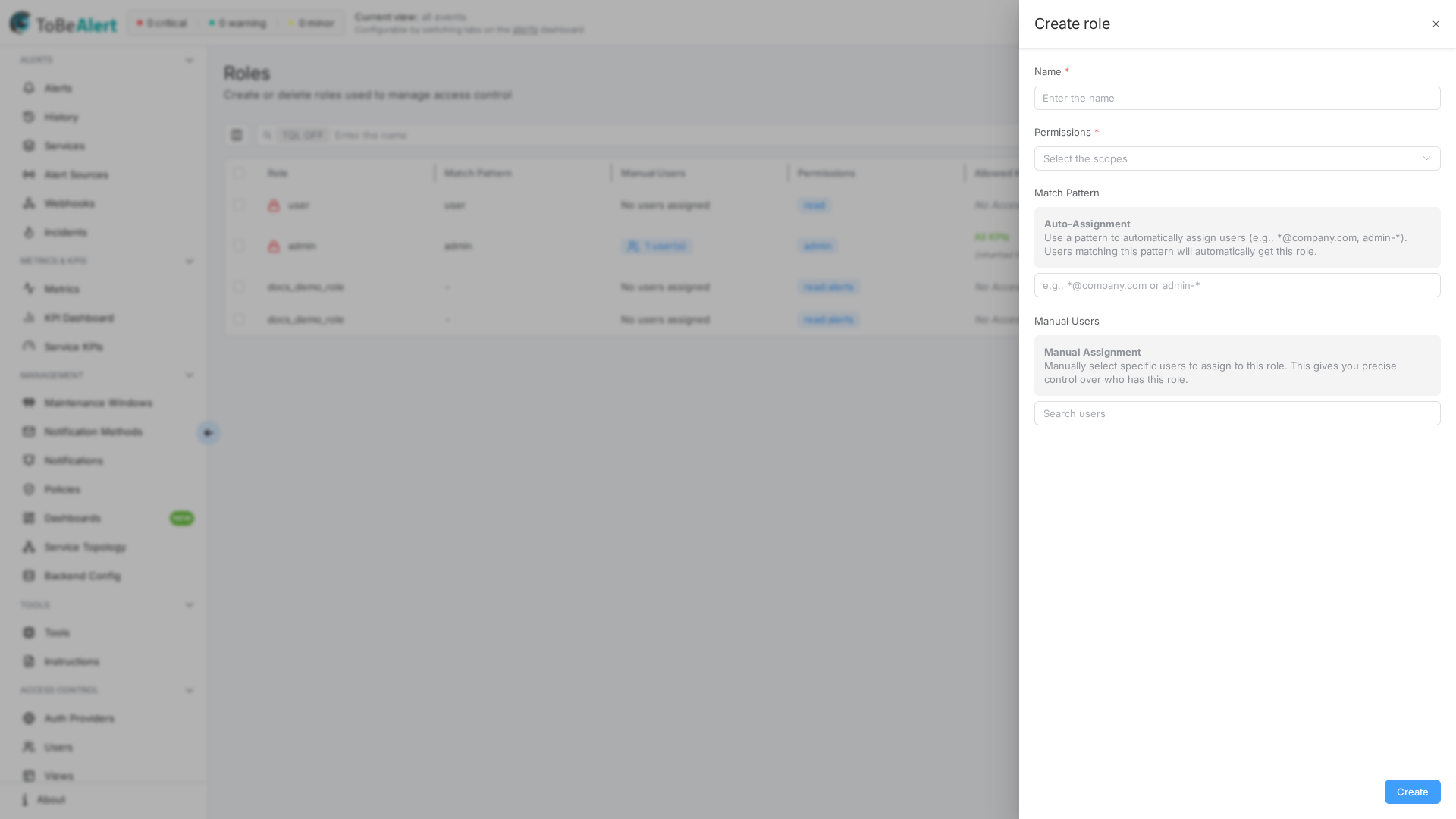
- Click Create role.
- Enter Name.
- Open Permissions and select every permission the role needs.
- If KPI permissions are selected, choose Allowed KPI Groups: All (Full Access), specific group names, or leave empty for KPIs with no group only.
- Optionally pick Allowed views (below Allowed KPI Groups): the views members of this role get on the dashboard, or All views.
- Optionally set Match Pattern and/or Manual Users (at least one assignment method is recommended for custom roles).
- Click Create.
Edit a role
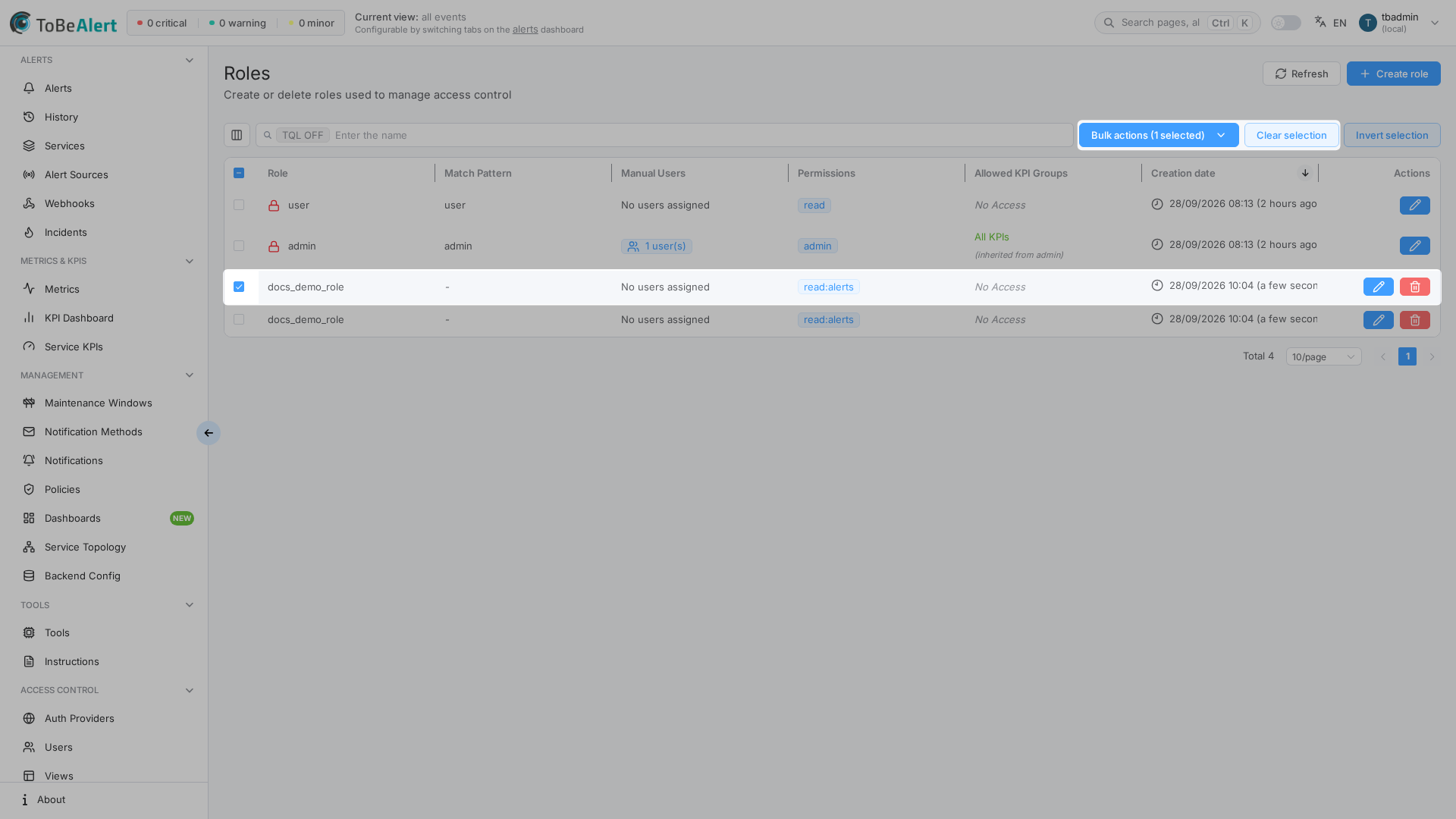
- On Roles, click the role Name, double-click the row, or select one row and use Edit role from bulk actions.
- Update fields in the drawer.
- Click Update.
Built-in roles (admin, user) open in the drawer for inspection, but editable fields are disabled. You cannot change their permission set from the UI.
Assign users to a role
You can assign membership in two ways (both can be used together):
Match Pattern (auto-assignment)
The Match Pattern field supports wildcards for automatic assignment when a user signs in (for example *@company.com or admin-*).
| UI element | Description |
|---|---|
| Auto-Assignment (info) | Explains pattern-based assignment |
| Match Pattern | Text pattern matched against the user login |
Manual Users
| UI element | Description |
|---|---|
| Manual Assignment (info) | Explains direct user picks |
| Manual Users | Search picker of users. Selected accounts appear as chips. Type in Search users; matching results load as you type and more rows load as you scroll. Each result shows Name (email) (falls back to login). Empty search shows No users match this search |
The picker does not load every account at once. You can also assign roles while editing a user under Access Control → Users (/users). Changes on either screen affect the same role membership.
Allowed KPI Groups
When the role includes any of read:kpis, write:kpis, run:kpis, or admin:kpis, the Allowed KPI Groups field appears. The dropdown lists All (Full Access) plus every group name from the KPI groups catalog (not only groups already used on KPIs you can see).
A user sees KPIs allowed by any of their effective roles: roles assigned to the account, plus any role whose Name matches one of the user’s groups. Visibility is not stored on the KPI group.
| Selection | Table display | Effect |
|---|---|---|
| All (Full Access) | All KPIs (globe icon) | Every KPI |
| Specific groups | N group(s) | KPIs in those groups, plus KPIs with no group |
| Empty | No Access | KPIs with no group only |
| Role has admin or admin:kpis | All KPIs with (inherited from admin) | Every KPI (inherits All) |
Allowed views
The Allowed views field sits below Allowed KPI Groups in the role drawer. It lists the alert views that every member of the role can use on the Alerts dashboard, in addition to views assigned directly to their account and views marked All users.
| Selection | Effect |
|---|---|
| All views | Every view, including views created later (like All (Full Access) for KPI groups) |
| Specific views | Members get those views on the dashboard |
| Empty | The role grants no views; members rely on Authorized users on each view and on All users views |
Allowed views and the Roles field on the view editor (Access Control → Views → edit a view, below Authorized users) are the same setting shown in two places: adding a view here is the same as adding this role under that view's Roles, and the other screen reflects the change. See Assigning views to roles.
Membership is dynamic. A user added to the role — manually, by Match Pattern, or by a directory group mapping — immediately gets the role's views; a user removed from the role loses them. Roles obtained at login from an identity provider (reverse-proxy role header, SAML group or role matching) count too, even though those users are not listed under Manual Users. Views assigned directly to a user under Authorized users are unaffected by role changes.
On Access Control → Users, views that come through a role are marked via role with the role name and cannot be removed from the user editor: remove the role from the user, or change the view here or on the view editor. A view marked All users is visible to everyone regardless of roles. The built-in admin role already sees every view; built-in views (All events, Cause and effect events, and the other built-in views) are All users views and need no roles.
Duplicate a role
- Select one or more custom roles (not built-in).
- Choose Duplicate role from the bulk action menu or row context.
- ToBeAlert creates copies with a unique name suffix, copying Match Pattern, Permissions, Manual Users, Allowed KPI Groups, and Allowed views.
Built-in roles cannot be duplicated.
Delete a role
- Select one or more custom roles.
- Click Delete (row action or Delete role bulk action).
- Confirm in the dialog.
Built-in roles cannot be deleted. Deleting a role removes it from users who held it, together with any views they received through it (via role).
Table and bulk actions
Select custom roles with the checkbox column, then use the bulk actions dropdown or context menu — see List tables and bulk actions. Module-specific actions:
Right-click a custom role row (built-in rows do not offer Duplicate or Delete in the menu):
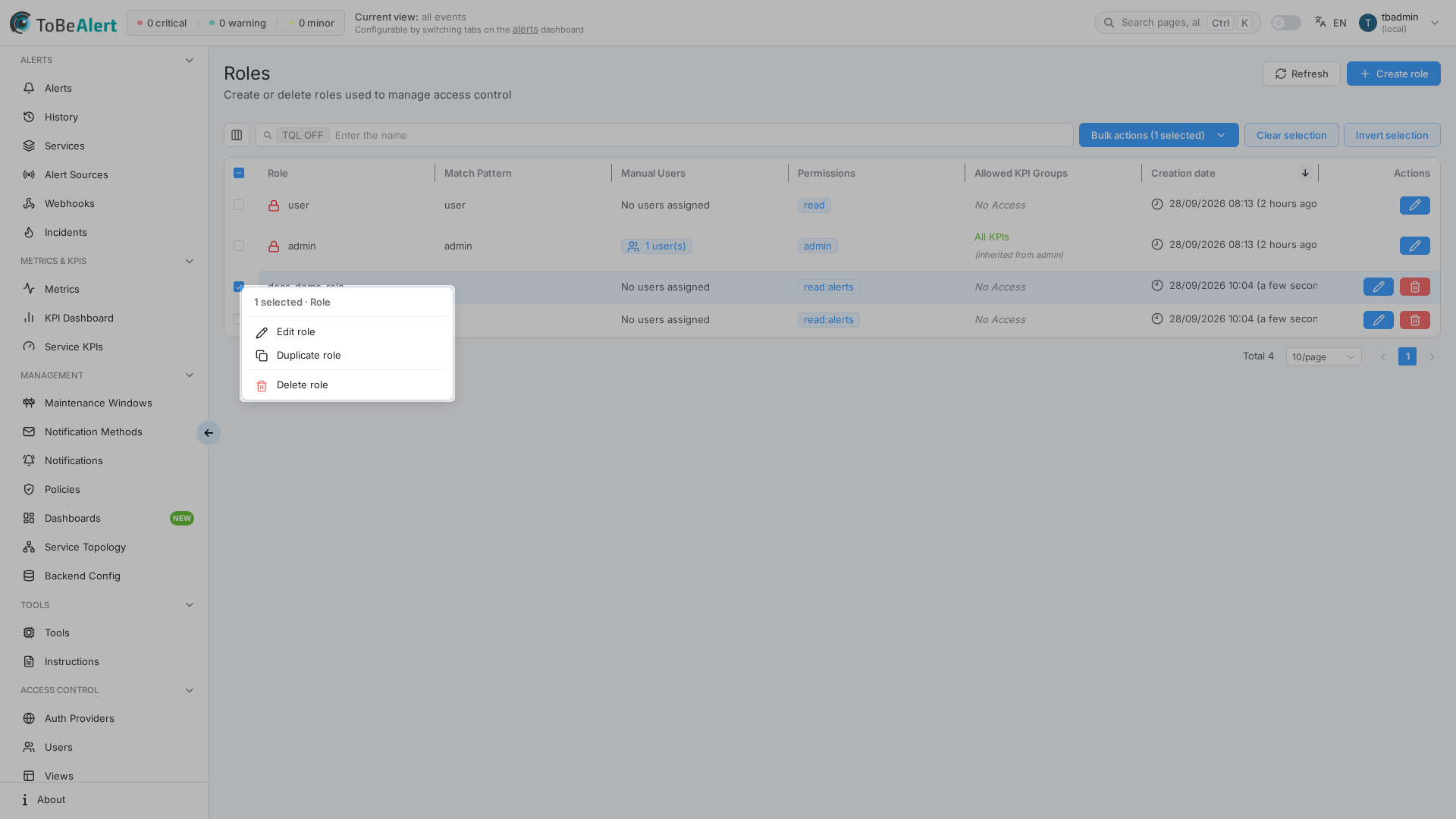
| Action | Selection | Notes |
|---|---|---|
| Edit role | Exactly one row | Opens the drawer |
| Duplicate role | One or more custom rows | Not available for built-in roles |
| Delete role | One or more custom rows | Confirmation required |
Row actions (Edit, Delete) follow the same built-in restrictions.
Permissions picker
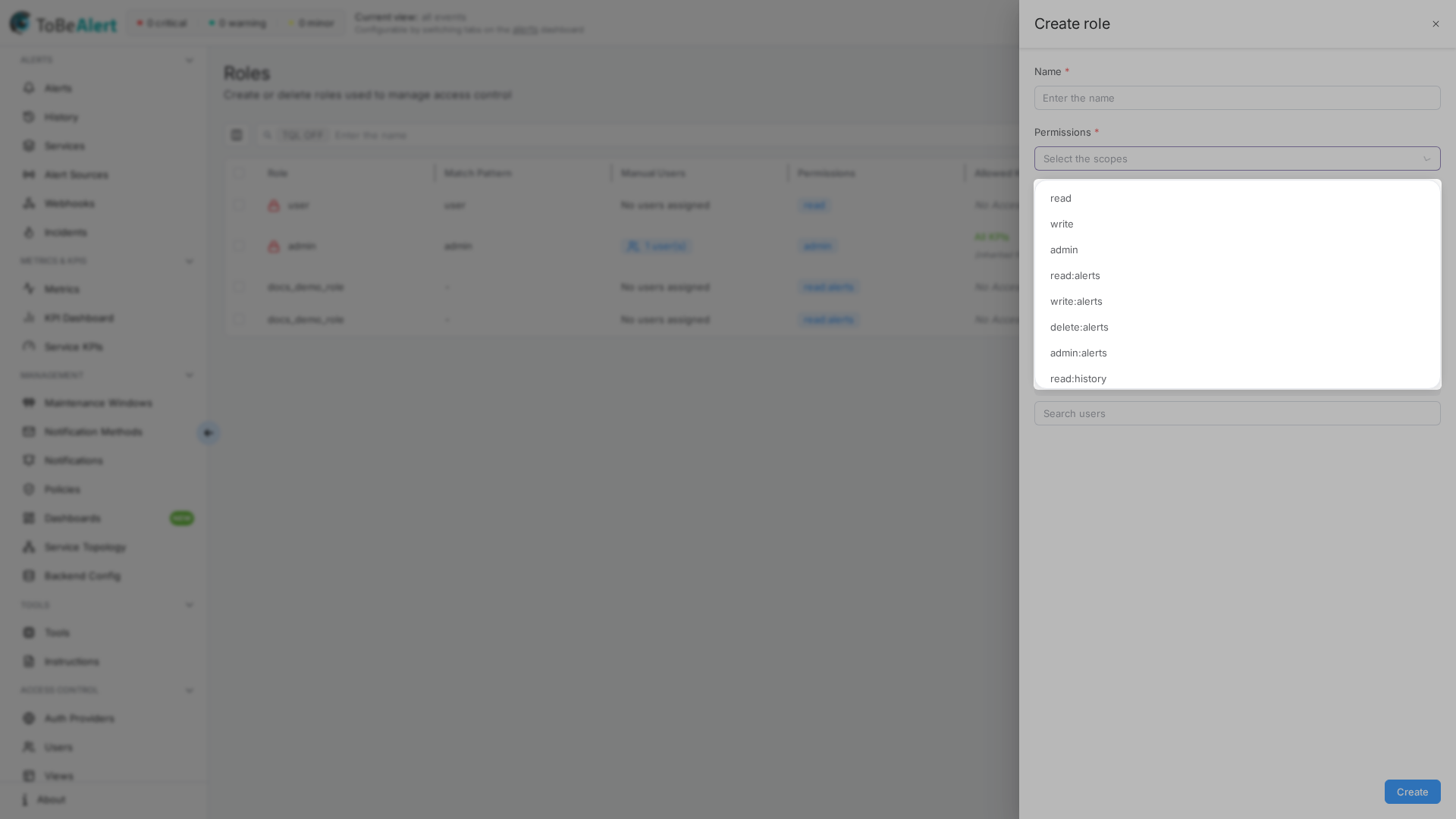
The Permissions multi-select lists every permission your account may grant (built-in catalog plus dynamic entries). You can filter the list and add:
| Custom entry | When it appears / how to use it |
|---|---|
execute:tool:<suffix> | Exact per-tool scope from tools that set Permission (or type a matching value). Required in addition to read:tool / write:tool / execute:tool. Those scopes do not imply the suffix; execute:tool does not open Permission-gated tools. Also requires write:alerts |
execute:policies:<suffix> | Per-policy scope from policies that set Permission on General (or type a matching value). Required in addition to read:policies / write:policies / run:policies. Unsuffixed execute:policies does not imply the suffix. Also requires write:alerts |
These policy entries sit alongside the usual read:policies / write:policies / run:policies / admin:policies values, plus read:policies_history and read:policies_all_history for the global All executions tab. Granting execute:policies:<suffix> does not replace tool scopes, and is independent of whether the policy executes a custom tool. execute:tool:<suffix> is likewise independent of execute:policies:….
run:policies, execute:tool (and suffixes), and execute:policies (and suffixes) each also require write:alerts (admin:alerts or global admin count). write:policies / write:tool still do not imply run or execute.
Tool scopes in the same picker are read:tool, write:tool, execute:tool, admin:tool, read:tools_history, and read:tools_all_history. There is no delete:tool. The Tools list, read-only editor, and per-tool history need read:tool. Global All executions (/tools/history) needs read:tools_history (runs of tools the user can access) or read:tools_all_history (every run). read:tool does not open global history. Create, edit, and delete need write — write does not imply execute. read:tool plus execute:tool view and run only tools with an empty Permission. Manual Try / Run on those tools need execute:tool and also write:alerts. execute:tool does not imply execute:tool:<suffix> and does not open Permission-gated tools. Those tools need the exact suffix (or admin:tool / admin) in addition to read, write, or execute for that action. admin:tool and global admin include execute, every suffix, and all-history. Automatic policy and workflow tool runs do not require the user’s execute:tool. The same rule applies to policies: execute:policies does not include execute:policies:<suffix>; read:policies does not open /policies/history. See Permissions reference — Tools and Policies.
Instruction scopes in the same picker are write:instructions and admin:instructions (create, edit, move, upload, and delete wiki/media). There is no read:instructions and no delete:instructions. Listing and opening pages is available to any signed-in user. Share-link scopes write:share_instructions and admin:share_instructions are independent of write. See Permissions reference — Instructions.
Dashboard scopes in the same picker are read:dashboards_config, write:dashboards_config, and admin:dashboards_config. There is no delete:dashboards_config. The Dashboards menu, listing all configs, and opening non-public dashboards need read (write and admin include read). Create, edit, duplicate, and delete need write. admin:dashboards_config includes write and read. Public dashboards can be listed in the filtered catalog and opened without read. A private dashboard id without read is denied (403).
Playlist scopes in the same picker are read:playlists_config, write:playlists_config, and admin:playlists_config. There is no delete:playlists_config. Seeing Playlists on Dashboards, listing playlists, and authenticated play (/playlists, /playlists/:id/play) need read. Create, edit, duplicate, and delete need write — not only admin. admin:playlists_config includes write and read. The public player (/playlist/:slug) needs no playlist scope when the playlist is public (every dashboard in it is public). A private playlist without read is denied (403). Do not mix playlist scopes with dashboards_config. See Permissions reference — Dashboards and Playlists.
There are no separate extraction scopes (read:extractions / write:extractions / admin:extractions). Regex extractions live on the policy Extractions tab (Actions step) and use the usual policy permissions. See Permissions reference — Policies and Modifiers and tools — Extractions.
The API key scope in the same picker is write:keys. There is no read:keys or delete:keys, and no resource-specific admin scope for keys. The API Keys menu (/keys), listing, viewing (copy / QR), create, edit, duplicate, enable/disable, and delete on your own keys need write — not only admin. Seeing all keys and assigning Owner to another user requires global admin (same as Users and Groups), because those actions also need visibility of other users. A non-admin with write sees and mutates only their own keys; Owner is fixed to their login. A key cannot receive scopes the creator does not already hold. See Permissions reference — API keys.
See Permissions reference for a full table of values and which management modules they unlock.
Best practices
- Clone with Duplicate — copy an existing custom role, then trim permissions instead of building from an empty list.
- One role per job function — avoid mega-roles that mix alert handling, user administration, and notification design.
- Test with a pilot user — assign Manual Users temporarily before rolling out a Match Pattern.
- Re-check KPI groups after permission changes — empty Allowed KPI Groups still shows KPIs with no group; pick All (Full Access) or named groups for the rest.
- Grant team views on the role — set Allowed views for the views a whole team needs and keep Authorized users on the view for exceptions; reserve All views for roles that must see everything.
- Keep built-in roles intact — create new roles for organizational tiers instead of requesting changes to admin / user / guest.