Creating and managing roles
Route: /roles
A role is a named set of permissions plus optional user assignment rules. Use roles to standardize access for teams instead of tuning permissions per user.
See also: Overview · Permissions reference · List tables and bulk actions
Role properties
| Field | Required | Description |
|---|---|---|
| Name | Yes | Unique role name shown in lists and user forms |
| Permissions | Yes | One or more permission values from the dropdown (see reference) |
| Allowed KPI Groups | When KPI permissions apply | Restricts KPI dashboards; shown only if permissions include KPI read/write/admin |
| Match Pattern | No | Wildcard pattern for automatic role assignment at login |
| Manual Users | No | Explicit list of user logins that receive this role |
Create a role
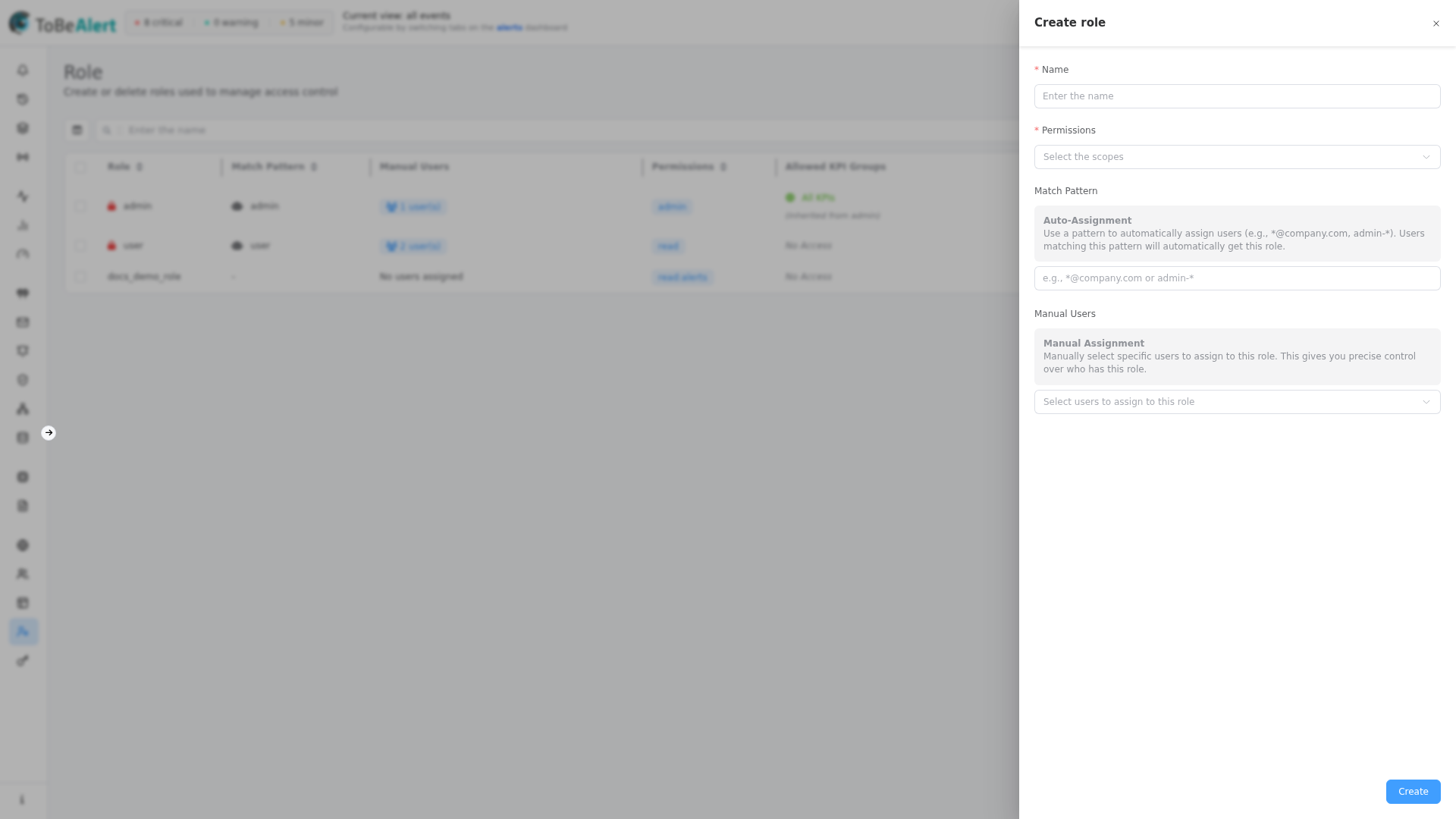
- Open Access Control → Roles.
- Click Create role.
- Enter Name.
- Open Permissions and select every permission the role needs.
- If KPI permissions are selected, choose Allowed KPI Groups (All (Full Access), specific groups, or leave empty for no KPI access — see info alert in the form).
- Optionally set Match Pattern and/or Manual Users (at least one assignment method is recommended for custom roles).
- Click Create.
Edit a role
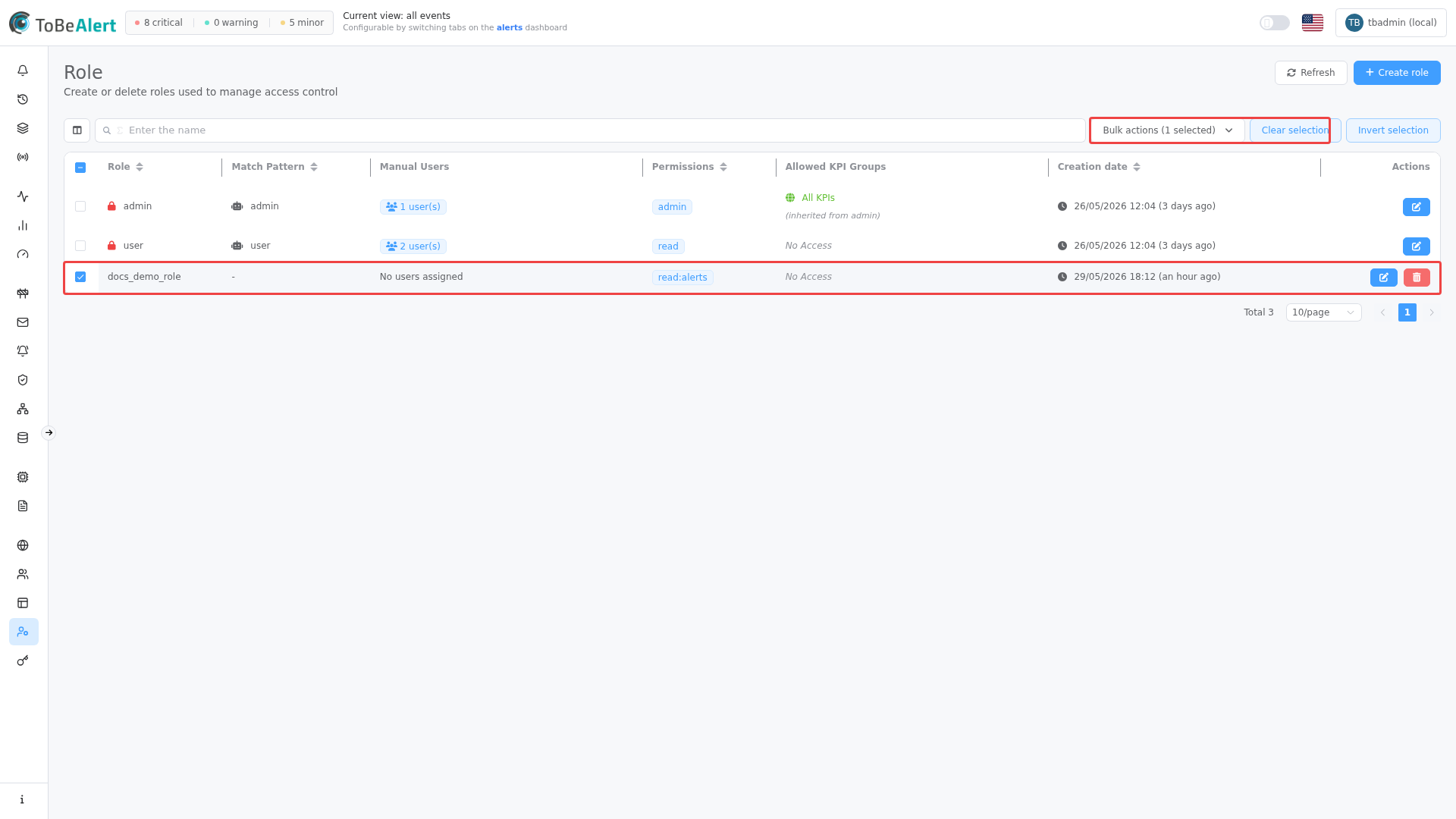
- On Roles, click the role Name, double-click the row, or select one row and use Edit role from bulk actions.
- Update fields in the drawer.
- Click Update.
Built-in roles (admin, user, guest) open in the drawer for inspection, but editable fields are disabled. You cannot change their permission set from the UI.
Assign users to a role
You can assign membership in two ways (both can be used together):
Match Pattern (auto-assignment)
The Match Pattern field supports wildcards for automatic assignment when a user signs in (for example *@company.com or admin-*).
| UI element | Description |
|---|---|
| Auto-Assignment (info) | Explains pattern-based assignment |
| Match Pattern | Text pattern matched against the user login |
Manual Users
| UI element | Description |
|---|---|
| Manual Assignment (info) | Explains direct user picks |
| Manual Users | Multi-select of users (Name (email) format in the list) |
You can also assign roles while editing a user under Access Control → Users (/users). Changes on either screen affect the same role membership.
Allowed KPI Groups
When the role includes any of read:kpis, write:kpis, or admin:kpis, the Allowed KPI Groups field appears.
| Selection | Table display | Effect |
|---|---|---|
| All (Full Access) | All KPIs (globe icon) | Full KPI visibility |
| Specific groups | N group(s) | Restricted to listed KPI groups |
| Empty | No Access | No KPI data despite KPI permissions on the role |
| Role has admin or admin:kpis | All KPIs with (inherited from admin) | Admin-level KPI access |
Duplicate a role
- Select one or more custom roles (not built-in).
- Choose Duplicate role from the bulk action menu or row context.
- ToBeAlert creates copies with a unique name suffix, copying Match Pattern, Permissions, Manual Users, and Allowed KPI Groups.
Built-in roles cannot be duplicated.
Delete a role
- Select one or more custom roles.
- Click Delete (row action or Delete role bulk action).
- Confirm in the dialog.
Built-in roles cannot be deleted. Deleting a role removes it from users who held it.
Table and bulk actions
Select custom roles with the checkbox column, then use the bulk actions dropdown or context menu — see List tables and bulk actions. Module-specific actions:
Right-click a custom role row (built-in rows do not offer Duplicate or Delete in the menu):
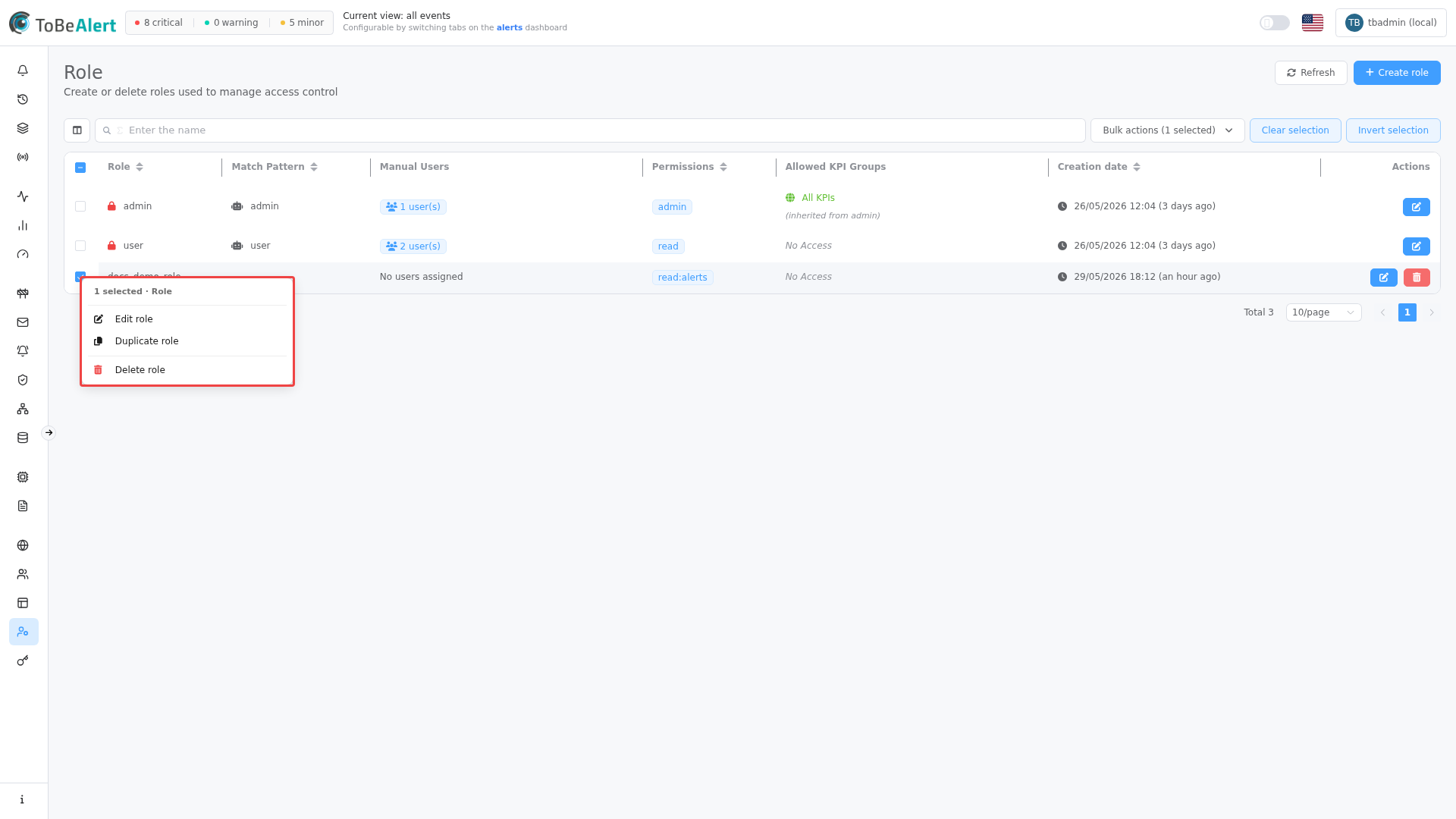
| Action | Selection | Notes |
|---|---|---|
| Edit role | Exactly one row | Opens the drawer |
| Duplicate role | One or more custom rows | Not available for built-in roles |
| Delete role | One or more custom rows | Confirmation required |
Row actions (Edit, Delete) follow the same built-in restrictions.
Permissions picker
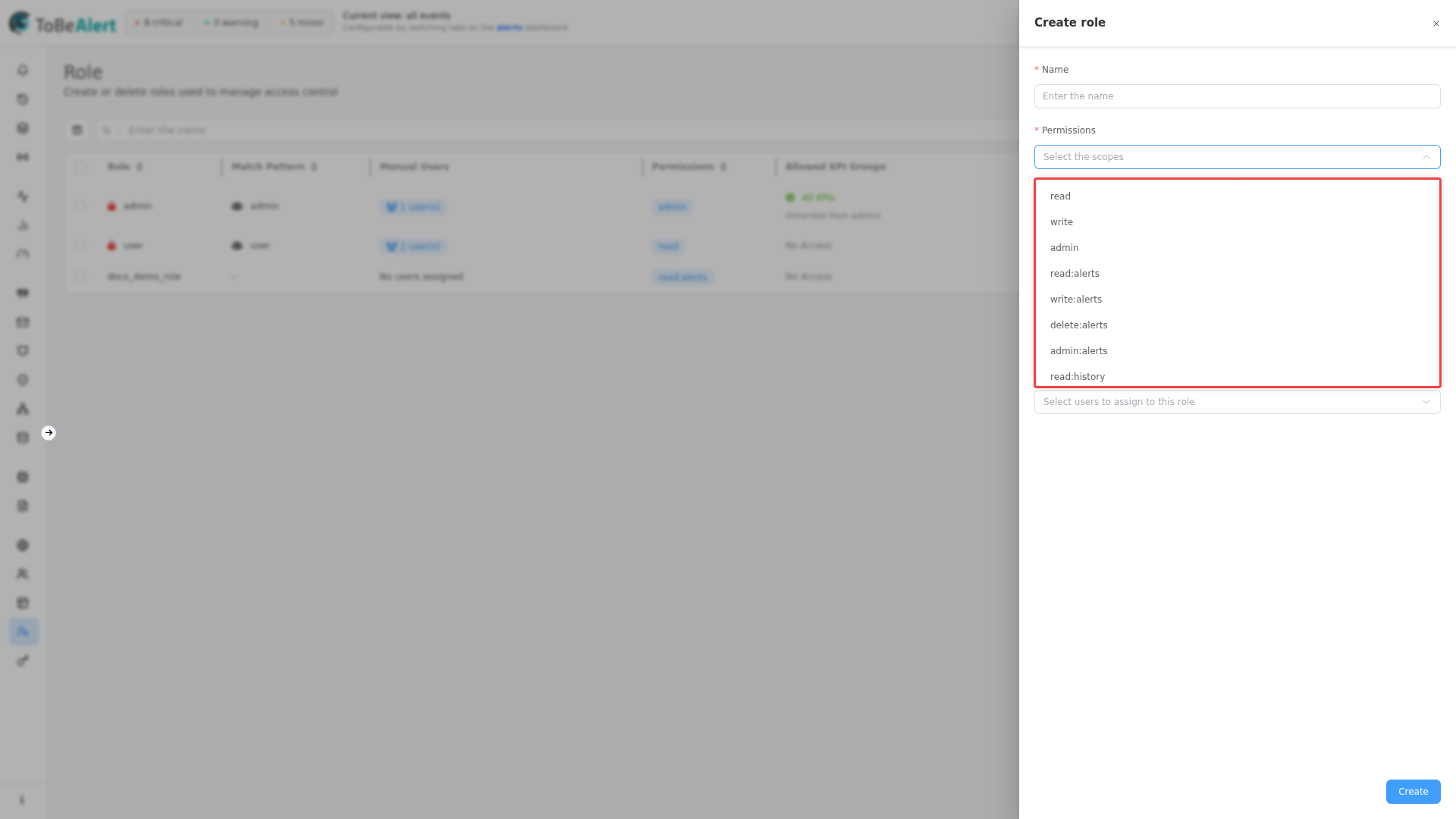
The Permissions multi-select lists every permission your account may grant. You can filter the list and add custom Run tool entries (execute:tool:<tool-id>) when your organization uses scoped tool execution.
See Permissions reference for a full table of values and which management modules they unlock.
Best practices
- Clone with Duplicate — copy an existing custom role, then trim permissions instead of building from an empty list.
- One role per job function — avoid mega-roles that mix alert handling, user administration, and notification design.
- Test with a pilot user — assign Manual Users temporarily before rolling out a Match Pattern.
- Re-check KPI groups after permission changes — adding KPI read permission without selecting groups leaves KPI access empty.
- Keep built-in roles intact — create new roles for organizational tiers instead of requesting changes to admin / user / guest.