Managing users
Route: /users
The Users page lists every account that can access ToBeAlert. From here you create local users, edit profiles, assign Roles and Views, enable or disable accounts, reset passwords, force logout, and remove users you no longer need.
See also: Overview · Users, roles and permissions · Views · TQL search and filters · List tables and bulk actions
Table columns
| Column | Description |
|---|---|
| Name | Display name (click to open the edit drawer). Shows Login under the name; (You) marks your own account |
| Contact email, or blank when not set | |
| Auth source | How the user signs in — local or an external provider name |
| Roles | Assigned roles (tags; hover +N for the full list) |
| Views | Views for alert visibility: assigned directly, received through a role (marked via role with the role name), or All users; No groups when none |
| Status | Active/inactive toggle (green = active). You cannot toggle your own account |
| Text | Free-text notes on the user (set as Description in the create/edit drawer) |
| Last login | Time of the most recent sign-in, or Never logged in |
| Actions | Edit, Force logout, Delete (when permitted) |
Built-in accounts show a lock icon next to the login and cannot be deleted.
Use Manage table columns to show or hide columns. Sorting and pagination follow the shared table pattern — see List tables and bulk actions (page, size in the URL).
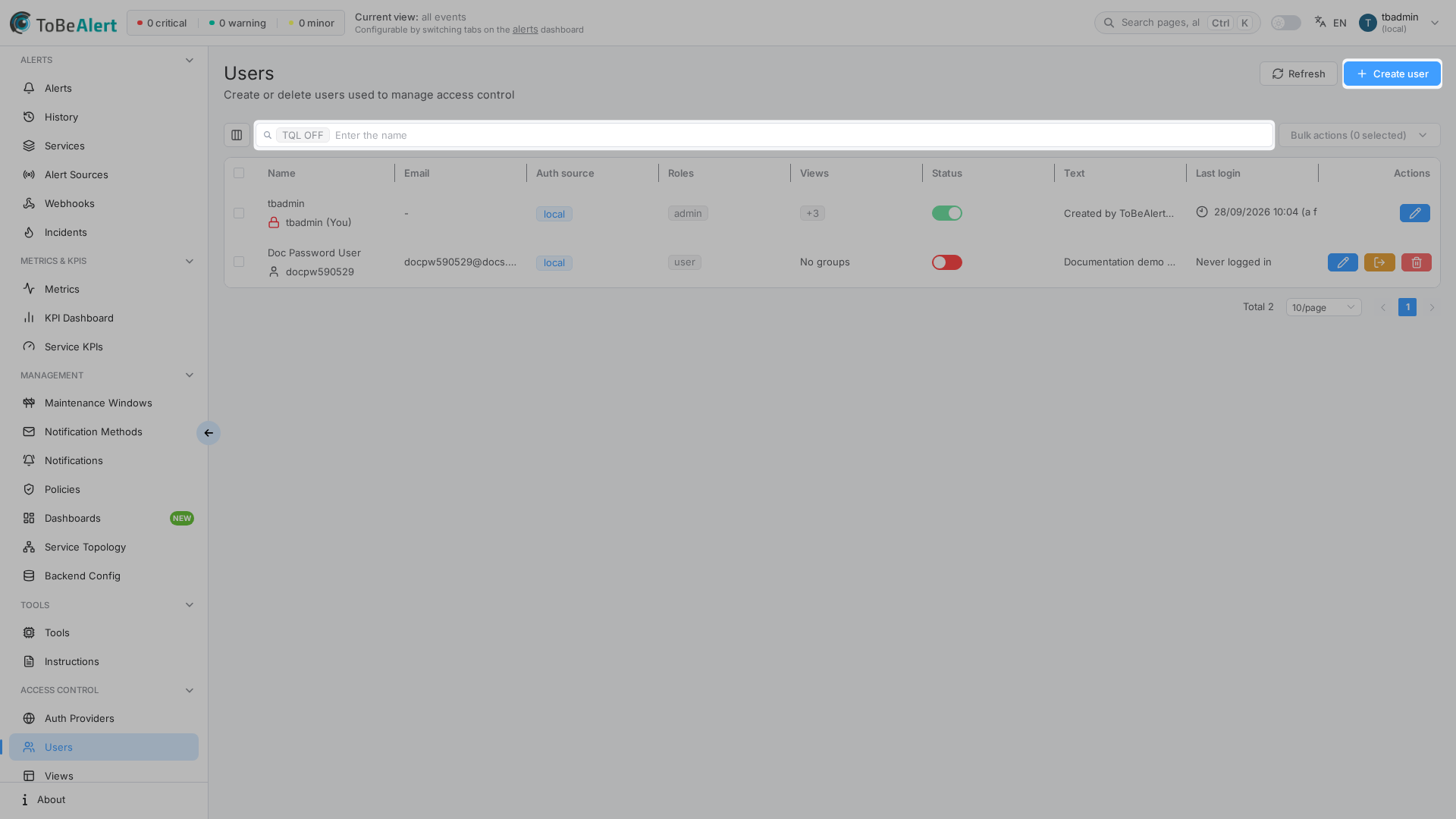
Create a user
- Open Access Control → Users.
- Click Create user.
- Fill in the drawer fields (see below).
- Click Create.
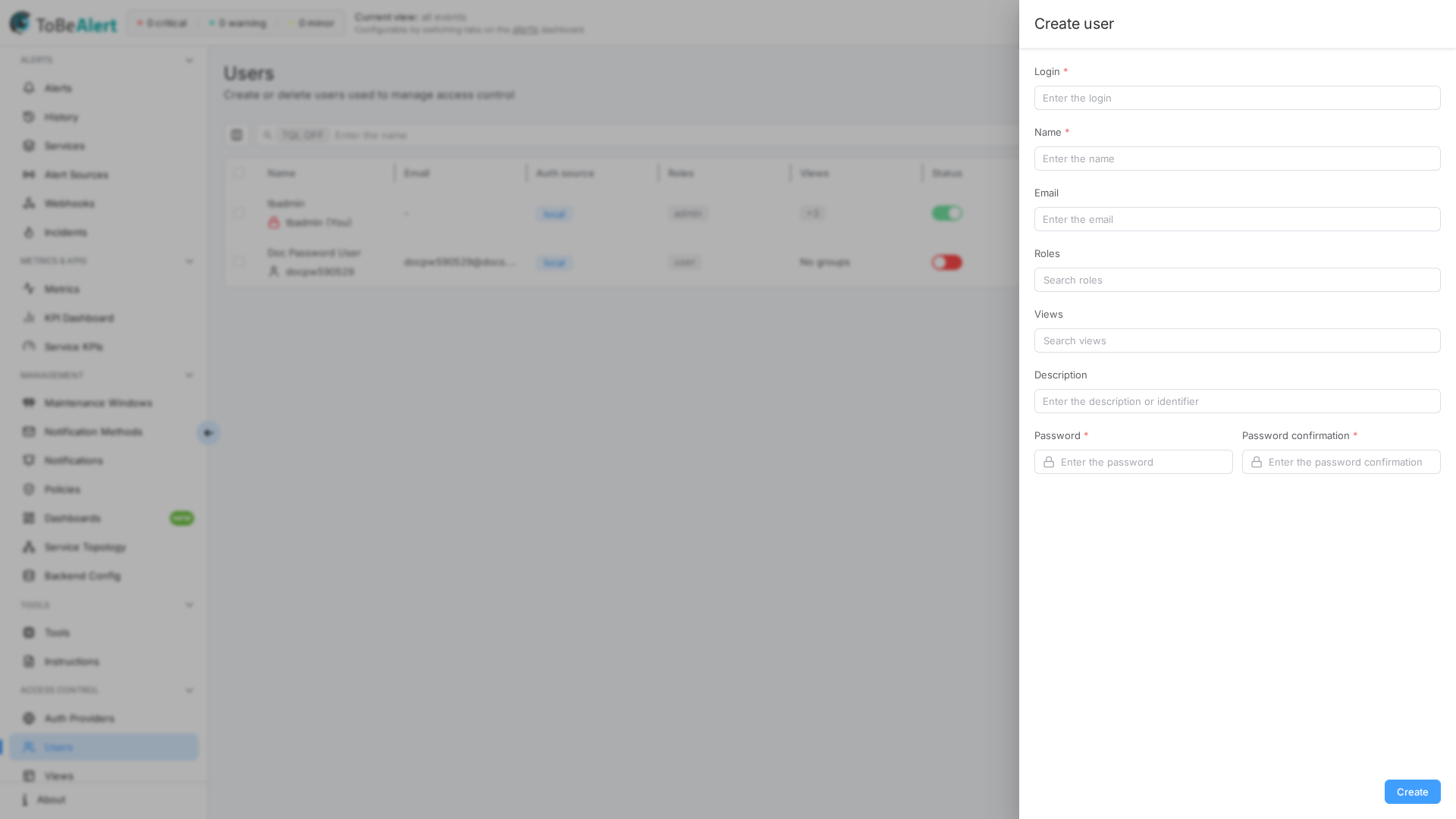
Create form fields
| Field | Required | Description |
|---|---|---|
| Login | Yes | Unique username for sign-in (create only; cannot change later from this drawer) |
| Name | Yes | Display name shown in the UI and history |
| No | Contact email; recommended for notifications | |
| Roles | No | Search and pick roles — see Assign roles and views and Roles overview |
| Views | No | Search and pick views — see Assign roles and views and Views |
| Description | No | Notes about the account |
| Password | Yes | Minimum 8 characters |
| Password confirmation | Yes | Must match Password |
New local users are created active unless your workflow disables them afterward.
Edit a user
- Click the user Name, double-click the row, use the row Edit button, or select one row and choose bulk Edit.
- Update Name, Email, Roles, Views, or Description.
- Click Update.
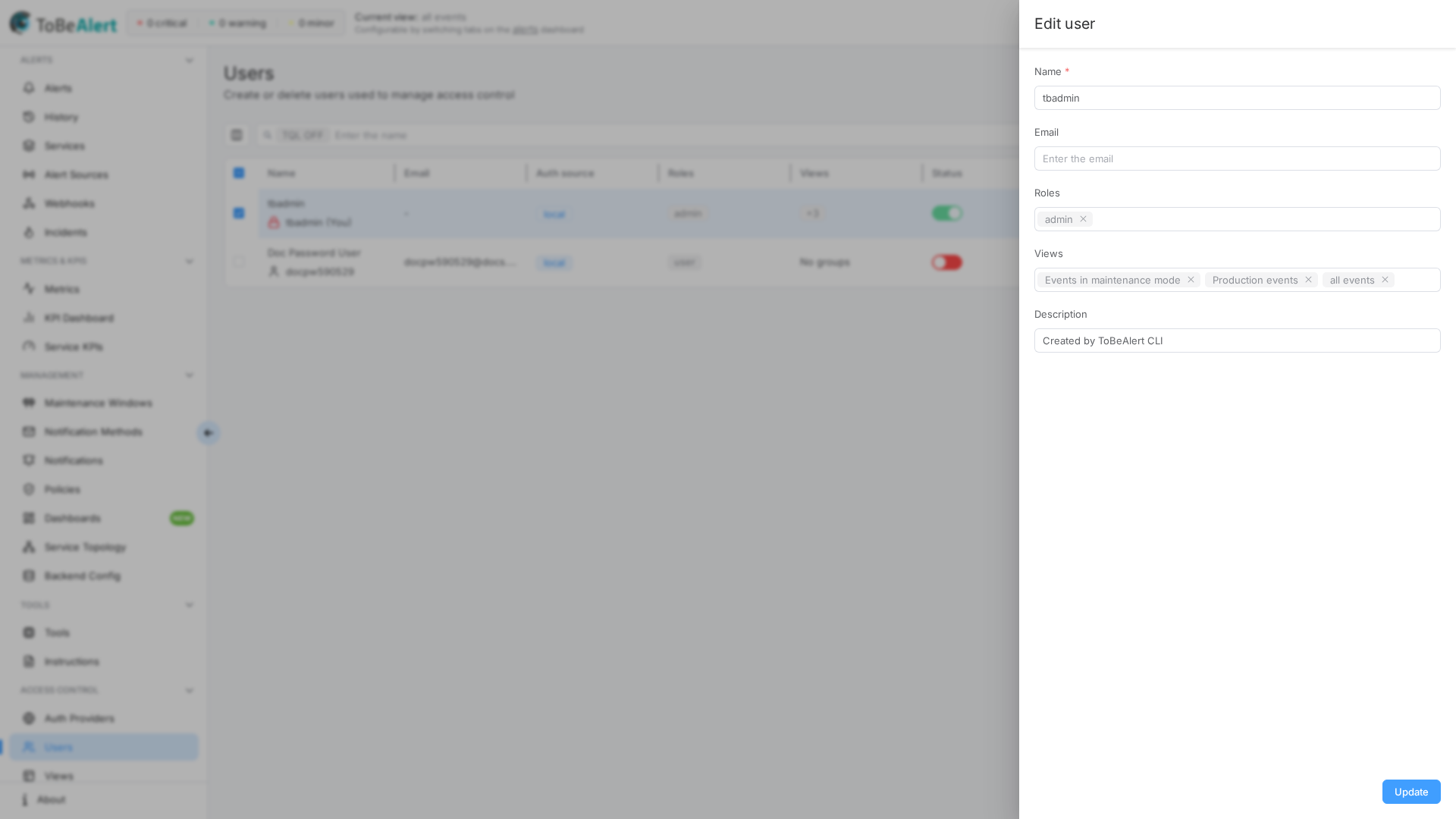
Login is not editable in the drawer. External (non-local) users may have fields managed by the identity provider — assign Roles and Views in ToBeAlert as needed.
Closing the drawer with unsaved changes shows the standard unsaved-changes prompt.
Assign roles and views
The Roles and Views fields in the create/edit drawer are search pickers, not a single dropdown of the full catalog.
- Selected items appear as chips above the search box.
- Type in Search roles or Search views. Matching results load as you type; scroll the list to load more.
- Click a result to add it (check mark). Click again, or close the chip, to remove it.
- Empty search results show No roles match this search or No views match this search.
Views granted to All users (every account, including users created later) appear as chips with the All users hint. Those chips are locked: you cannot close them, and Create / Update does not drop them.
Views the user receives through one of their roles (Allowed views on the role, or Roles on the view) appear the same way, marked via role with the role name. They are locked too: to take such a view away, remove the role from the user, or edit the role's Allowed views / the view's Roles — see Assigning views to roles. Adding a role in this drawer gives the user that role's views immediately; removing it takes them away. Views you pick directly in Views are unaffected by role changes.
The Users table still shows assigned roles and views as tags. Table search is unchanged — see Search and filters.
Change password
Applies to local users only (not external auth accounts or built-in superadmin accounts).
- Select exactly one local user in the table (checkbox).
- Right-click the row and choose Change password from the context menu.
- Enter Your password (the administrator’s current password), then Password and Password confirmation for the target user.
- Click Change password.
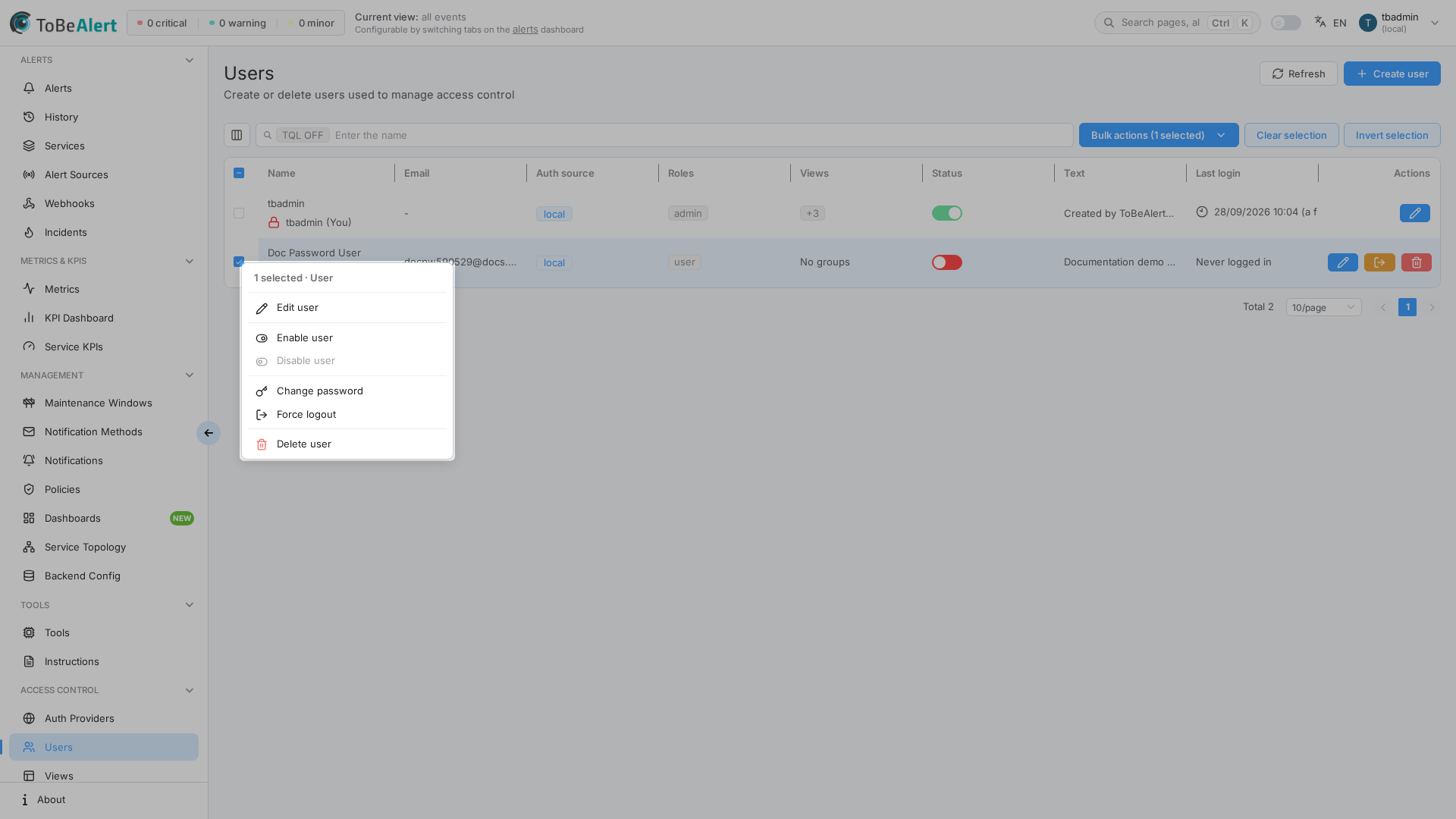
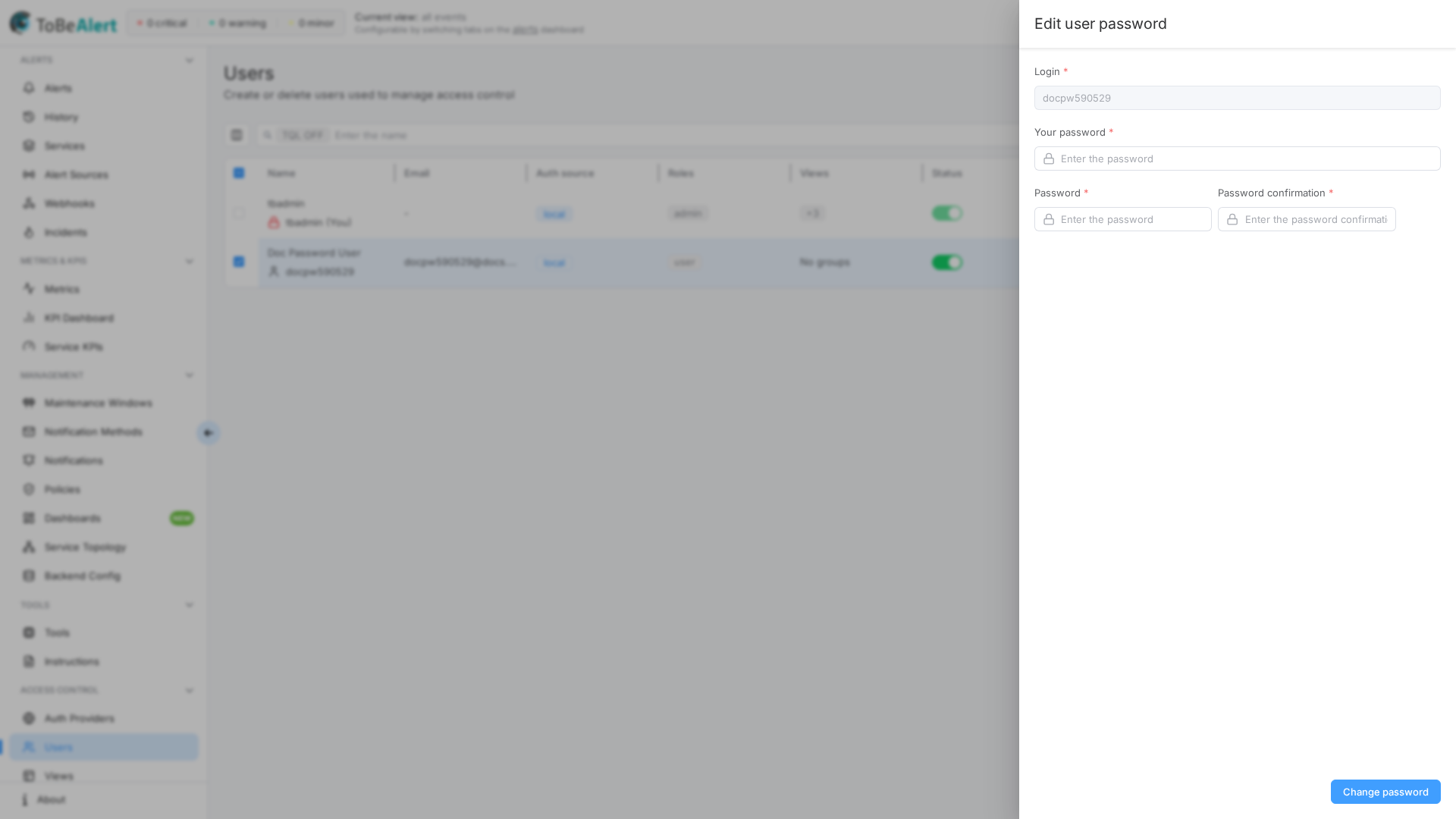
Password rules match user creation: at least 8 characters; confirmation must match.
Enable, disable, and delete
Status toggle
Use the Status switch on each row to set active (enabled) or inactive (disabled). Inactive users cannot sign in. You cannot disable your own account.
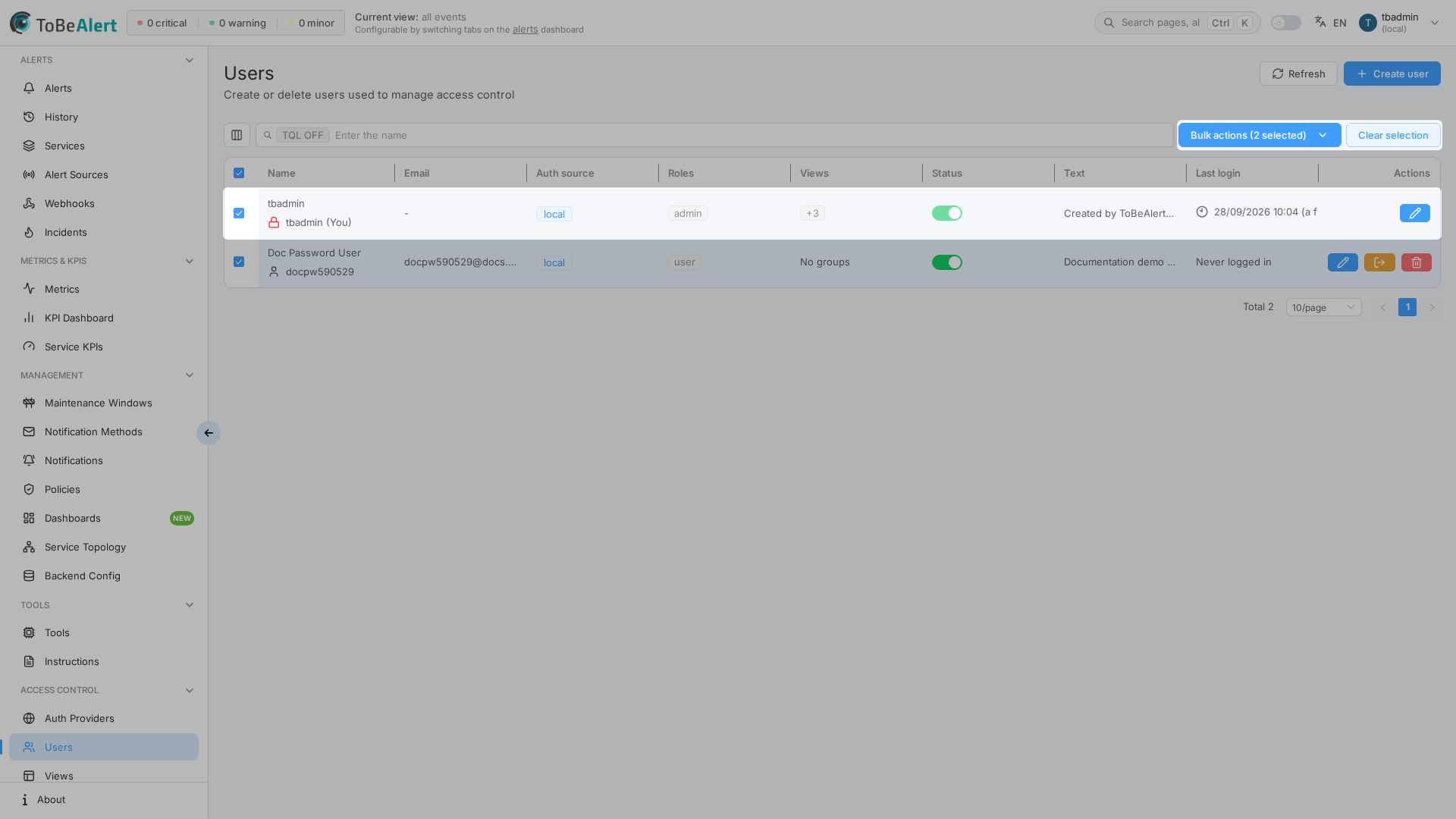
Bulk enable and disable
Select one or more users, then Enable or Disable in the bulk toolbar. Built-in accounts and your own account are excluded from bulk disable/delete.
Delete
- Row Delete (trash icon) or bulk Delete after selecting users.
- Confirm in the dialog (Delete user / Delete N users).
You cannot delete built-in users or your own account.
Force logout
For a single user (not built-in, not yourself), click Force logout in the Actions column to end their current session.
Search and filters
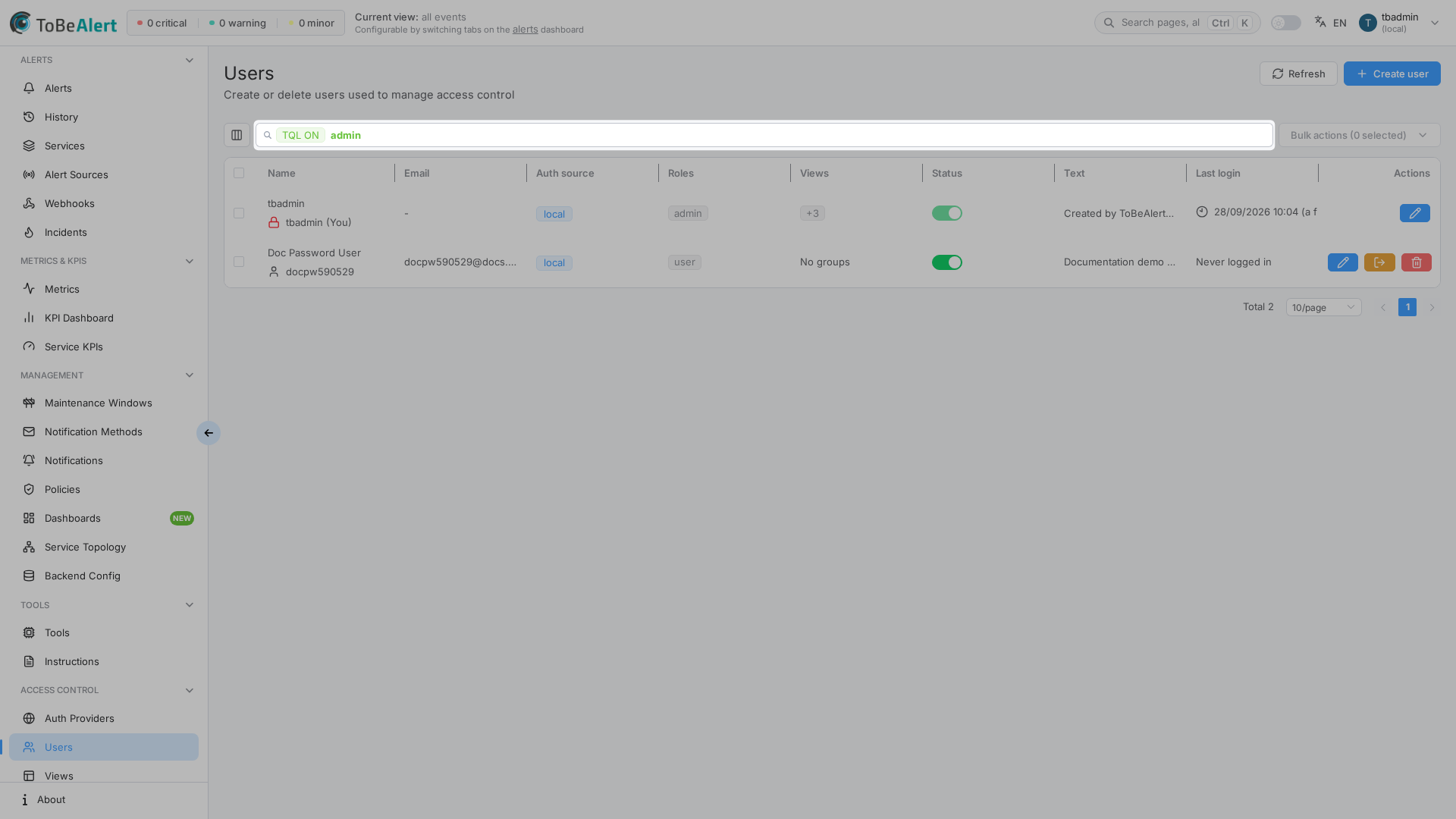
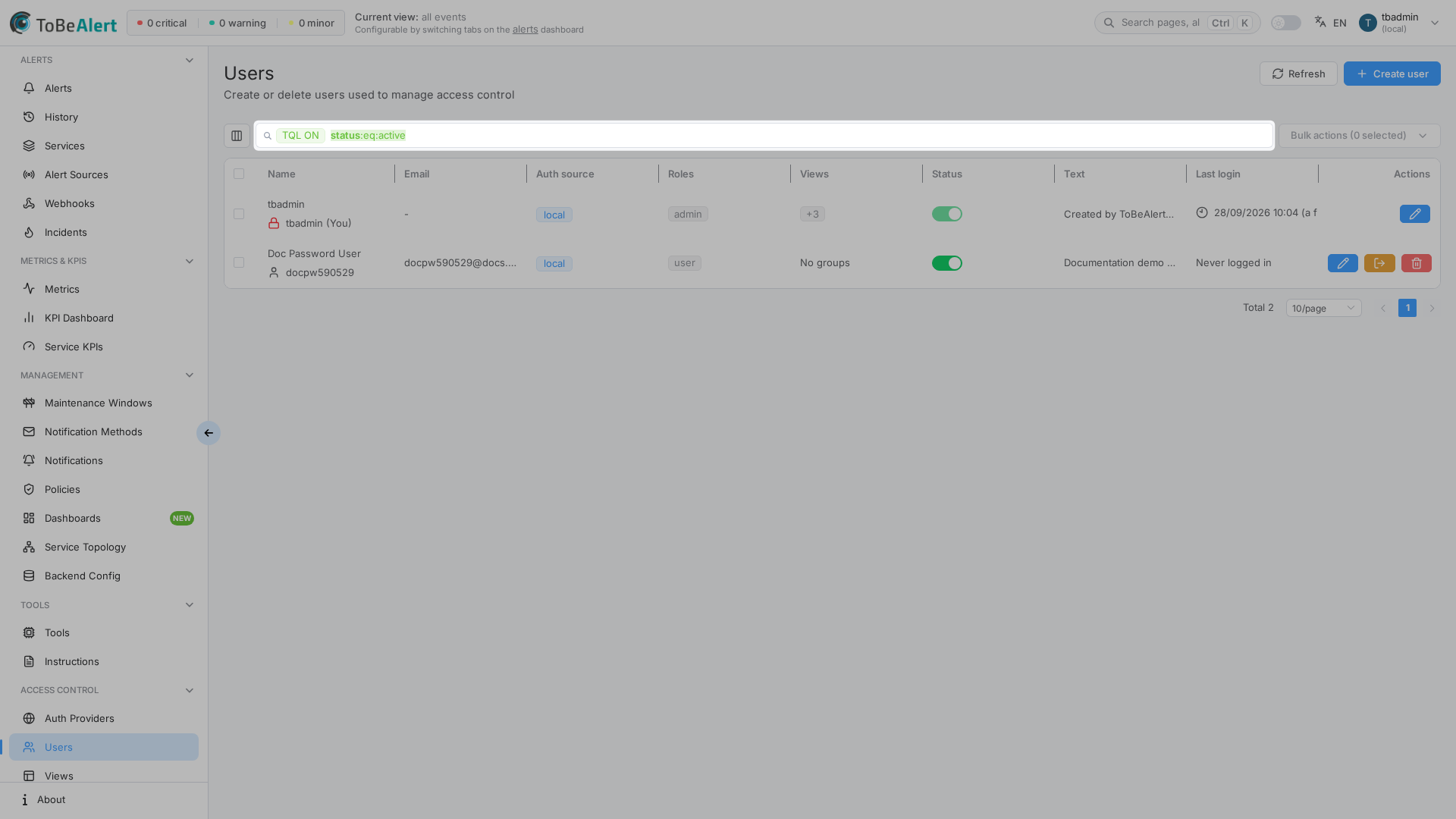
The toolbar search box uses placeholder Enter the name. Plain text and the TQL ON / TQL OFF tag behave like other Access Control lists — see TQL search and filters.
Useful TQL examples on this screen:
status:eq:activestatus:eq:inactivename:contains:adminlastLogin:gt:2025-01-01
Filterable columns include name, status, text, lastLogin, and authSource. The query is stored in the URL (q) so you can bookmark filtered lists.
Row and bulk actions summary
| Action | Applies to | Notes |
|---|---|---|
| Edit | One user | Row Edit button, click Name, double-click row, or context menu |
| Enable / Disable | One or more | Bulk actions dropdown |
| Change password | One local user | Context menu (right-click) |
| Delete | One or more | Row action or bulk actions dropdown |
| Force logout | One user | Row action only |
| Clear selection / Invert selection | Selection | Shown when rows are selected |
Right-click selected rows for the same bulk actions in the context menu (see the Change password context menu screenshot).
Auth source behavior
| Auth source | Create in UI | Password reset | Typical setup |
|---|---|---|---|
local | Yes | Yes (Change password) | Manual account |
| LDAP / SAML | Via sync | No (managed by IdP) | Sync Users on provider |
| Built-in | Predefined | Restricted | System accounts (lock icon) |
After LDAP sync, review Status — providers can leave synced users inactive until an admin enables them (see provider Set users active on sync option in LDAP provider).
Example scenarios
On-call engineer (local)
| Field | Value |
|---|---|
| Login | oncall-jane |
| Name | Jane On-Call |
jane.ops@company.com | |
| Roles | Custom role with alert read/write |
| Views | Production view |
Directory user after LDAP sync
- Run Sync Users on the LDAP provider.
- Find the account on Users (Auth source = provider name).
- Assign Roles and Views; enable Status if inactive.
- User signs in with Login with LDAP on the login page.
Temporary contractor
- Create or sync the account with minimal Roles.
- Disable (do not delete) when the contract ends — preserves audit history.
Best practices
- Set Email for anyone who receives notifications or appears in alert history.
- Assign Views before granting broad alert roles — visibility and action permissions work together. For team-wide visibility, set Allowed views on the role instead of picking the same views on every user.
- Use Disable for departures; reserve Delete for accounts that must be removed from lists entirely.
- Reset passwords with Change password rather than sharing credentials.
- After bulk Enable, confirm you remain within the licensed enabled-user count.
- For external auth, keep a local break-glass admin until SSO/LDAP is proven in production.