Alert sources
Route: /sources (sidebar: Alerts → Alert Sources)
An alert source labels where alerts originate in ToBeAlert (monitoring system, integration, team, environment, etc.). Sources appear in the UI with a name, icon, and description, helping operators recognize alert provenance on the dashboard and in reports.
See also: Alerts dashboard · Webhook Configurations
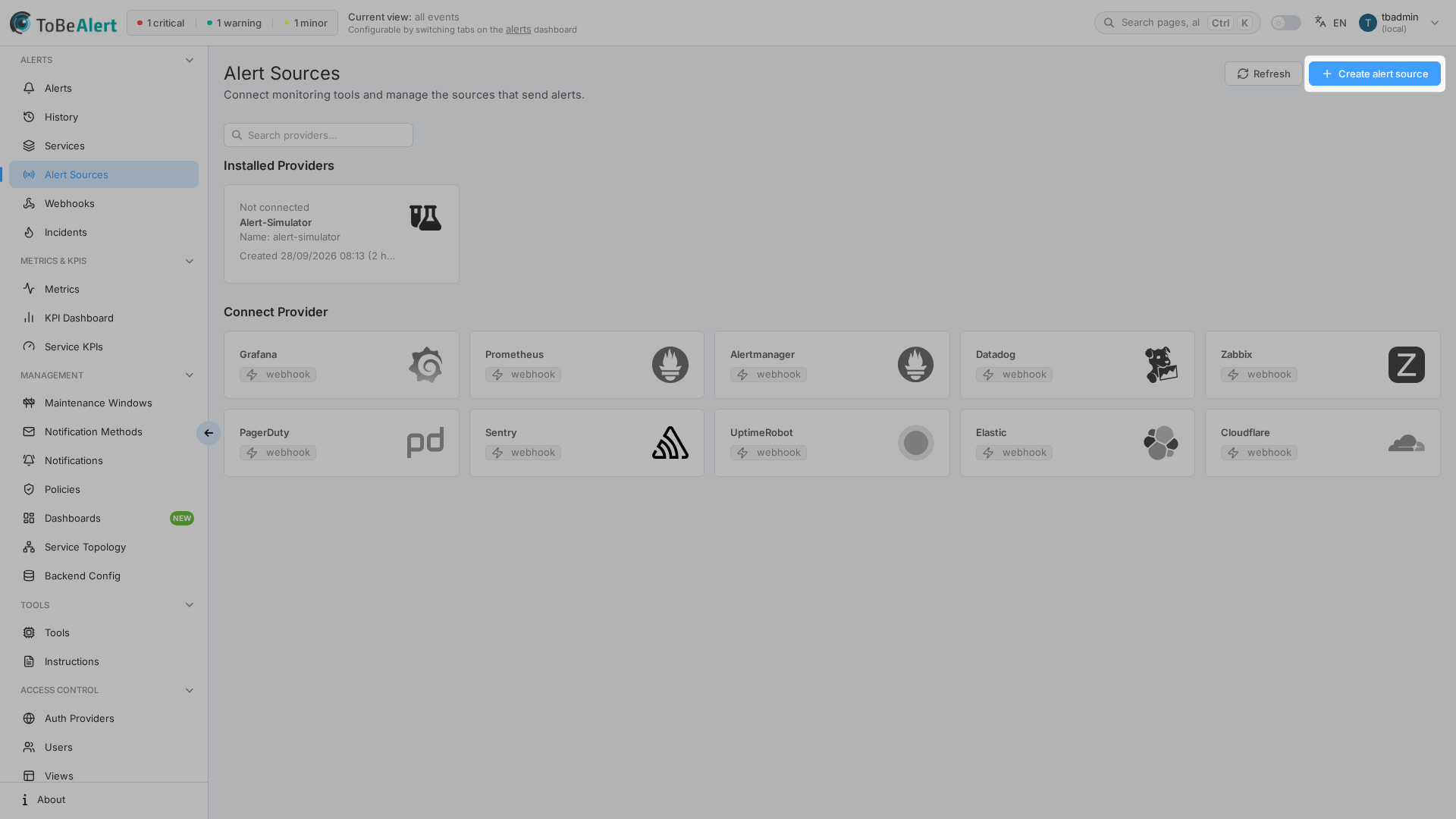
Where to find it
In the sidebar under Alerts:
- Alert Sources →
/sources
Header actions:
| Button | Description |
|---|---|
| Webhook Configurations | Jump to inbound webhook setup (requires webhook read permission) |
| Refresh | Reload the list |
| Create alert source | Open the create drawer (requires write permission) |
The page has two tabs: Installed (your sources) and Pre-configured. Use Search alert sources... to filter the card grid.
Creating, editing, and deleting alert sources require the appropriate permissions. If Create alert source is missing, contact your administrator.
Source cards
Sources are shown as cards in a responsive grid (not a data table). Each card shows:
| Element | Description |
|---|---|
| Icon | Source icon (dashboard, FontAwesome, or custom SVG) |
| Name | Source identifier, with icon type in parentheses |
| Description | Human-readable description |
| Delete | Trash control (with permission) |
| Webhook status | With webhook or No webhook |
Click a card to open the edit drawer. Pagination (Total, page size) sits below the grid.
Create an alert source
- Open Alerts → Alert Sources.
- Click Create alert source.
- Fill in the form (see below).
- Click Create.
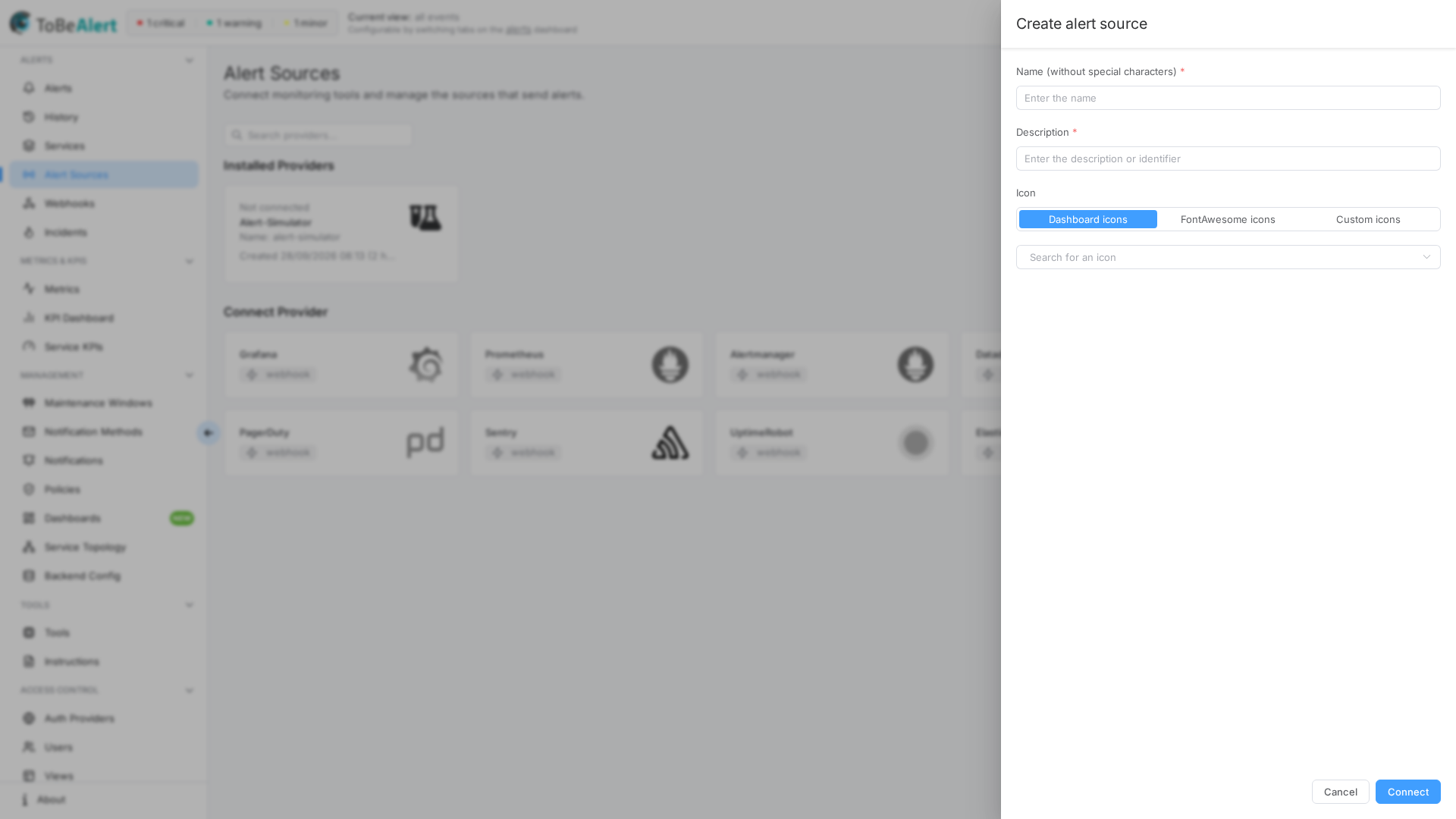
Form fields
| Field | Description |
|---|---|
| Name (without special characters) | Required. Alphanumeric, hyphen, underscore, and slash only |
| Description | Required. Explain what this source represents |
| Icon | Choose icon type, then pick or paste an icon |
Icon types
| Type | Description |
|---|---|
| Dashboard icons | Built-in SVG icons from the ToBeAlert icon set — search with Search for an icon |
| FontAwesome icons | Font Awesome solid icons — searchable list with preview |
| Custom icons | Paste SVG markup in Place the svg icon here; live Preview below |
Switching icon type clears the current icon selection.
Edit and delete
- Click a card to open Edit alert source.
- Footer button: Update.
- Delete via the trash control on the card (confirmation dialog).
Closing the drawer with unsaved changes triggers the standard unsaved-changes prompt.
Relationship to webhooks and integrations
Alert sources are metadata labels in the UI — they identify and visually distinguish origins. Inbound alert ingestion typically uses:
- Webhook Configurations — Webhook Configurations button on this page
- Standard alert API endpoints (see API documentation)
Assign or map sources according to your integration design so operators can filter and recognize alerts by origin on the dashboard.
Best practices
- One source per integration or team — e.g.
prometheus-prod,datadog-staging,manual-ops. - Use recognizable icons — speeds up visual scanning on dense dashboards.
- Write clear descriptions — document which system or pipeline feeds this source.
- Keep names stable — changing source names may affect bookmarks and automation that reference them.
- Review periodically — remove unused sources to keep the catalog manageable.