Running tools on alerts
Custom tools run in the context of one or more alerts. You can execute them manually from the Alerts dashboard or alert details drawer, or automatically through Policies and Workflows.
See also: Overview · Managing tools · Tool editor · Policies — Modifiers and tools
Manual execution from the Alerts dashboard
- Open the Alerts dashboard.
- Right-click an alert row (or select alerts and right-click a selected row) to open the context menu.
- Point to Tool or Tools (wrench icon) to expand the submenu.
- Choose
`Run {name}`for the tool you want.
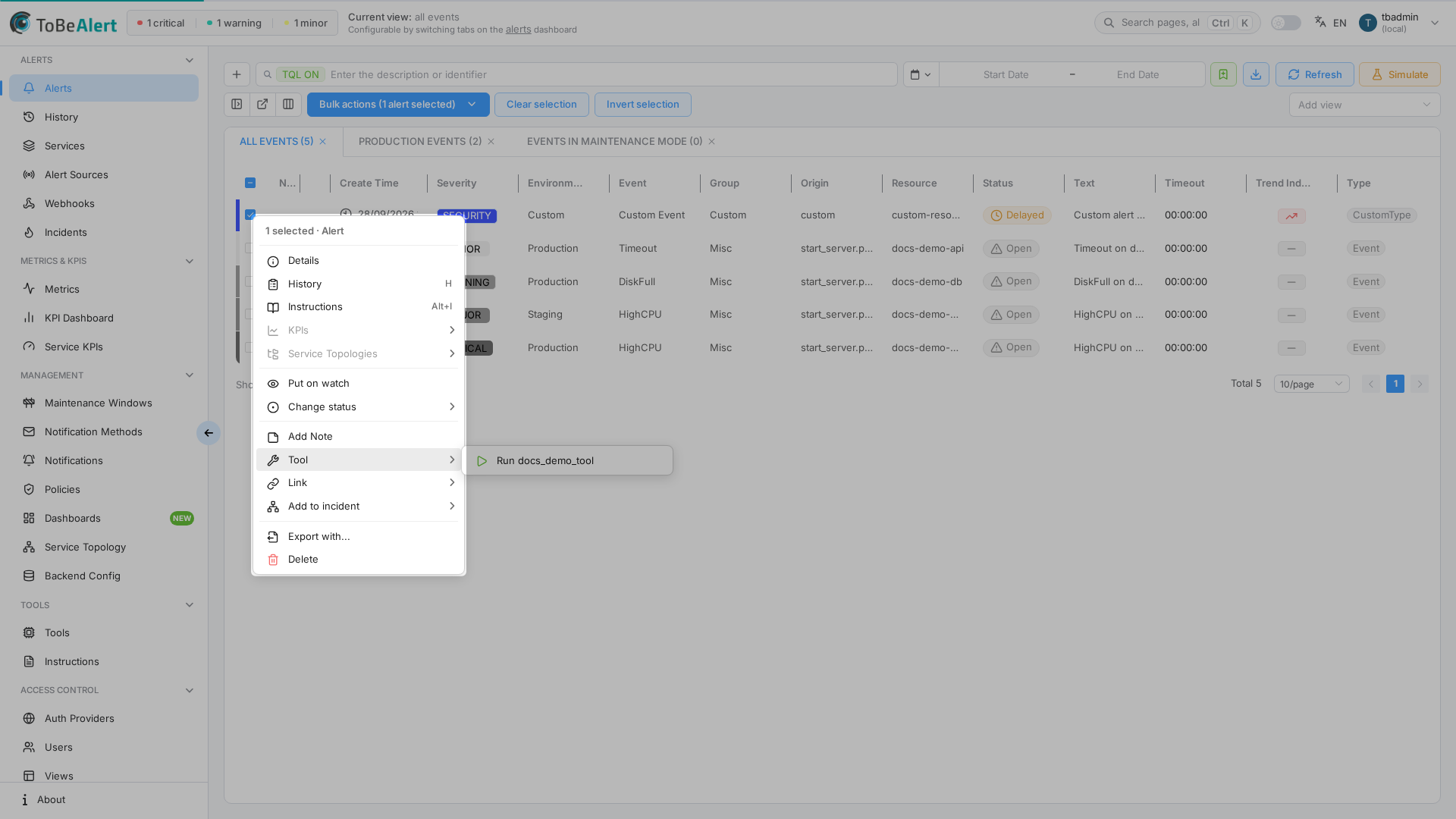
If no tools exist yet, the submenu offers No tools available with a shortcut to Tools → Tools.
Each `Run {name}` entry executes that tool against all selected alerts (subject to your permissions and any per-tool Permission suffix).
Manual execution from the alert details drawer
- Open an alert (Details).
- Click Tools in the drawer footer actions.
- A side drawer lists every registered tool as a card (name, description, line count, last update).
- Click a card to run that tool on the current alert.
When no tools are registered, the drawer shows No tools available.
Execution permission
| Check | Effect |
|---|---|
| User lacks execute:tool or write:alerts | Tools actions, Try, and `Run {name}` are hidden for tools with empty Permission. write:tool does not imply execute. execute:tool also needs write:alerts (admin:alerts or global admin count). admin:tool and admin include execute |
| Tool Permission suffix is set | User must hold the exact execute:tool:<suffix> (or admin:tool / admin) in addition to execute:tool, and still needs write:alerts. execute:tool does not open that tool and does not imply the suffix |
| Tools feature disabled in license | Tools bulk action is disabled |
When execution succeeds and the script prints output, an Output Console dialog may appear with stdout/stderr. Alert field changes are visible after refresh and in History.
Tools that accept runtime arguments may show a prompt for values before running.
Automatic execution via policies
On Management → Policies, open a policy and, in the Actions step, the Run a tool tab:
| Field | Description |
|---|---|
| Execute custom tool | None or a registered tool by Identifier |
When a tool is selected, it runs on alerts that match the policy Conditions (in addition to any field modifiers). Those automatic runs do not require the operator’s execute:tool. See Modifiers and tools.
Active policies with Execute custom tool set count toward your tools license quota. When the limit is reached, the dropdown is disabled (Max items reached) and you cannot enable policies that already reference a tool.
Workflows
Workflow action nodes can include Execute custom tool, referencing a tool by name from the same registry. Configure the node in the workflow editor under the actions category.
Best practices
- Test tool in the editor before assigning the tool to a policy or workflow.
- Prefer
`Run {name}`on a single alert first when debugging production scripts. - Leave Execute custom tool as None on policies unless script logic is required — modifiers alone are simpler and do not consume tools quota.
- Document tool side effects in the policy Description for operators reviewing History.
- Revoke
execute:tool:<suffix>from roles when decommissioning sensitive integrations.