Managing API keys
Route: /keys
Use the API Keys page to create credentials for the REST API and mobile app, copy key values, adjust active status, and remove keys that are no longer trusted.
See also: Overview · Users · Roles — permissions reference · API authentication · TQL search and filters · List tables and bulk actions
List columns
| Column | Description |
|---|---|
| Description | Purpose label you set at creation (required) |
| API Key | Key string; click the value or use row actions to copy |
| User | Owner account associated with the key |
| Roles | Permission labels granted to the key (tags in the table; hover +N for more) |
| Status | active or inactive |
| Expire Time | When the key stops working (tooltip shows time remaining) |
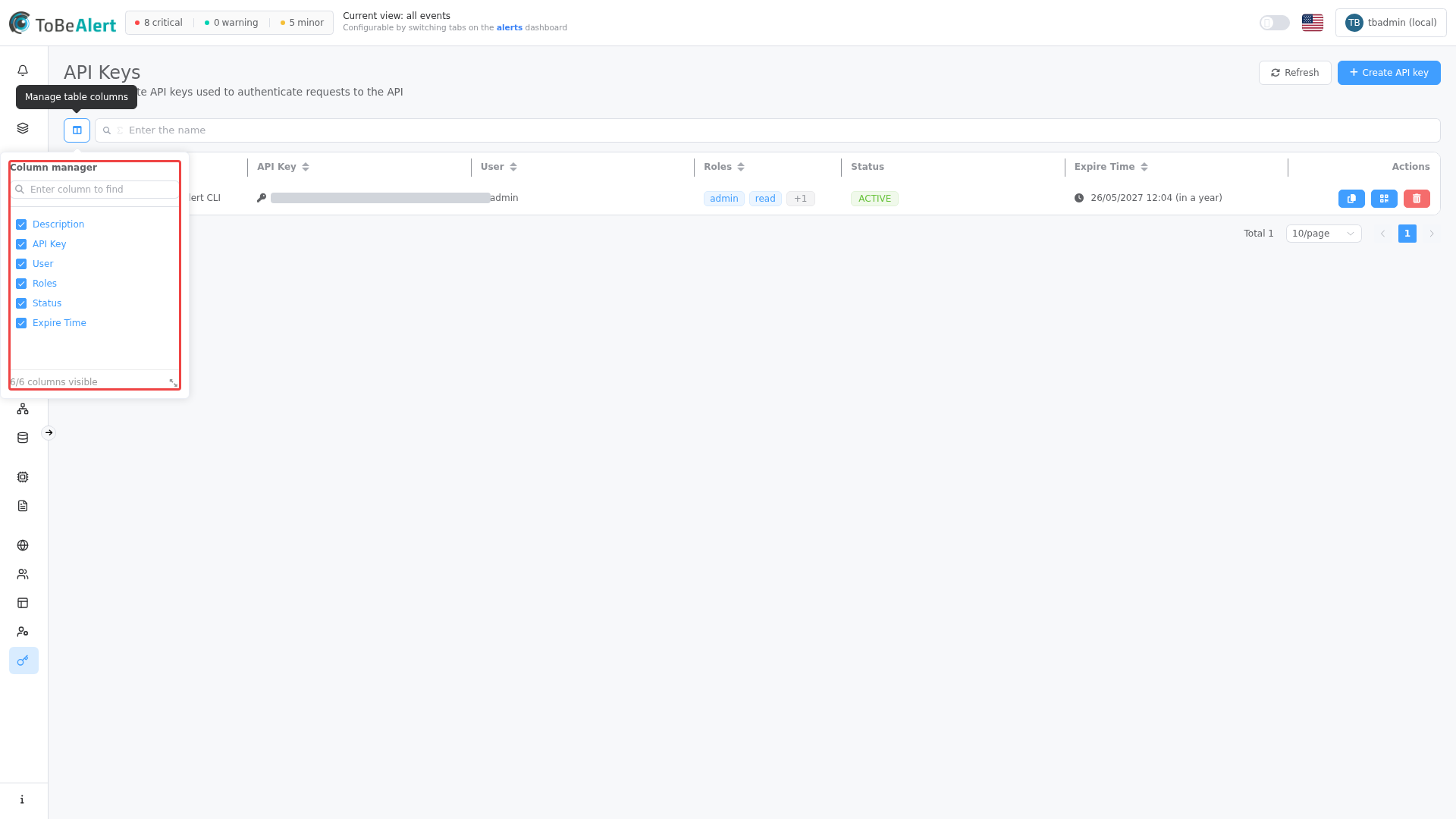
Use Manage table columns to show or hide columns. Sorting and pagination follow the shared table pattern — see List tables and bulk actions (page, size in the URL).
Create an API key
- Open Access Control → Keys.
- Click Create API key.
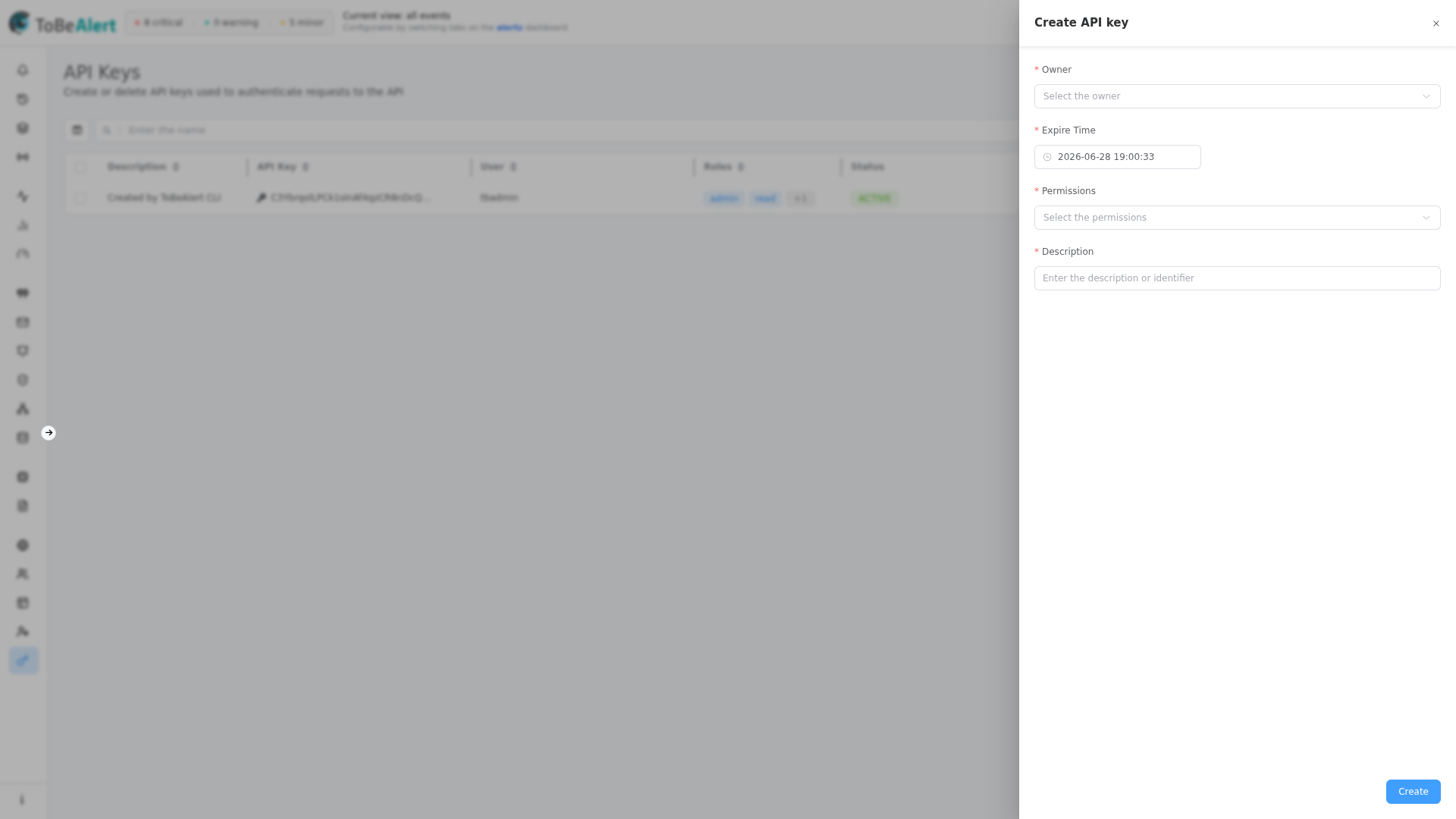
- In the drawer, complete all required fields (see table below).
- Click Create.
| Field | Required | Description |
|---|---|---|
| Owner | Yes | User who owns the key; non-admins can only select themselves |
| Expire Time | Yes | Date and time when the key expires; past dates are not allowed |
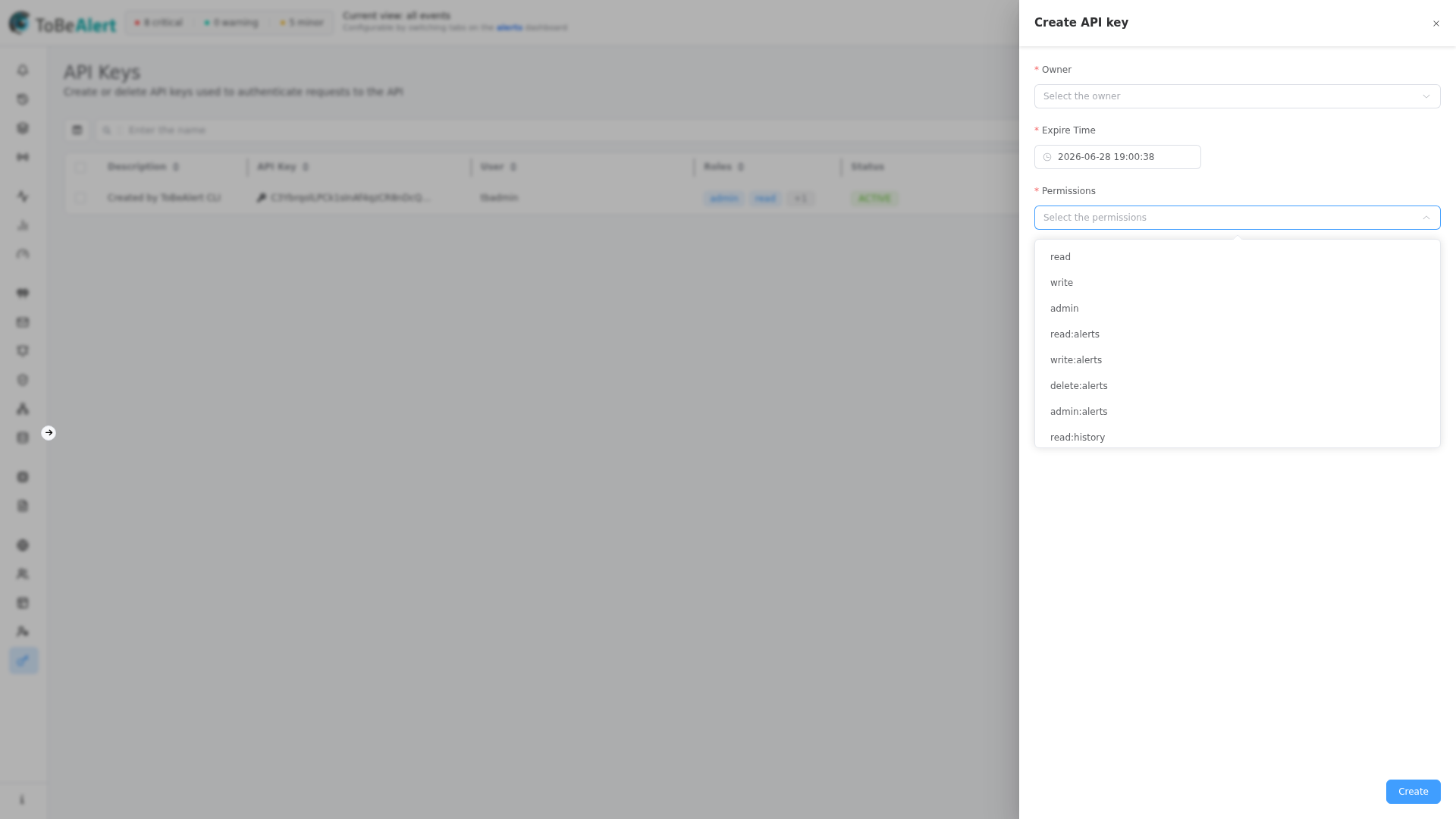
| Permissions | Yes | One or more permission entries from the dropdown (same labels as in role configuration) |
| Description | Yes | Short identifier for the key (shown in the table and audit context) |
After a successful create, the new row appears in the table with status active. The key value is visible in the API Key column for users who can open this page.
The Permissions list shows human-readable entries (for example alert read/write, webhook access, key administration). Match them to the categories in Roles — permissions reference. You cannot assign a permission your own account does not already hold.
Copy the key value
Store the secret outside ToBeAlert as soon as you create or rotate a key.
| Method | Steps |
|---|---|
| Row action | Click the copy icon on the row |
| Key column | Click the key text in the API Key column |
| Double-click | Double-click the row to copy that key |
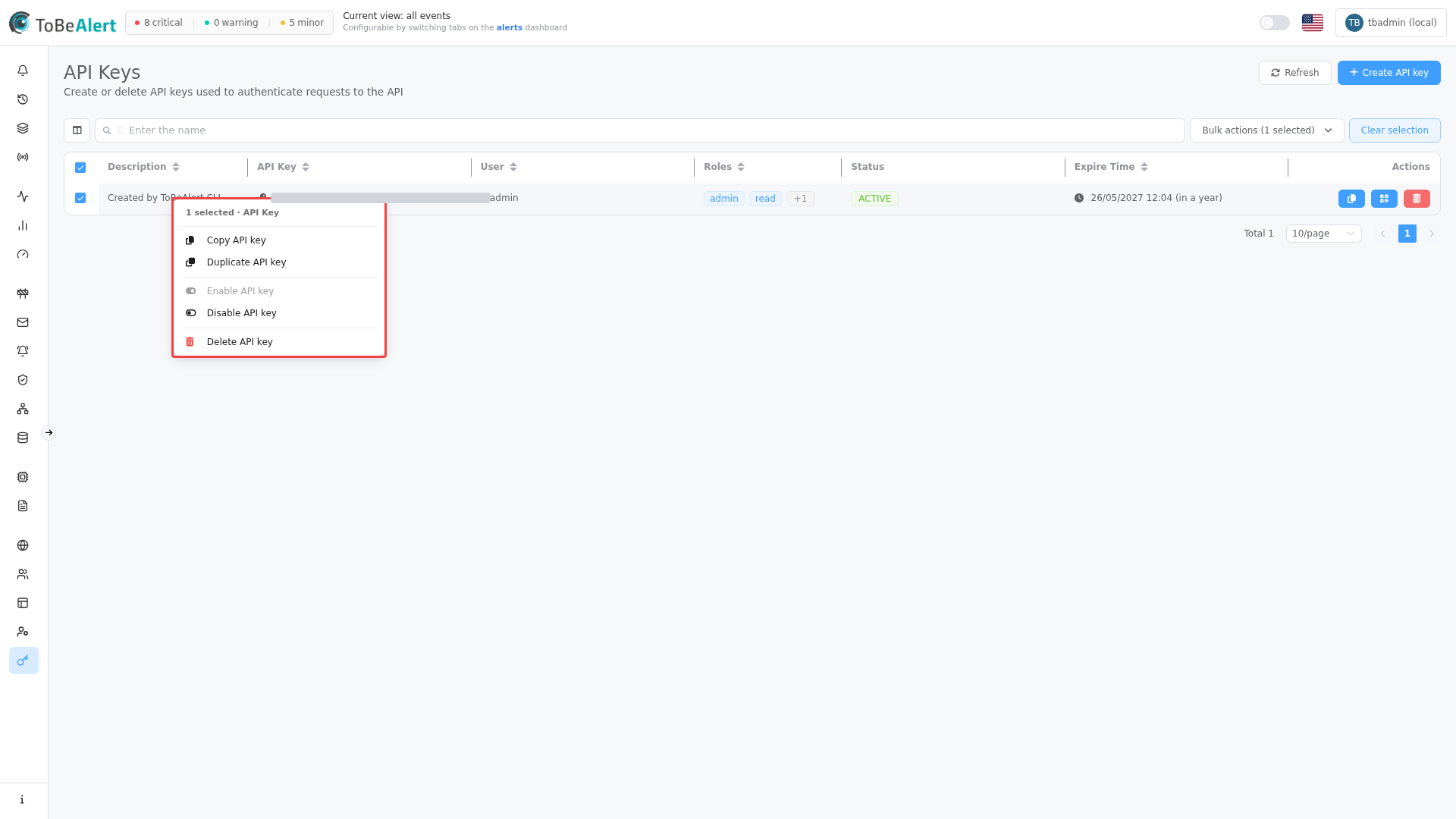
| Bulk copy | Select rows, choose Copy from bulk actions |
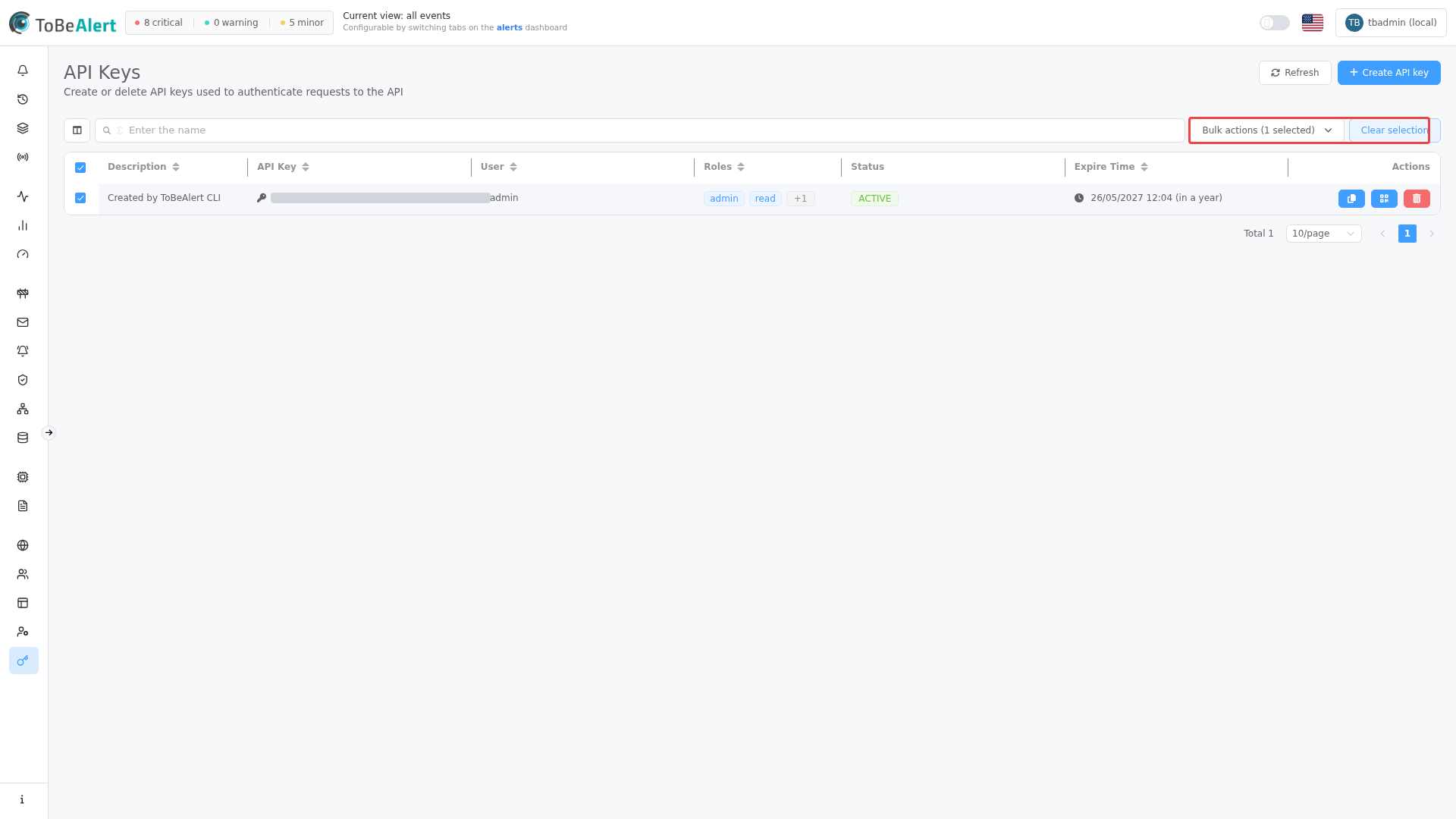
Copied text is placed on the clipboard; there is no separate “reveal once” dialog—the list shows the key to authorized viewers, so treat the table as sensitive.
Duplicate a key
Duplicating opens Duplicate API key with the same owner, expiry, permissions, and description prefilled from the selected row. Adjust fields if needed, then Create to issue a new key string. Revoke the old key when rotation is complete.
- Select exactly one row.
- Choose Duplicate from bulk actions.
- Update Expire Time or Permissions if required.
- Click Create, then copy the new key value.
Enable or disable a key
Disabling marks the key inactive without deleting the row (expiry is moved so the key no longer authenticates). Enabling restores active status and extends expiry by about one month from the current time.
| Action | Applies to | Effect |
|---|---|---|
| Enable | One or more selected rows | Sets status to active |
| Disable | One or more selected rows | Sets status to inactive |
Use disable for temporary suspension; use Delete when the credential should be removed permanently.
Revoke (delete) a key
Deletion is permanent and cannot be undone.
- Select one or more keys, or use the row delete (trash) action.
- Confirm Delete API key (wording reflects the number selected).
- The key stops working immediately after confirmation.
For API automation that deletes keys programmatically, see Revoking API keys.
Share with the mobile app
The Share action (QR icon) opens QR for mobile app when the deployment has a configured API base URL.
- Click Share on a row.
- Scan the QR code with the ToBeAlert mobile app, or click Copy payload for the app.
- Close the dialog when finished.
If sharing fails with a configuration message, an administrator must set the public API URL in application settings before QR login works.
Table and bulk actions
| Action | Selection | Description |
|---|---|---|
| Copy | One or more | Copy key string(s) to the clipboard |
| Duplicate | Exactly one | Open duplicate drawer |
| Enable | One or more | Activate keys |
| Disable | One or more | Deactivate keys |
| Delete | One or more | Revoke keys |
Right-click a row for the same actions in the context menu (the row is selected automatically).
Search and filters
See TQL search and filters for plain search and Toggle TQL filter mode on this table.
Best practices
- Rotate by duplicate + delete — create the replacement, update integrations, then delete the old key.
- Never share keys in tickets — use your organization’s secret store; rotate if a key was exposed.
- Align owner with service account — use a dedicated user login for automation so audit trails stay clear.
- Review expiry quarterly — expired keys fail API calls with authentication errors.
- Disable before delete when testing cutover — confirm nothing still calls the API, then delete.
- Limit mobile QR sharing — same risk as copying the raw key; only share with trusted devices.