Overview
Users are the accounts that sign in to ToBeAlert and receive permissions through roles. Each user has a login, profile fields, optional Roles and Views, and an active or inactive Status. Local users authenticate with a password; directory or SSO users are provisioned through External auth providers.
| Step | What you configure | Menu / route | Documentation |
|---|---|---|---|
| 1 | User account — login, name, email, password (local) | Access Control → Users → /users | Managing users |
| 2 | Roles — permission sets | User drawer or Access Control → Roles → /roles | Roles overview |
| 3 | Views — alert visibility | User drawer or Access Control → Views → /views | Views |
| 4 | External auth — LDAP/SAML provisioning (optional) | Access Control → External Providers → /external-providers | External auth providers |
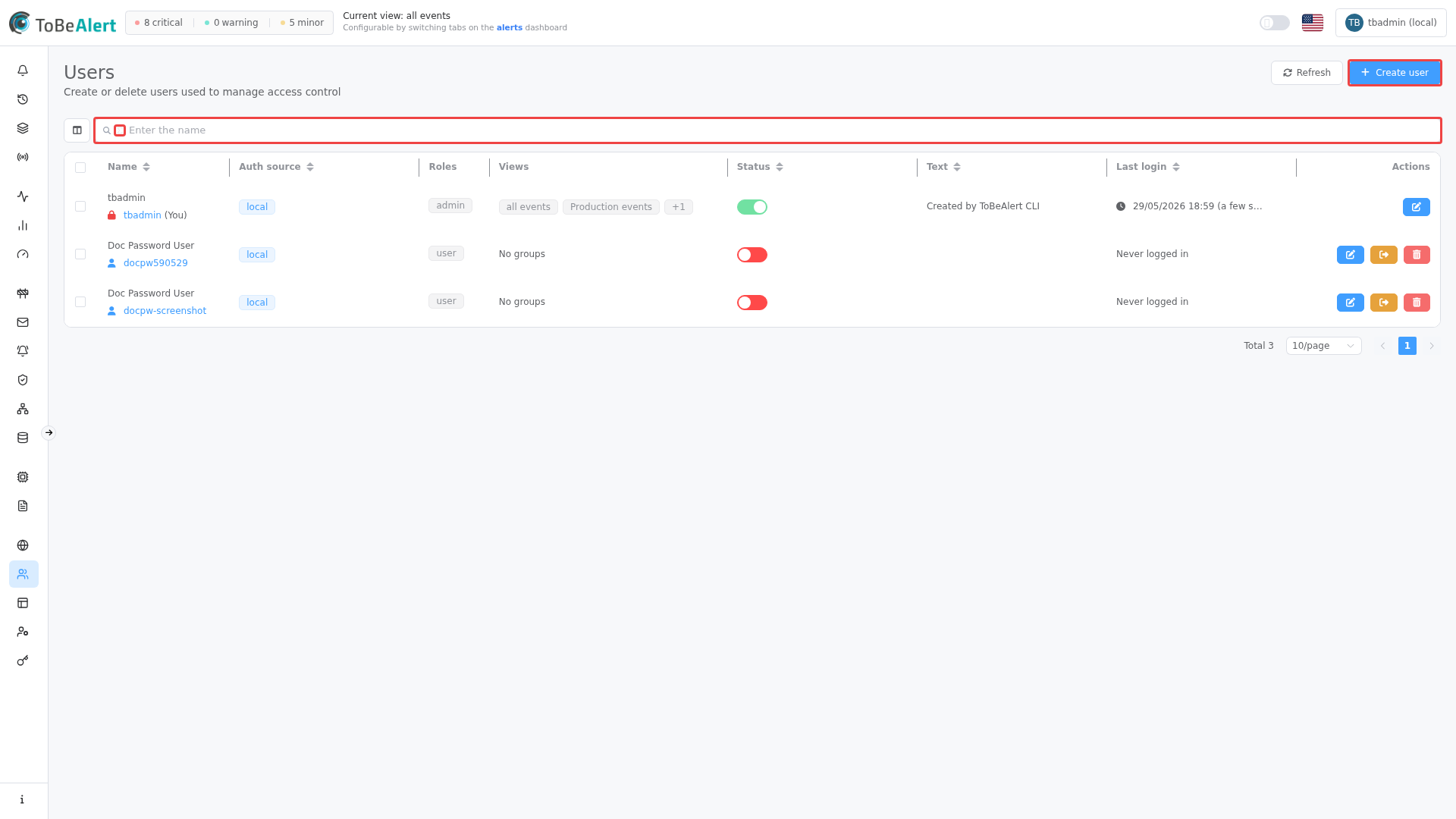
Where to find it in the UI
In the sidebar under Access Control:
- Users →
/users
The page title is Users. Header actions:
| Button | Purpose |
|---|---|
| Refresh | Reload the user table |
| Create user | Open the create-user drawer |
When your license limits enabled users, a counter (for example 12/50) appears next to Refresh with the tooltip Enabled users (active accounts vs license limit).
Managing users requires administrator access. Non-admins do not see Access Control or Users in the sidebar. If Create user is disabled or a crown icon appears, your license may have reached the enabled-user limit — contact your administrator or vendor.
How users fit together
Typical local operator setup:
- Create a user with Login, Name, and Password on the Managing users page.
- Assign one or more Roles (for example a custom role with alert read/write scopes).
- Assign Views so the user only sees alerts for their team.
- Leave Status active (green toggle) so the account can sign in.
Typical LDAP setup:
- Configure an LDAP provider and run Sync Users — see External auth providers.
- Open Users, find synced accounts (Auth source shows the provider name or
local). - Assign Roles and Views manually; enable inactive synced users if your provider leaves them disabled.
- Keep local login enabled in Backend Config → Authentication until external login is verified.
Users without an Email cannot receive email notifications when assigned directly on notification rules — prefer notification groups and keep emails up to date.
License limits
| Resource | When limited |
|---|---|
| Enabled users | Create user may be unavailable; counter shows enabled users vs limit; warning icon when the limit is reached |
Disabled (inactive) users typically do not count toward the enabled-user limit.
Related modules
| Module | Relationship |
|---|---|
| Users, roles and permissions | Role definitions and permission reference |
| Views | Views assignable in the user drawer |
| External auth providers | LDAP/SAML login and user sync |
| Backend Config — Authentication | Auth Required, local_login_enabled, signup, token expiry |
| Notification groups | Groups reference users by account |
Best practices
- Least privilege — assign the smallest role set that covers the user’s job.
- Views for alert scope — use views for team boundaries; use roles for actions.
- Email on every operator — required for direct email notifications and audit clarity.
- Disable before delete — disable accounts when someone leaves; delete only when you must remove history ties.
- Protect built-in accounts — built-in users (lock icon) cannot be deleted; you cannot disable your own account.
- Coordinate auth changes — test LDAP/SAML before disabling local login.
- Audit last login — review Last login periodically for stale accounts.