Overview
Views define which alerts a user is allowed to see. Each view includes an Alerts Query that filters the alert dataset; users assigned to that view get a matching tab on the Alerts dashboard. Views are separate from dashboard sidebar filters: views set the access boundary; filters narrow results within the active view tab.
| Step | What you configure | Menu / route | Documentation |
|---|---|---|---|
| 1 | Views — name, description, alert query, members | Access Control → Views → /views | Creating and managing views |
| 2 | User membership — which views each account can use | Access Control → Users → /users | Assigning views to users |
| 3 | Dashboard usage — switch tabs, counts, ordering | Alerts → Dashboard → /dash | Applying views on the dashboard |
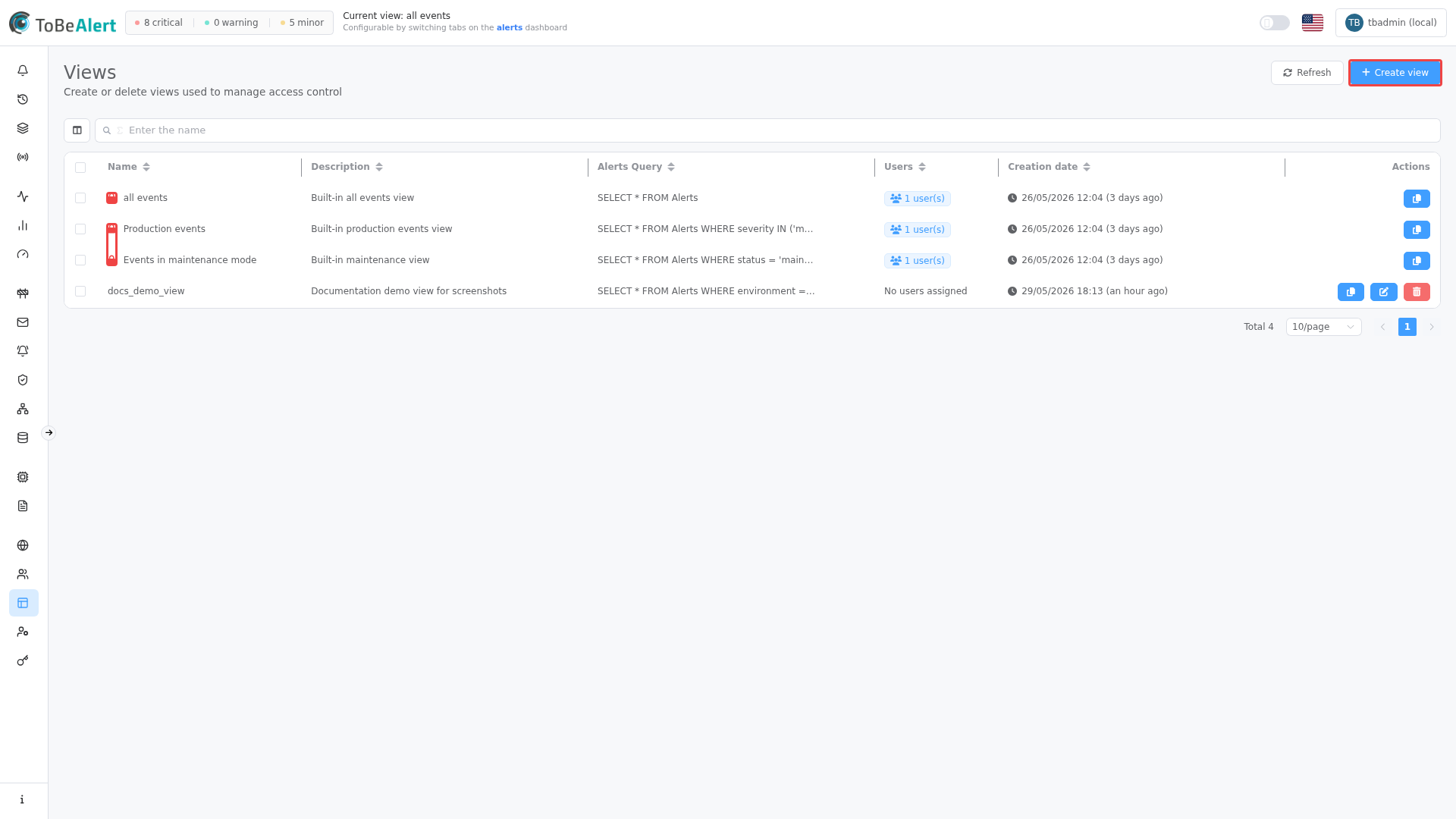
Where to find it in the UI
In the sidebar under Access Control:
- Views →
/views
The page title is Views. Header actions:
| Button | Purpose |
|---|---|
| Refresh | Reload the views table |
| Create view | Open the create drawer |
Table search, sorting, pagination, and bulk selection follow the shared list pattern — see TQL search and filters and List tables and bulk actions. Double-click a row or use row actions to edit.
Managing views requires administrator access. Non-admins do not see Access Control or Views in the sidebar. Assigning views to users is also done under Access Control → Users.
Built-in views
Three views are Built-in (lock icon in the Name column). They cannot be edited, duplicated, or deleted:
| Name | Purpose |
|---|---|
| all events | All alerts (SELECT * FROM Alerts) |
| Production events | Open production alerts with severity minor, major, or critical |
| Events in maintenance mode | Alerts in maintenance status |
Built-in views still appear in the list for administrators. Assign them to users like any other view when appropriate.
How views fit together
Typical rollout for a platform team:
- Create a view Staging platform with Alerts Query
environment = 'Staging'. - Assign that view to staging on-call users under Users.
- Those users open Dashboard and select the Staging platform tab; only matching alerts load.
- They apply sidebar filters (severity, time range, custom filters) on top of that view.
LDAP and SAML external auth providers can map directory groups to views during sync so new users receive views automatically.
Related modules
| Module | Relationship |
|---|---|
| Users, roles, and permissions | Assign views per user; roles control what users can do |
| Roles | Permissions are separate from view visibility |
| Alerts dashboard | One tab per assigned view |
| Sidebar filters | Further filter within the active view |
| External auth providers | Group mappings can assign views after directory sync |
| Policies | Policies modify alerts; views limit which alerts a user sees |
Best practices
- Model teams or environments with views (for example Production NOC, Staging, Security) instead of one view per person.
- Keep queries testable — use Easy mode while designing, then switch to Advanced mode only when you need raw query text.
- Assign views on the user record and on the view drawer so membership stays consistent.
- Avoid giving every user
all eventsunless they need full visibility; prefer scoped views. - Document view purpose in Description so admins know when to assign each view.
- Review membership when people change teams; remove old views before adding new ones.