Assigning views to users
Route: /users (user drawer) and /views (view drawer)
Users only see dashboard tabs for views assigned to their account. You can assign membership in either place.
See also: Overview · Creating and managing views · Users, roles, and permissions
Assign views on a user
- Open Access Control → Users.
- Create a user or edit an existing one (Edit / double-click).
- In the drawer, find the Views field (multi-select).
- Select one or more views (including built-in views such as all events or Production events when needed).
- Save with Create or Update.
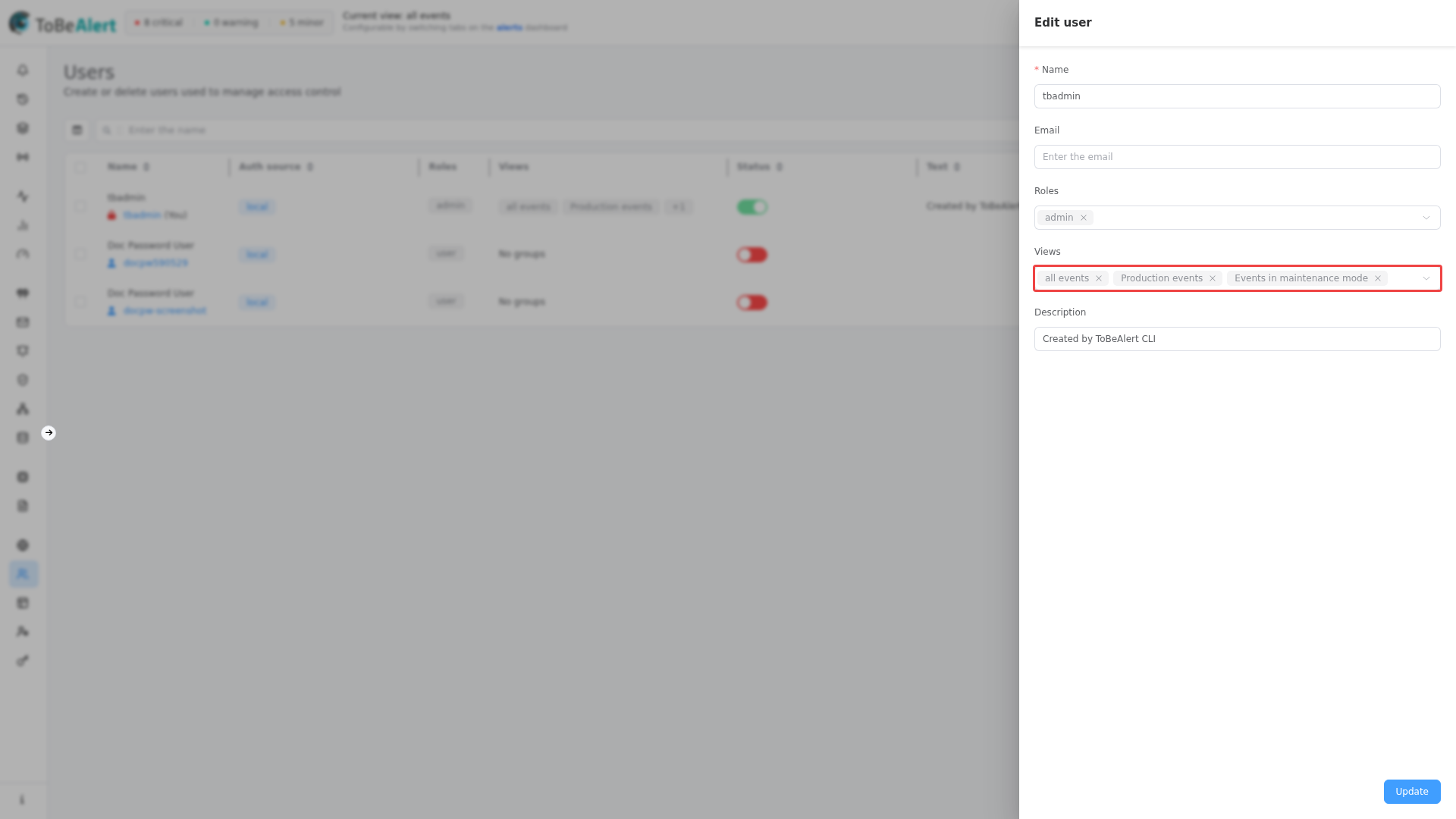
The users table shows assigned views as tags (first two names plus a count if there are more). An empty assignment shows no view tags.
Roles control permissions (what actions a user can perform). Views control which alerts they can see. Assign both: roles for capabilities, views for visibility.
Assign users on a view
- Open Access Control → Views.
- Edit a view.
- Under Users, select accounts that should receive this view.
- Click Update.
See Creating and managing views for the Users field on the view drawer.
The views table Users column shows how many members are assigned, or No users assigned.
External authentication
When you use LDAP or SAML providers, Group mappings can assign Views (and roles) when directory groups match. That reduces manual assignment for synced users.
| Mapping field | Purpose |
|---|---|
| Directory group name | Substring match on group DN (LDAP) or SAML group claim |
| Assign views | Views granted when the mapping matches |
| Assign roles | Roles granted when the mapping matches |
Use * as the group name in a mapping to apply views to every synced user (use carefully).
When users have no views
If an account has no assigned views (and is not treated as full admin visibility), the dashboard cannot load a default view and shows an error such as No default view found or You have no assigned views. Assign at least one view before the user works on alerts.
Administrators with the admin group bypass normal view scoping for visibility.
Best practices
- Standardize on one place — either maintain membership on the view or on the user, and audit the other periodically.
- Least privilege — give all events only to admins or auditors who need every alert.
- Pair with roles — a read-only role plus a narrow view limits both actions and data.
- Onboard with templates — duplicate a view per team, then bulk-assign users in the view drawer.
- Revisit after org changes — remove old views from departing users to avoid stale tabs.