Alert-based suggestions
Route: /services
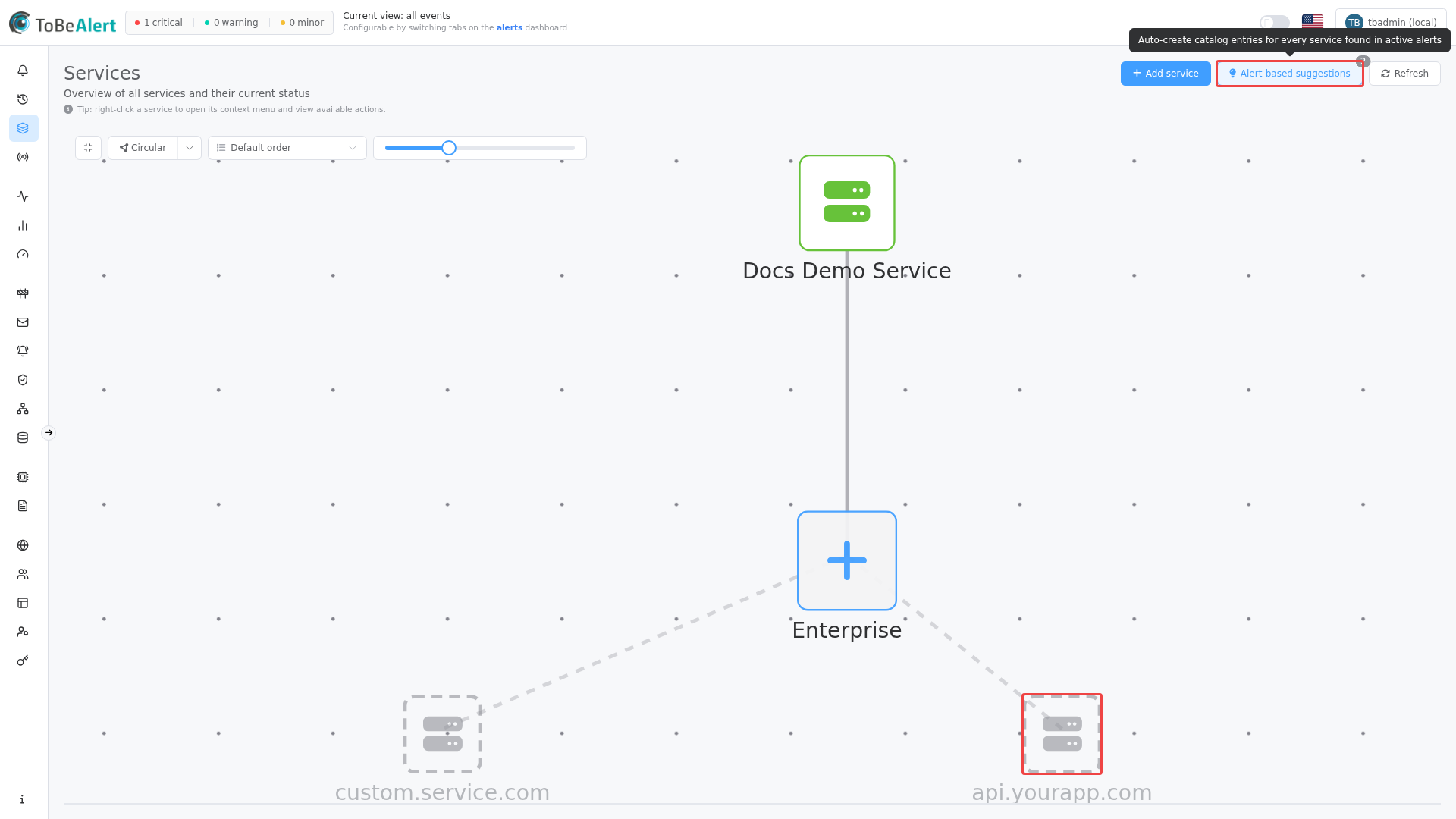
Alert-based suggestions scans active alerts for service values that are not yet in the catalog and previews them as ghost nodes on the service map. Add services one at a time or accept all from the Enterprise hub — similar in spirit to Alert-driven service topology in the topology graph editor, but for the catalog rather than environment/resource nodes.
See also: Overview · Managing services · Service map
What it does
| Step | Behavior |
|---|---|
| 1 | Reads unique service names from alert data |
| 2 | Excludes IDs already in the catalog |
| 3 | Renders each missing name as a dashed, pulsing node linked to Enterprise |
| 4 | Lets you add to the catalog with confirmation — Service ID and Name default to the alert service name |
The header button tooltip explains: Auto-create catalog entries for every service found in active alerts.
Run suggestions
- Open Alerts → Services (
/services). - Click Alert-based suggestions (lightbulb icon).
- Wait while alert unique values load.
If suggestions exist: ghost nodes appear around Enterprise with dashed borders and muted styling. Enterprise switches to a + icon with a pulse — click it to add all.
If none exist: an info message shows All alert services are already in the catalog.
Add one suggested service
- With suggestions visible, click a ghost node.
- Confirm Add "<name>" to the service catalog?
- Click Confirm.
The node becomes a solid catalog entry with default server icon. Edit it later to set a custom Icon or Description.
Add all suggested services
- With suggestions visible, click the Enterprise hub (now showing +).
- Confirm Add all N suggested services to the catalog?
- Click Confirm.
Each suggestion is created with Service ID = Name = the alert service string. A success message reports how many were added.
Dismiss suggestions
Click Alert-based suggestions again while ghost nodes are showing. Suggested nodes and dashed edges are removed from the map without adding to the catalog.
The button badge shows the count of pending suggestions while preview mode is active.
Comparison with manual create
| Method | Best for |
|---|---|
| Alert-based suggestions | Bootstrapping the catalog from production alert traffic; bulk preview |
| Add service drawer | Custom Name, Icon, or Description before save; IDs not yet seen in alerts |
| Service ID dropdown (create drawer) | You know one specific alert service name to add without map preview |
After suggestions are added, open Edit service to refine icons and display names.
Relation to Service Topology
| Feature | Scope |
|---|---|
| Alert-based suggestions (Services) | Adds catalog entries — top-level service nodes on /services |
| Alert-driven service topology (Topology editor) | Adds environment/resource nodes inside one service's topology graph |
Typical order:
- Alert-based suggestions → populate catalog.
- Create topology in Service Topology for each critical service.
- Alert-driven service topology inside the editor → flesh out infrastructure nodes from alert attributes.
Empty or limited alert data
If your environment has no active alerts with a service field, suggestions will report that all services are already cataloged (or show nothing to add). In that case:
- Use Add service manually, or
- Send test alerts (dashboard Simulate) with a
serviceattribute, then run suggestions again.
Screenshot and demo environments may lack alert volume. The button and empty-state message are still the correct UI; production systems with diverse alert services will show richer ghost-node previews.
Best practices
- Run suggestions after onboarding a new alert source — you'll see real service names immediately.
- Dismiss before re-running if alert data changed significantly — toggle off, then on, to refresh the preview list.
- Rename after bulk add — bulk create uses alert strings for both ID and Name; edit display names for readability.
- Do not duplicate — if a service already exists in the catalog, it will not appear as a suggestion.
- Follow with topology for services that need dependency maps and SLA hierarchy rules.