Service map
Route: /services
The service map is the main canvas on the Services page. A central Enterprise node connects to every catalog service. Node color, badge, and size reflect live alert data. Use map controls to change layout, select services, and open related workflows.
See also: Overview · Managing services · Alert-based suggestions · Search (TQL)
Map structure
| Element | Description |
|---|---|
| Enterprise | Central hub; all catalog services connect with straight edges |
| Service nodes | One node per catalog entry — label = Name, icon from catalog |
| Edges | Hub-and-spoke from Enterprise to each service (not user-editable) |
| Suggested nodes | Dashed ghost nodes from Alert-based suggestions (see dedicated page) |
Nodes are not draggable — the map is a status visualization, not a free-form graph editor. For hierarchical environment/resource maps, use Service Topology.
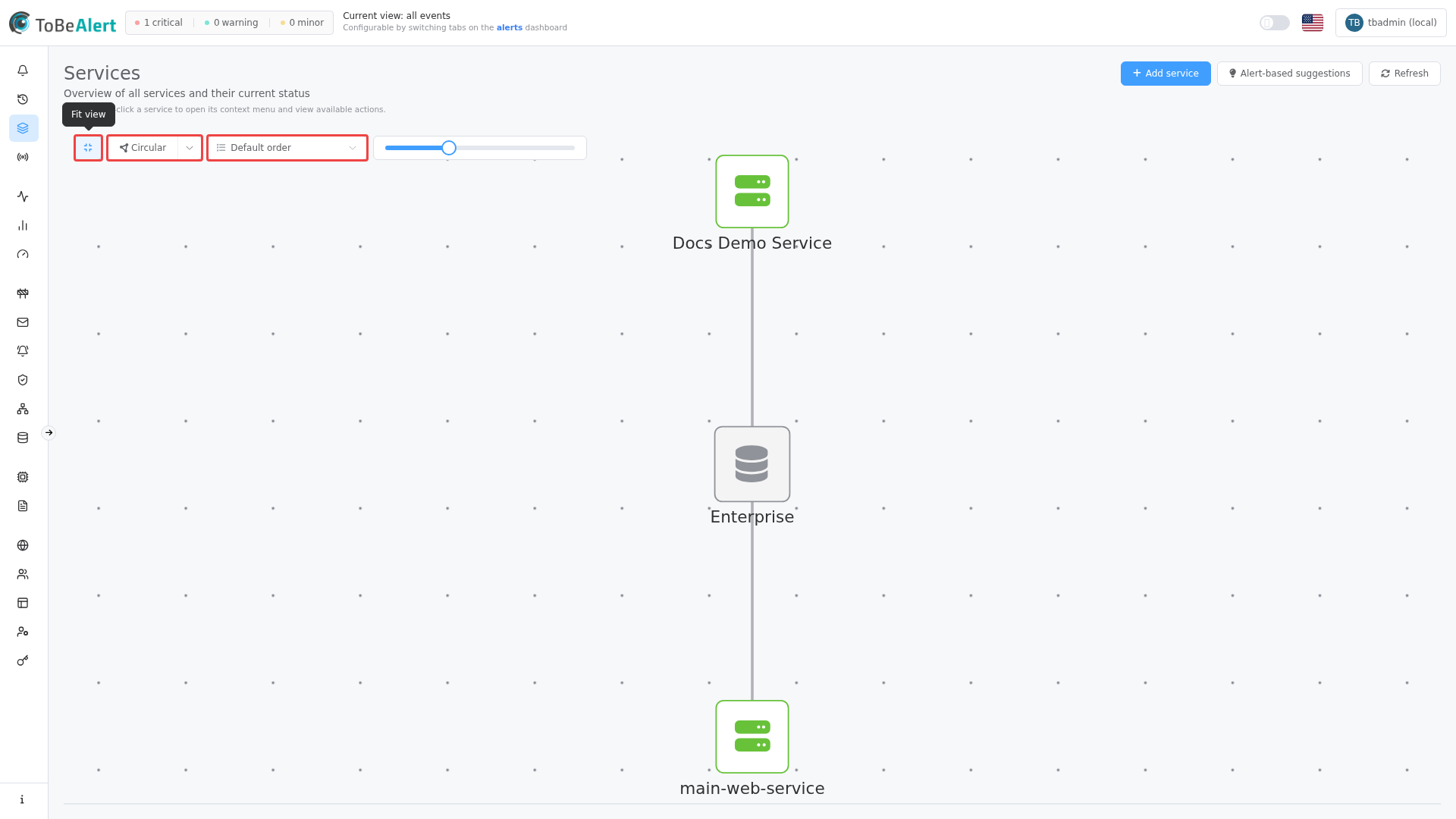
Map toolbar
Controls appear at the top-left of the canvas:
| Control | Description |
|---|---|
| Fit view | Center and zoom so all nodes are visible |
| Graph layout | Split button — click the main area to cycle layouts; open the dropdown for a specific layout |
| Node order | Sort services around the graph: Default order, Sort by name, Sort by severity, Sort by alert count |
| Circular distance | Slider (circular layout only) — spacing between nodes, 100–400 |
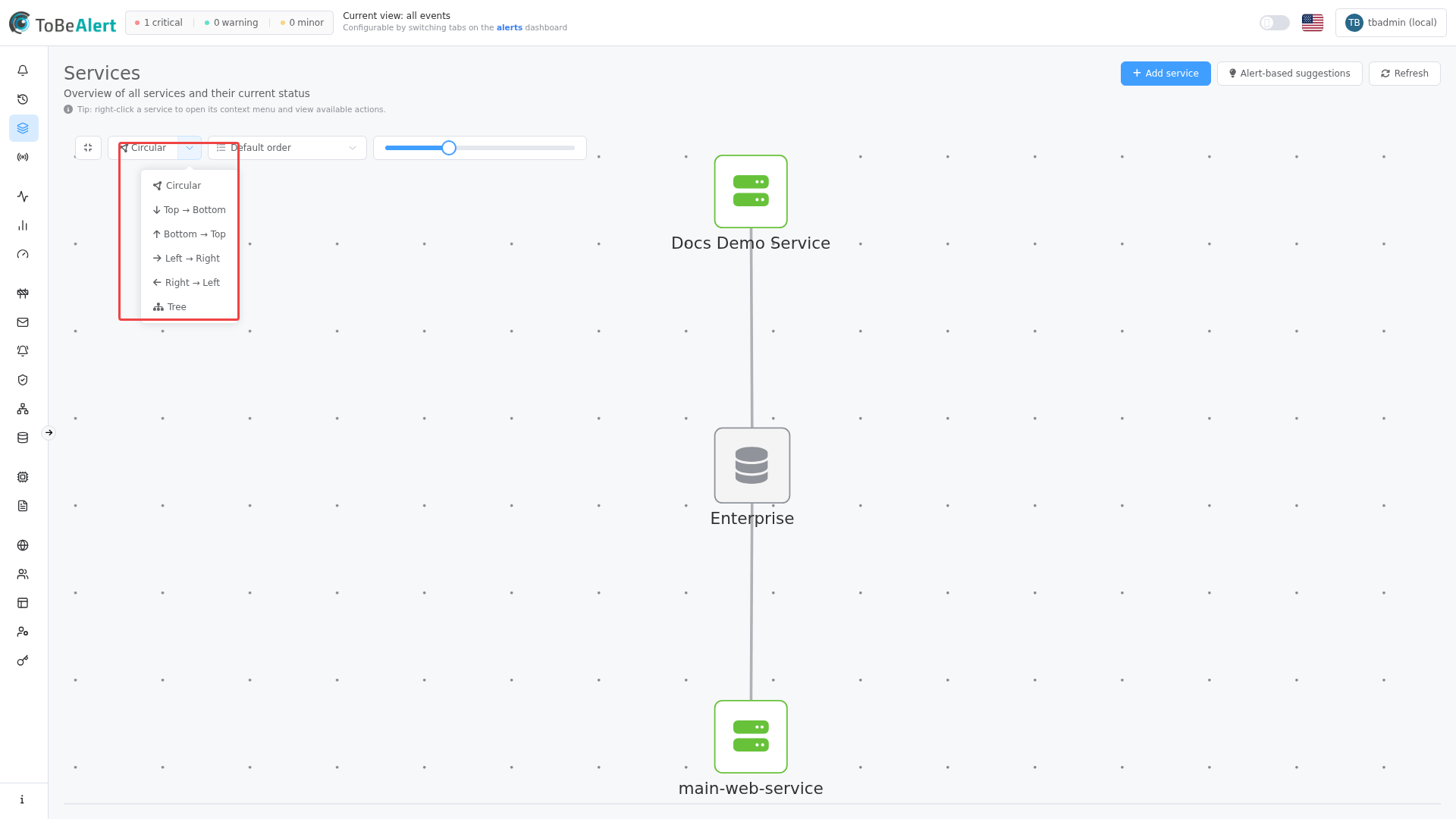
Layout options
| Layout | Description |
|---|---|
| Circular | Services arranged in a ring around Enterprise |
| Top → Bottom | Vertical dagre flow |
| Bottom → Top | Reverse vertical |
| Left → Right / Right → Left | Horizontal dagre |
| Tree | Tree layout from the hub |
Layout and node sort preferences are remembered in your browser for the next visit.
Node status encoding
| Signal | Source |
|---|---|
| Color (border + icon) | Highest-severity active alert on that service, or healthy green when no alerts |
| Badge number | Total active alert count |
| Node diameter | Scaled between min and max based on alert count relative to other services |
Click Refresh in the page header to reload metrics after alert storms or bulk acknowledge operations.
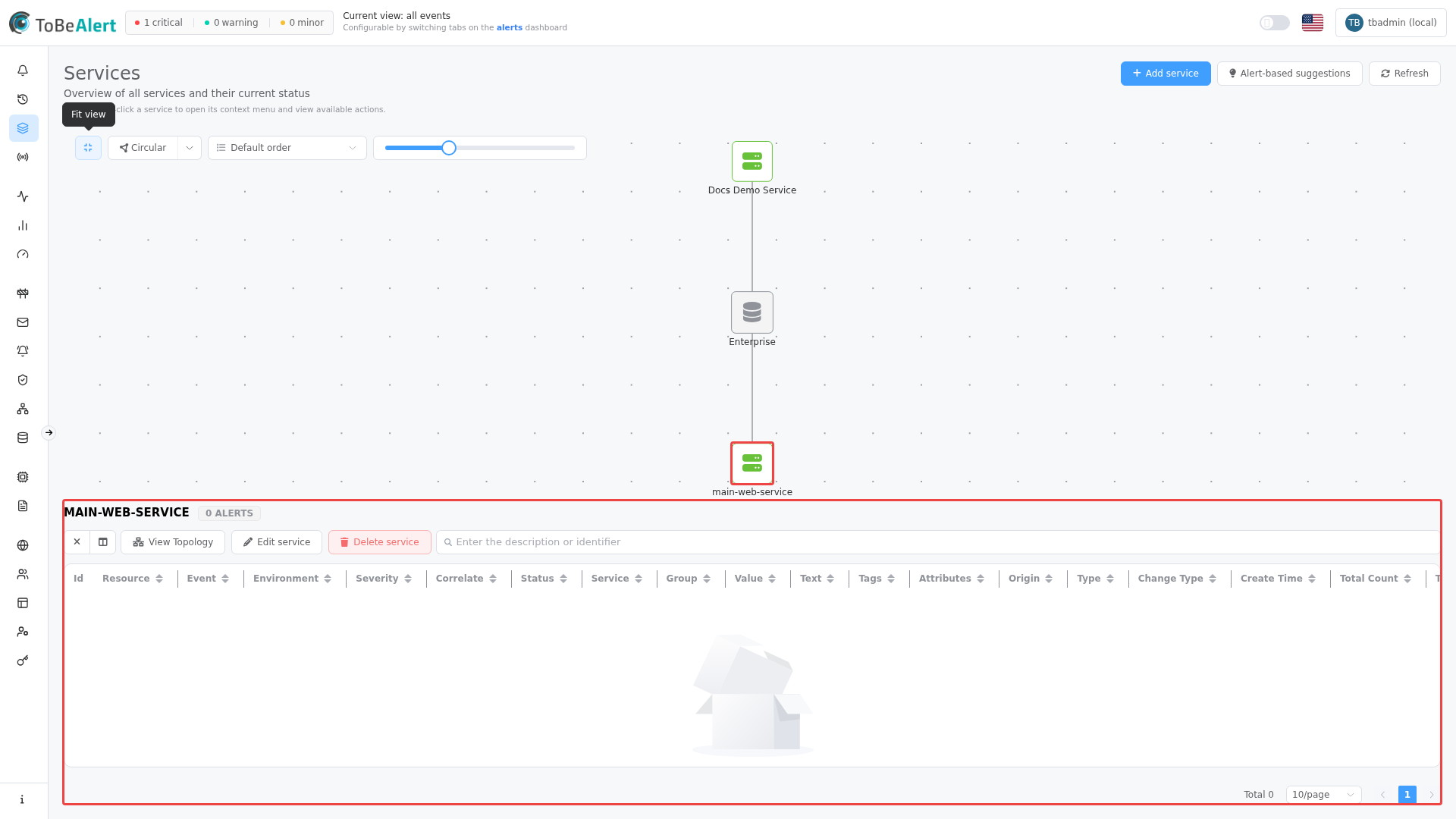
Select a service
- Click a service node (left click).
- The alerts panel opens below the map (splitter expands).
- The URL updates with
?service=<service-id>for bookmarking.
Click the × button in the alerts panel header to clear selection.
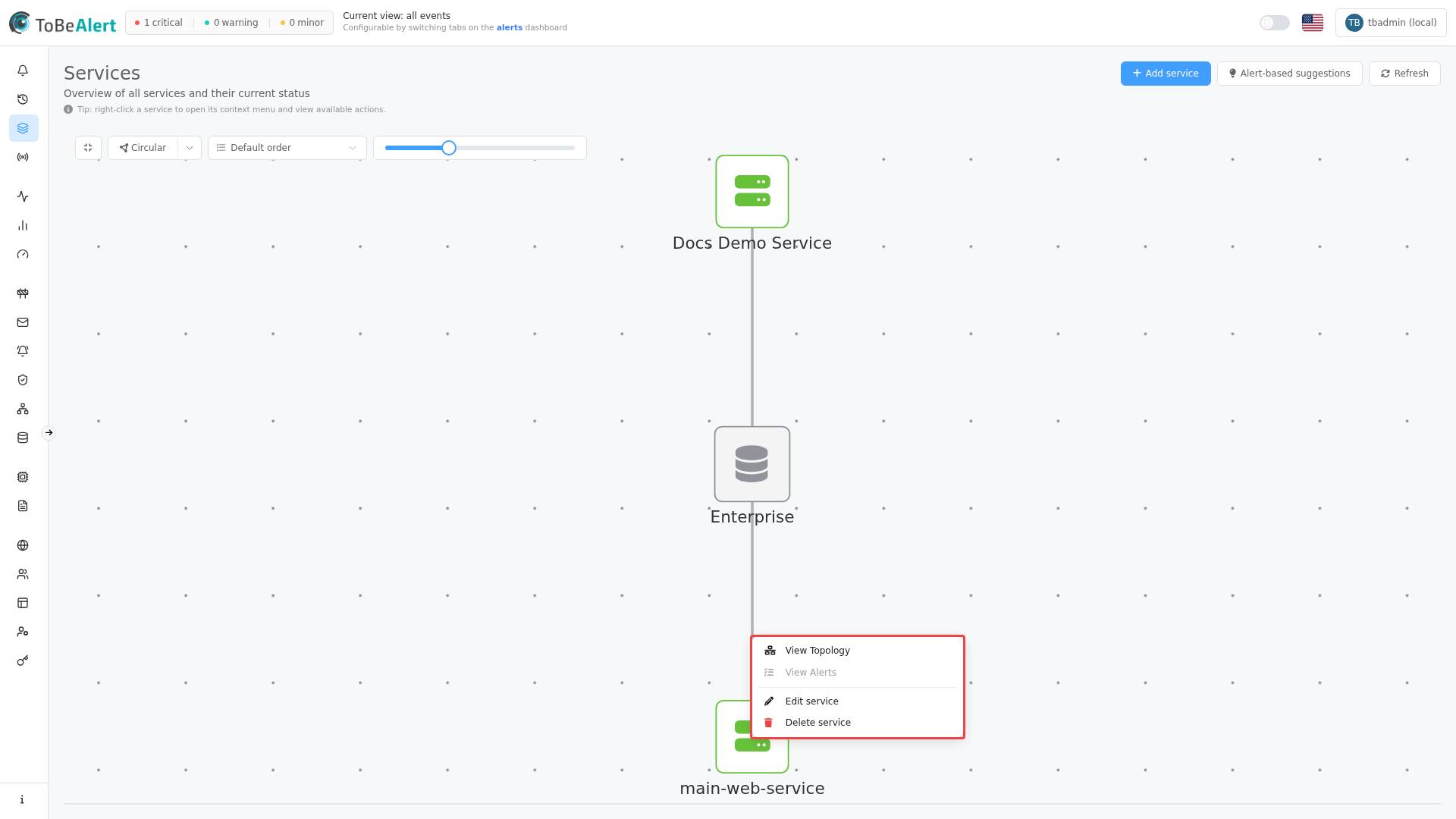
Context menu
Right-click a service node (or a multi-selection of nodes) for quick actions:
| Action | When available | Description |
|---|---|---|
| View Topology | Service has a saved topology | Opens the Service Topology graph editor for this service |
| View Alerts | Service has active alerts | Same as clicking the node — opens the alerts panel |
| Edit service | Always (catalog nodes) | Opens the edit drawer |
| Delete service | Always (catalog nodes) | Removes the catalog entry after confirmation |
| Delete N services | Multi-select (2+ catalog nodes) | Bulk delete with confirmation |
The page header tip states: Tip: right-click a service to open its context menu and view available actions.
Alerts panel
When a service is selected, the lower panel shows:
| Area | Description |
|---|---|
| Title | Service Name and tag with alert count (N ALERTS) |
| Alerts table | Active alerts for that Service ID — same columns as the main dashboard where configured |
| TQL search | Filter the in-panel table; query syncs to URL ?q= |
| Bulk action: Details | Open alert details for selected rows |
| View Topology | Shown when a topology exists |
| Edit service / Delete service | Catalog actions without using the context menu |
TQL search in the panel
The alerts panel uses the same TQL syntax as the alerts dashboard. Typing a query updates the browser URL (?service=…&q=…) so you can share a filtered view.
Examples:
severity:eq:critical— only critical alerts for this servicestatus:eq:open— open alerts only
Open Service Topology
If a topology record exists for the service:
- Right-click → View Topology, or
- Select the node and click View Topology in the alerts panel.
This navigates to Management → Service Topology graph editor for that service (/service-topology/<service-id>).
Pan and zoom
- Scroll or pinch to zoom (0.2×–4×).
- Drag the canvas background to pan.
- Use Fit view after changing layout or adding many services.
Best practices
- Use Sort by severity during incidents to bring the worst services to a consistent position in circular layout.
- Fit view after Alert-based suggestions adds many ghost nodes.
- Bookmark
?service=URLs for war-room dashboards. - Prefer the alerts panel TQL over navigating away when triaging one service.
- Use View Topology for dependency drill-down — the catalog map is an overview, not a dependency editor.