Top bar and search
The top bar spans the window above feature content. Search lives in the sidebar (not in the top bar) and filters menu entries plus recent alert history.
See also: Overview · Sidebar and navigation · Settings · TQL search and filters
Top bar areas
| Area | Description |
|---|---|
| Logo | Opens/closes sidebar width; branding variant adapts to screen size |
| Alert indicators | Colored dots with counts per severity (for example critical, warning, minor) — values come from live alert totals |
| Current view | Label Current view: plus the active dashboard tab name; helper text links to the alerts dashboard for tab configuration |
| Theme switch | Toggle light / dark mode (saved per user) |
| Language | Flag button — english, español, français, deutsch |
| User menu | Avatar, username, auth source — see table below |
Trial or subscription banners
When applicable, a banner above the bar warns that a trial or subscription is nearing expiration (days and date shown). These are informational; renewal is handled outside the Web UI.

User menu actions
| Item | Action |
|---|---|
| Profile | Display-only header (source of authentication) |
| Settings | Opens /settings |
| Website | Opens the ToBeAlert website in a new tab |
| Documentation | Opens product documentation in a new tab |
| Sign out | Ends the session |
Configure which severities appear in the indicator chips under Settings → Alert settings → Alert Indicators in Navigation Bar.
Sidebar Search
Route: available on any main layout view while the sidebar is expanded.
| Behavior | Detail |
|---|---|
| Placeholder | Search... |
| Menu filter | Typing filters sidebar labels, route names, and related metadata (accent-insensitive) |
| Minimum length | Two characters before Alert history results load |
| History results | Up to five matching historical alerts; click a row to open History with that alert selected |
Search the menu and history
- Expand the sidebar (collapse hides the search field).
- Click the Search... field and type at least two characters.
- Matching menu items remain visible; non-matching routes hide.
- When history matches exist, a divider and Alert history (history table label) section lists cards with severity, resource/event, text, and time.
- Click a history card to navigate to History with the alert focused.
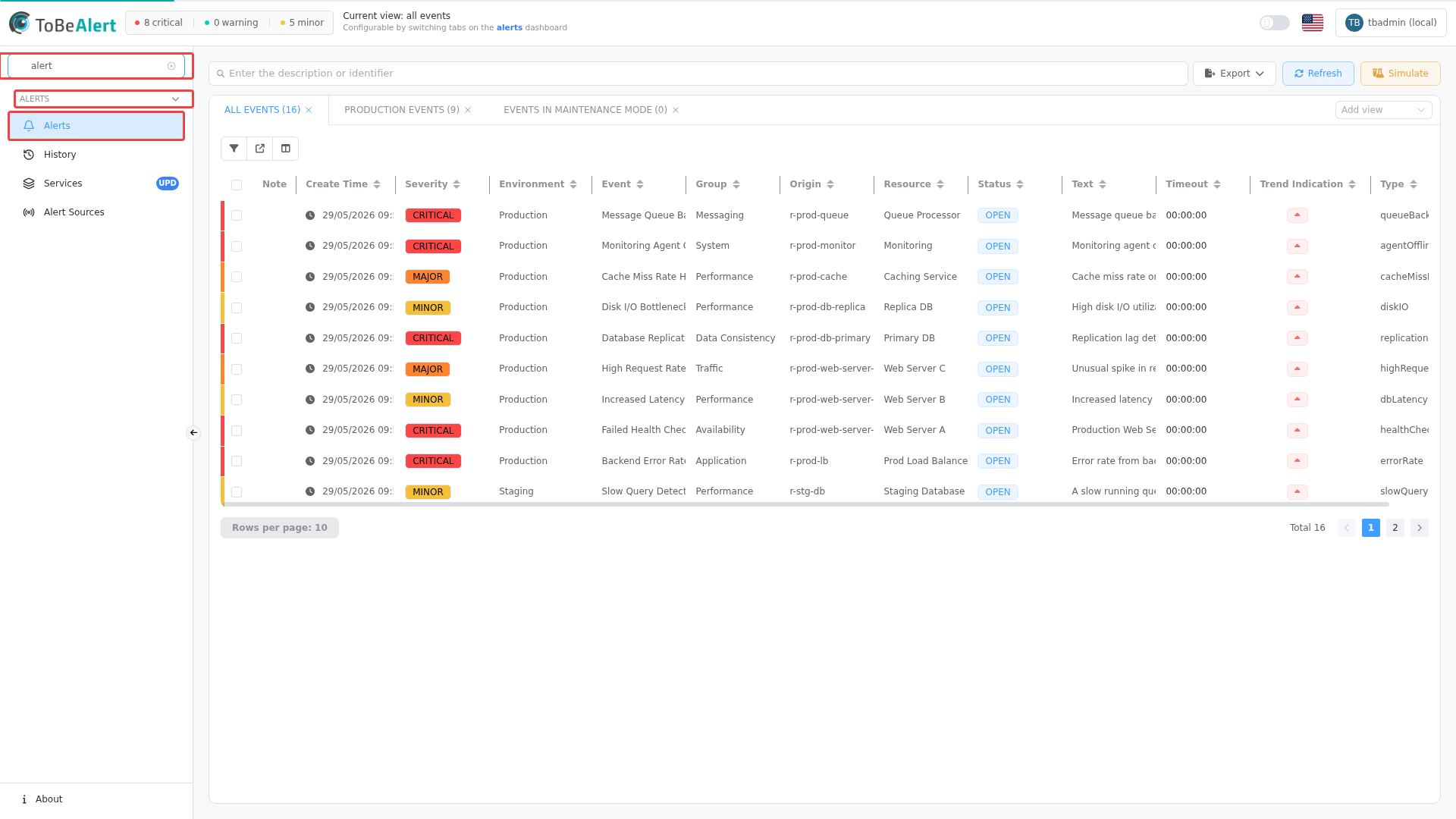
There is no global keyboard shortcut dedicated to sidebar Search in the default UI — click the field or tab to it after expanding the sidebar.
Sidebar Search... filters menu routes and alert history cards only. Table toolbar search (plain text or TQL) filters rows on the current list page — see TQL search and filters.
Best practices
- Match navbar indicators to severities you track daily — adjust colors in Settings if needed.
- Use Search for quick navigation to infrequent routes (for example Service Topology).
- Use history results for incident lookup by resource or alert text, then refine on the History page.
- Switch language from the flag control; date formats in Settings respect your locale separately.