Top bar and search
The top bar spans the window above feature content. Search is a global command palette opened from the top bar (button labeled Search pages, alerts...) — it is no longer part of the sidebar.
See also: Overview · Sidebar and navigation · Settings · TQL search and filters
Top bar areas
| Area | Description |
|---|---|
| Logo | Opens/closes sidebar width; branding variant adapts to screen size |
| Alert indicators | Colored dots with counts per severity (for example critical, warning, minor) — values come from live alert totals |
| Current view | Label Current view: plus the active dashboard tab name; helper text links to the alerts dashboard for tab configuration |
| Global search | Button Search pages, alerts... (shortcut Ctrl+K) — opens the search dialog described below |
| Theme switch | Toggle light / dark mode (saved per user) |
| Language | Flag button — english, español, français, deutsch |
| User menu | Avatar, username, auth source — see table below |
Trial or subscription banners
When applicable, a banner above the bar warns that a trial or subscription is nearing expiration (days and date shown). These are informational; renewal is handled outside the Web UI.

User menu actions
| Item | Action |
|---|---|
| Profile | Display-only header (source of authentication) |
| Settings | Opens /settings |
| Website | Opens the ToBeAlert website in a new tab |
| Documentation | Opens product documentation in a new tab |
| Sign out | Ends the session |
Configure which severities appear in the indicator chips under Settings → Alert settings → Alert Indicators in Navigation Bar.
Global search
Route: available from any page, via the top bar.
| Behavior | Detail |
|---|---|
| Trigger | Click Search pages, alerts... in the top bar, or press Ctrl+K (works on any screen) |
| Placeholder | Search pages, alerts... |
| Results | Matching pages/routes, grouped by sidebar category (for example Alerts, Management, Access Control, Metrics & KPIs, Settings) |
| Keyboard | Arrow keys to navigate, Enter to open, Esc to close |
Search for a page
- Press Ctrl+K, or click Search pages, alerts... in the top bar.
- Type part of a page or feature name (for example alert, rol, notif).
- Matching routes appear grouped by category; click a result (or press Enter) to navigate to it.
- Press Esc or click outside the dialog to close it without navigating.
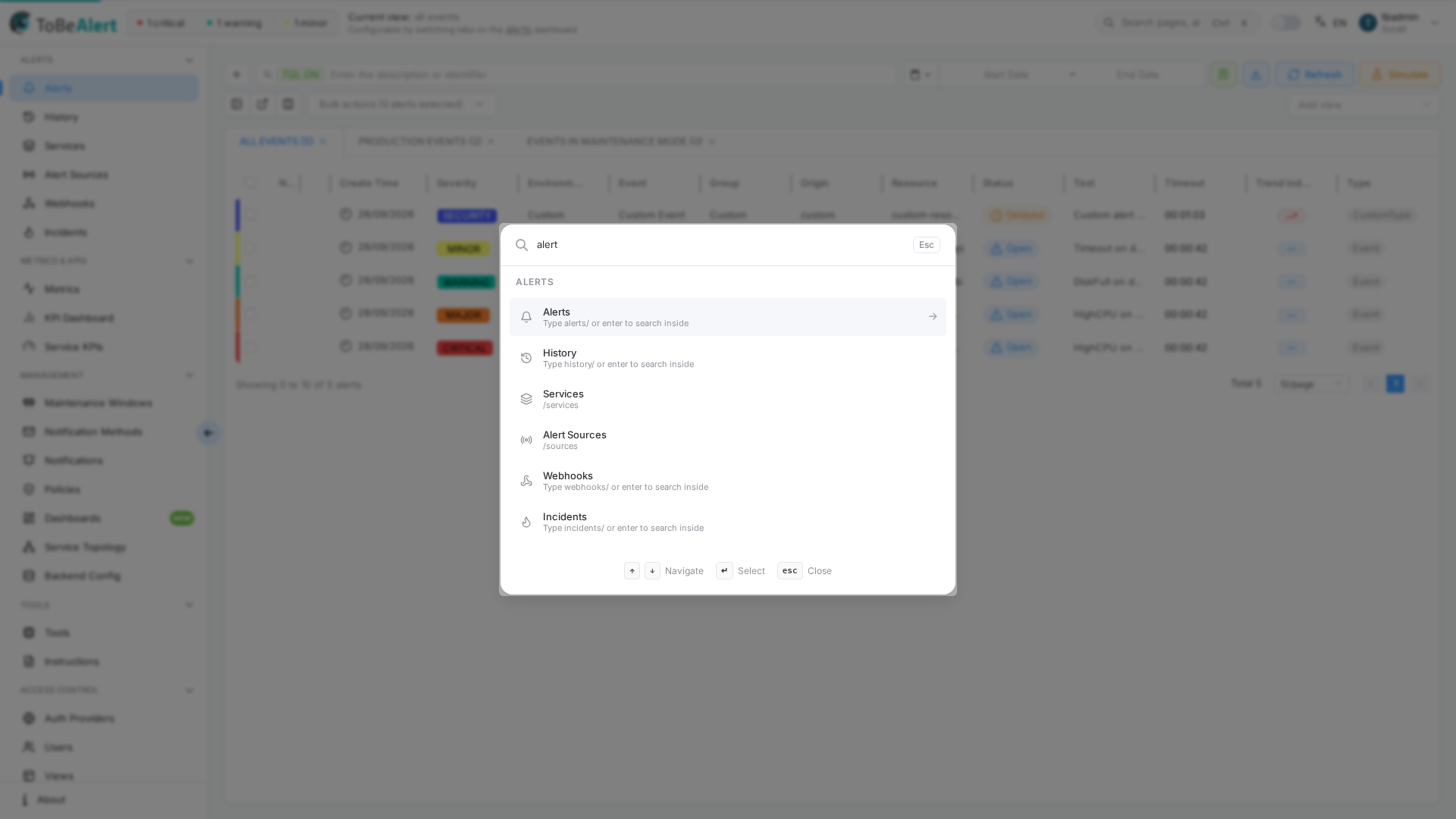
Despite the Search pages, alerts... placeholder, this dialog currently matches page/route names, not the content of individual alerts or alert history records. To find a specific alert, use the table toolbar search or TQL filters on the Alerts dashboard or History pages instead.
The top bar global search jumps to pages/routes. Table toolbar search (plain text or TQL) filters rows on the current list page — see TQL search and filters.
Best practices
- Match navbar indicators to severities you track daily — adjust colors in Settings if needed.
- Use global search (Ctrl+K) for quick navigation to infrequent routes (for example Service Topology).
- For incident lookup by resource or alert text, use the table search/TQL filters on the Alerts dashboard or History page — not the global search dialog.
- Switch language from the flag control; date formats in Settings respect your locale separately.