Calculate uptime
Route: /service-kpi/calculate
See also: Overview · Managing KPIs · KPI Dashboard
The Calculate Uptime tab runs an on-demand uptime calculation for a single Service KPI over a custom or preset date range. Use it for audits, incident reviews, or validating KPI configuration before relying on the KPI Dashboard.
Run a calculation
- Open Metrics & KPIs → Service KPIs.
- Select the Calculate Uptime tab.
- Choose a KPI from the dropdown (Select a KPI).
- Set Time Range with the date pickers (Start Date / End Date) or pick a quick range on the right (for example Last 30 days, This month so far).
- Click Calculate.
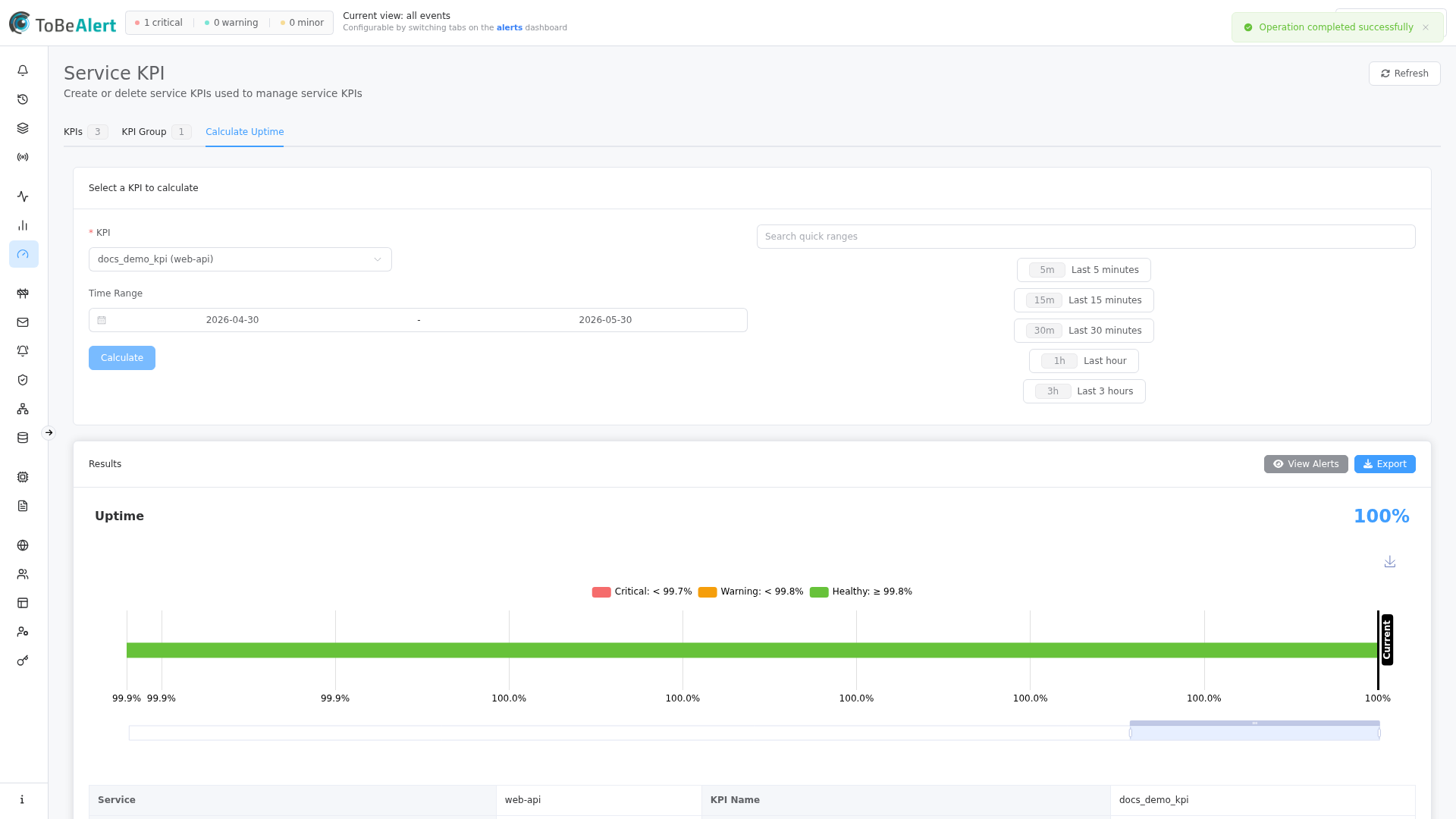
On success, a Results section appears below the form.
Quick calculate from the list
On the KPIs tab, click the row Calculate (calculator) button. ToBeAlert switches to Calculate Uptime, selects that KPI, applies its Date Range Preset to the pickers, and runs the calculation automatically.
Results
The results card includes:
| Element | Description |
|---|---|
| Uptime header | Large percentage for the selected period |
| Chart | Visual bar with target line, current uptime, and Color Thresholds from the KPI |
| Details table | Service, KPI name, uptime %, target, total alerts, calculation method, Meets Target yes/no, Breakpoints tags |
Toolbar actions on the results card:
| Button | Action |
|---|---|
| View Alerts | Opens /kpi-alerts for alerts matching the KPI filters in the period. Disabled when service history is not licensed |
| Export | Downloads calculation details as a JSON file |
Meets Target is Yes when calculated uptime is greater than or equal to Target Uptime; otherwise Below Target styling applies.
Quick ranges
The right panel lists preset ranges (search with Search quick ranges). Examples include Last 7 days, Last 30 days, This week so far, Last month, and This year so far. Selecting a range updates the Time Range date pickers.
Quick ranges on this tab are independent from each KPI’s Date Range Preset (used for dashboard defaults) unless you arrived via quick calculate from the list.
Refresh
Refresh on the page header clears the current result and reloads the KPI dropdown list.
Example use cases
| Scenario | Steps |
|---|---|
| Monthly SLA report | Select KPI → quick range Last month → Calculate → Export |
| Post-incident review | Select KPI → set custom Time Range around the incident → Calculate → View Alerts |
| Validate new KPI | Create KPI on KPIs tab → Calculate on row → review chart and Meets Target |
Best practices
- Confirm Time Range before exporting — exported JSON includes the calculated window.
- Compare chart vs target line — threshold colors reflect the KPI’s Color Thresholds configuration.
- Use View Alerts to reconcile unexpected uptime with individual alerts (when licensed).
- Re-run after filter changes — edit the KPI on the list tab, then calculate again to see the impact.
- Export for audit archives; the file name includes the KPI name and date.