Overview
Service KPIs let you define how ToBeAlert measures service uptime from alert history: which alerts count, what target to hit, and how results appear on the KPI Dashboard. Use this area to create and edit KPI definitions, organize groups, and run on-demand uptime calculations.
| Step | What you configure | Menu / route | Documentation |
|---|---|---|---|
| 1 | KPI groups — labels and colors for dashboard organization | Metrics & KPIs → Service KPIs → KPI Group tab → /service-kpi/groups | KPI groups |
| 2 | KPI definitions — service, filters, targets, thresholds | KPIs tab → /service-kpi/list | Managing KPIs |
| 3 | On-demand calculation — pick a KPI and date range | Calculate Uptime tab → /service-kpi/calculate | Calculate uptime |
| 4 | Monitor live status — cards or table on the dashboard | Metrics & KPIs → KPIs → /kpi-dashboard | KPI Dashboard |
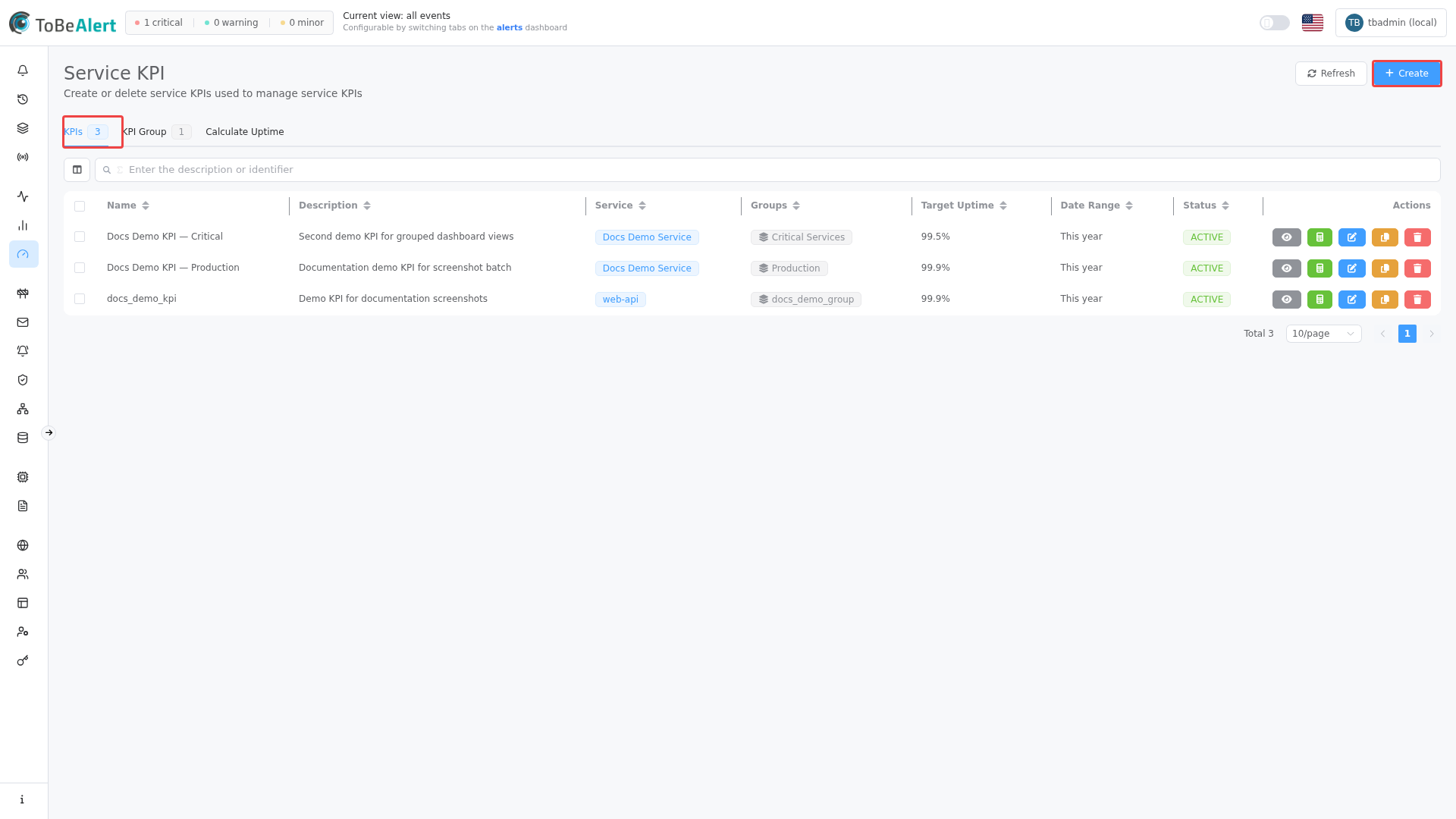
Where to find it in the UI
In the sidebar under Metrics & KPIs:
- Service KPIs →
/service-kpi/list(default tab)
Three tabs appear below the page header (each shows a count badge where applicable):
| Tab | Route | Purpose |
|---|---|---|
| KPIs | /service-kpi/list | List, create, edit, clone, and delete KPI definitions |
| KPI Group | /service-kpi/groups | Create groups and assign KPIs to them |
| Calculate Uptime | /service-kpi/calculate | Run uptime for one KPI over a chosen period |
Header actions on the KPIs and KPI Group tabs:
- Refresh — reload the active tab
- Create — open the create drawer for KPIs or groups (requires write:kpis)
On the KPIs tab, a gauge badge shows enabled KPIs / license maximum when a limit applies (only for users with write:kpis). When the limit is reached, Create is disabled and a warning icon appears.
The Calculate Uptime tab has Refresh only (no Create).
Managing Service KPIs requires read:kpis, write:kpis, or admin:kpis on your role. Delete actions need delete:kpis. Dashboard visibility also depends on Allowed KPI Groups on the role — see Permissions reference — Services and KPIs and Allowed KPI Groups.
How the parts fit together
Typical workflow:
- Create KPI groups (for example
Production,Critical Services) so the KPI Dashboard can filter by group. - Define Service KPIs for each monitored service — set alert filters (severity, status, environment, resource), Target Uptime, Date Range Preset, and optional Color Thresholds.
- Assign each KPI to one or more groups (in the KPI drawer or via Assign KPIs on the groups tab).
- Operators use the KPI Dashboard for current status; use Calculate Uptime (or Calculate on a list row) for ad-hoc reports or investigations.
- View Alerts (from the list or calculate results) opens alerts matching the KPI filters when service history is enabled on your license.
Each KPI is tied to a service from the services catalog. Filters determine which alerts reduce uptime for that service.
License limits
| Condition | Effect |
|---|---|
| KPI feature not enabled | Service KPIs may show a premium or limited indicator in the sidebar |
| Enabled KPIs at license maximum | Create disabled on the KPIs tab; gauge badge turns warning/danger |
| View Alerts without service history | Eye button disabled with premium indicator; uptime calculation still works |
Only active KPIs count toward the enabled-KPI license maximum.
Related modules
| Module | Relationship |
|---|---|
| KPI Dashboard | Displays current uptime and target status for defined KPIs |
| Metrics | Aggregate alert analytics — use alongside KPI uptime for volume trends |
| Maintenance windows | Planned work moves alerts to Maintenance — tune KPI filters to exclude if needed |
| Services catalog | KPI Service field selects from known services |
| Service Topology | Optional KPI linkage on topology views |
| Weight policies | Topology weight rules; independent from KPI uptime math |
| Roles — Allowed KPI Groups | Restricts which KPI groups a role sees on the dashboard |
Best practices
- Create groups first — assign KPIs to groups during creation so the dashboard stays organized.
- Scope filters tightly — use environment and resource whitelist/blacklist so maintenance or test alerts do not skew uptime.
- Set a realistic Target Uptime and Color Thresholds that match your SLA reporting.
- Use Date Range Preset for dashboard defaults; use Calculate Uptime for custom audit windows.
- Enable Weight by Severity when minor alerts should impact uptime less than critical ones.
- Use quick calculate (calculator icon on a list row) to jump to Calculate Uptime with that KPI pre-selected.
- Pair KPI permissions with Allowed KPI Groups on roles — KPI permissions without groups mean no dashboard data.