Overview
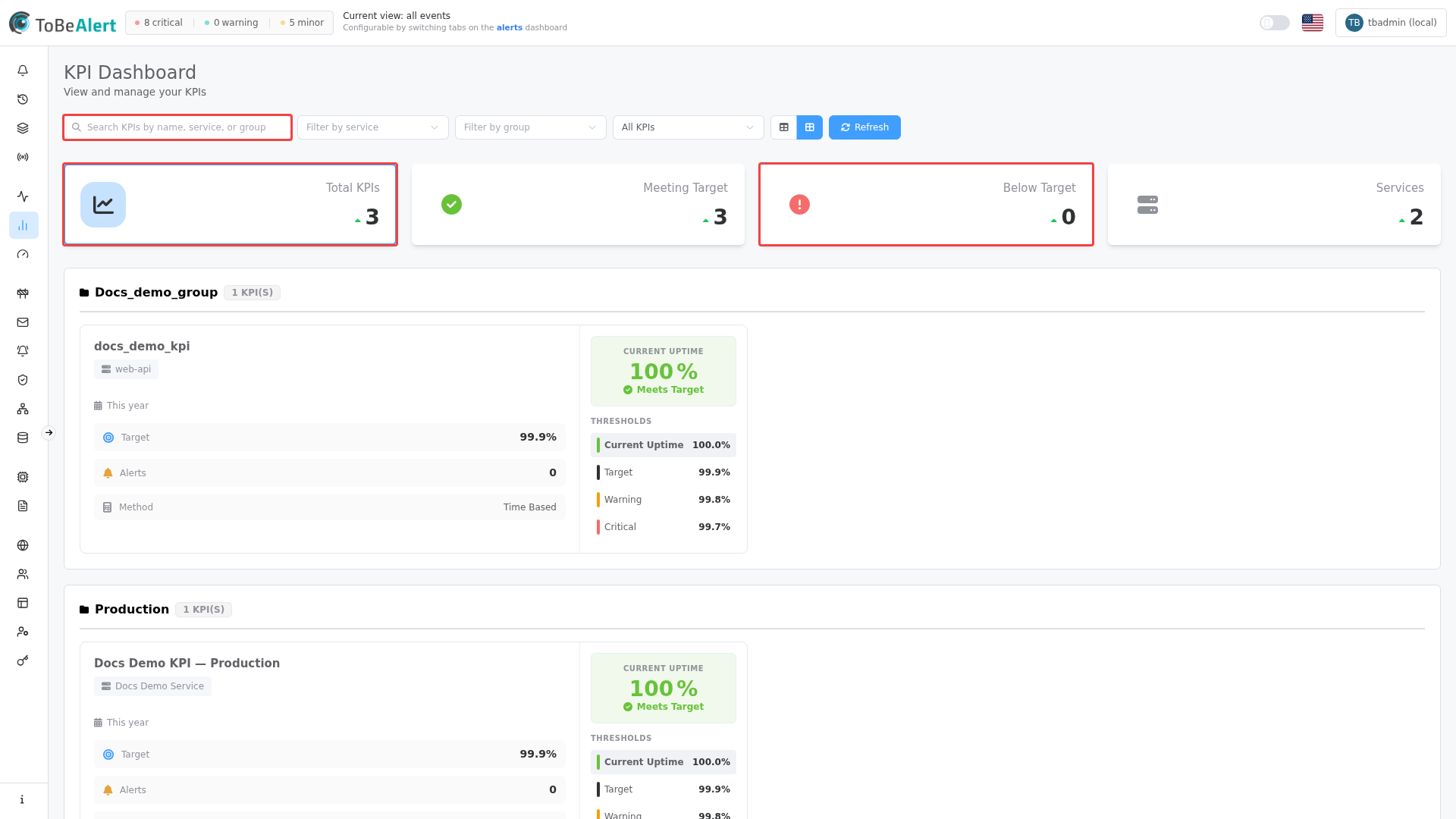
The KPI Dashboard gives you a single place to monitor service uptime KPIs: summary counts, grouped cards or tables, and quick access to alerts that affect each KPI. KPI definitions themselves are managed under Service KPIs; the dashboard focuses on current status and target compliance.
| Step | What you do | Menu / route | Documentation |
|---|---|---|---|
| 1 | Define KPIs — service, filters, targets, groups | Metrics & KPIs → Service KPIs → /service-kpi | Service KPIs |
| 2 | Monitor status — summary cards, search, filters, cards or table | Metrics & KPIs → KPIs → /kpi-dashboard | KPI dashboard |
| 3 | Investigate alerts — alerts that match a KPI’s filters | View Alerts on a KPI card → /kpi-alerts | Viewing KPI alerts |
Where to find it in the UI
In the sidebar under Metrics & KPIs:
- KPIs —
/kpi-dashboard(page title: KPI Dashboard) - Service KPIs —
/service-kpi(create, edit, and calculate KPI definitions)
The dashboard toolbar includes Search KPIs by name, service, or group, filters for service, group, and status, a cards / table view toggle, and Refresh.
Viewing the dashboard requires read:kpis (or higher KPI permissions) on your role, combined with Allowed KPI Groups so you only see KPIs in permitted groups. Create KPI on an empty dashboard requires write:kpis. See Creating and managing roles and Permissions reference — Services and KPIs.
How the parts fit together
Typical workflow:
- An administrator defines Service KPIs for production services — each KPI specifies alert filters (severity, status, environment, resource), a target uptime, date range preset, and optional KPI groups for dashboard organization.
- Operators open KPIs (
/kpi-dashboard) to see which KPIs meet target or are below target, filtered by service or group. - When a KPI shows alert counts, View Alerts opens the alert list for that KPI’s filter set (requires service history capability in your license — see Viewing KPI alerts).
KPI groups on the dashboard mirror group tags assigned when KPIs are created or edited in Service KPIs. KPIs without a group appear under Ungrouped.
Availability limits
| Capability | When limited |
|---|---|
| View Alerts | Button is disabled with a premium indicator when your license does not include service history. You can still see alert counts on the dashboard. |
| KPI visibility | Role Allowed KPI Groups empty while KPI permissions are set — no KPI data shown despite permissions on the role |
Related modules
| Module | Relationship |
|---|---|
| Service KPIs | Create and edit KPI definitions; Create KPI on the dashboard navigates here |
| Metrics | Aggregate open-alert and history analytics — complementary to per-KPI uptime |
| Alerts dashboard | Live alerts; View Alerts opens a KPI-filtered subset |
| Service Topology | Optional Service KPI link per topology for aligned uptime views |
| Services catalog | KPIs reference services from the shared catalog |
| Roles — Allowed KPI Groups | Restricts which KPI groups a role can see on the dashboard |
Best practices
- Assign KPI groups when creating KPIs so the dashboard stays organized by team, environment, or application.
- Use summary cards (Total KPIs, Meeting Target, Below Target) as quick filters before narrowing with service or group dropdowns.
- Switch to table view when comparing many KPIs across groups; use cards view for at-a-glance uptime and thresholds.
- Refresh after bulk alert changes or KPI edits so uptime percentages reflect the latest data.
- Pair dashboard monitoring with Service KPIs — edit targets, filters, or thresholds in Service KPIs, then return to the dashboard to verify impact.
- Review role KPI groups whenever you grant read:kpis — empty Allowed KPI Groups means no dashboard data for that role.