Webhook Configurations
Route: /webhooks (sidebar: Alerts → Webhooks)
Webhook Configurations let ToBeAlert receive alerts from external systems in their native format. Instead of adapting your monitoring tools to ToBeAlert's format, you create a webhook that maps incoming JSON into standardized alerts.
See also: Alert sources · Custom Webhooks API · TQL search and filters · List tables and bulk actions
Where to find it
- Sidebar: Alerts → Webhooks
- From Alert Sources, use the header button Webhook Configurations
- Global search (Ctrl+K): type
webhooks
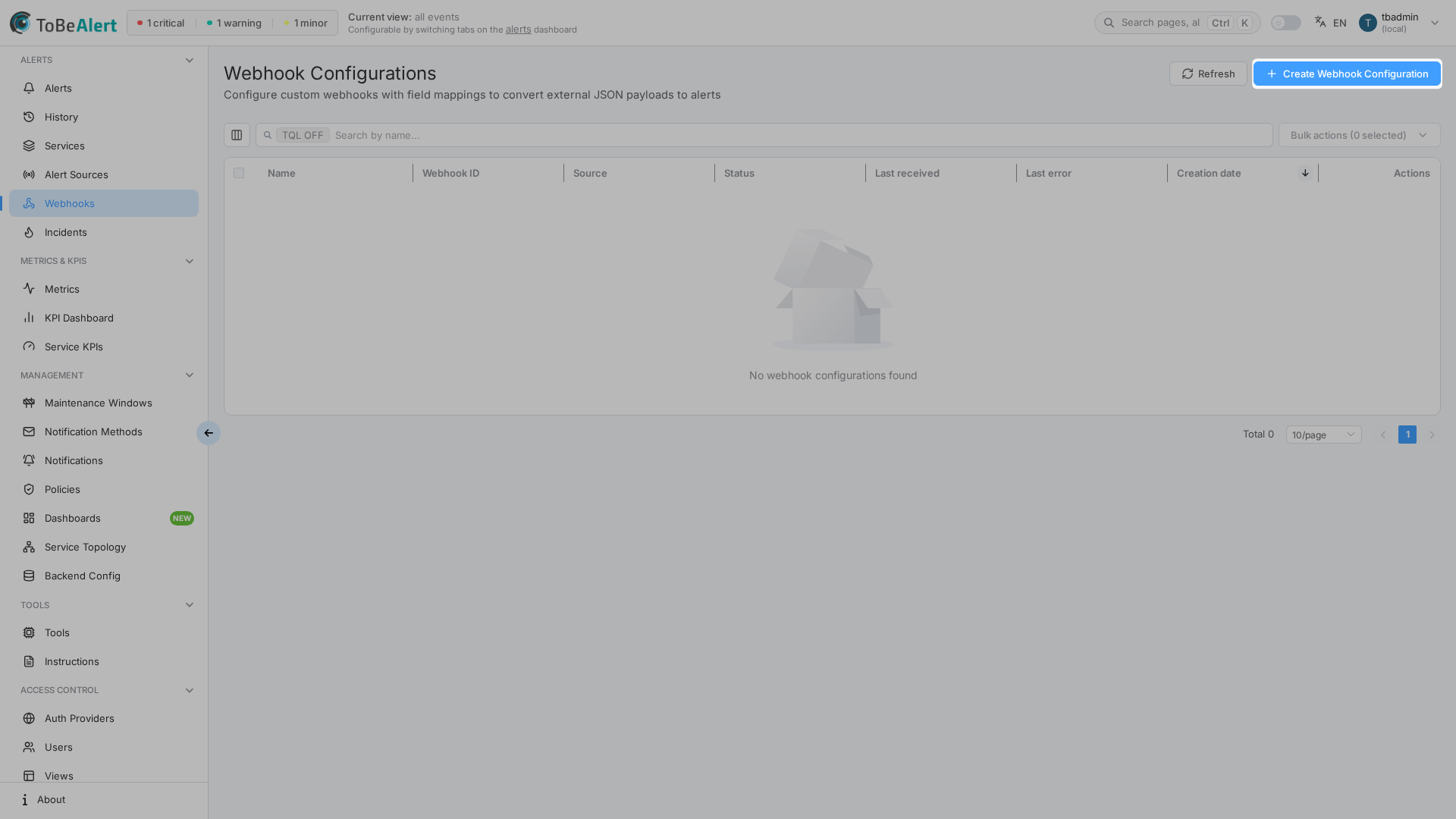
The table uses the shared list pattern (search, TQL, columns, bulk actions). Search placeholder: Search by name...
Table columns include Status (enabled / disabled). When a webhook has an alert source, the Source column shows that source's icon next to its name.
Create a webhook configuration
- Open Alerts → Webhooks (
/webhooks). - Click Create Webhook Configuration — opens the editor page at
/webhooks/new(not a drawer). - Fill in the form:
- Webhook ID (No special characters) — unique identifier used in the inbound URL (
/api/webhooks/custom/<id>) - Name — descriptive name
- Description (optional)
- Array Path (Optional) — JSON path when the payload contains an array of events (for example
events). Each array item becomes a separate alert - Field Mappings (optional) — click Configure Field Mappings when you are ready to map payload fields. You can create a webhook with no mappings to receive payloads in history without generating alerts
- Alert source (optional) — link to an existing alert source. When set, Source ID on generated alerts is taken from that source. origin stays whatever you map or default (see Alert source and Source ID)
- Status — defaults to Disabled. The Enabled switch stays off until every required alert field is covered by a mapping or a default with a value (empty or whitespace-only does not count). The UI lists the fields that are still missing. origin is not required.
- Webhook ID (No special characters) — unique identifier used in the inbound URL (
- Click Create.
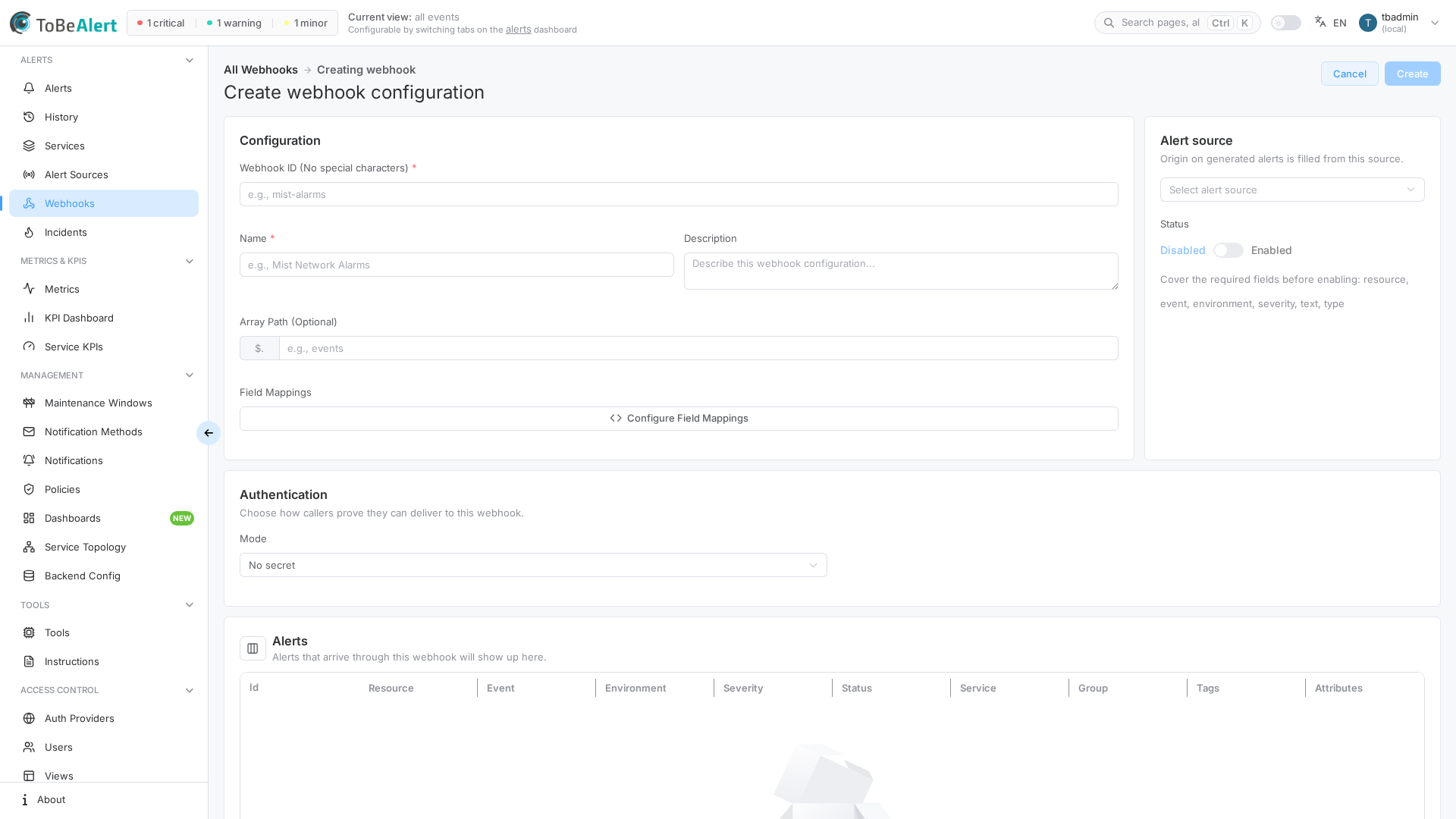
When you edit an existing webhook (/webhooks/<id>), the editor also shows a read-only Webhook URL with a copy button.
A Disabled webhook still accepts inbound POSTs: ToBeAlert stores the payload for history and does not create alerts.
Field Mapping Editor
Configure Field Mappings opens the Field Mapping Editor drawer (about two-thirds of the viewport). Drag the left edge to resize it. The drawer and the mapper tree scroll independently so you can keep the tabs and footer in view.
Two tabs (not a segmented control):
| Tab | Purpose |
|---|---|
| Field Mapping | Map payload paths to alert fields — interactively from a sample payload, or as JSON |
| Default Values | Values used when a field is not mapped or is missing from the payload. Opens in Interactive Builder; switch to JSON to edit the document directly |
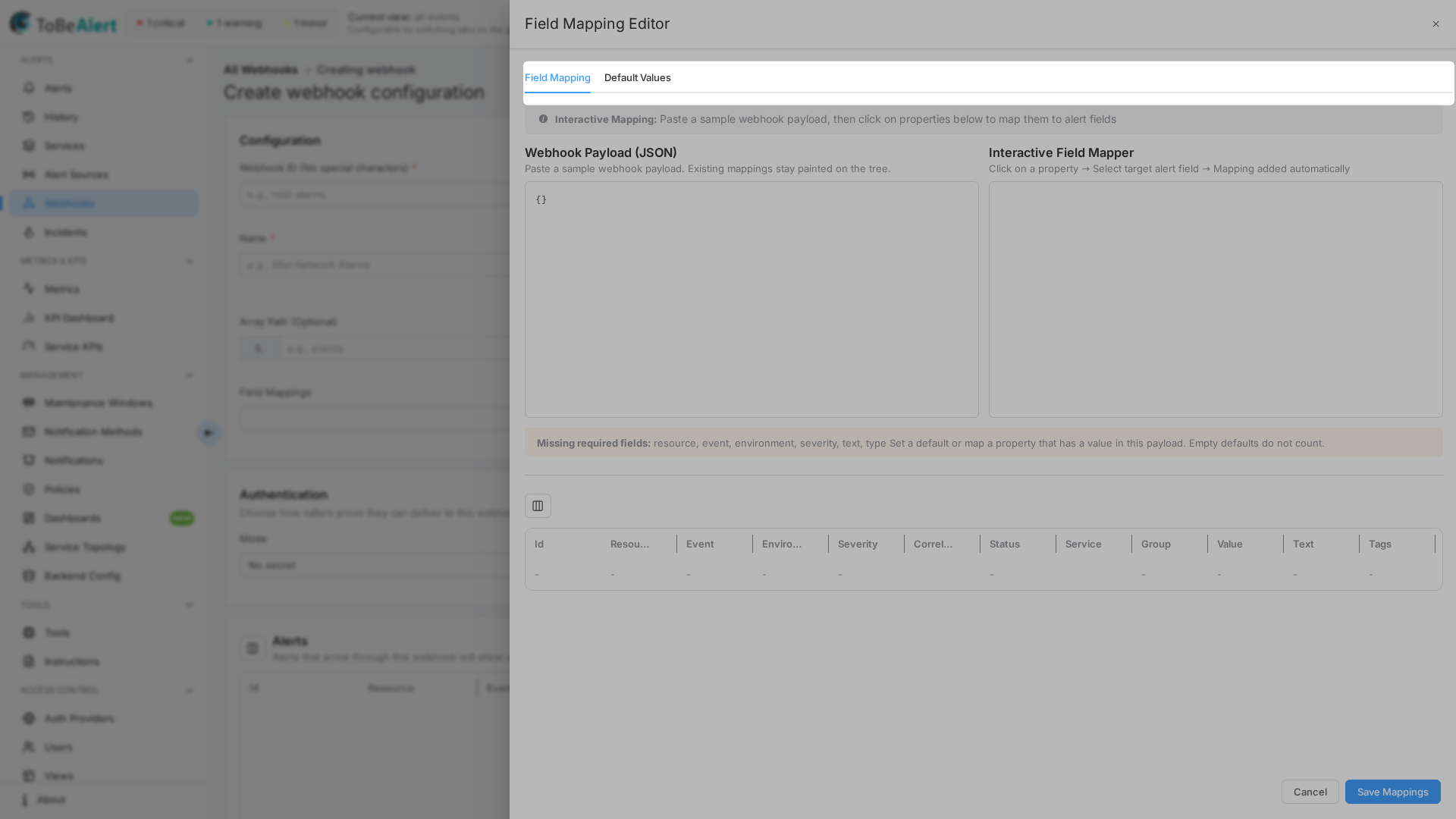
Field Mapping tab
Banner copy: Interactive Mapping: paste a sample webhook payload, then click properties to map them to alert fields.
A switch at the top of the tab chooses how you edit the mappings:
| Mode | What you see |
|---|---|
| Interactive | Webhook Payload (JSON) and the Interactive Field Mapper tree (steps below) |
| JSON | Field Mappings (JSON) — the fieldMappings document itself, with the same syntax as the API: payload paths (host.name, items[0].name, items[]), objects with path plus join, expand, or if_true / if_false, and a nested object for attributes |
Both modes edit the same mappings. Invalid JSON has to be fixed before you leave the JSON mode. The link Field mapping syntax opens the Field Mapping Reference.
Mappings copy payload values as they are; there are no templates or functions. A string in the JSON is always a payload path, so fixed text belongs under Default Values. To change case, trim, or translate values, use a policy — see Transforming values.
In Interactive mode:
- Paste a sample JSON payload in Webhook Payload (JSON), or use a received payload (see Received payloads and errors).
- Use Interactive Field Mapper — click a property (including a green mapped pill) to open Map this property, then choose the target alert field.
- Required alert fields (
resource,event,environment,type,text,severity) must be covered by a mapping or a default with a value before preview works and before you can turn the webhook Enabled. An empty or whitespace-only default does not cover the field; those still show Missing required fields. You can still click Save Mappings with incomplete coverage while the webhook stays Disabled. - A preview alerts table appears when the mapping produces alerts.
If you open the editor on a webhook that already has mappings and Webhook Payload (JSON) is empty (or only {}), ToBeAlert synthesizes a JSON tree from those mappings so you can see the previous associations without pasting a payload again.
Empty mapper state: Enter valid JSON to start mapping.
One path, one alert field
Each JSON path maps to one alert field, and each alert field is used once.
- Remapping the same path replaces the previous target. Map this property shows Now mapped to
<field>. Pick another to replace. - You cannot stack several alert fields on one path (for example text, environment, and severity all from
name). - Custom attributes are the exception: each
attributes.<key>is its own target. The prompt Map to custom attribute asks for the attribute key.
Mapped properties appear as green pills with → plus the alert field name. Those pills stay clickable so you can remap. Use the trash control next to a mapping to remove it.
Map this property
Clicking a property opens Map this property. The header shows the JSON path and its value (path → value). If the path is already mapped: Now mapped to <field>. Pick another to replace.
Choose the alert field in two blocks:
| Block | What you see |
|---|---|
| Required keys | Fields that still need a mapping or a default, or fields you can override. A required field that already has a default shows has a default and is not missing — pick it only if you want the payload to override that default. |
| Optional keys | Extra alert fields. Hint: Map this property to an extra alert field. |
Boolean source fields can open Boolean Conditional Mapping so you choose the alert value for true and false (stored as if_true / if_false).
Array properties ask how to map them: Expand (create one alert per array item) or Concatenate (join array values with ", "). Only one field can expand; when one already does, the dialog says so.
Default Values tab
The tab always opens in Interactive Builder. Use the switch JSON / Interactive Builder (Default value builder mode) only when you need to edit the defaults document directly.
Two alerts can appear above the builder. They are separate banners:
- Build defaults per field. We will keep the JSON editor in sync automatically.
- When an Alert source is linked: Source ID is set from alert source
<source>and is not editable here.
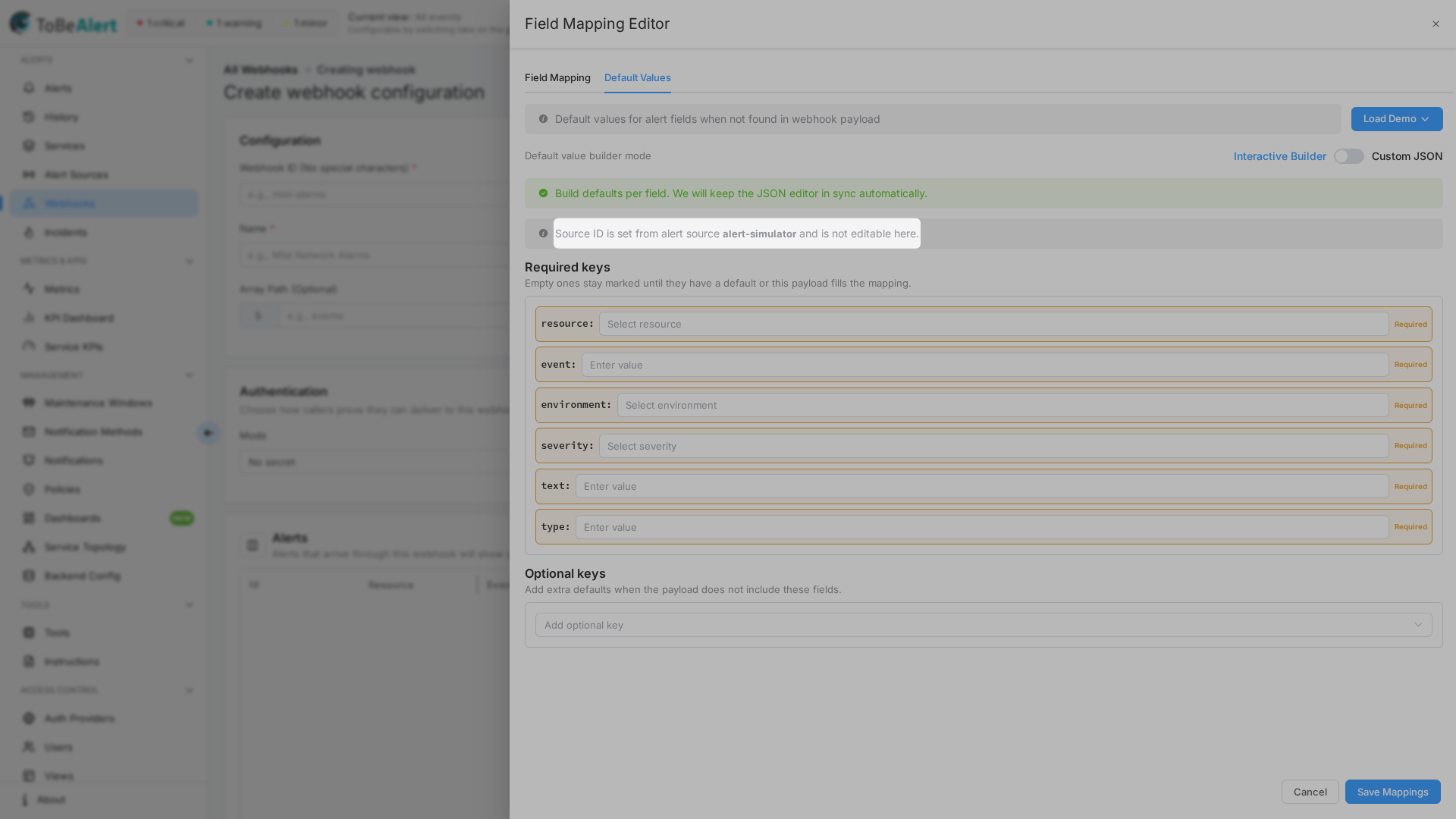
Interactive Builder keeps defaults in sync with the JSON document and splits keys into two blocks:
| Block | What you do |
|---|---|
| Required keys | Always listed. These fields need a mapping or a default with a value before you can enable the webhook. An empty or whitespace-only default does not cover the field and still counts as missing. Incomplete defaults are fine to save while Status stays Disabled. |
| Optional keys | Extra defaults when the payload does not include those fields. Each added key is a row (field, value, trash). Use the Add optional key select to add another field. |
- JSON — edit the defaults document in a textarea.
- Add missing required fields — adds an example default for every required field that has neither a mapping nor a default (the hint lists them: Adds example defaults for: …). When nothing is missing it shows All required fields are covered. Replace the example values with your own before enabling the webhook.
If the webhook has an Alert source, Source ID does not appear as a key (required or optional). You do not map it and you do not edit it here. origin stays an optional field you can map or default yourself. Neither field is required to enable a webhook.
Click Save Mappings when finished (Cancel discards editor changes). Saving mappings does not require full coverage of required fields; turning Status to Enabled does.
Alert source and Source ID
When the webhook has an Alert source:
- Source ID is set from that source. You do not map Source ID and you do not edit it under Default Values.
- Generated alerts receive that Source ID. A mapping or a default that already sets origin is left as you wrote it.
- If a default origin is only a copy of the source id (or of the source you just replaced), that copy is removed when you link or change the source, so origin does not silently follow the source.
Mapping syntax is in the Field Mapping Reference; payload examples and the HTTP API are in the Custom Webhooks API documentation.
Testing webhooks
After creating a webhook:
- Open the webhook in the editor.
- Copy the Webhook URL.
- Send a test payload to that URL from your monitoring system or
curl. - If the webhook is Enabled and mappings are complete, confirm the resulting alerts on the alerts dashboard. If it is Disabled, the payload appears under Received payloads (and a 403 under Recent errors), and no alert is created.
Authentication
The Authentication card (Choose how callers prove they can deliver to this webhook.) sets the inbound auth Mode:
- No secret — anyone with the URL can POST.
- Custom header — pick a Scheme: Static secret or Generic HMAC (you set the Header name), GitHub or Slack (fixed signature header). Enter the Secret; once saved, leave the field empty to keep it.
- API key — choose an API key with write access to alerts (non-admin users can only pick their own keys). The caller sends it as
Authorization: Key …orX-API-Key.
Header names, signature formats and failure responses are described in Inbound authentication.
Received payloads and errors
When you edit a webhook, the page shows the last five Received payloads and the last five Recent errors (with the reason and HTTP status), with Refresh and an Auto refresh switch. Use as sample loads a received payload into the Field Mapping Editor, so you can build mappings from real data. An Alerts table lists the alerts that arrived through this webhook.
What is kept in each history is described in Payload history, error history, and size limit.
Best practices
- Use descriptive webhook IDs that match the source system.
- Create disabled first if you only need payload history; enable after required fields are covered.
- Test with a real payload in Field Mapping before enabling the webhook in production.
- Cover required alert fields (
resource,event,environment,type,text,severity) with mappings or defaults that have a value. An empty or whitespace-only default does not count. origin is optional. - Link an Alert source when you want inbound events grouped under that source. Source ID follows the source. Set origin yourself with a mapping or a default when you need it.
- Map one JSON path to one alert field. Use separate paths (or distinct
attributes.<key>values) instead of stacking several fields on the same property. - Create the webhook disabled, send a real payload, and build the mapping from it with Use as sample.
- Keep fixed text in Default Values and reshape values with policies, not in the mapping.