Weight policies
Route: /service-topology ( Weight Policies tab )
Weight policies match alerts using the same style of Filters as other management modules and assign a numeric weight stored on the alert (in attributes). Enabled policies help drive KPI calculations and topology weighting without manual edits per alert. A policy can optionally be tied to one topology.
See also: Overview · Topologies
Table columns
| Column | Description |
|---|---|
| Name | Policy name; click to edit |
| Description | Policy summary |
| Status | Toggle active / inactive per row |
| Actions | Edit, Delete (when permitted) |
Search by name and use the TQL ON / TQL OFF tag for advanced filtering — see TQL search and filters.
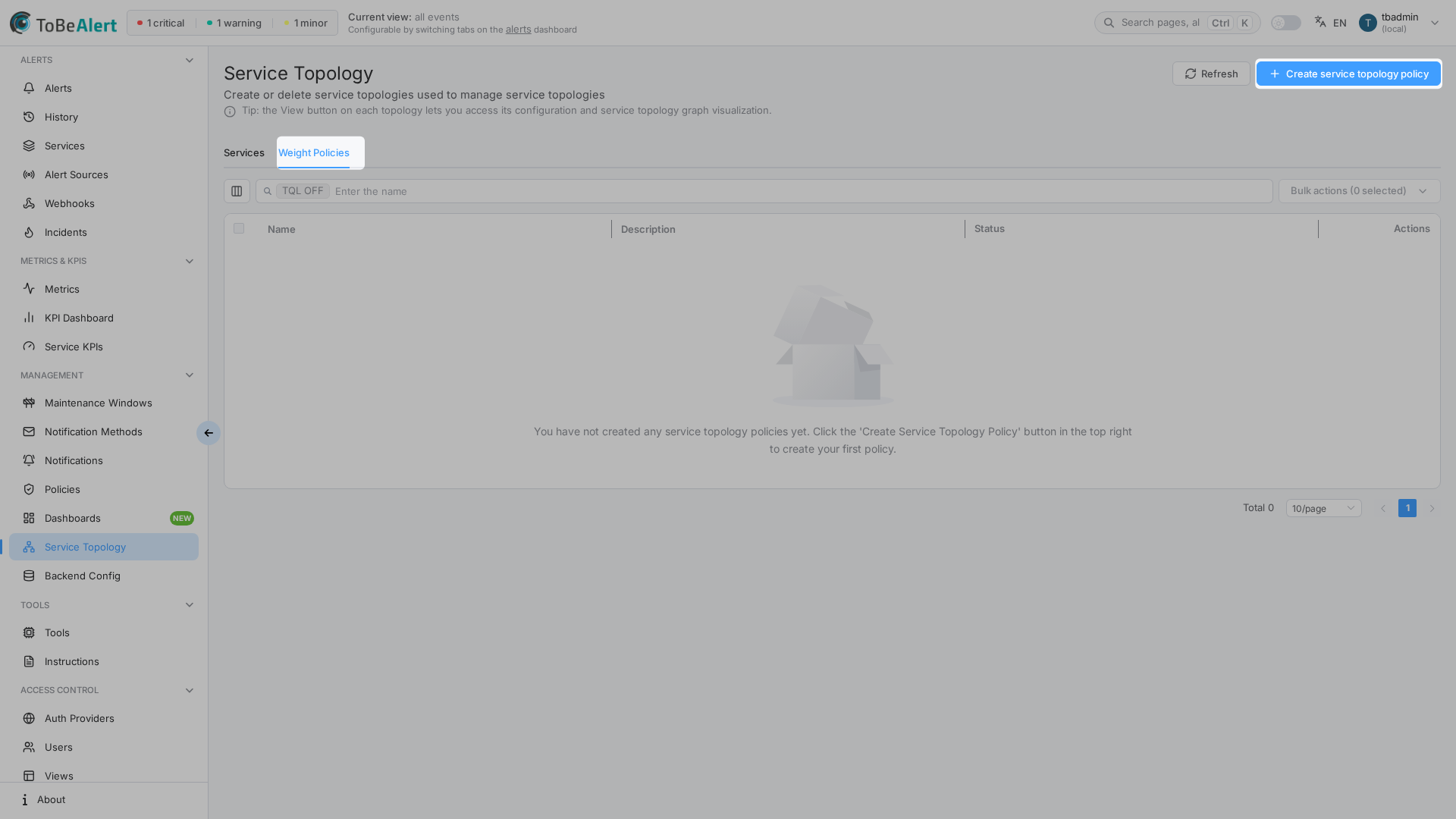
Create a weight policy
- Open Management → Service Topology.
- Select the Weight Policies tab.
- Click Create service topology policy.
- Enter Name and Description (required).
- Set Weight to set (0–100).
- Define at least one clause in Filters (query builder).
- Click Save.
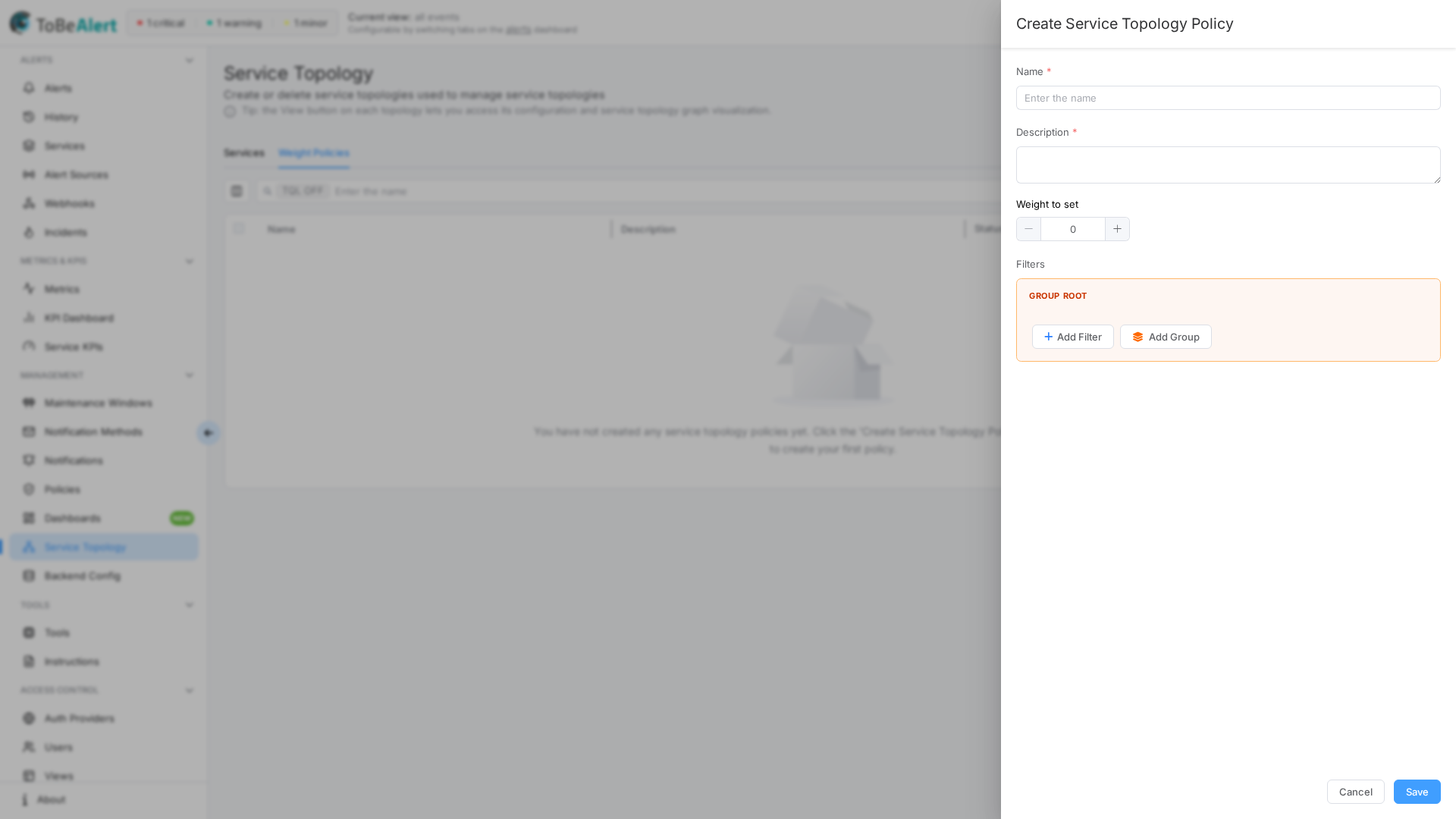
Form fields
| Field | Required | Description |
|---|---|---|
| Name | Yes | Identifier in the table |
| Description | Yes | What the policy does |
| Weight to set | Yes | Numeric weight applied to matching alerts (0–100) |
| Filters | Yes | Alert field conditions (AND groups); empty filters cannot be saved |
| Topology | No | The topology this policy belongs to (topologyId in the API). Leave it empty for a policy that is not tied to a topology. The policy list can be filtered by topology (?topologyId=… in the API) |
Edit, enable, disable, delete
| Action | How |
|---|---|
| Edit | Click Name or Description, double-click row, bulk Edit service topology policy, or edit icon |
| Enable / Disable | Status switch on the row, or bulk Enable service topology policy / Disable service topology policy |
| Delete | Bulk or row Delete — confirmation required |
Policies must have valid Filters JSON when saved; invalid filter data shows an error when opening the drawer.
How weights are used
When an alert is received, ToBeAlert evaluates the active policies in creation order (oldest first). The first policy whose Filters match sets the alert's weight attribute to its Weight to set, and no other policy is evaluated for that alert. An alert that already arrives with a weight attribute from the monitoring system keeps it: policies never overwrite an incoming weight. The alert history records the policy that set the weight.
Because only the first match counts, the order of creation matters when filters overlap: create the most specific policy first, or keep filters disjoint. Earlier releases applied the last policy in the list even when its filters did not match; this is fixed in this release, so check existing policies whose filters overlap.
The weight integrates with Service KPI time-based calculations and topology visualization that respect alert weight. Use lower or higher weights consistently across policies so operators can reason about relative impact.
Best practices
- Name policies by intent — e.g.
production-critical-weight. - Keep filters narrow — environment, service, severity, or resource clauses reduce surprises.
- Disable before delete when testing — toggle inactive instead of removing policies you may need again.
- Align weights with KPI severity weights so dashboard uptime and topology coloring tell the same story.
- Document weight scale in your runbook (what
0vs100means for your organization).