Overview
Service Topology lets you define one topology per service, draw its environment and resource hierarchy on an interactive graph, overlay active alerts, and optionally link a Service KPI. Weight Policies assign numeric weights to matching alerts for downstream KPI and SLA calculations.
A topology is a graph of nodes and edges: one service node, the environment nodes under it, and resource nodes that hang from an environment or from another resource of the same environment. A resource can have several parents (a database shared by two applications is one node with two incoming edges). Every node has a stable ID, so the graph can be edited, exported, and saved without losing identity. When you save, the resource-to-resource edges are also written to the resource graph so policies and cause-and-effect rules can use the hierarchy — see Service topology API for the data model and endpoints.
| Step | What you configure | Menu / route | Documentation |
|---|---|---|---|
| 1 | Topologies — name, service, description, KPI | Management → Service Topology → Services tab → /service-topology | Topologies |
| 2 | Graph — nodes, edges, alert overlay, save map | Open a topology (View / eye icon or Service link) → /service-topology/<id> | Graph editor |
| 3 | Weight policies — filters and weight | Service Topology → Weight Policies tab | Weight policies |
| 4 | Import / export — back up, copy between instances, load a CMDB extract | Services tab → Import, Export all, Export per row | Import and export · Importing from a CMDB |
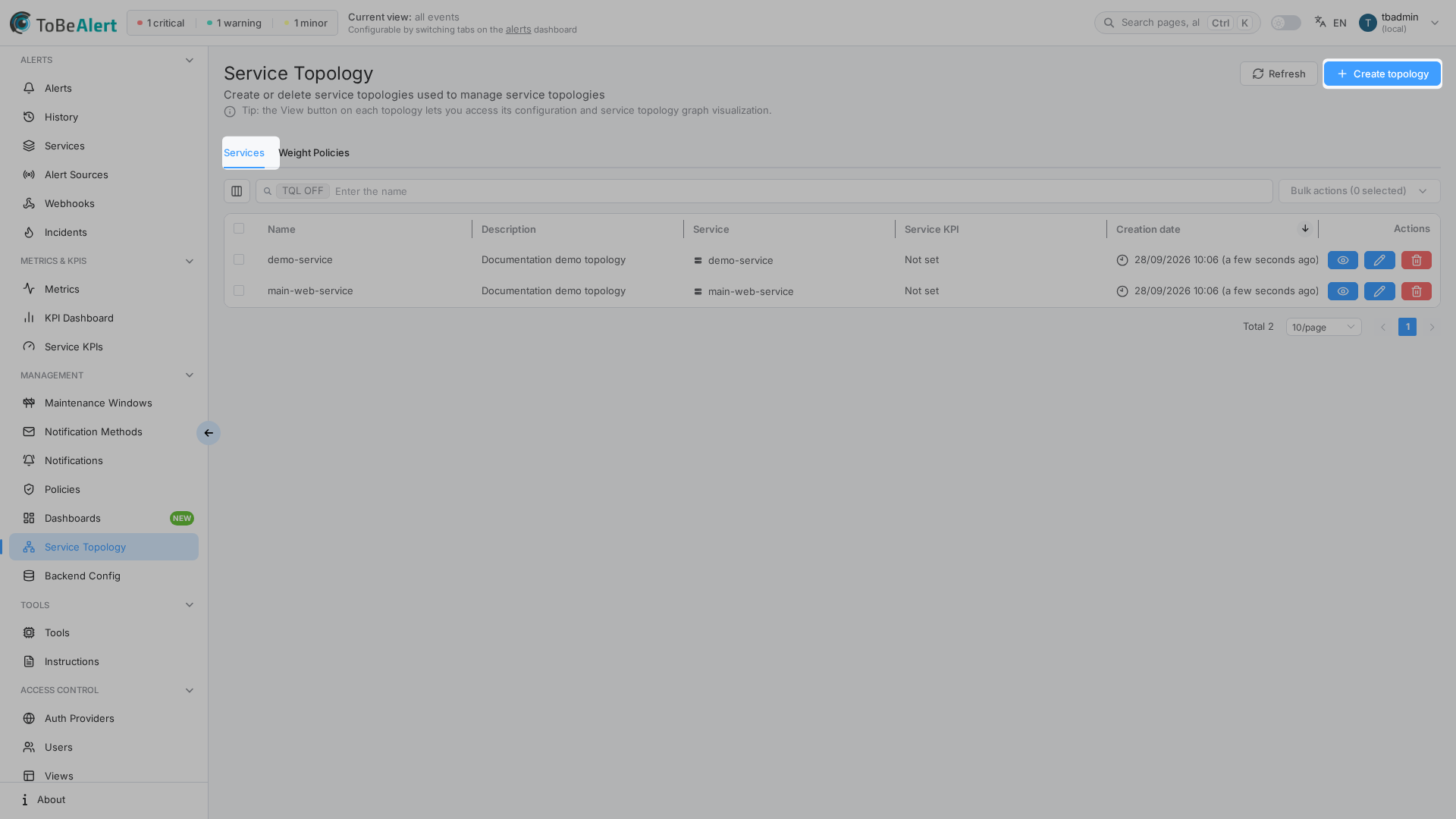
Where to find it in the UI
In the sidebar under Management:
- Service Topology →
/service-topology
The page has two tabs:
| Tab | Purpose |
|---|---|
| Services | List, create, edit, and delete topology records |
| Weight Policies | Policies that set an alert weight when filters match |
Header actions depend on the active tab: Refresh, Import, Export all and Create topology (Services) or Create service topology policy (Weight Policies). Each Services row also has an Export action.
Managing topologies and weight policies requires the appropriate permissions in your organization. If menus, Create buttons, or row actions are missing, contact your administrator.
How the parts fit together
Typical workflow:
- Ensure the service exists in the Services catalog (
/services) or appears from alert data. - Create topology, pick the Service to fetch, optional Service KPI, and save.
- Open the graph (View or click the Service column), enable Edit mode, build environment and resource nodes manually, with Alert-driven service topology (suggestions computed by the server from the service's alerts and the resource graph), or Import from JSON, then Save changes. The server validates the whole graph before storing it and reports each problem with an error code.
- Create Weight Policies with alert Filters and a Weight to set so matching alerts carry a
weightattribute used in KPI logic. A policy can be tied to one topology; the first active policy that matches sets the weight. - Optionally skip the drawing: Import on the Services tab loads a complete topology file (record, graph, weight policies and catalog entry) in Replace or Merge mode, or builds topologies and resource-graph relations from a flat CMDB extract — see Import and export and Importing from a CMDB. Export / Export all produce the same files.
Upgrading from tree-based topologies
Topologies created in earlier releases were stored as a single tree. When the backend starts on this release, they are converted automatically to nodes and edges:
- Node IDs are regenerated; the old tree is kept internally for one release as a backup.
- A resource that appeared under two parents becomes one node with two parents.
- The resource-to-resource edges are written to the resource graph (source
topology). - If a service had more than one topology, the backend log reports it — keep one and delete the rest.
- A tree that is not valid in the new model (typically the same resource under two environments) is not converted: it keeps working, converted on the fly, until you fix it in the graph editor and Save changes.
Exports made with the old editor (a nested tree) can still be imported, either on the canvas with Import from JSON or on the server with the Import dialog — see Files from earlier releases and other tools.
You can also open a topology from the Services view (View Topology), the alerts dashboard context menu, or a Service topology widget on a service dashboard.
License limits
| Condition | Effect |
|---|---|
| Feature not enabled | Service Topology may show Premium feature / Limited feature |
| Trial license | Create topology is disabled on the Services tab |
| Topology count limit reached | Create topology disabled; tooltip You have reached your service topology limit…; key icon shows count/max |
The usage counter on the Services tab compares created topologies to your licensed maximum.
Related modules
| Module | Relationship |
|---|---|
Services (/services) | Service catalog used when creating topologies |
| Service KPIs (overview, KPI Dashboard) | Optional KPI linked per topology; KPI dashboard and alerts |
| Maintenance windows | Overlapping scope — maintenance moves alerts to Maintenance while topology shows live severity |
| Alerts dashboard | View Topology shortcut; alert table under the graph |
| Service dashboards | Service topology panel widget with mini preview |
Best practices
- One topology per service — duplicate services are rejected at create time.
- Start from the service catalog so Service to fetch lists the right IDs.
- Save the map after editing — unsaved graph changes are lost on navigation unless you use Save changes.
- Use Weight Policies for consistent alert weighting instead of manual attribute edits.
- Reload alert count after large alert bursts so node colors stay accurate.
- Link a Service KPI when you need uptime/SLA views aligned with the same service filters.