Viewing KPI alerts
Route: /kpi-alerts (opened from the dashboard — not listed in the sidebar)
See also: Overview · KPI dashboard · Alert history tracking
When a KPI has matching alerts, View Alerts on its dashboard card opens a dedicated list of current and historical alerts that fall within that KPI’s configured filters (service, severities, statuses, environments, resources).
Open KPI alerts from the dashboard
- Open Metrics & KPIs → KPIs (
/kpi-dashboard). - Locate a KPI card with a non-zero Alerts count (cards view) or expand the group in table view and note the alert count.
- Click View Alerts on the KPI card when the Alerts count is greater than zero.
View Alerts requires service history in your license. When this capability is not included, the button is disabled and shows a premium indicator. Alert counts on the dashboard remain visible; only the detailed alert list is restricted. Contact your administrator or vendor to enable historical alert analysis.
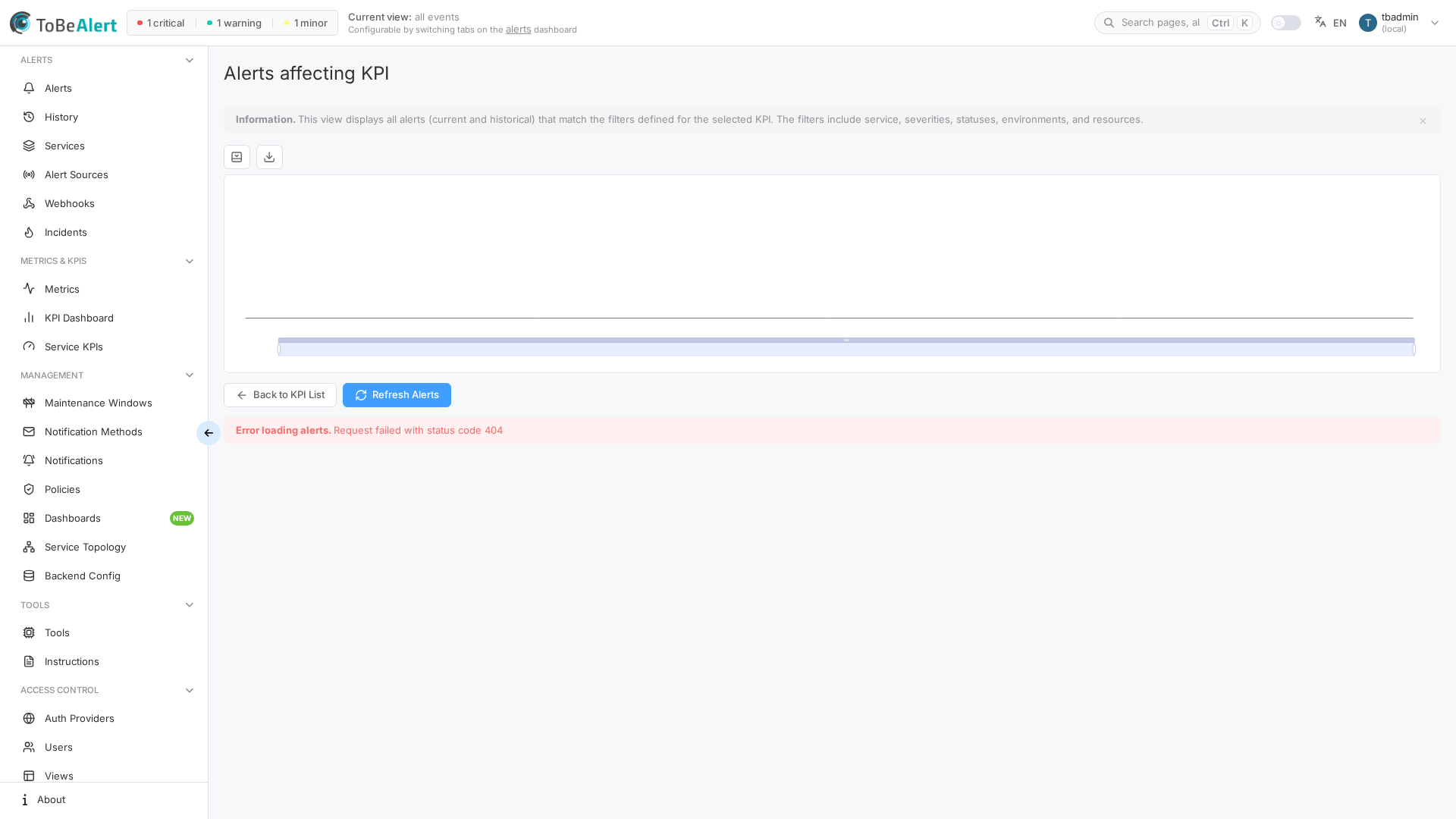
Page layout
The Alerts affecting KPI page includes:
| Section | Description |
|---|---|
| Information | Explains that the list includes current and historical alerts matching the KPI filters |
| Active Filters | KPI name, service, date range, total alert count, and last refresh time |
| Charts | Visual summary of alerts for the KPI |
| Toolbar | Back to KPI List (returns to the previous screen) and Refresh Alerts |
| Alerts table | Sortable list of matching alerts (or empty state when no alerts match) |
Alerts table columns
| Column | Description |
|---|---|
| Severity | Alert severity (color tag) |
| Status | Alert status |
| Resource | Affected resource |
| Event | Event type |
| Text | Alert message (truncated with tooltip) |
| Time range | Start → end time, duration, and tags (Active for open alerts, Historical for archived snapshots) |
Select one row to enable context actions. Double-click a row to open the alert details drawer.
Row and bulk actions
Right-click a row (or use the selection toolbar) for alert actions — see List tables and bulk actions and Bulk actions and context menu (alerts).
| Action | Description |
|---|---|
| Details | Open the alert details drawer |
| Alert history tracking | Jump to alert history for the selected alert |
| Instructions | Open runbook instructions for the alert event (new browser tab) |
Empty and error states
| State | What you see |
|---|---|
| No matching alerts | No alerts found matching the KPI filters. |
| Missing KPI context | Error when no KPI is specified in the navigation context |
| Load failure | Failed to load alerts. Please try again. — use Refresh Alerts |
Relationship to KPI configuration
The alert list respects the same filter dimensions defined in Service KPIs for that KPI. Changing filters or date range presets in Service KPIs changes which alerts appear here after you Refresh Alerts or reload the dashboard.
For KPI definition and filter setup, see Service KPIs.
Best practices
- Confirm the Active Filters banner before triage — verify service, date range, and total count match expectations.
- Use Historical tags to distinguish archived snapshots from currently Active alerts.
- Open alert history from a row when you need the full change timeline for a KPI-impacting alert.
- Refresh Alerts after bulk alert closures on the main dashboard so uptime and this list stay aligned.
- Plan license needs early — teams that rely on KPI drill-down need service history enabled.