Alert history tracking
Route: /history (sidebar: Alerts → History)
Use the History list to search and filter alert change records, inspect volume on the hits chart, then open a per-alert timeline for a chronological audit of one alert.
See also: Overview · Hits chart and breakdowns · Per-alert timeline · Alerts dashboard · TQL search and filters
| Task | Section |
|---|---|
| Open the History list | Open History |
| Understand table columns | History table columns |
| Search with TQL | Search and TQL |
| Use category filters | Filters sidebar |
| Export or delete records | Bulk actions · Export |
| Open a per-alert timeline | Open the timeline |
Open History
- In the sidebar, open Alerts → History (
/history). - The page loads the hits chart (above) and the history table (below), typically sorted by Last Update (newest first).
- Click Refresh in the top toolbar to reload the list and chart.
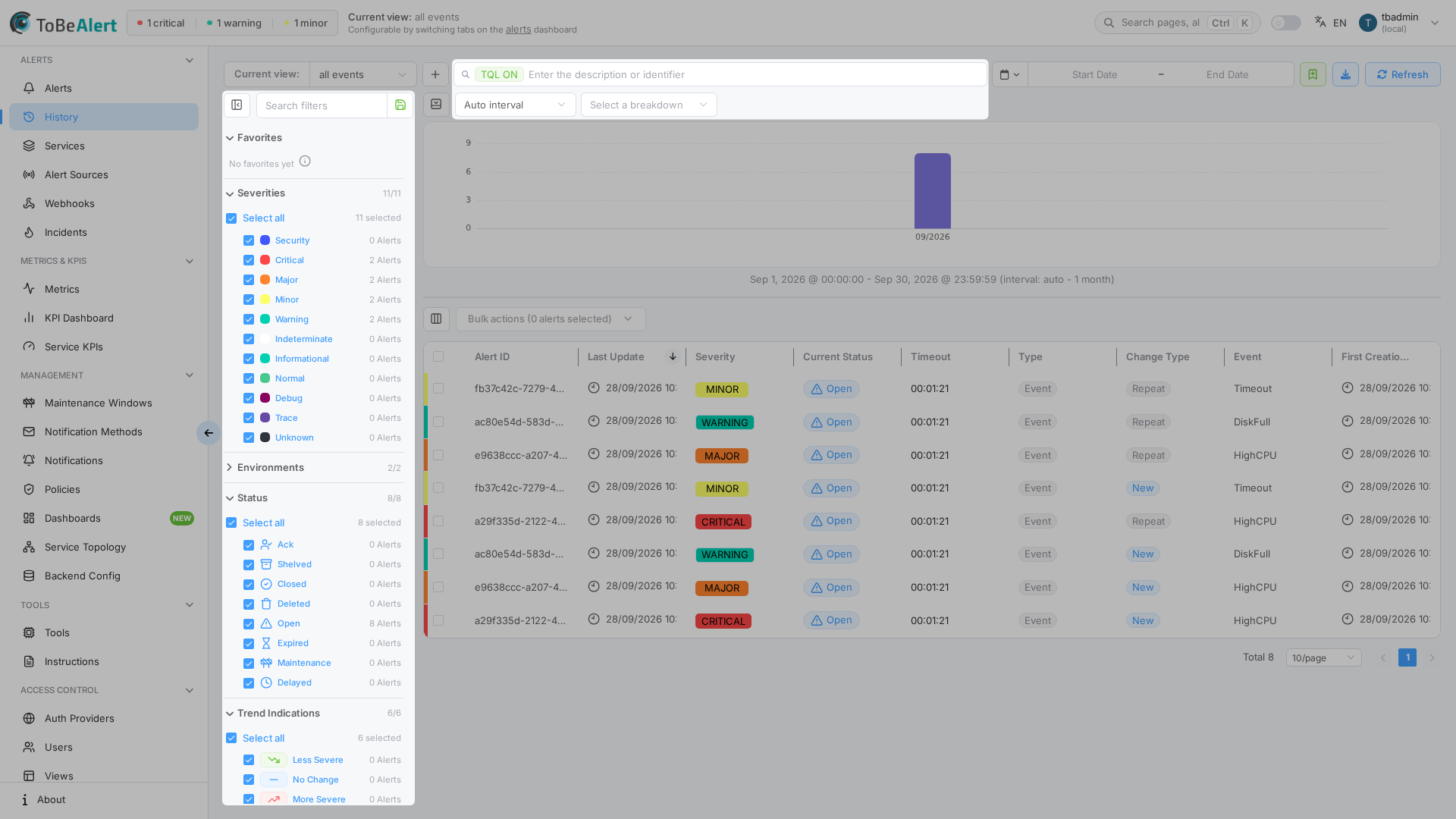
Pagination (page, size) and sort order persist in the URL so you can bookmark a view.
Top toolbar
| Control | Purpose |
|---|---|
| Current view | Restrict history to a saved alert view (same views as the dashboard) |
| Add filter | Build a filter by Field, Operator, and Value (AND/OR), then Apply |
| TQL bar | Always-on TQL search (no plain-text mode) |
| Time range | Presets (Today, Last 24 hours, Last 7 days, …) or a custom range for Last Update |
| Export filtered view | Download icon — opens the export dialog for the current filter result |
| Refresh | Reload chart and table |
History table columns
Default columns on the main list:
| Column | Description |
|---|---|
| Alert ID | Unique alert identifier — click to open the point-in-time details drawer |
| Last Update | When this history entry was recorded |
| Severity | Severity at this history point |
| Current Status | Status at this history point |
| Timeout | Timeout value (seconds) |
| Type | Alert type |
| Change Type | Kind of change (for example New, Severity, Status, Repeat, Plugin execution) |
| Event | Event name |
| First Creation Time | When the alert was originally created |
Use Column manager on the table toolbar to show, hide, or reorder columns — see List tables and bulk actions. Resize columns by dragging headers; unsaved width changes prompt Save / Reset where available.
Row background colors follow severity (same palette as the alerts dashboard). Sort by clicking column headers (Sort by …).
Point-in-time details
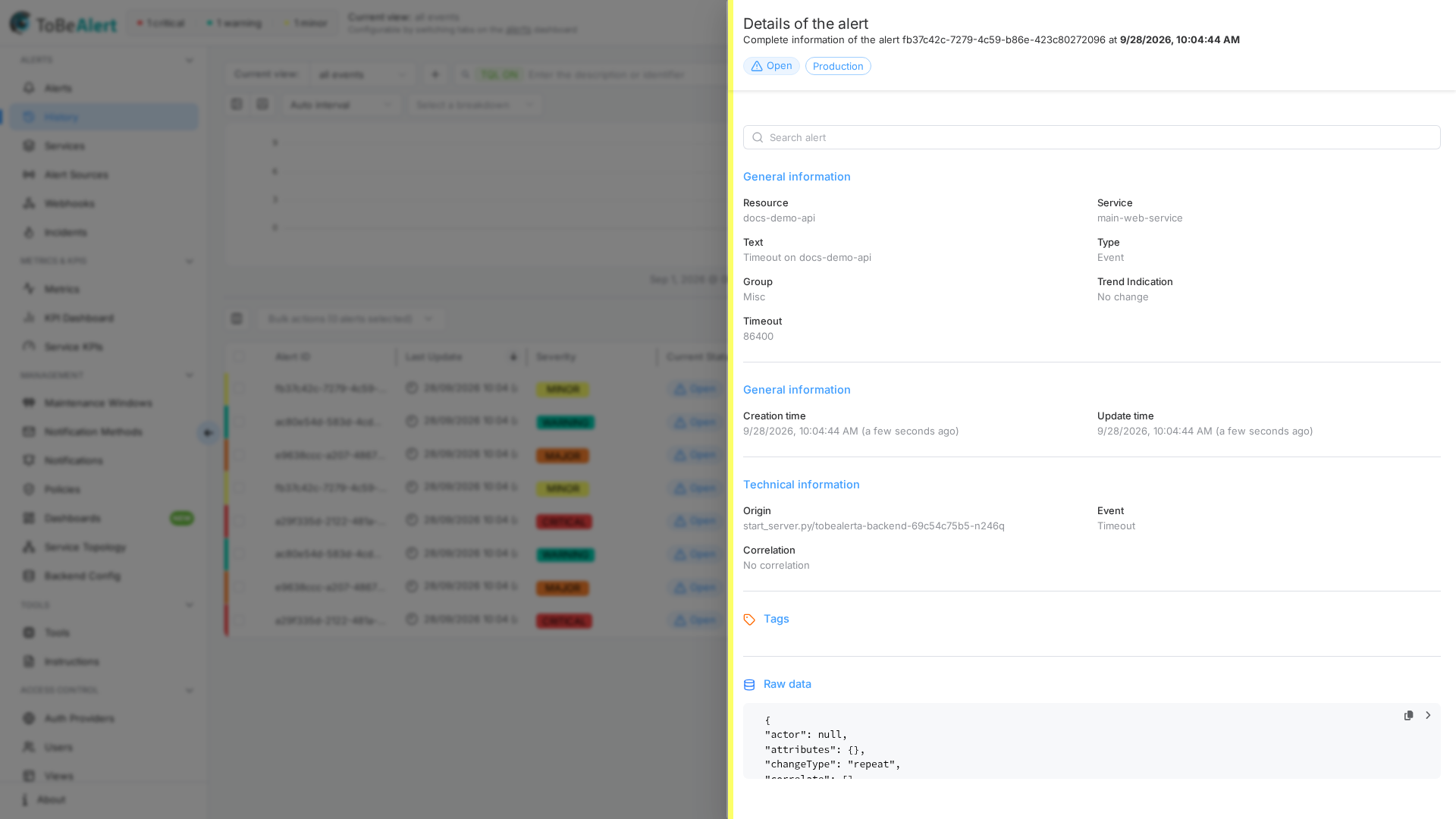
Click Alert ID, double-click a row, or choose Details from bulk actions / the context menu to open Details of the alert.
The drawer subtitle reads Complete information of the alert <id> at <date> — fields reflect the alert at that history entry, not necessarily the live dashboard state.
Search and TQL
The History list search bar always uses TQL — the same column:operator:value pattern as the alerts dashboard. See TQL search and filters for syntax and autocomplete.
History-specific examples:
changeType:eq:note_addedchangeType:eq:note_editedchangeType:eq:notificationseverity:eq:critical
Common alert columns (severity, status, environment, resource) work the same as on the dashboard.
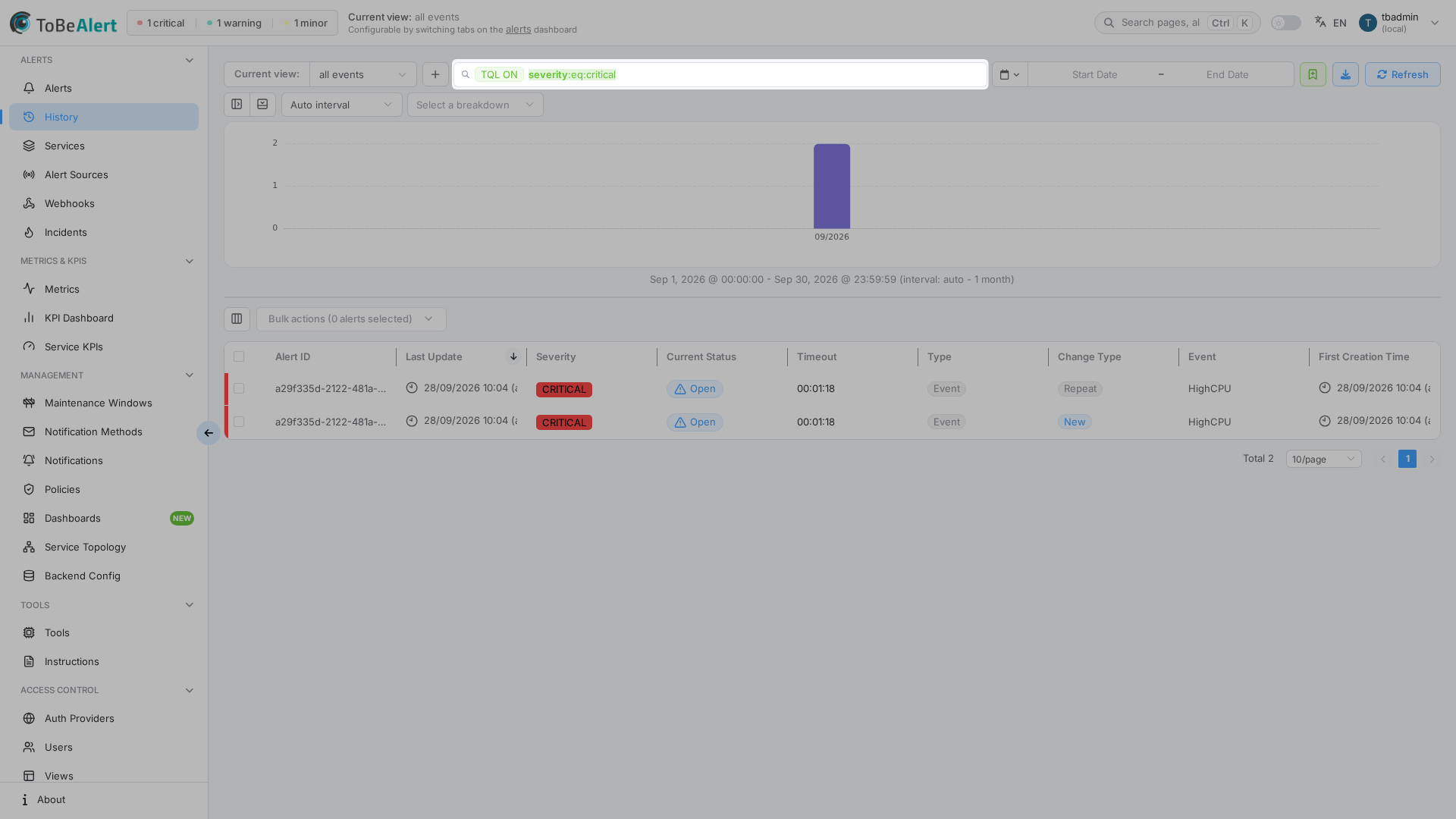
Filters apply as you complete each clause. Active TQL is reflected in the URL (q parameter). Combine TQL with the filters sidebar and the hits breakdown.
Filters sidebar
The filter sidebar on the left narrows history records within the active view. Use the panel / filters icon on the toolbar to show or hide it when collapsed.
The history toolbar has the same bookmark icon (Save current filters). Favorites here are a separate list from dashboard bookmarks. Saving, applying, renaming, and deleting work the same way.
Category filters (with counts when data is available):
| Category | Purpose |
|---|---|
| Severities | Include or exclude severity levels |
| Environments | Limit to one or more environments (Show more when the list is long) |
| Status | Filter by alert status |
| Trend Indications | Flapping, LessSevere, MoreSevere, NoChange, Stabilized, and similar values |
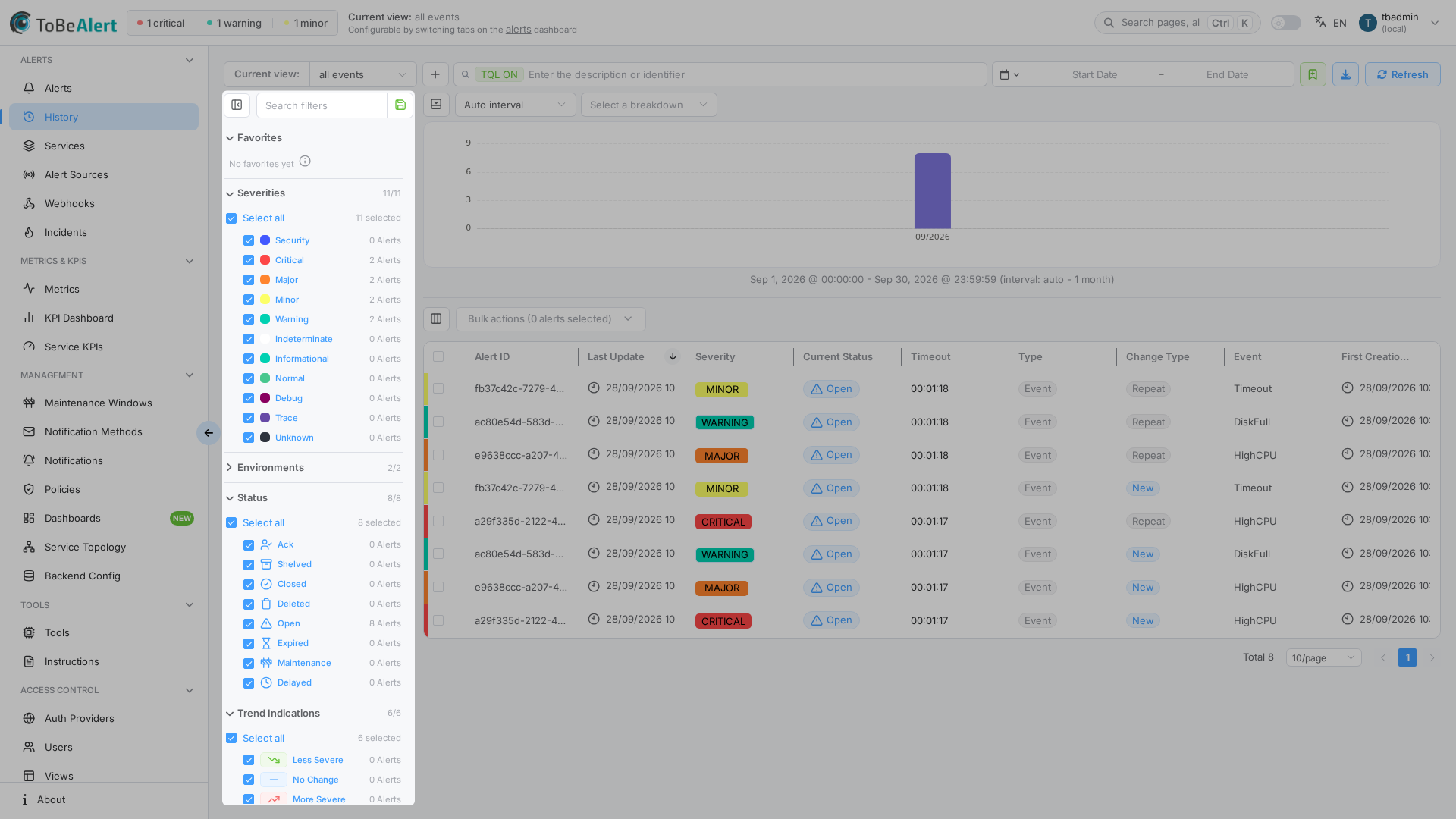
Category filters in the sidebar and TQL tags in the search bar can be combined. Both contribute to the current view and to the hits chart.
Bulk actions
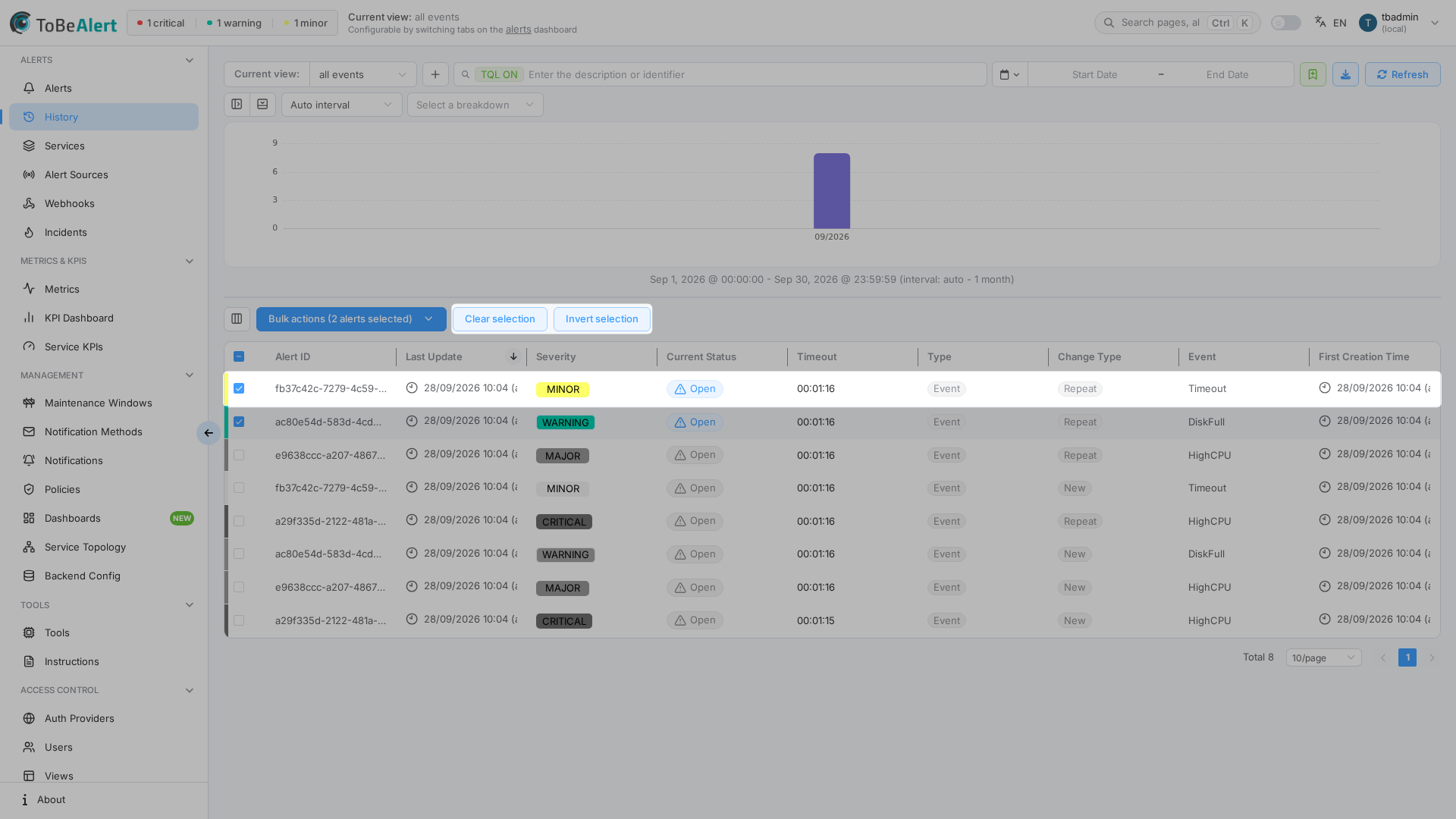
Select rows with checkboxes, then use Bulk actions (N alerts selected). Shared selection controls (Clear selection, Invert selection) are described in List tables and bulk actions.
History-specific actions:
| Action | Description |
|---|---|
| Details | Opens the point-in-time details drawer (single selection) |
| Timeline | Opens the per-alert timeline for the selected alert (single selection) |
| Export with... | Export selected history records |
| Delete | Remove selected history records (confirmation required) |
Right-click a row (or selected rows) for the same actions in the context menu:
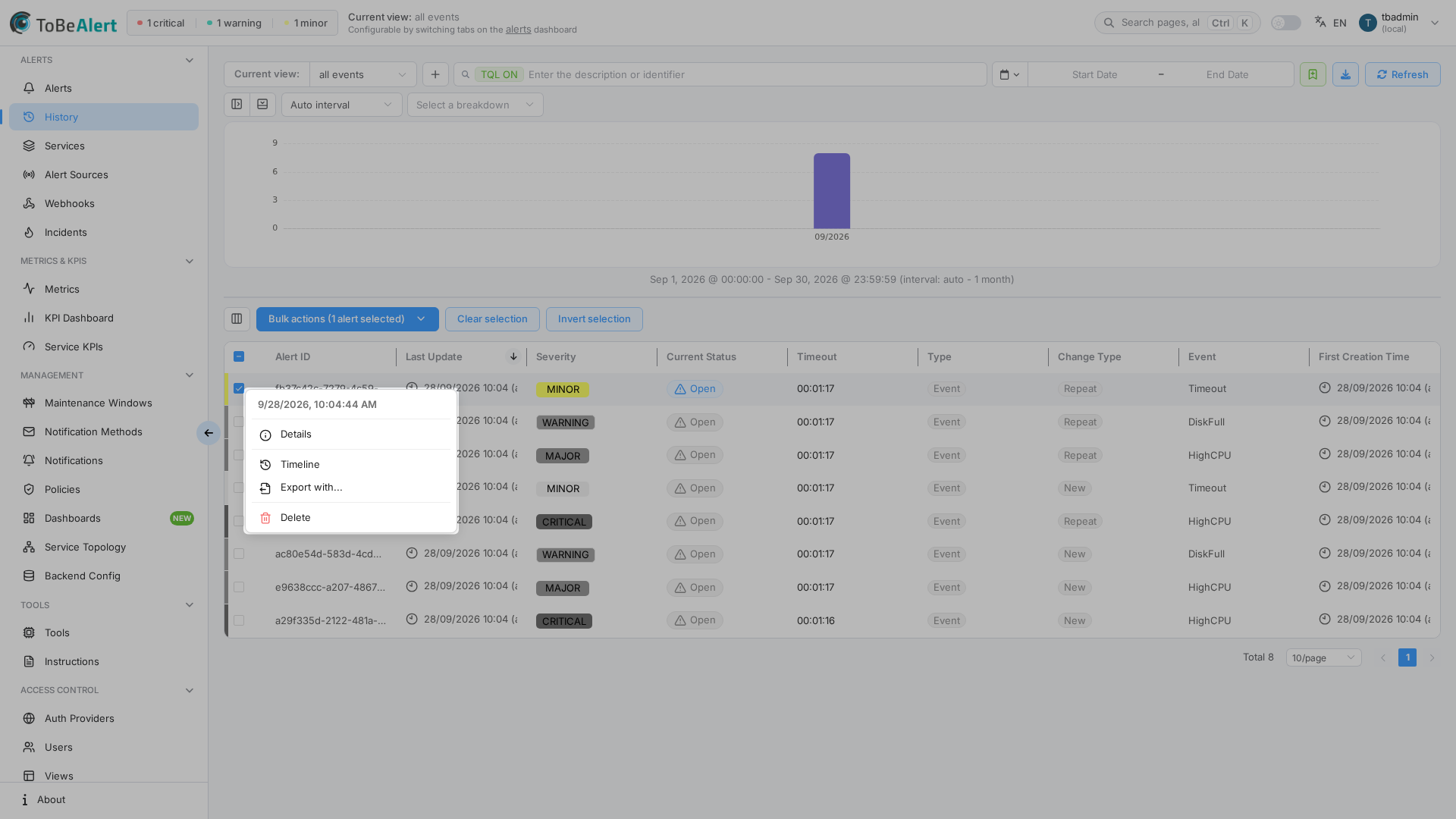
Delete requires the appropriate history permission. If Delete is missing, contact your administrator.
Export
Export is available from:
- The toolbar Export filtered view icon (current filter result)
- Export with... on selected rows (bulk or context menu)
- Export with... on a per-alert timeline (Export alert history)
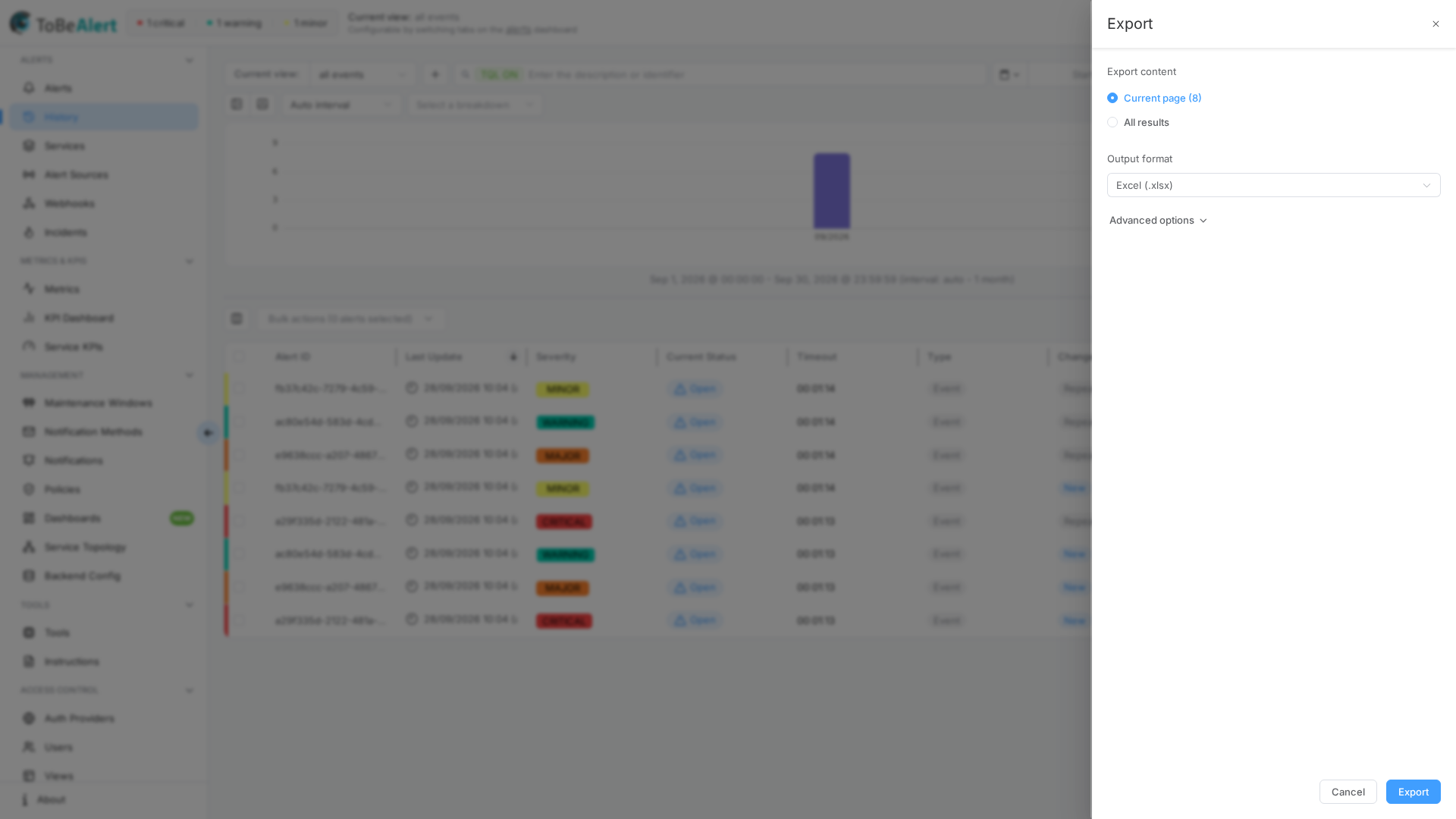
Typical export dialog options:
| Option | Description |
|---|---|
| Current page (N) | Export only the rows on the current page |
| All results | Export the full filtered result set |
| Selected rows (N) | When rows are selected |
| Output format | Excel (.xlsx) or CSV (.csv) |
| Advanced options | Column selection and related settings |
Open the timeline
- Select a single history row (or right-click it).
- Choose Timeline from Bulk actions or the context menu.
- The route becomes
/history/<alertId>— see Per-alert timeline.
Best practices
- Start with the hits chart — pick a time range, then Break down by severity or status before diving into rows (Hits chart).
- Use TQL and the filters sidebar to narrow by time, severity, environment, or change type.
- Open Timeline for post-mortems — severity and status transitions show response timing.
- Export before bulk Delete if you need an offline audit trail.
- Train operators to add notes on the dashboard — they appear clearly in the timeline.
- Cross-check history with policies when alert fields change unexpectedly.
- Disable users instead of deleting when someone leaves — their name remains on historical entries.