Bulk actions and context menu
Route: /dash
Select one or more alert rows to run bulk actions from the toolbar dropdown or the context menu (right-click). The two menus do not show exactly the same actions: the toolbar Bulk actions dropdown focuses on actions that work across a selection (watch, status changes, export, delete), while the context menu on a single row also exposes single-alert actions such as Details, Instructions, KPIs, Service topology, Add Note, Tools, Link, and Add to incident.
See also: Overview · List tables and bulk actions · Alerts table · Alert details drawer · Incidents · Running tools on alerts
| Task | Section |
|---|---|
| Select rows | Selection |
| Run bulk actions | Bulk actions toolbar |
| Use context menu | Context menu |
| Understand action availability | When actions are disabled |
Selection
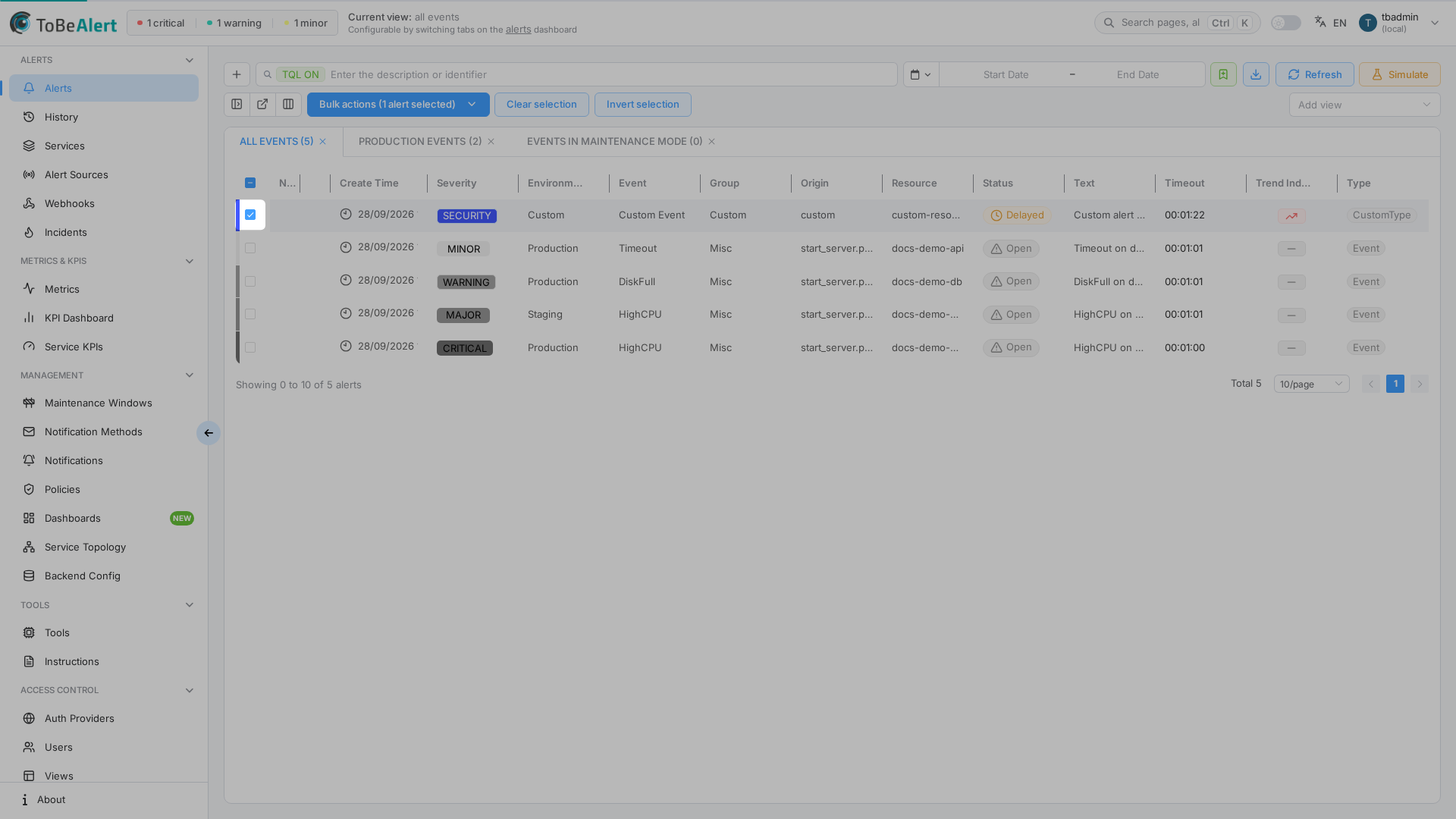
Select rows with checkboxes or Ctrl/Shift click — see Alerts table — Row interactions. Bulk actions, Clear selection, and Invert selection follow the shared pattern in List tables and bulk actions.
Bulk actions toolbar
Open Bulk actions and choose an item. This dropdown covers actions that make sense across a selection:
Watch and status
| Action | Description |
|---|---|
| Put on watch / Remove from watch | Watches or unwatches the selected alerts. Same shared watch as the context menu: one login stored on each alert. Put on watch does not ask for confirmation. Remove from watch opens a confirmation dialog titled Remove from watch, with OK and Cancel, before anything changes. If you watch every alert being removed, the message is Are you sure you want to stop watching this alert? If someone else watches any of them, the message names the distinct logins separated by a comma and a space — for example User j.fraile, a.other is already watching this alert. Are you sure you want to remove it from watch? Cancel applies no watch change for the selection, including alerts that would have been put on watch. Requires write:alerts. |
| Acknowledge | Sets status to Acknowledged |
| Open | Sets status to Open |
| Shelve | Sets status to Shelved |
| Close | Closes the alert(s) |
Put on watch is offered when the alert is not watched. Remove from watch is offered when it is. Status actions are disabled when they would not change the alert (for example Acknowledge when already acknowledged, or any status change when all selected alerts are Closed).
Export and delete
| Action | Description |
|---|---|
| Export with... | Export the selected alerts (choose format/columns) |
| Delete | Removes selected alerts after confirmation |
For single-alert actions (Details, Instructions, KPIs, Service topology, Add Note, Tools, Link, Add to incident), select exactly one row and use the context menu below.
Context menu
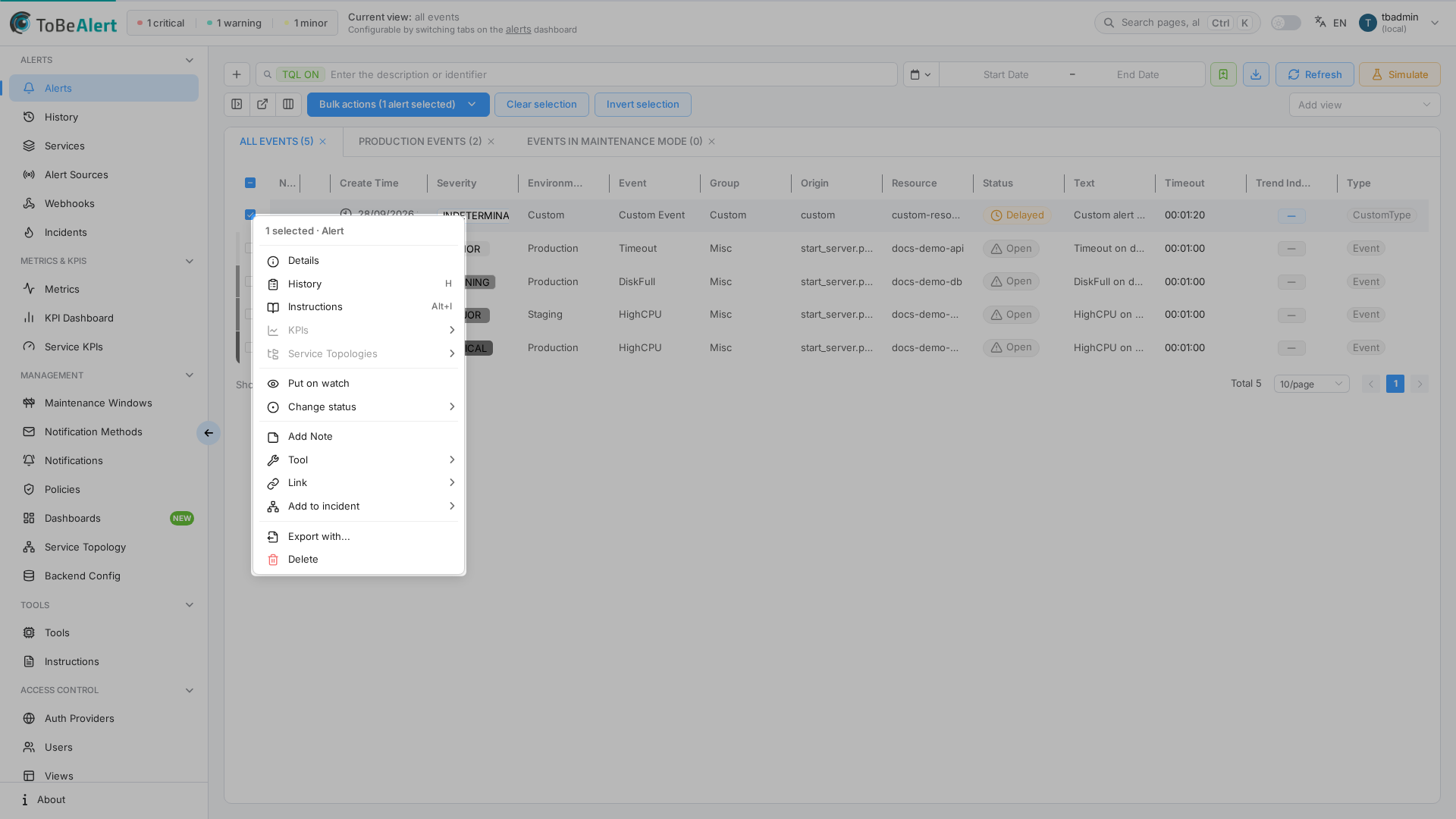
Right-click a row to open the context menu. If the row was not selected, it becomes the selection. On a single row this menu exposes more actions than the toolbar Bulk actions dropdown:
| Action | Description |
|---|---|
| Details | Opens the details drawer |
| Timeline / History | Opens the alert's history/timeline (requires History permission) — shortcut h |
| Instructions | Opens instructions for the alert — shortcut Alt+I |
| KPIs | Submenu of service KPIs linked to the alert |
| Service Topologies | Submenu of topologies linked to the alert |
| Put on watch / Remove from watch | Stores one watcher's login on the alert (for example j.fraile) under the custom attribute watching, or clears it. Remove from watch deletes that value; it is not left blank. Anyone who can see the alert sees the eye beside notes. Browser notifications on a severity change go only to that login. The change is recorded in alert history as Put on watch or Remove from watch (who and when), like other attribute changes. Any user with write:alerts can remove watch, not only the person who set it. Without write:alerts the action does not appear — the same permission as notes and status changes. Also available under Bulk actions and in the details drawer. Put on watch does not ask for confirmation. Remove from watch opens a confirmation dialog before the watch is cleared. The title is always the singular label Remove from watch. The buttons are OK and Cancel. If every alert you are removing is watched by you, the message is Are you sure you want to stop watching this alert? If any of them is watched by someone else, the message names the distinct logins separated by a comma and a space — for example User j.fraile, a.other is already watching this alert. Are you sure you want to remove it from watch? Your own login is included when it is mixed with other watchers. When every such alert is watched by the same other person, only that login is shown. Cancel applies no watch change for the selection, including alerts in the same selection that would have been put on watch. |
| Acknowledge, Open, Shelve, Close | Status actions |
| Add Note | Opens a dialog to add a note to this alert |
| Tools | Submenu — run a configured tool on the alert (requires Tools write permission) |
| Link | Submenu of external URLs from alert attributes, when available |
| Add to incident | Submenu — attach the alert to an existing incident or Create new incident (requires write:incidents). See Incidents |
| Export with... | Export this alert |
| Delete | Removes the alert after confirmation |
Some entries (KPIs, Service Topologies, Link, Add to incident) only appear when relevant data exists for the alert.
When actions are disabled
| Situation | Typical behavior |
|---|---|
| No rows selected | Bulk toolbar hidden |
| Multiple rows selected | Single-alert context menu items (Details, Instructions, KPIs, Topology, Link, Add to incident) are not applicable — use one row at a time |
| All selected alerts Closed | Status actions disabled |
| All selected Shelved | Acknowledge disabled |
| Tools feature disabled in license | Tools disabled |
| Missing permission | Timeline/History, Tools, KPIs, or Topology hidden or disabled |
| Missing write:alerts | Put on watch and Remove from watch do not appear |
After an action completes, the table refreshes automatically.
Best practices
- Use bulk acknowledge at the start of a shift for alerts you are triaging.
- Add notes in bulk when multiple related alerts share the same investigation status.
- Right-click for speed; use Bulk actions when training new operators on the full list.
- Put critical alerts on watch when you need browser notifications on severity changes. Only the stored login is notified; coworkers who can see the eye are not.
- Confirm delete carefully — prefer Close or Shelve when history must be retained.