KPI groups
Route: /service-kpi/groups
See also: Overview · Managing KPIs · KPI Dashboard
KPI groups organize Service KPIs for the KPI Dashboard. Each group has a name, description, and color. KPIs can belong to multiple groups. Role Allowed KPI Groups decides which grouped KPIs appear; KPIs with no group stay visible when the role has read:kpis.
Table columns
| Column | Description |
|---|---|
| Name | Group name with color swatch (click to edit) |
| Description | Optional summary |
| Color | Hex color used on the dashboard |
| KPIs | Count of KPIs assigned to this group |
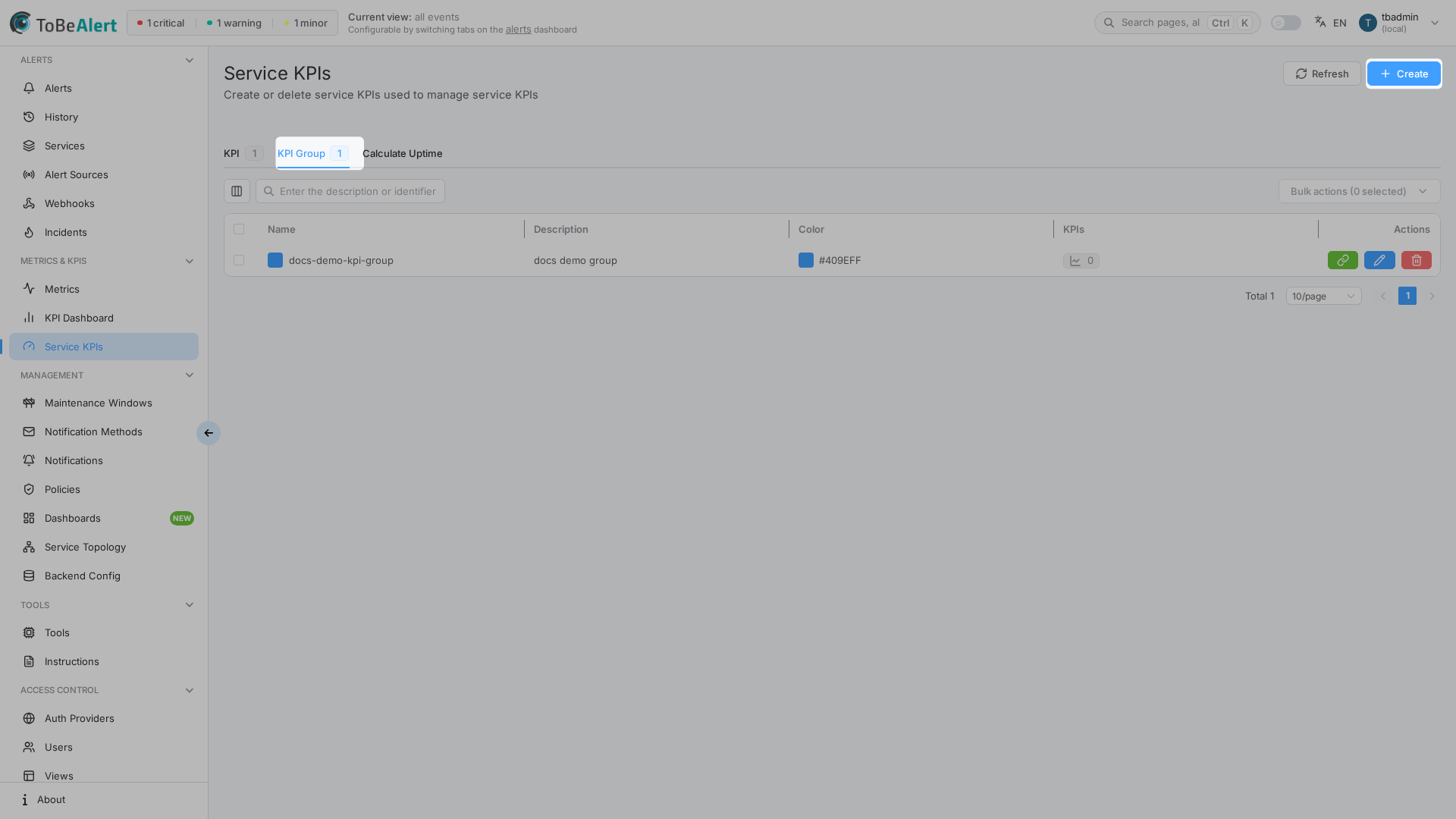
Search uses Enter the description or identifier (plain text filter on name/description). Pagination uses URL page and size — see List tables and bulk actions.
Create a group
- Open Metrics & KPIs → Service KPIs.
- Select the KPI Group tab.
- Click Create.
- Enter Name, Description (optional), and Color.
- Click Save.
Drawer titles: Create KPI group or Edit KPI group.
Assign KPIs to a group
You can assign KPIs in two ways:
From the groups tab
- On the KPI Group tab, click the link icon on a group row (Manage KPIs).
- In Assign KPIs to group name, check the KPIs that should belong to the group.
- Use the search box (Search KPIs by name, service, or description) to find KPIs in long lists.
- Click Save.
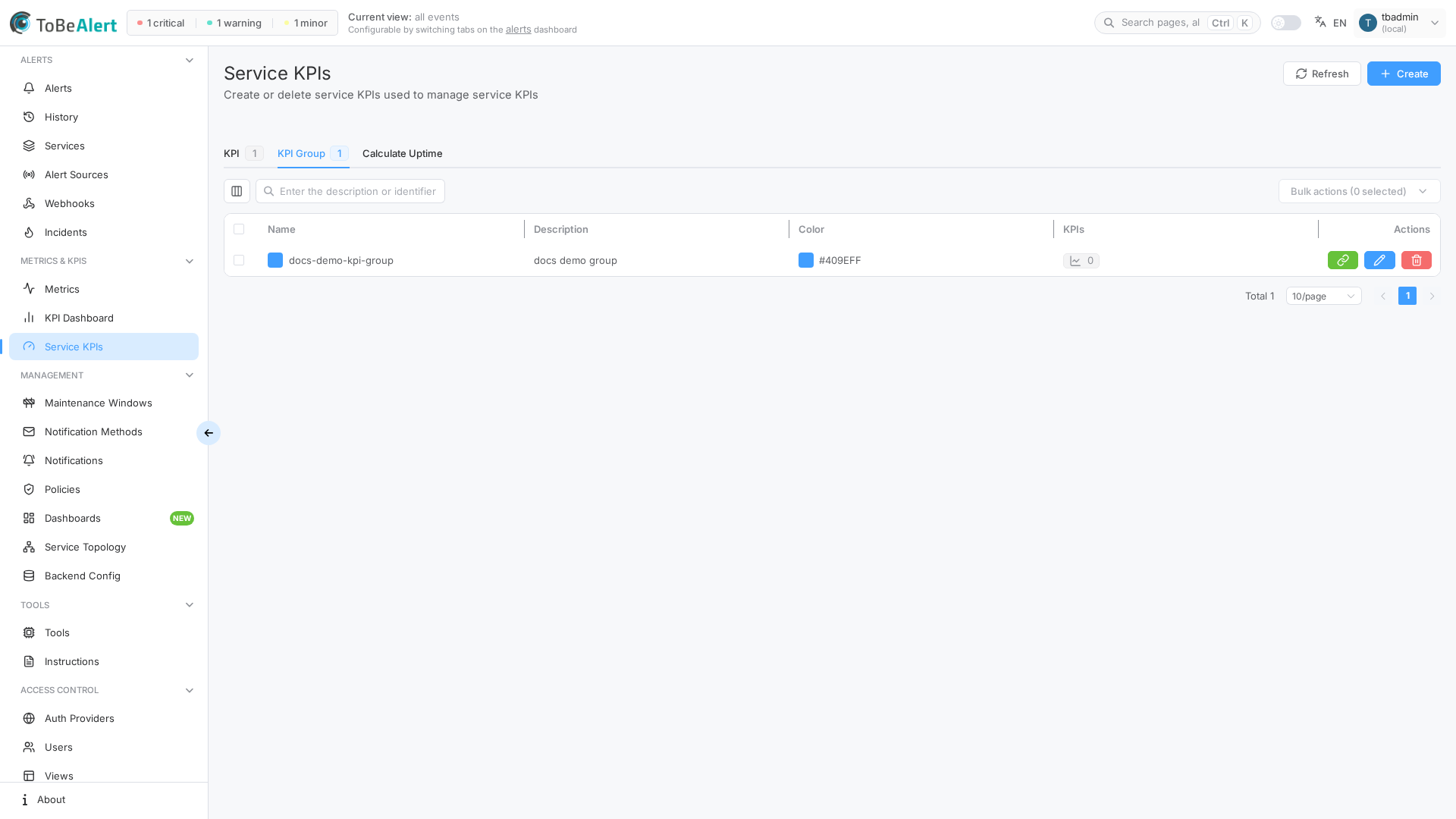
The same KPI can appear in multiple groups. Unchecking a KPI removes only this group from that KPI’s assignment.
From the KPI drawer
When creating or editing a KPI on the KPIs tab, use the Groups multi-select. See Managing KPIs.
If no groups exist, the KPI drawer shows guidance to create a group first. Use the KPI Group tab before assigning groups on new KPIs.
Edit and delete
| Action | How |
|---|---|
| Edit | Click Name or Description, double-click the row, row Edit, or bulk Edit (one row) |
| Delete | Row trash or bulk Delete — confirmation required |
A group cannot be deleted while KPIs are still assigned to it. Reassign or remove the group from those KPIs first.
Dashboard and access control
| Concept | Behavior |
|---|---|
| Group color | Shown on KPI cards and filters on the KPI Dashboard |
| Ungrouped | KPIs with no group appear in an ungrouped section on the dashboard |
| Allowed KPI Groups on a role | All (Full Access) = every KPI; named groups = those groups plus KPIs with no group; empty = KPIs with no group only — see Creating and managing roles |
Example groups
| Name | Color | Typical KPIs |
|---|---|---|
Production | Red | Customer-facing production services |
Staging | Blue | Pre-production validation KPIs |
Critical Services | Orange | Subset of production with stricter targets |
Best practices
- Plan group names to match how teams filter the dashboard (environment, tier, or application).
- Assign KPIs when creating them — avoids empty groups on the dashboard.
- Use distinct colors so cards are easy to scan in cards view.
- Align groups with role access — grant read:kpis with All (Full Access) or named Allowed KPI Groups. Empty still shows KPIs with no group.
- Remove assignments before deleting a group you no longer need.