Managing KPIs
Route: /service-kpi/list
See also: Overview · KPI groups · Configuration fields · Calculate uptime
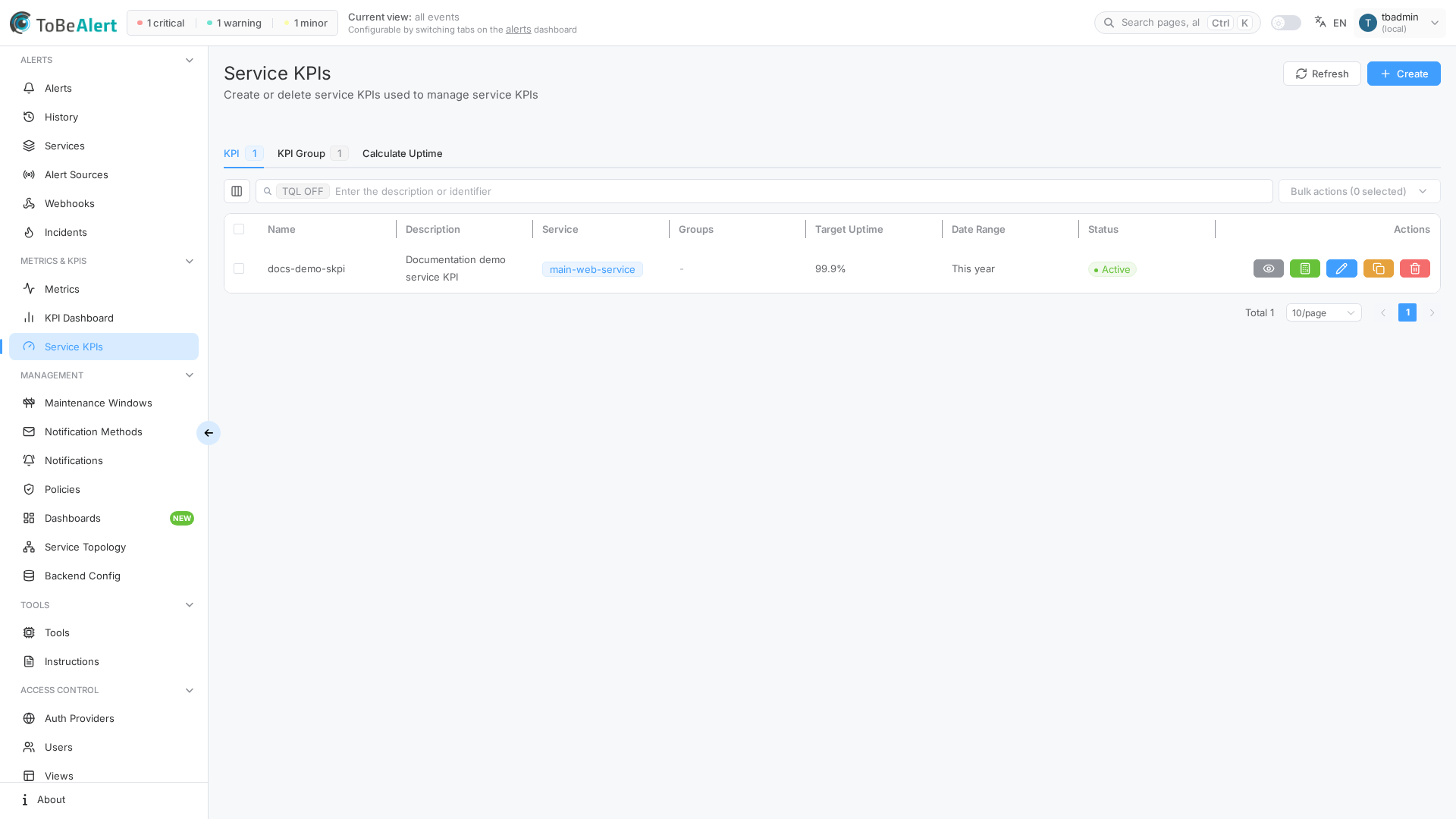
The KPIs tab is the main list for service uptime definitions. From here you create and edit KPIs, search and filter the table, run quick calculations, and open alerts that match a KPI.
Table columns
| Column | Description |
|---|---|
| Name | KPI identifier |
| Description | Human-readable summary (click to edit) |
| Service | Monitored service (tag; click to edit) |
| Groups | Assigned KPI groups (tags) |
| Target Uptime | SLA target percentage |
| Date Range | Preset used for automatic/dashboard calculations |
| Status | active or inactive |
For sorting, Column manager, pagination, row selection, and bulk actions, see List tables and bulk actions. On this screen, pagination persists in the URL (page, size).
Create a KPI
- Open Metrics & KPIs → Service KPIs and select the KPIs tab.
- Click Create.
- Fill in the drawer fields (see Configuration fields).
- Click Save.
Required fields: Name, Description, and Service. Defaults include severities critical, major, warning; status open; Target Uptime aligned to Precision; Date Range Preset This year so far; calculation method Time-based.
Assign Groups from existing KPI groups (create groups first on the KPI groups tab if the list is empty).
A Calculation Summary info box at the bottom of the drawer previews method, service, severities, statuses, environment/resource modes, and severity weights.
Closing the drawer with unsaved edits shows the standard unsaved-changes prompt.
Edit, clone, and delete
| Action | How |
|---|---|
| Edit | Click Description, double-click the row, row Edit button, or bulk Edit (exactly one row selected). Footer: Save |
| Clone | Row Clone button or bulk Clone (one row) — opens create drawer with a copied name suffix |
| Delete | Row trash icon or bulk Delete — confirmation required |
Right-click a row (or use the selection toolbar) for the same bulk actions via the context menu — see List tables and bulk actions.
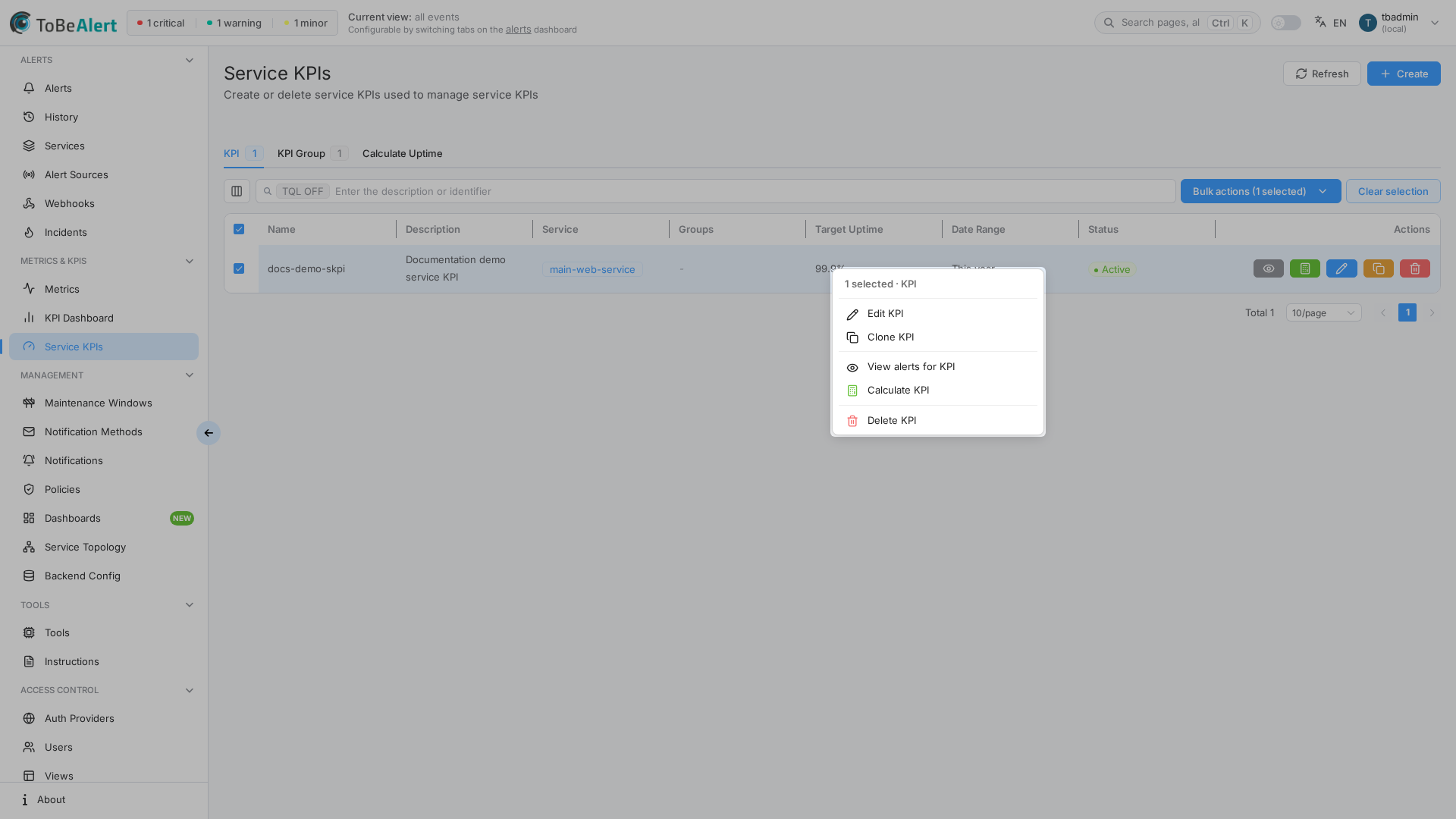
Row actions
When you have read:kpis, each row includes View Alerts. Calculate needs run:kpis (not implied by write:kpis). Edit, Clone, and Delete need write:kpis.
| Button | Action |
|---|---|
| View Alerts (eye) | Opens alerts matching this KPI’s filters (/kpi-alerts). Disabled with a premium indicator when service history is not on your license |
| Calculate (calculator) | Switches to Calculate Uptime with this KPI selected and runs calculation (requires run:kpis; hidden without it) |
| Edit | Opens the edit drawer (requires write:kpis) |
| Clone | Opens create drawer with copied settings (requires write:kpis) |
| Delete | Deletes after confirmation (requires write:kpis) |
Search and filters
The list search bar uses placeholder Enter the description or identifier. Plain text filters as you type; the TQL ON / TQL OFF tag enables structured filters. See TQL search and filters.
Examples for KPI columns:
status:eq:activeservice:contains:webname:contains:productiontargetUptime:lt:99.9
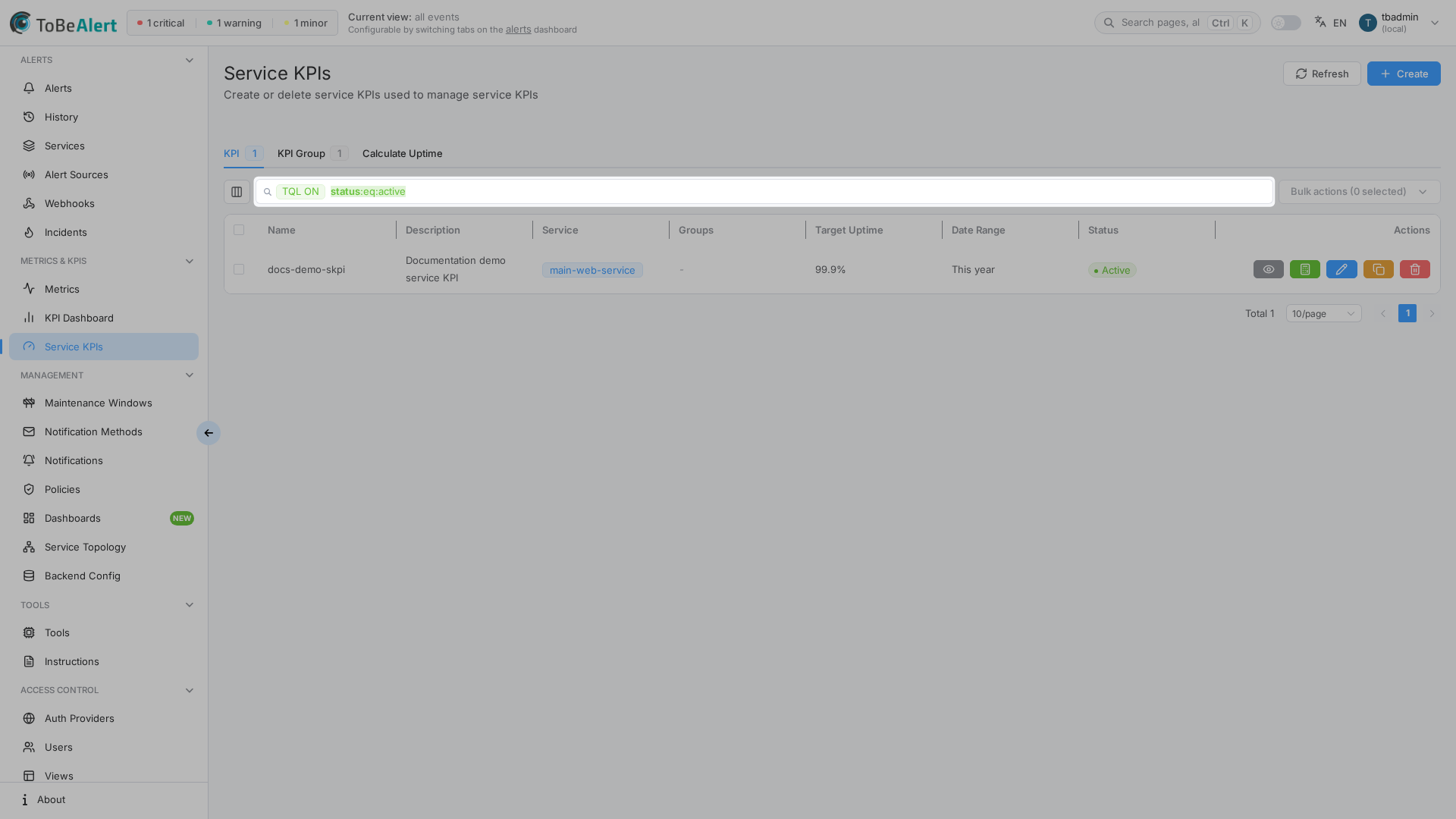
Active vs inactive KPIs
Set Status in the drawer:
| Status | Effect |
|---|---|
| active | KPI is calculated and counts toward the license Enabled KPIs maximum |
| inactive | KPI is excluded from active calculations and license count |
License indicator
When your license defines a maximum number of enabled KPIs, the header shows a gauge icon with enabled/max on the KPIs tab. Colors shift to warning as you approach the limit and to danger when Create is blocked.
Example scenario
Production web API uptime:
| Field | Value |
|---|---|
| Name | web-api-prod-uptime |
| Description | Production Web API monthly SLA |
| Service | web-api |
| Groups | Production, Critical Services |
| Severity Filter | critical, major, warning |
| Status Filter | open |
| Target Uptime | 99.9% |
| Date Range Preset | This month so far |
| Calculation Method | Time-based |
Best practices
- Create groups before KPIs when you need dashboard organization — see KPI groups.
- Start with Time-based calculation unless your SLA is explicitly count-based.
- Use inactive instead of delete for KPIs you may reuse next quarter.
- Clone similar KPIs for new services, then adjust Service and filters.
- Verify filters with View Alerts after saving (when licensed).
- Document the SLA in Description for operators and auditors.