Overview
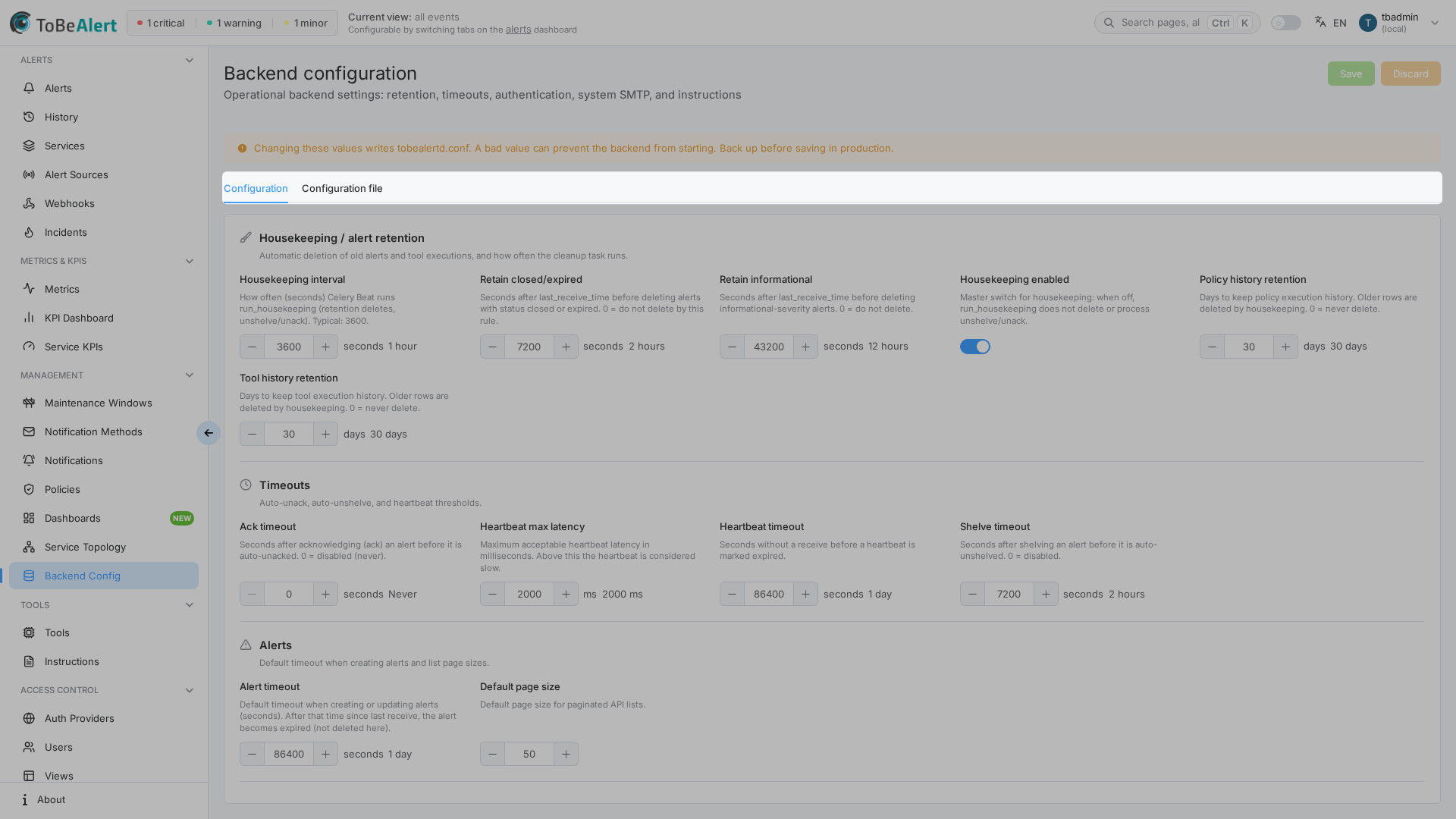
Backend Config lets administrators review and change global ToBeAlert settings that affect alert retention, authentication, email delivery, timeouts, notifications, and runbook links. Changes are written to the active configuration file on the server and applied to the running instance.
| Step | What you configure | Menu / route | Documentation |
|---|---|---|---|
| 1 | Configuration — editable global settings by category | Management → Backend Config → /backend-config | Configuration settings |
| 2 | Configuration File — raw on-disk file (read-only) | Same page → Configuration File tab | Configuration file |
Where to find it in the UI
In the sidebar under Management:
- Backend Config →
/backend-config
The page title is Backend Configuration. Two tabs:
| Tab | Purpose |
|---|---|
| Configuration | Grouped settings with toggles, numbers, and text fields |
| Configuration File | Path, existence status, size, and raw file content |
Header actions (visible when you have unsaved edits):
| Button | Purpose |
|---|---|
| Save | Persist changes to the configuration file |
| Discard | Revert the form to the last loaded or saved values |
A warning banner appears at the top: incorrect values can prevent the backend from starting or corrupt the configuration file.
Only users with the administrator role can open this page. Non-admins see Access denied. Admin privileges required. with a hint to contact an administrator.
Saving settings and viewing the Configuration File tab require admin-level management access. If the menu item is missing, contact your administrator.
How configuration fits together
Typical workflow:
- Open Backend Config and review categories on the Configuration tab (housekeeping, alerts, authentication, email, and others).
- Change one or more values; Save becomes enabled when the form differs from the last load.
- Confirm the result on the Configuration File tab if you need the raw file view.
- For deployment-time or container-only options (database URL, Redis, plugins, SNMP traps), use Settings & environment variables — many keys are not exposed in this UI.
Database fields on the Configuration tab are read-only in the UI (display only). Change database connectivity outside this screen.
Limits and environment behavior
| Condition | Effect |
|---|---|
| Non-admin user | Access denied message; no tabs |
| Demo mode | Save may appear to succeed but changes are not applied |
| Environment variables | Override values from the configuration file for many keys — see installation docs |
| Unsaved navigation | Leaving the page with pending edits triggers an unsaved-changes prompt |
There is no license gate on Backend Config itself; access is role-based.
Related modules
| Module | Relationship |
|---|---|
| Settings & environment variables | Full reference for tobealertd.conf, env vars, and keys not in the Web UI |
| Notification methods | Per-method SMTP/Telegram credentials; global SMTP here is separate from notification methods |
| Maintenance windows | Housekeeping retention affects how long alert records remain |
| Alerts dashboard | Alert timeouts, query limits, and page size affect dashboard behavior |
| Users, roles and permissions | Authentication and signup settings interact with Users |
Best practices
- Back up
/tobealert/config/tobealertd.confbefore bulk changes. - Change one category at a time and verify alerts, login, and notifications after each save.
- Prefer environment variables in Docker/Kubernetes for secrets and connectivity; use the Web UI for operational tuning.
- Do not edit the Database section in the UI — it is informational; use installation docs for
DATABASE_URLand related settings. - Use Discard to abandon a bad edit session instead of saving untested values.
- Cross-check the Configuration File tab after save when troubleshooting startup issues.