Editing a dashboard
Route: /dashboards/<id>
The editor is a full-page grid. View mode shows live panels. Edit layout unlocks placing, resizing, and panel configuration.
See also: Overview · Managing dashboards · Playlists
Open and save
- From
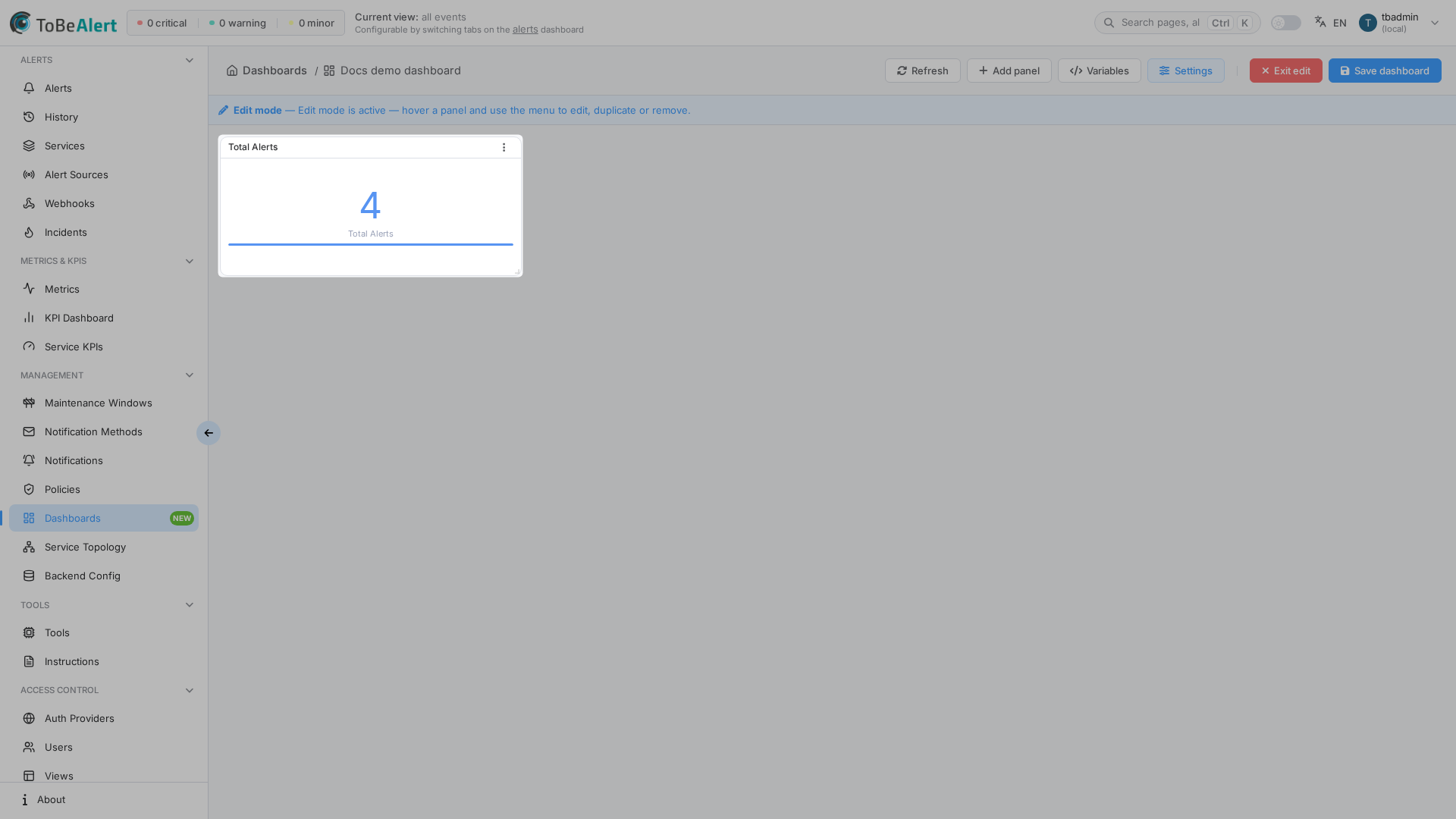
/dashboards, click the name, View, or double-click a row. - Click Edit layout to enter edit mode (banner: you can drag and resize panels).
- Use Add panel, Variables, and Settings as needed.
- Click Save dashboard (or Exit edit without saving to discard).
Breadcrumb Dashboards returns to the list.
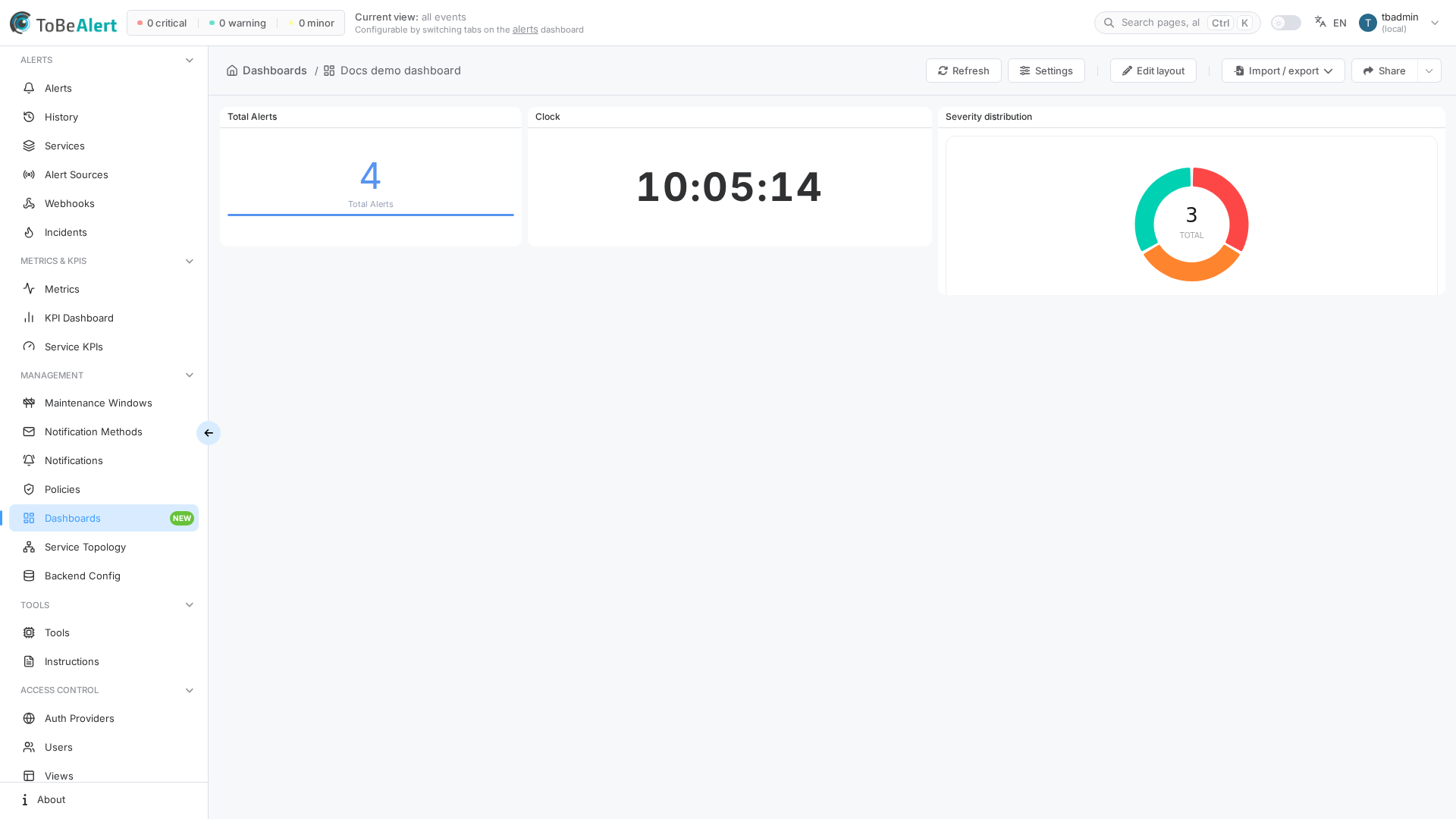
An empty dashboard shows a short empty state. In Edit layout you can place panels on the grid (handles appear on each panel).
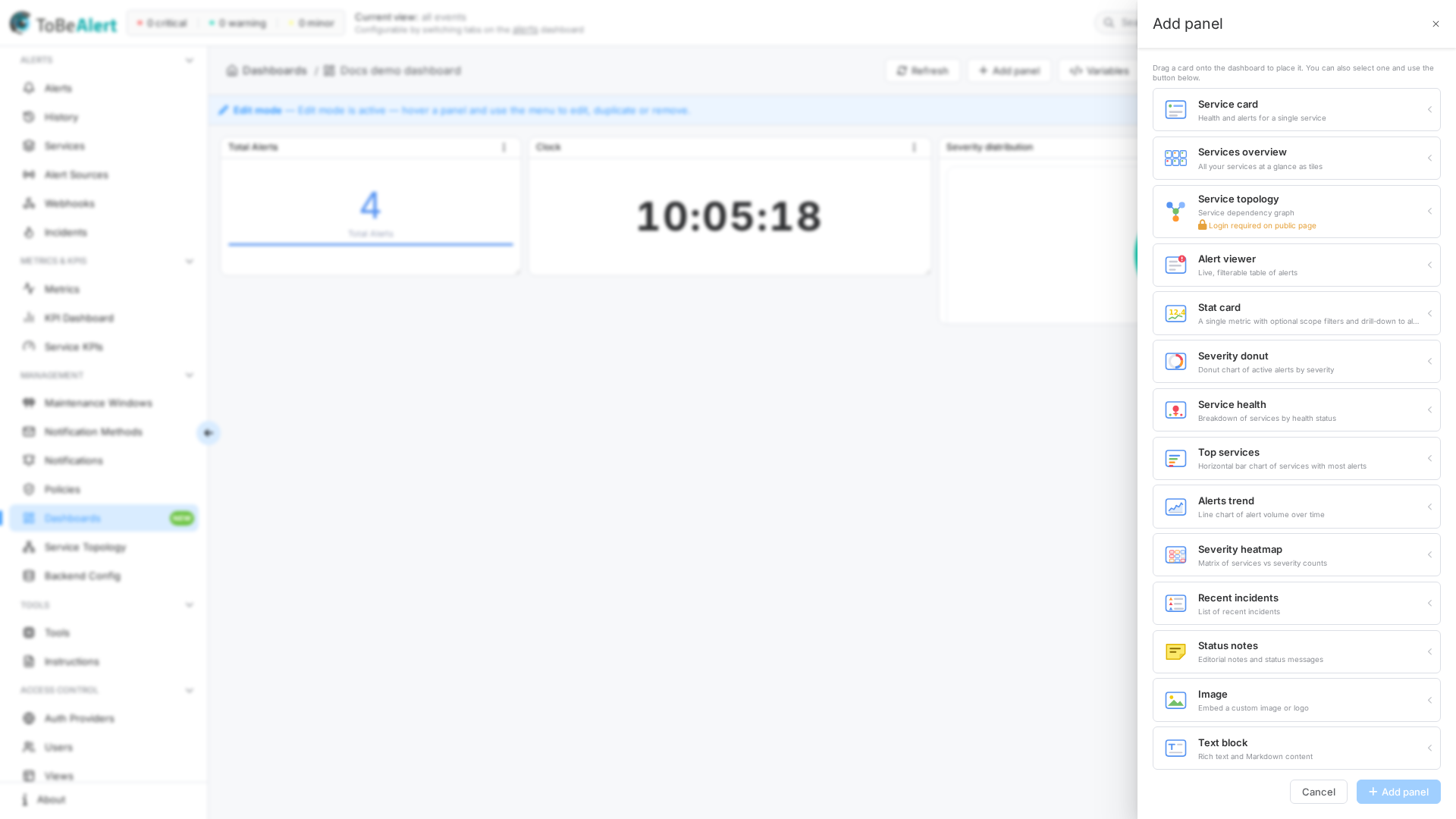
Add a panel
- In edit mode, click Add panel.
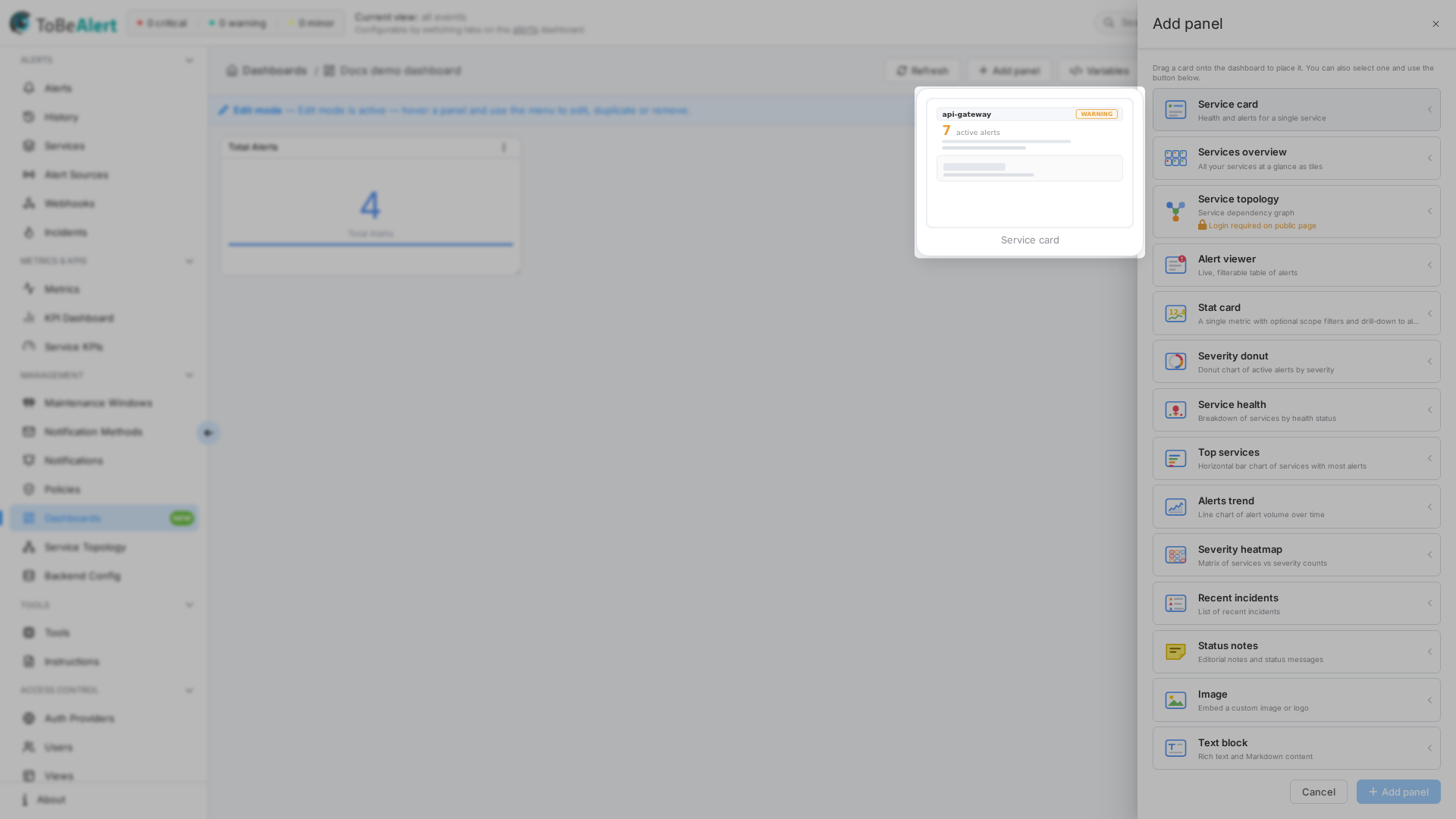
- Hover a catalog row to see its preview image (when the type has one).
- Drag the card onto the grid, or click it and confirm Add panel in the drawer footer.
Edit a panel and preview
- In Edit layout, open the panel menu (vertical dots) and click Edit (shortcut E).
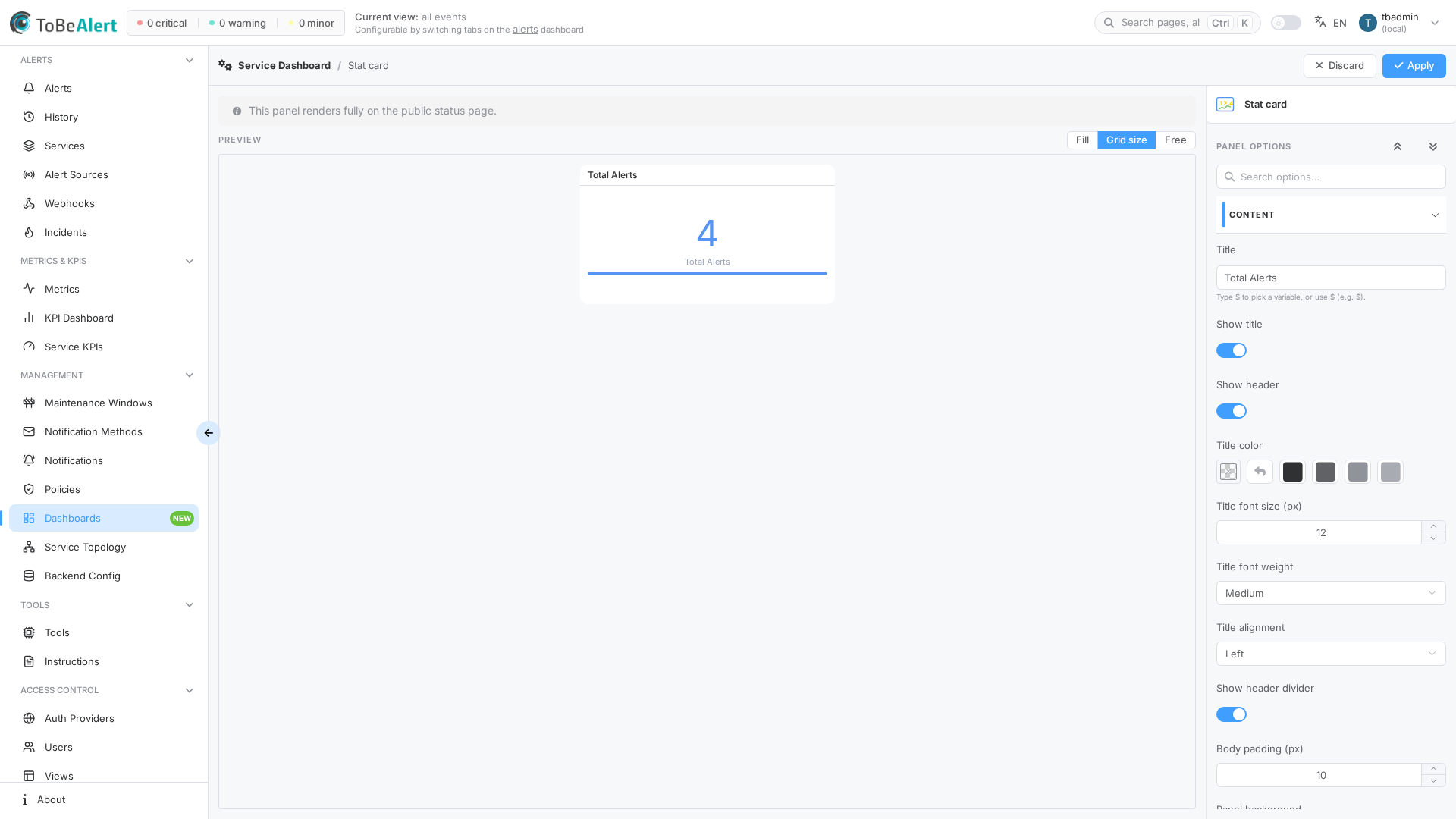
- Edit panel opens: live Preview on the left, Panel options on the right.
- Change title, scope, colors, or type-specific fields — the preview updates as you type.
- Use Fill, Grid size, or Free to size the preview. Click Apply to keep changes, or Discard.
Panel types
| Panel | What it shows |
|---|---|
| Service card | Health and alerts for one service |
| Services overview | Tiles for many services |
| Service topology | Dependency graph |
| Alert viewer | Live, filterable alerts table |
| Stat card | One metric, optional drill-down to alerts |
| Severity donut | Active alerts by severity |
| Service health | Services by health status |
| Top services | Services with the most alerts |
| Alerts trend | Alert volume over time |
| Severity heatmap | Services vs severity counts |
| Recent incidents | Latest incidents |
| Status notes | Editorial notes |
| Image / Text block / Divider / HTML embed | Layout and copy |
| Grafana / Checkmk | External embeds |
| Current time and date | Clock |
Some catalog items show Login required on public page when they cannot run on an anonymous status page.
Toolbar
| Control | When | Purpose |
|---|---|---|
| Refresh | Always | Reload live data |
| Add panel | Edit mode | Open the catalog |
| Variables | Edit mode | Dashboard variables (inherited by service-aware panels) |
| Settings | Editors | Dashboard settings |
| Edit layout / Exit edit / Save dashboard | Editors | Layout mode |
| Import / Export | View | Export layout, Import layout, Reset layout |
| Copy link / Open in new tab | Shareable dashboards | Public URL |
Dashboard settings
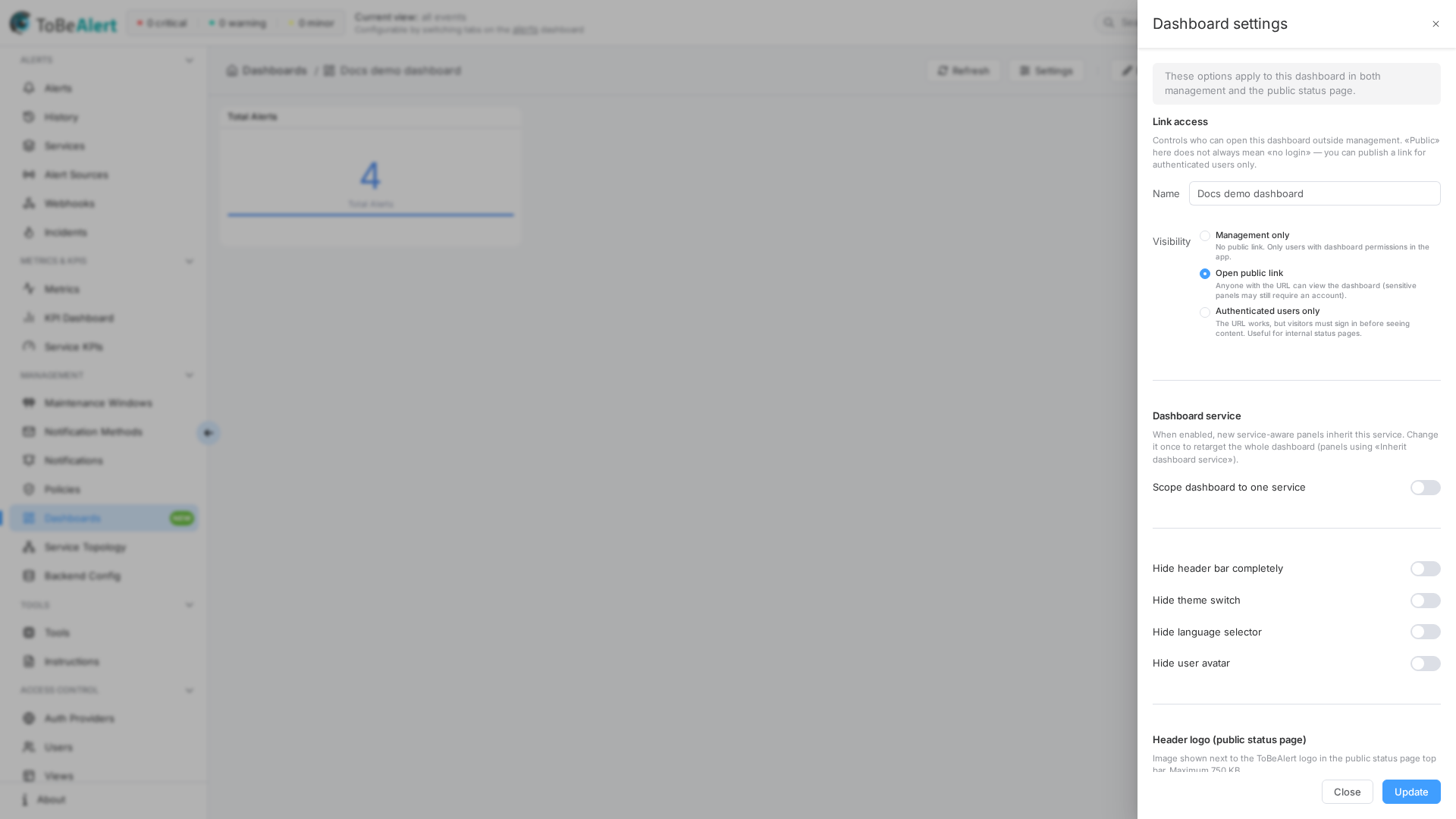
Settings opens Dashboard settings. Options apply in management and on the public status page. Click Save in that drawer (and save the dashboard layout) to persist.
| Section | Typical options |
|---|---|
| Link access | Visibility (management only / open public link / authenticated users only) |
| Auto-refresh | Enable, interval (seconds), progress bar, countdown in the header |
| Grid | Grid columns, row height, gaps, max rows (0 = unlimited) |
| Dashboard service | Scope new service-aware panels to one service (Inherit dashboard service) |
| Header logo (public status page) | Image next to the product logo (max 750 KB) |
| Services and alerts (status page) | Filters and health rules for service tiles |
Changing Grid columns can misalign existing panels — review the layout after you change it.
Import, export, reset
Import / Export downloads or pastes the layout JSON, or Reset layout to an empty grid (confirm). Use export to copy a layout between environments.
Best practices
- Add a few panels, Save dashboard, then refine.
- Use Dashboard service when every panel should follow one service.
- Preview the public URL after changing Visibility.
- Do not put credentials or private embeds on Open public link dashboards.