Overview
Policies let you transform alerts that match your criteria: change fields (severity, tags, attributes, …), optionally run a custom tool, on an event trigger or a fixed schedule. They run in priority order (lower number first), similar to notification rules, but they modify alerts instead of sending messages.
Policies are created and edited in a three-step wizard:
| Wizard step | What you configure | Documentation |
|---|---|---|
| 1. General | Name, description, priority, optional Permission, status, trigger, active time window (All Day by default) | Creating a policy |
| 2. Conditions | Which alerts the policy applies to — in the Builder or as TQL — with a live count of the open alerts that match | Conditions |
| 3. Actions | Modifiers — field changes (including text transforms), Severity step, Mark as effect (cause/effect links), Resource relation | Modifiers and tools |
| Extractions — regex from an alert field into custom attributes (after modifiers) | Modifiers and tools — Extractions | |
| Run a tool — optional custom tool on every matching alert | Modifiers and tools — Execute custom tool |
While you edit, the wizard previews the result on real alerts: Matching alerts on the Conditions step and Preview of changes (field: before → after per alert) on the Actions step. Nothing is saved until you click Create / Update, and tools never run from the preview. See Creating a policy — Preview of changes.
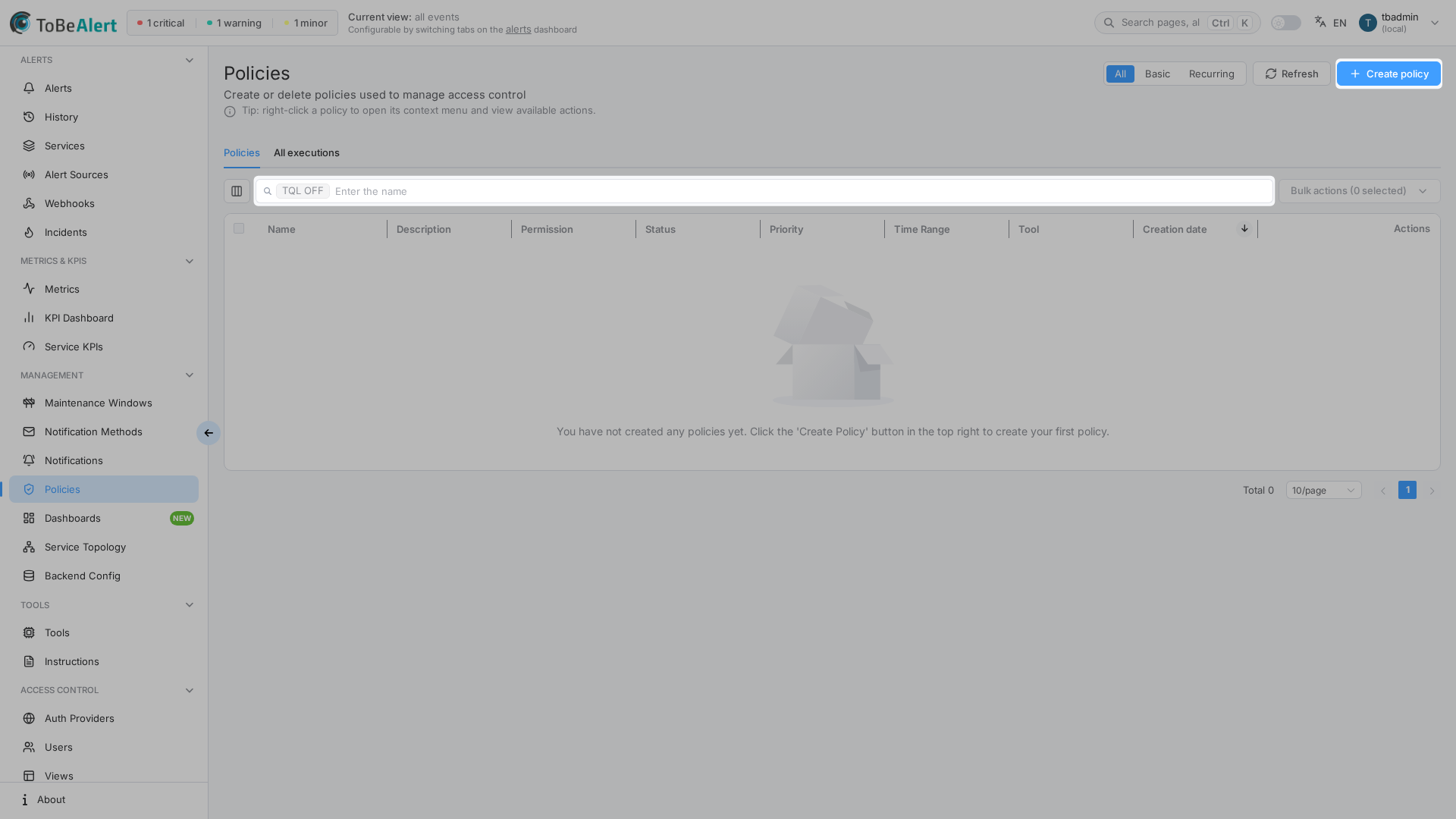
Where to find it in the UI
In the sidebar under Management:
- Policies →
/policies(list tab) - All executions →
/policies/history(same page, History tab)
Page tabs: Policies and All executions.
On Policies: segmented All / Basic / Recurring, Refresh, and Create policy. The list supports name search and the TQL ON / TQL OFF tag — see TQL search and filters.
On All executions: Refresh only (no Create, no All/Basic/Recurring). A chart titled Executions per day uses the same chart family as Alert history Hits. Collapse with Hide chart / Show chart. Filter the chart by policy, pick a date range, then inspect the executions table (Manual / Scheduled / On alert received). Search supports the TQL field executionType and a date range in the URL.
Creating, editing, running, enabling/disabling, and deleting policies require the appropriate permissions in your organization (read:policies, write:policies, run:policies, admin:policies). read:policies covers the list, editor, and per-policy history drawer — it does not open All executions (/policies/history). That tab needs read:policies_history (runs of policies the user can access) or read:policies_all_history (every run). admin:policies and admin include all-history. Manual Run needs run:policies and also write:alerts (admin:alerts or global admin count); write:policies still does not imply run. A policy can also set an optional Permission (execute:policies:<suffix>) so only roles that hold that exact scope (or admin:policies / admin) can view, edit, delete, or Run it on demand — those execute scopes also need write:alerts. Unsuffixed execute:policies, write:policies, run:policies, and being the policy author do not open that policy. Automatic scheduled and on-alert runs do not need that custom user scope. Policy Permission is independent of any custom tool and of execute:tool:…. If Create policy or row actions are missing, contact your administrator. See Permissions reference — Policies and Creating a policy — Permission.
How policies fit in ToBeAlert
Typical example — downgrade noisy staging alerts:
- Trigger: On alert creation and any change type.
- Conditions:
environmentEquals →StagingANDseverityEquals →critical. - Modifiers:
severity/ set →major. - Time window: All Day (the default), status active, priority
10.
When a matching alert is created or updated, its severity is adjusted before operators see it in the dashboard.
Policies vs notification rules
| Policies | Notification rules | |
|---|---|---|
| Purpose | Transform alert data | Send email/Telegram notifications |
| Route | /policies | /notifications/rules |
| Condition builder | Same visual builder | Same visual builder |
| Editor | Wizard: General → Conditions → Actions (Modifiers, Extractions, Run a tool) | Conditions and Actions (method, recipients) |
| Trigger location | General step | Conditions tab |
| Manual test | Live preview in the wizard; Run → Review matched alerts, then Confirm and apply → Policy execution results | Force (disabled in current UI) |
| Built-in entries | None — all user-created | Some built-in rules (not deletable) |
Do not confuse Management → Policies with Service Topology → Weight Policies — those are separate weight-ranking rules without modifiers or custom tools.
License limits
| Resource | When limited |
|---|---|
| Policies | Header shows used/max; Create policy is disabled with Max items reached |
| Custom tools (policies with Execute custom tool) | Active policies with a tool assigned also count toward the tools limit; tool selector disabled at limit |
Related modules
| Module | Relationship |
|---|---|
| Notification rules | Same condition builder; complementary (notify vs transform) |
| Maintenance windows | Scheduled maintenance — pair policy tuning with window scope |
| Tools overview | Scripts runnable from the Run a tool tab (independent of policy Permission) |
| Roles | Grant execute:policies:<suffix> when a policy sets Permission |
| Alerts dashboard | See results of policy transformations on alerts |
| Cause and effect alerts | Mark as effect modifier links symptoms to the alert that explains them |
Best practices
- Lower priority for more specific policies; higher numbers for broad catch-all rules.
- Check the wizard preview, then test with Run after creating or changing conditions, modifiers, or extractions.
- Keep conditions narrow — avoid unintended mass updates to production alerts.
- Pair with notifications — policy adjusts data; notification rule informs people.
- Review scheduled policies — ensure time window and cron-like triggers match maintenance expectations.
- Document each policy in Description — future you (and auditors) will need the intent.
- Use Permission sparingly — set it only for sensitive policies, then grant the matching scope on the right roles (see Creating a policy — Permission).