Overview
ToBeAlert’s notification system is configured from the web interface under Management. It is split into four parts that you should create in a logical order:
| Step | What you configure | Menu / route | Documentation |
|---|---|---|---|
| 1 | Methods — channel (email, Telegram, …) | Management → Notification methods → /notifications-methods | Notification methods |
| 2 | Groups — who receives | Notifications → Groups → /notifications/groups | Notification groups |
| 3 | Templates — HTML message body (%severity%, %attributes.key%, …) | Notifications → Templates → /notifications/templates | Notification templates |
| 4 | Rules — when and how to send | Notifications → Rules → /notifications/rules | Notification rules |
Rules link a method, optionally groups or users in the action, and a template (in email/Telegram action settings). Under Rules, nested tabs also expose All executions — past rule runs (matched / sent / errors), separate from per-alert Notification sent rows in Alert history.
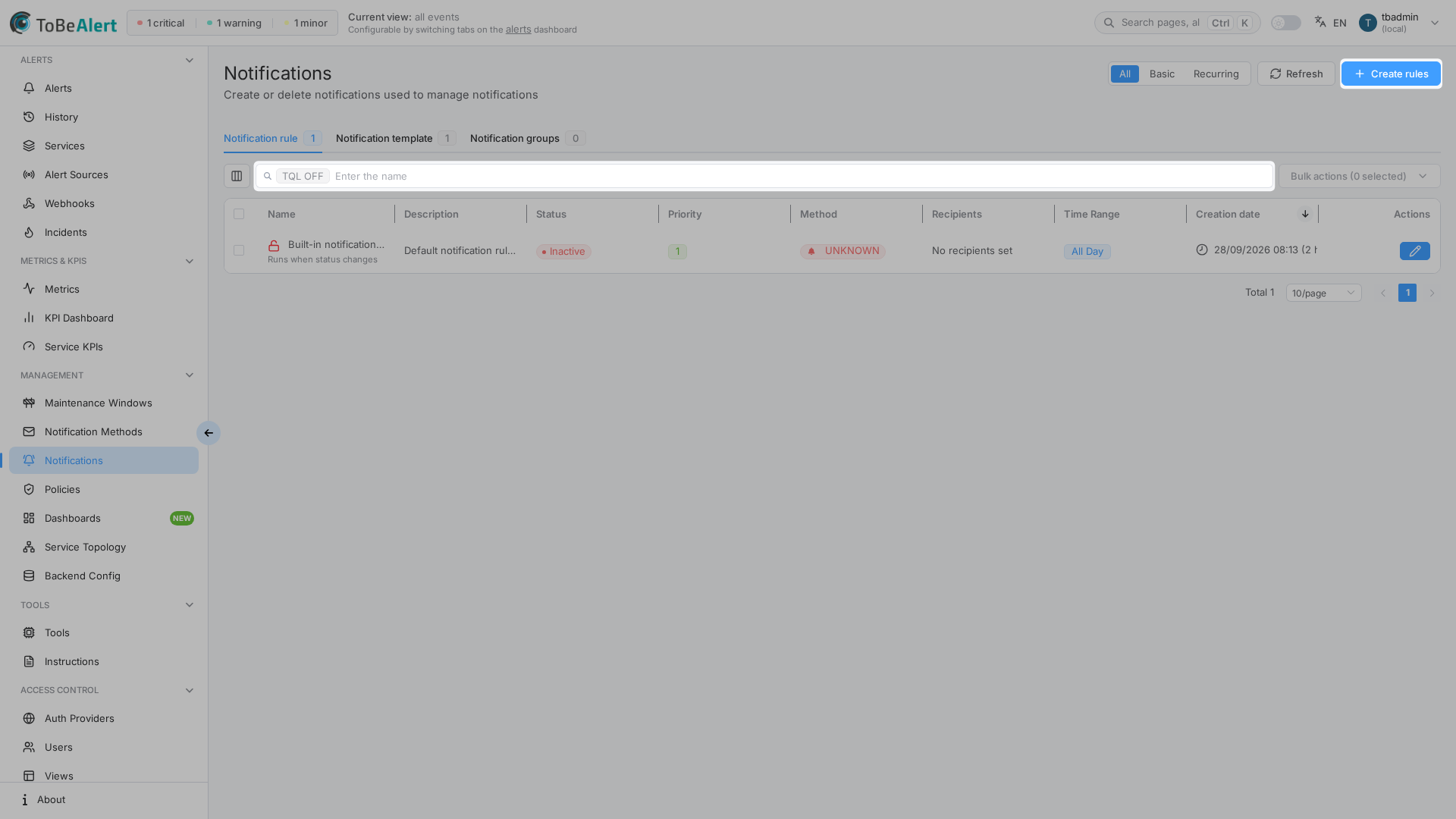
Where to find it in the UI
In the sidebar under Management:
- Notification methods — channel setup (SMTP, Telegram bot, etc.).
- Notifications — three top-level tabs with item counts: Rules, Templates, Groups
On Rules, nested tabs:
| Nested tab | Route | Purpose |
|---|---|---|
| Notification rules | /notifications/rules | Create and manage rules (segmented All / Basic / Recurring) |
| All executions | /notifications/rules/history | Global rule-run history (timeline, TQL, date range) |
Common buttons on list views: Refresh and Create (the label includes the active tab, e.g. Create rules). On All executions, only Refresh (no Create, no All/Basic/Recurring). Details: Notification rules — All executions.
Configuring notification methods and managing rules, templates, and groups each require the appropriate permissions in your organization (read:notifications, write:notifications, write:notification_methods, admin:notifications). read:notifications opens the list, the per-rule history drawer, and All executions. Deleting execution rows needs admin:notifications. If menus or Create buttons are missing, contact your administrator. See Permissions reference — Notifications.
How the four parts fit together
Typical email example:
- Method
smtp-prod: hostsmtp.company.com, port 587, credentials. - Group
on-call-n1: on-call team users. - Template
critical-alert: HTML with severity, service, and link. - Rule
critical-production:- Conditions:
severity = critical,environment = Production, 24h schedule. - Trigger: Post receive.
- Actions: method
smtp-prod, recipients = groupon-call-n1, HTML = templatecritical-alert.
- Conditions:
ToBeAlert evaluates rules by priority, applies your conditions and schedule, then sends notifications through the configured method.
License limits
The UI may disable Create when your license limit is reached:
| Resource | When limited |
|---|---|
| Rules | Create rules is unavailable |
| Templates | Create templates is unavailable |
| Groups | Create groups is unavailable |
Related modules
| Module | Relationship |
|---|---|
| Workflows (Notify node) | Can reference notification groups in flow parameters |
| Webhook Configurations | Inbound webhooks (receive alerts); not the same as outbound REST notification methods |
| Users, roles and permissions | Users assignable to groups; see Managing users for account setup |
Best practices
- Deploy in order: methods → groups → templates → rules.
- One method per environment/channel and reuse across rules.
- Clear priorities: more specific rules with a lower priority number than generic ones.
- Test methods before enabling critical rules.
- Use templates for HTML; avoid duplicating markup on every rule.
- Groups by team/role, not ad-hoc user lists per rule.
- Watch for “Pending” status — often a misconfigured time window.
- Review All executions after enabling or changing rules — matched vs sent counts and errors surface send problems before operators notice missing mail.
- Do not confuse API webhooks with UI notification methods.