Topologies
Route: /service-topology ( Services tab )
A topology record binds a display Name, Description, target Service, and optional Service KPI to the graph of nodes and edges you edit separately in the graph editor. Each service can have at most one topology, and the service of a topology cannot be changed once created.
See also: Overview · Graph editor · Weight policies
Table columns
| Column | Description |
|---|---|
| Name | Topology title; click to edit |
| Description | Short summary |
| Service | Linked service ID; click to open the graph editor |
| Service KPIs | Linked KPI name, or Not set |
| Create Time | When the record was created |
| Actions | View, Edit, Delete (when permitted) |
The list supports name search (Enter the name) and the TQL ON / TQL OFF tag — see TQL search and filters.
Create a topology
- Open Management → Service Topology ( Services tab ).
- Click Create topology.
- Choose Service to fetch (required). Services come from the service catalog; use Go to Services if none are listed yet.
- Enter Name and Description (required). Selecting a service can auto-fill the name and description.
- Optionally select Service KPIs — only KPIs for the chosen service appear.
- Click Create.
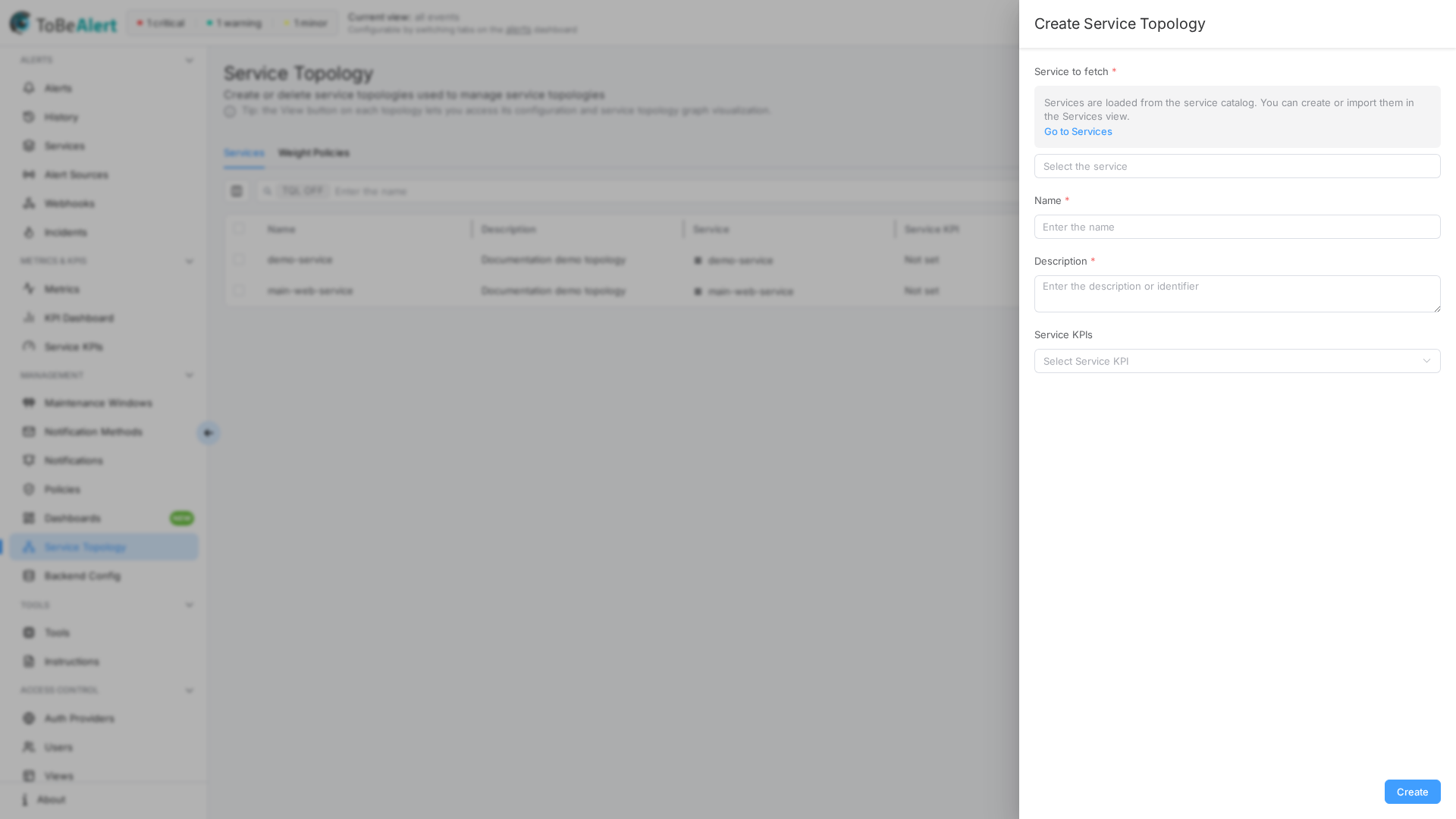
Form fields
| Field | Required | Description |
|---|---|---|
| Service to fetch | Yes | Service ID for this topology; must be unique across topologies |
| Name | Yes | Display name in lists and the graph header |
| Description | Yes | Description shown in the table |
| Service KPIs | No | KPI used for service-level uptime views |
If no services are available, the drawer shows a warning with Go to Services to create or import services first.
Edit, view, delete
| Action | How |
|---|---|
| View | Row View (eye) or click Service — opens /service-topology/<id> |
| Edit | Click Name or Description, double-click the row, bulk Edit topology, or row edit icon. Footer: Update |
| Delete | Row trash or bulk Delete topology — confirmation required |
Closing the drawer with unsaved edits shows the standard unsaved-changes prompt.
Deleting a topology also removes the relations it wrote to the resource graph (source topology). Alerts are not changed.
Bulk actions
When you select rows, use the bulk bar or context menu — see List tables and bulk actions.
| Bulk action | Notes |
|---|---|
| Edit topology | Exactly one row |
| View topology | Exactly one row |
| Delete topology | One or more rows — a single confirmation deletes all selected topologies and their resource graph relations |
Older topologies
Topologies created in earlier releases are converted automatically to the nodes-and-edges model when the backend starts on this release. A topology that the migration could not convert (for example the same resource under two environments) still opens and works; fix it in the graph editor and Save changes to store it in the new model. See Upgrading from tree-based topologies.
Deep links
The Services tab accepts query parameters to open a topology automatically:
| Query | Behavior |
|---|---|
?id=<topology-id> | Opens the graph for that topology if it exists |
?service_name=<service-id> | Resolves by service name and opens the graph |
Invalid IDs show a not-found message and clear the query.
Best practices
- Pick the service before naming so auto-description (
{name} service topology) stays consistent. - Assign a KPI when operators need the KPI dashboard and topology graph for the same service.
- Use TQL filters on large lists instead of scrolling.
- Delete unused topologies to stay under license limits and reduce clutter.