Wiki and editing
Route: /instructions (tree hub); /instructions/wiki/<path>/<file>.md with action=view, action=edit, or action=create
The Instructions page combines a searchable tree on the left and a content panel on the right. Use this page for Wiki navigation, folder and file management, Markdown authoring, preview, and Share with link. For Media uploads and previews, see Media library.
See also: Overview · Media library · Instructions from alerts
Tree roots
| Root | Content | Typical use |
|---|---|---|
| Wiki | Folders and .md files | Team runbooks and procedures |
| Media | Folders and image/video files | Assets embedded in wiki pages — see Media library |
| Help | Built-in .md help | Product documentation (not editable here) |
Selecting a wiki or help .md file loads it in the content panel. Selecting a media file opens a preview dialog — see Media library — Preview dialog.
Browse and filter
- Open Tools → Instructions.
- The tree opens automatically when no page is selected. If it is hidden while reading a page, use Toggle Tree in the page ⋮ menu — see Hide the tree while reading.
- Use Filter keyword to narrow the tree by file or folder name.
- Click a Wiki file to open it in view mode.
- Use checkboxes on nodes for multi-select (bulk download or delete where permitted).
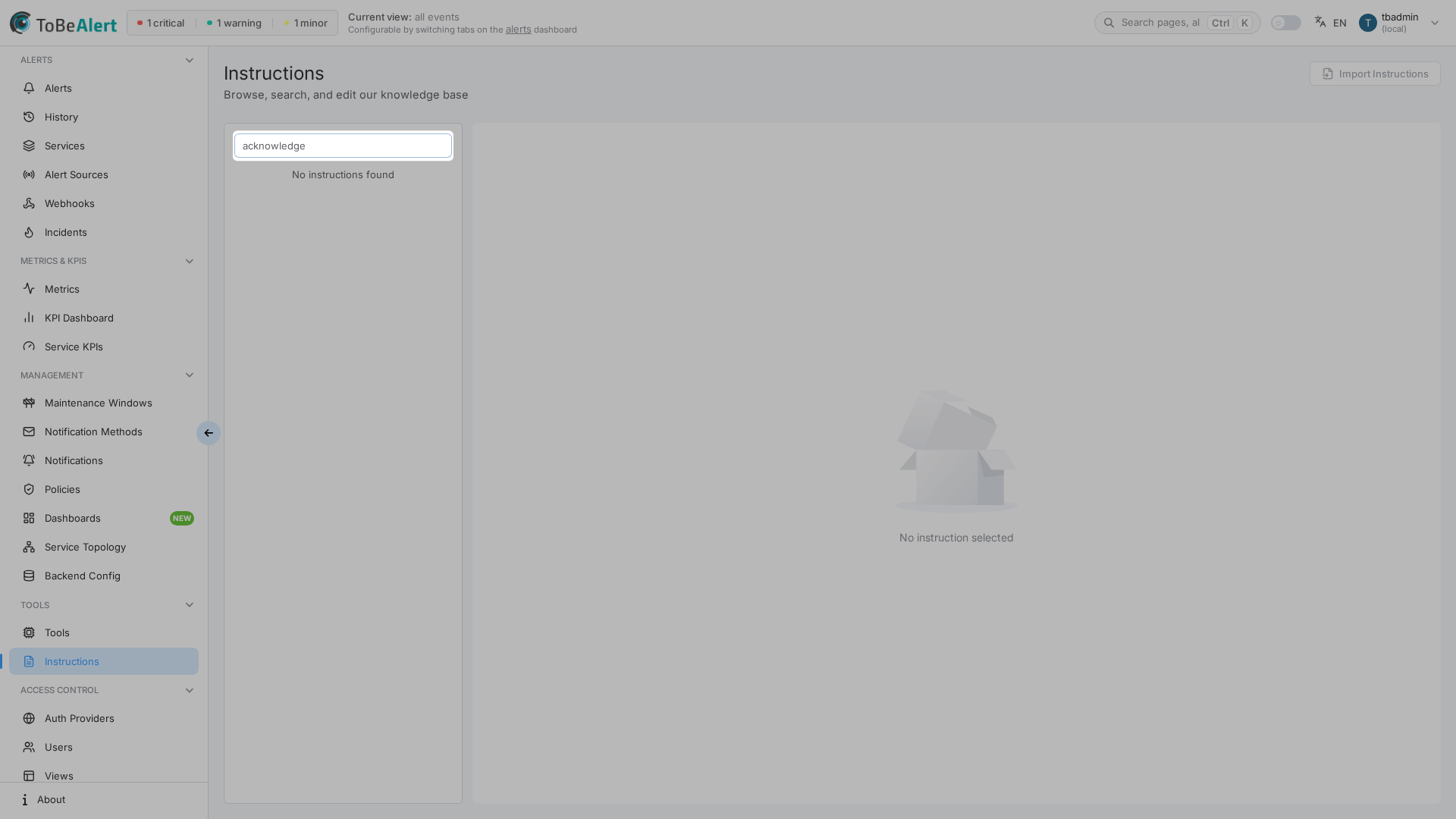
When no file is selected, the panel shows No instruction selected.
Context menu on a Wiki folder
Right-click a Wiki folder (including the root Wiki node) to create content:
| Action | When shown |
|---|---|
| Create Folder | Folder selected; write access |
| Create File | Wiki folder selected; write access |
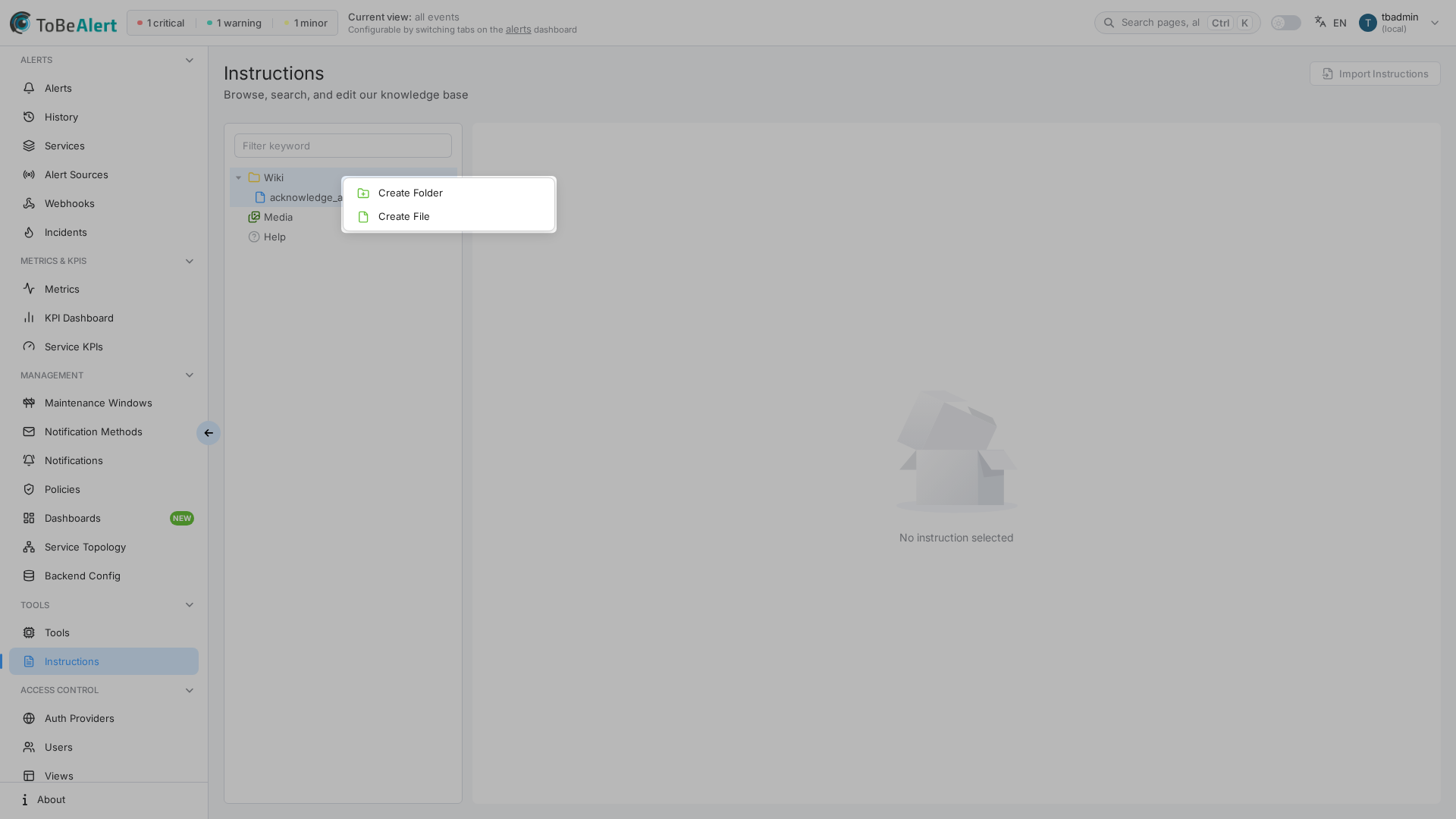
There is no Rename action in the tree. To change a name, create a new file and delete the old one, or contact your administrator about bulk operations outside the UI.
Create a wiki folder
Requires write:instructions.
- In the tree, select a Wiki folder (not a file).
- Right-click and choose Create Folder.
- Enter a folder name (letters, numbers,
-,_,/only). - Press Enter or click outside the input to confirm.
If the name is invalid or already exists, the UI shows Invalid folder name or Folder already exists.
Empty folders may contain a keep.md placeholder file (shown dimmed). Use Delete keep file from the context menu when you need to remove that placeholder.
Create a wiki file
- Right-click a Wiki folder.
- Choose Create File.
- Enter a file name without the
.mdextension (letters, numbers,-,_only). - Confirm with Enter.
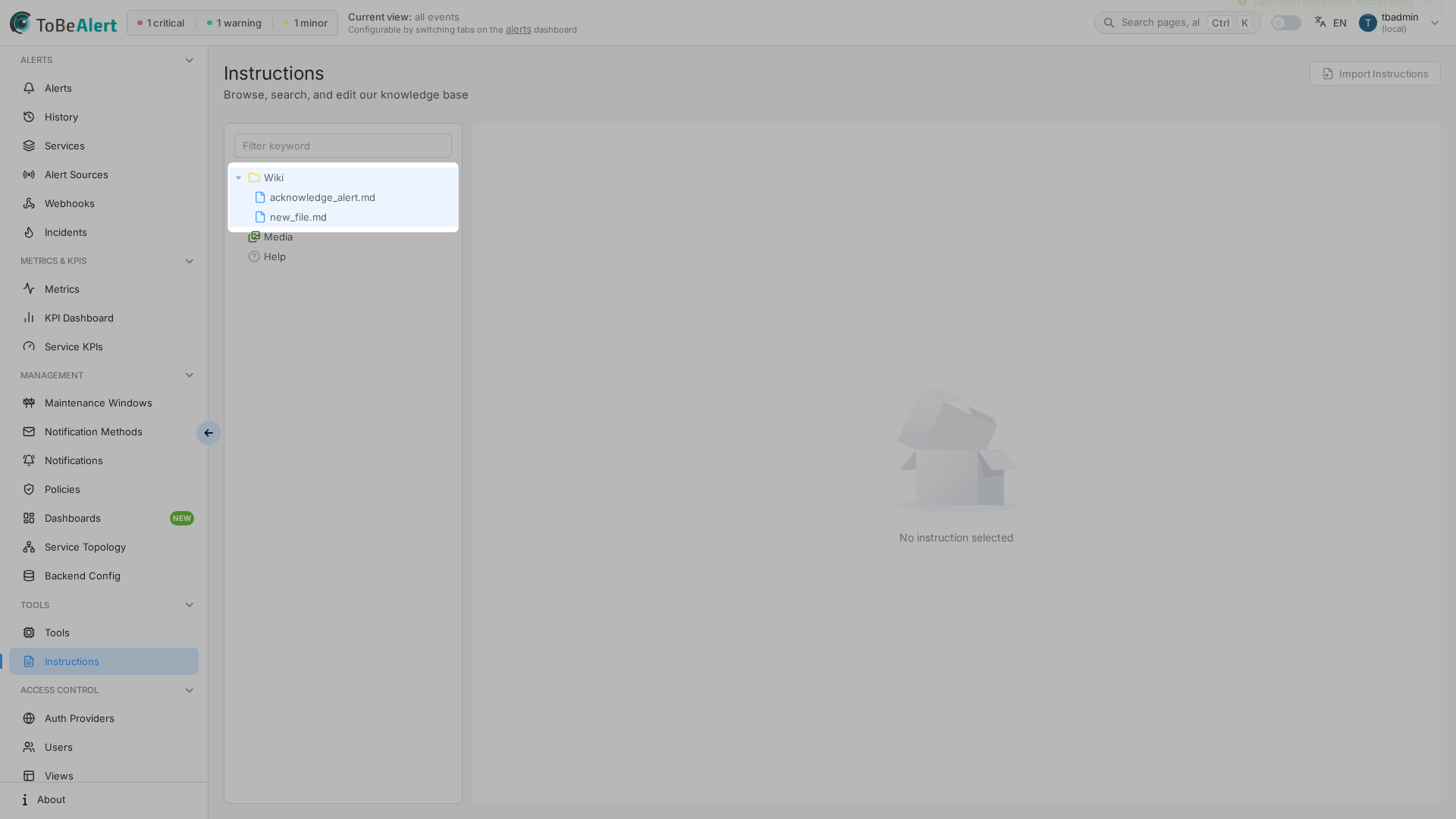
ToBeAlert creates name.md with a starter heading and refreshes the tree. Open the file and continue with Edit mode below.
Context menu on a wiki file
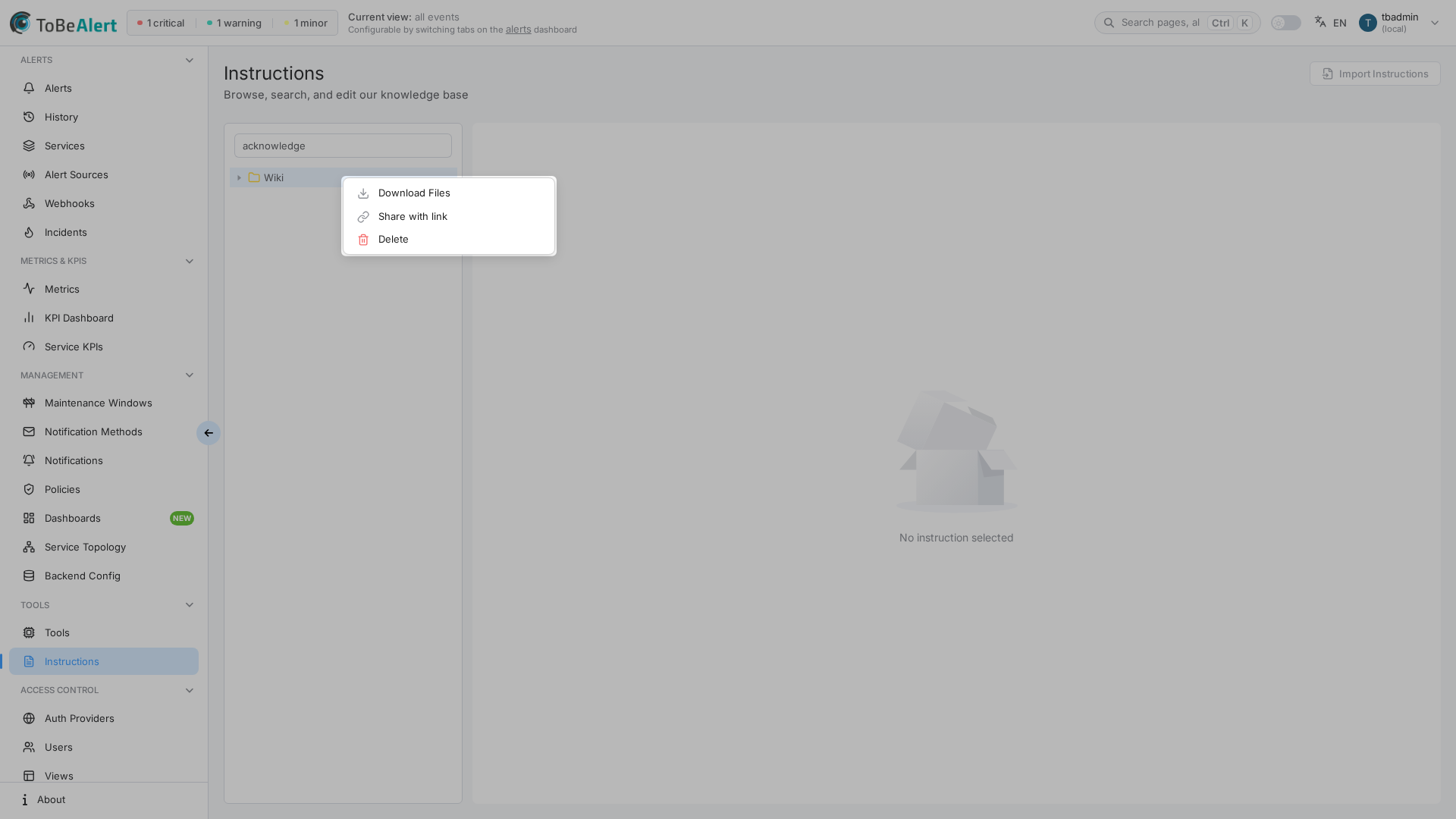
Right-click a single .md file under Wiki (or select it first, then right-click):
| Action | When shown |
|---|---|
| Download File / Download Files | One or more files selected (not Help) |
| Share with link | Single wiki .md file; write:share_instructions — see Share with link |
| Delete | Deletable wiki file; write:instructions |
| Delete keep file | keep.md placeholder selected; write access |
Move wiki files (drag and drop)
Drag a wiki file onto another Wiki folder. Drops on Media, Help, or onto files are ignored.
Import
The header shows Import Instructions. This control is disabled in the current release; use Create File or upload media manually — see Media library.
View mode
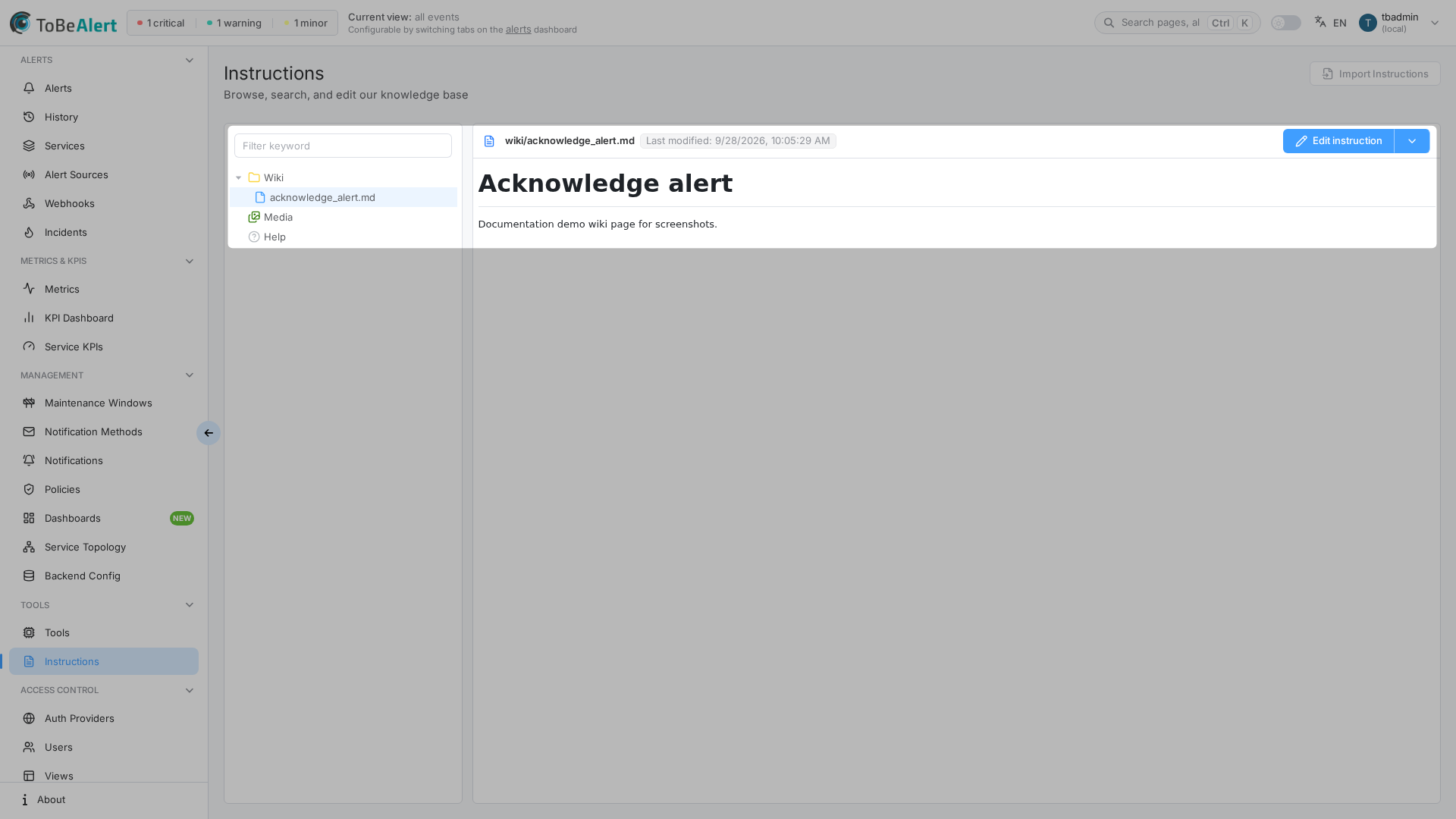
- In the tree, click a
.mdfile under Wiki. - The header shows the page path and Last modified when the file exists.
- Click Edit instruction (write:instructions) to switch to edit mode.
Hide the tree while reading
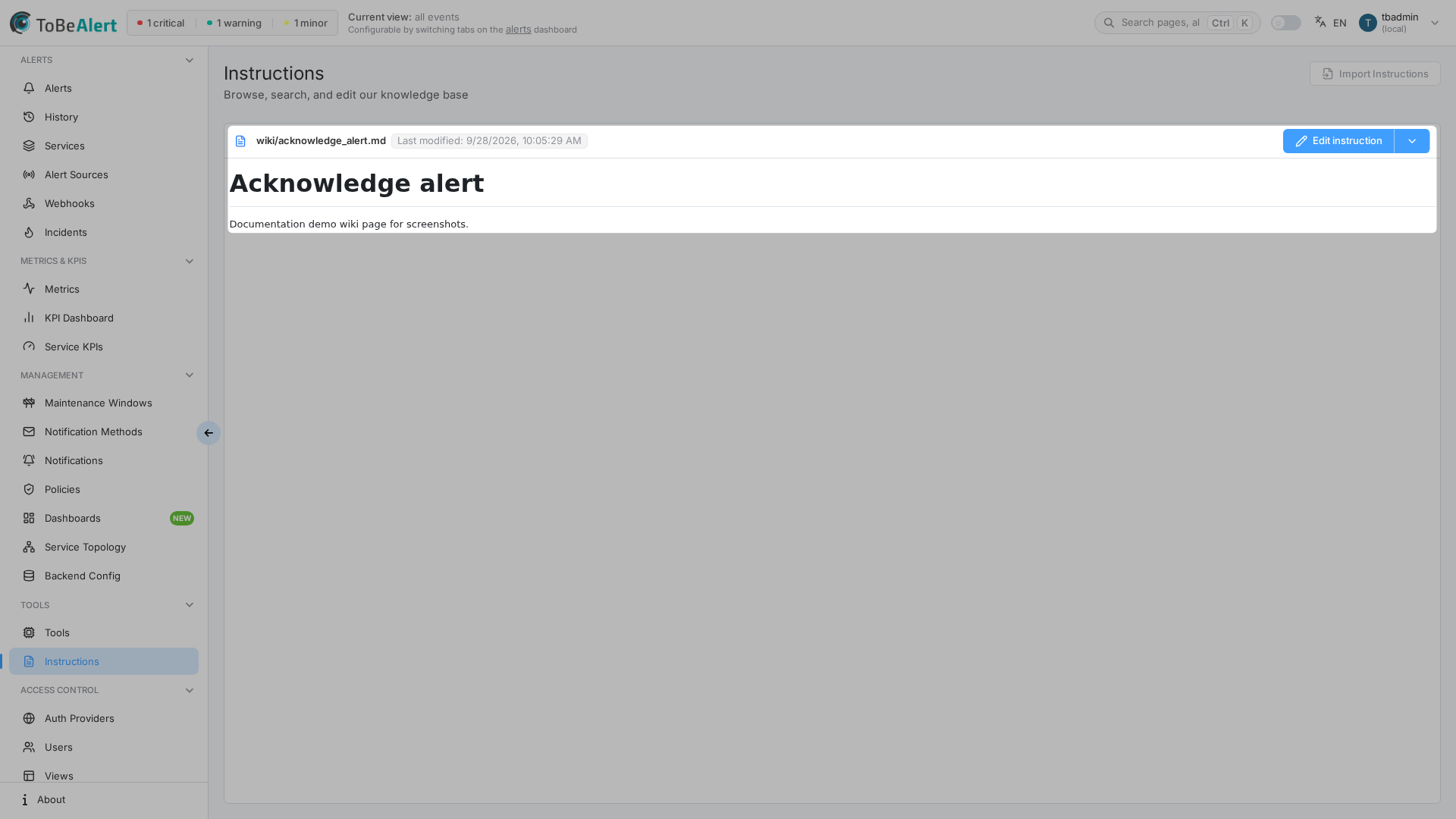
- Open the page ⋮ menu (next to Edit instruction).
- Turn off Toggle Tree.
The content panel expands to full width. Turn Toggle Tree on again to restore the left tree.
Page not created yet
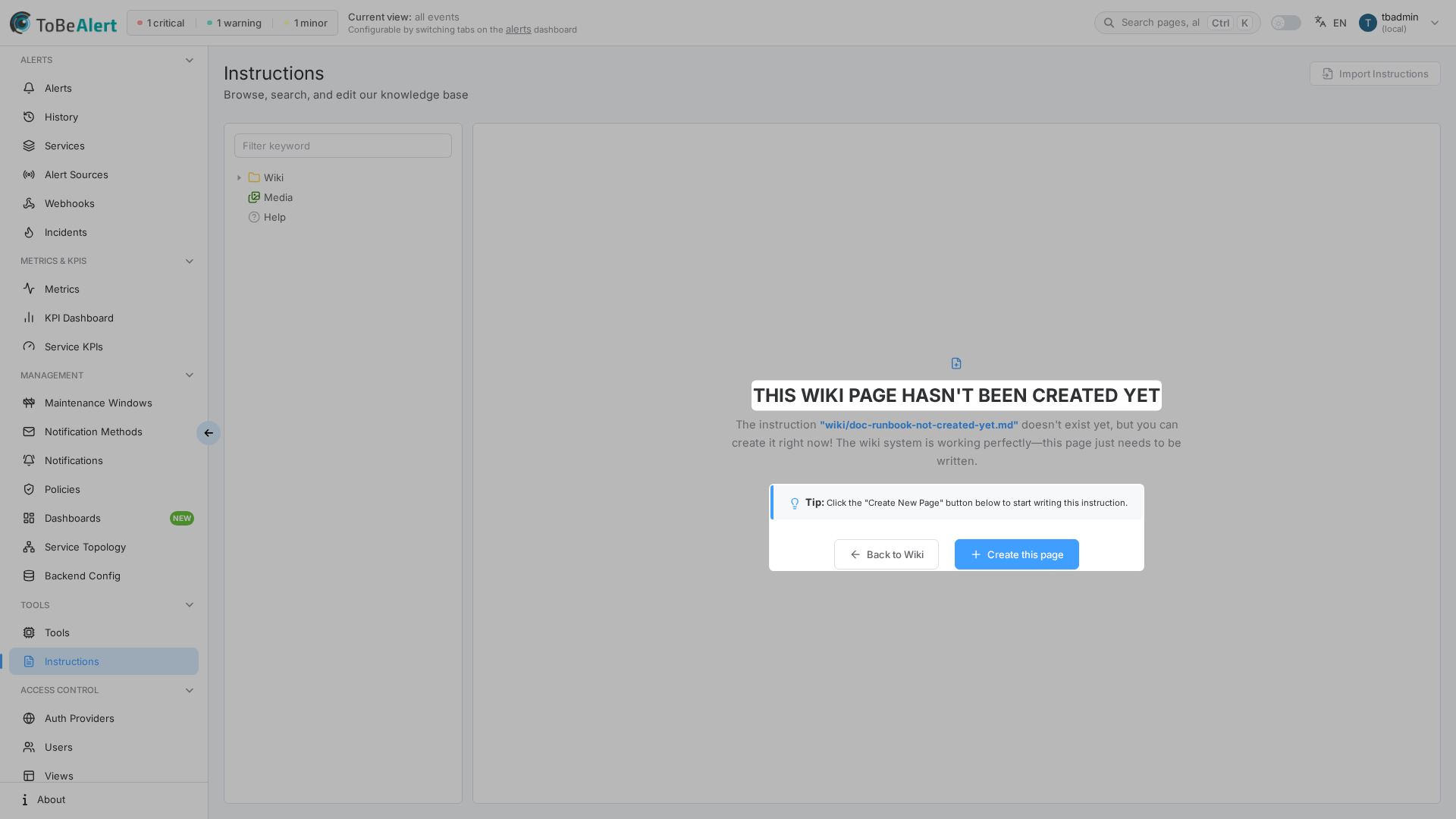
If the path has no file yet (for example after following Instructions from an alert), you see THIS WIKI PAGE HASN'T BEEN CREATED YET with the requested path highlighted.
Users with write:instructions can:
- Click Create this page to start authoring, or
- Click Back to Wiki to return to the tree hub.
See Instructions from alerts for how alert fields resolve to wiki paths.
Edit mode
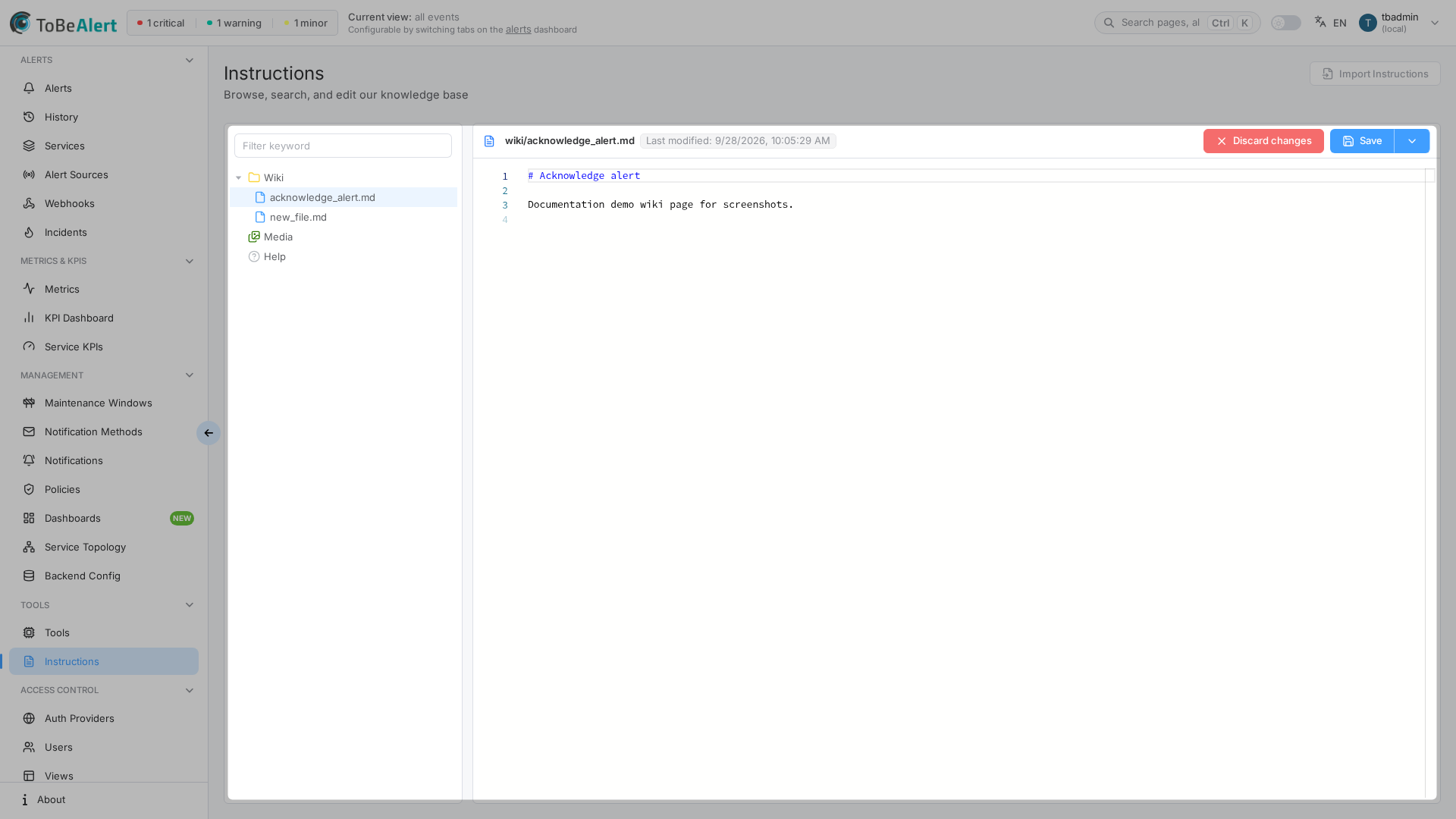
- Open an existing wiki page.
- Click Edit instruction (write:instructions).
- Write Markdown in the editor pane.
- Click Save to persist changes, or Discard changes to revert.
Page ⋮ menu (edit and view)
Open the ⋮ dropdown next to Save (edit/create) or Edit instruction (view):
| Option | Modes | Purpose |
|---|---|---|
| Show page preview | Edit, create | Side-by-side rendered preview |
| Synchronize scroll | Edit, create | Keep editor and preview scroll positions aligned |
| Toggle Tree | View, edit (existing pages) | Show or hide the left tree |
| Download Raw | All | Download the .md source file |
| Share with link | Existing pages | Open Share with link settings |
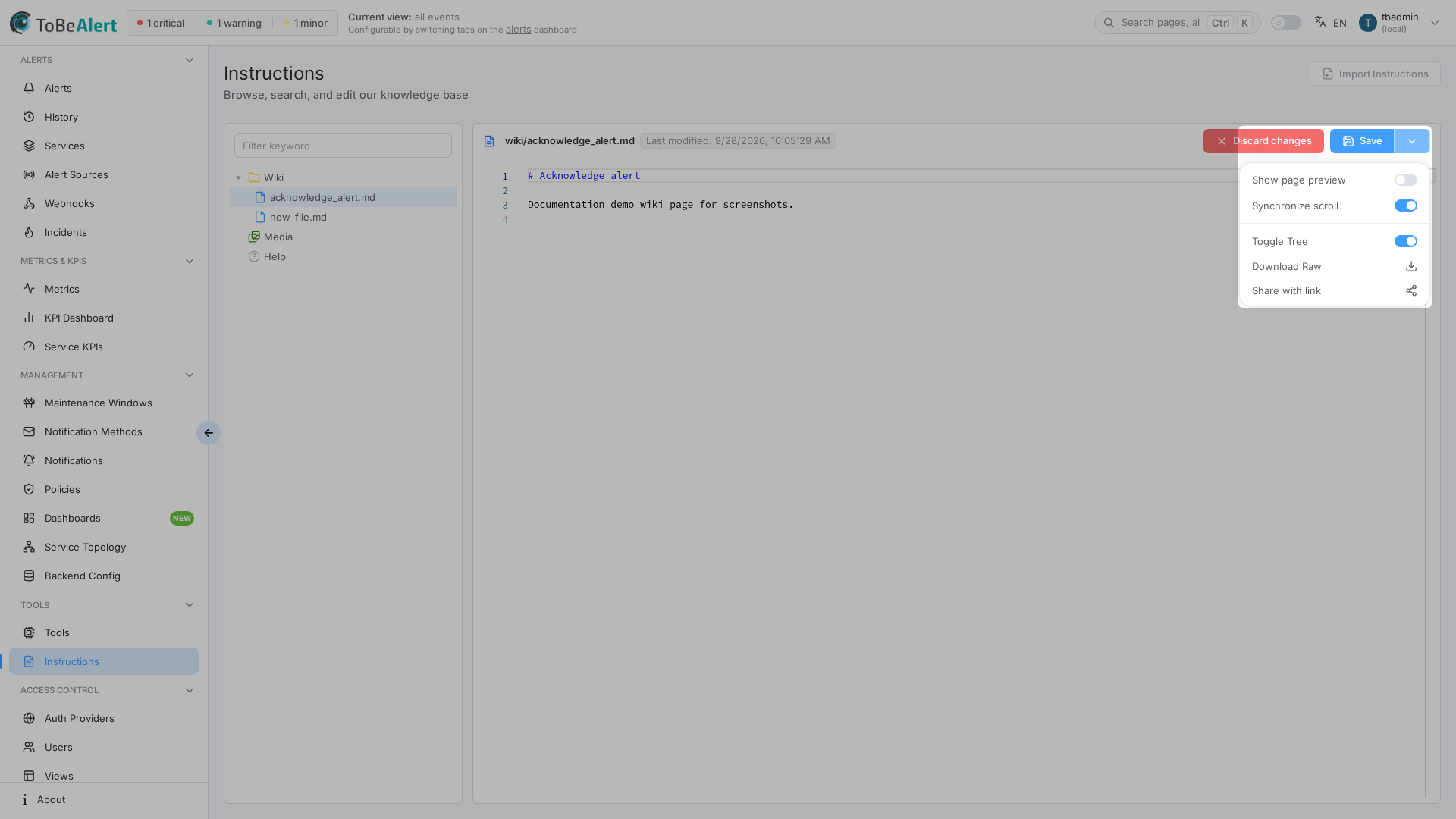
Show page preview
- In edit mode, open the ⋮ menu.
- Turn on Show page preview.
- The right pane renders Markdown as you type. Optionally enable Synchronize scroll so both panes scroll together.
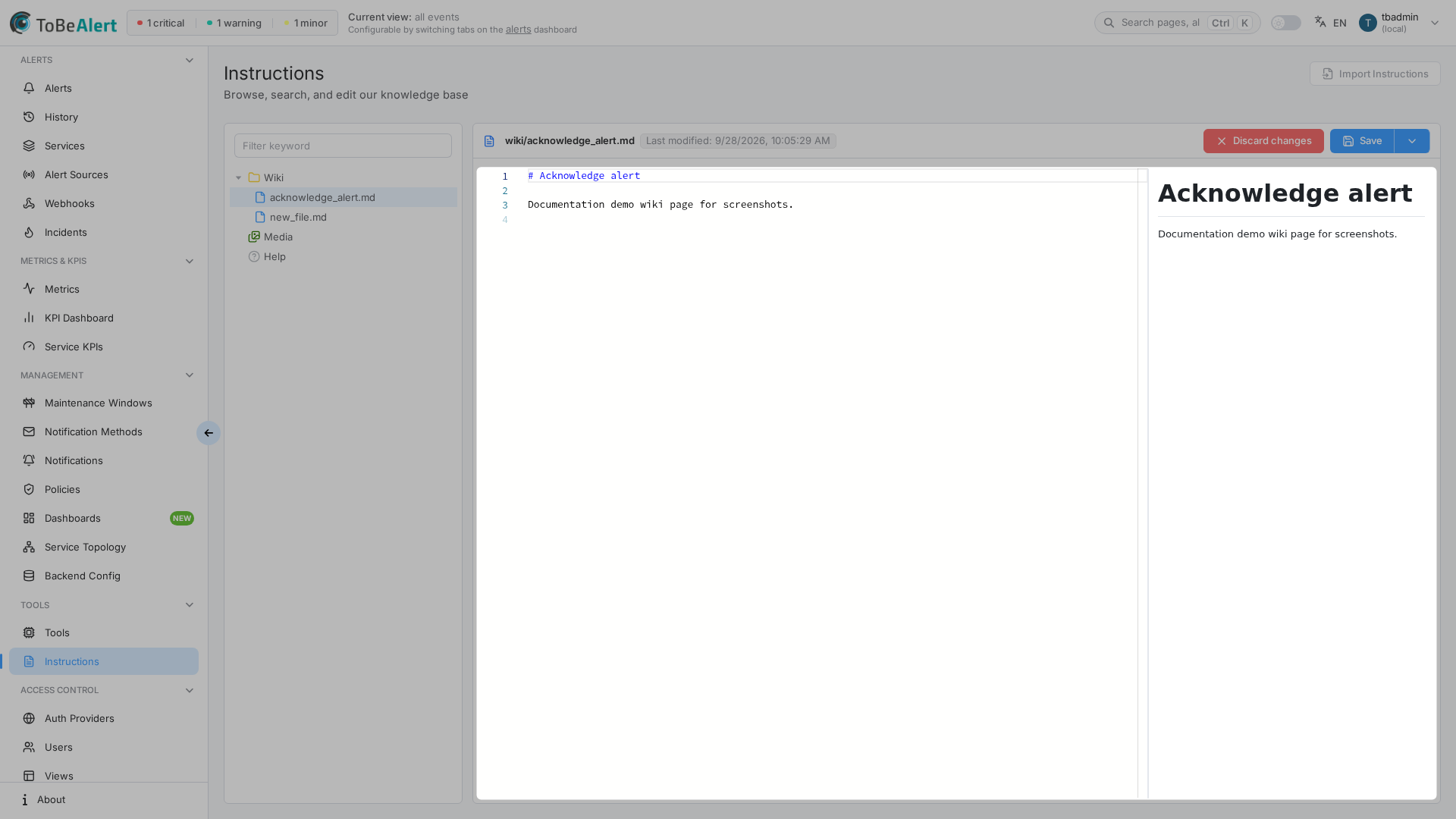
Create a new page from the editor
When action=create (for example after Create this page):
- Edit the Markdown body.
- Click Create in the toolbar.
- ToBeAlert saves the file and switches to view mode.
You can also create pages from the tree with Create File — see Create a wiki file.
Markdown and media references
- Use standard Markdown headings, lists, code fences, and links.
- Reference uploaded images and videos from the Media tree — upload and path conventions are in Media library — Embed in wiki pages.
- Prefer concise steps: check, command, expected result, escalation.
Toolbar actions (view / edit / create)
| Button | When | Result |
|---|---|---|
| Edit instruction | View mode; write:instructions | Opens edit mode |
| Save | Edit mode | Writes content |
| Discard changes | Edit mode | Reverts to last saved content |
| Create | Create mode | Saves new page |
Unsaved changes
If you leave a page while editing, ToBeAlert may show Unsaved changes with Are you sure you want to leave the page without saving? Choose Confirm to discard edits and navigate, or Cancel to stay.
Share with link
Share with link generates a time-limited URL so people outside the main ToBeAlert session can read a wiki page. Restricted links require a logged-in user; public links can optionally use a password.
Open Share link settings
| Entry point | Steps |
|---|---|
| Page ⋮ menu | Open a wiki .md page → ⋮ → Share with link |
| Tree context menu | Right-click the file under Wiki → Share with link |
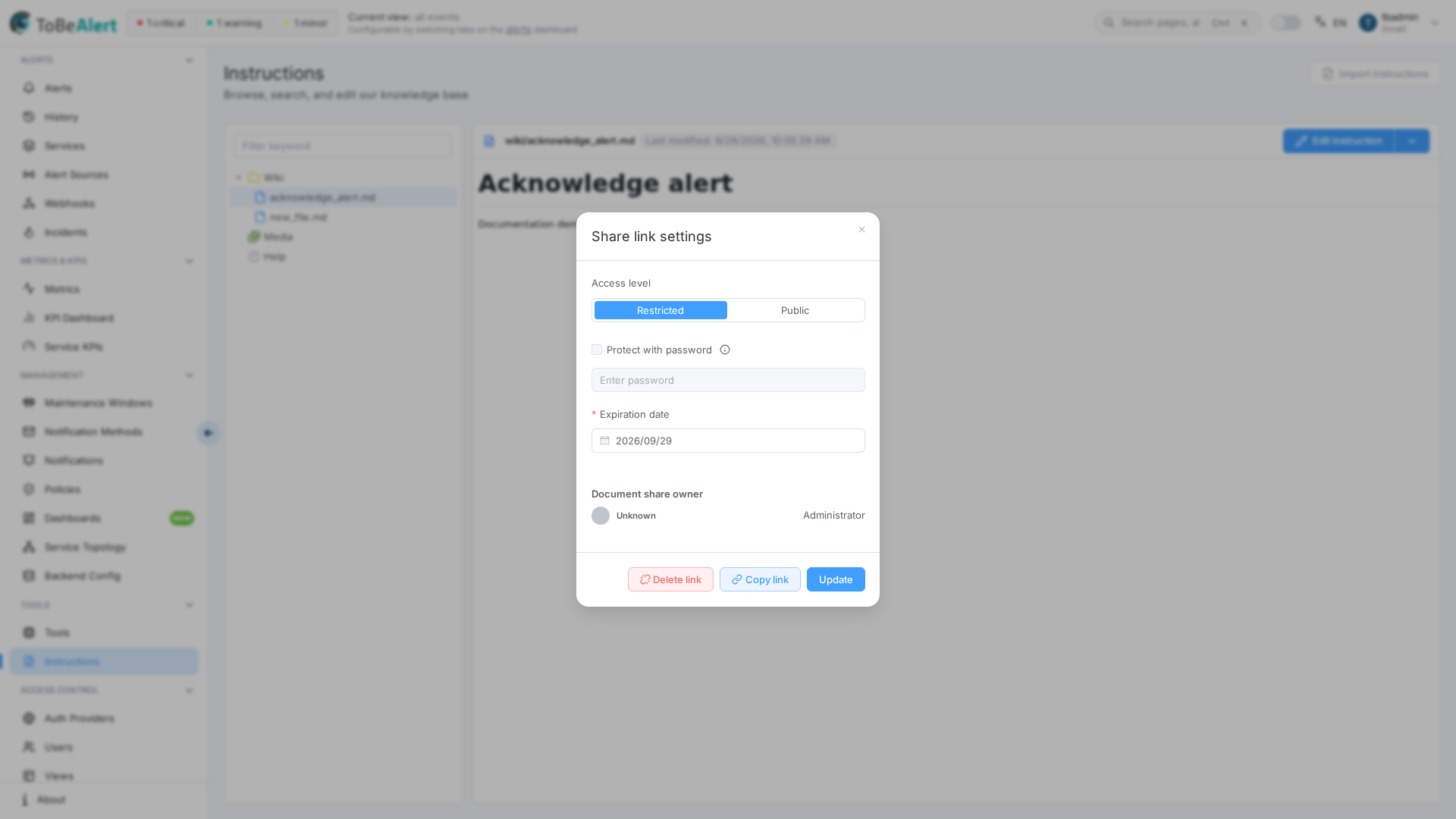
Share link settings
| Field | Description |
|---|---|
| Access level | Restricted (authenticated users) or Public (anonymous visitors) |
| Protect with password | When Public is selected, optional checkbox to require a password (see tooltip When enabled, visitors must enter this password to open the shared link.) |
| Enter password | Password visitors must enter when protection is enabled |
| Expiration date | Required end date for the link (picker label Expiration date) |
| Document share owner | Shows who created the link; Administrator role label for the owner |
| Button | Purpose |
|---|---|
| Copy link | Copy the current URL without changing settings |
| Update | Save new expiration, access level, or password (owner or administrator) |
| Delete link | Remove the share link after confirmation (Delete share link / Are you sure you want to delete this share link? This action cannot be undone.) |
Update stays disabled until required fields are valid (for example Expiration date filled; public password when protection is on).
Create or copy a link
- Open Share link settings (see above).
- Configure Access level, optional password, and Expiration date.
- Click Copy link to copy the URL to the clipboard, or Update to save changes first.
Success copies the link; errors show Error copying the share link.
Opening a shared page
Visitors open URLs under /shared-instruction/… (opened from Copy link). Those public links do not require login. Public protected documents may prompt Enter Password with This document is encrypted. Please provide the access key to view the contents. and Document Password.
Creating share links requires write:share_instructions, which is independent of write:instructions. Administering links (for example updating or deleting links you do not own) requires admin:share_instructions or global admin. If Share with link is missing from the tree menu or ⋮ menu, contact your administrator.
Best practices
Tree and files
- Folder layout by domain — Group by service, environment, or alert family to match your link template (see Instructions from alerts).
- Stable file names — Renaming files breaks template resolution until you update Instruction Link Template or file names together.
- Avoid editing Help — Use Wiki for team-owned content.
- Use keep files intentionally — They mark empty folders; remove them when the folder has real content.
- Filter before bulk actions — Narrow the tree with Filter keyword before multi-select download or delete.
Authoring
- Lead with symptoms — What the operator sees on the alert, then remediation steps.
- Link related runbooks — Use Markdown links to other wiki paths under Wiki.
- Preview before save — Turn on Show page preview to catch formatting mistakes.
- Keep commands copy-paste ready — Use fenced code blocks for shell or SQL snippets.
- Toggle Tree for focus — Hide the tree on long runbooks; show it again when jumping between files.
Share links
- Shortest necessary lifetime — Set Expiration date to the review or vendor window, not “far future.”
- Prefer Restricted — Use Public only when anonymous access is required.
- Password-protect public links — When email or chat might leak the URL.
- Delete when done — Use Delete link after incidents or audits complete.
- Do not share Help or media-only nodes — Sharing applies to wiki instruction files.