Scheduling and management
Overview
Maintenance Windows in ToBeAlert allow you to temporarily suppress alerts during planned maintenance operations or known outages. This feature helps reduce alert noise and notification fatigue when alerts are expected and not actionable.
Creating maintenance windows
Basic maintenance windows creation
To create a new maintenance window:
-
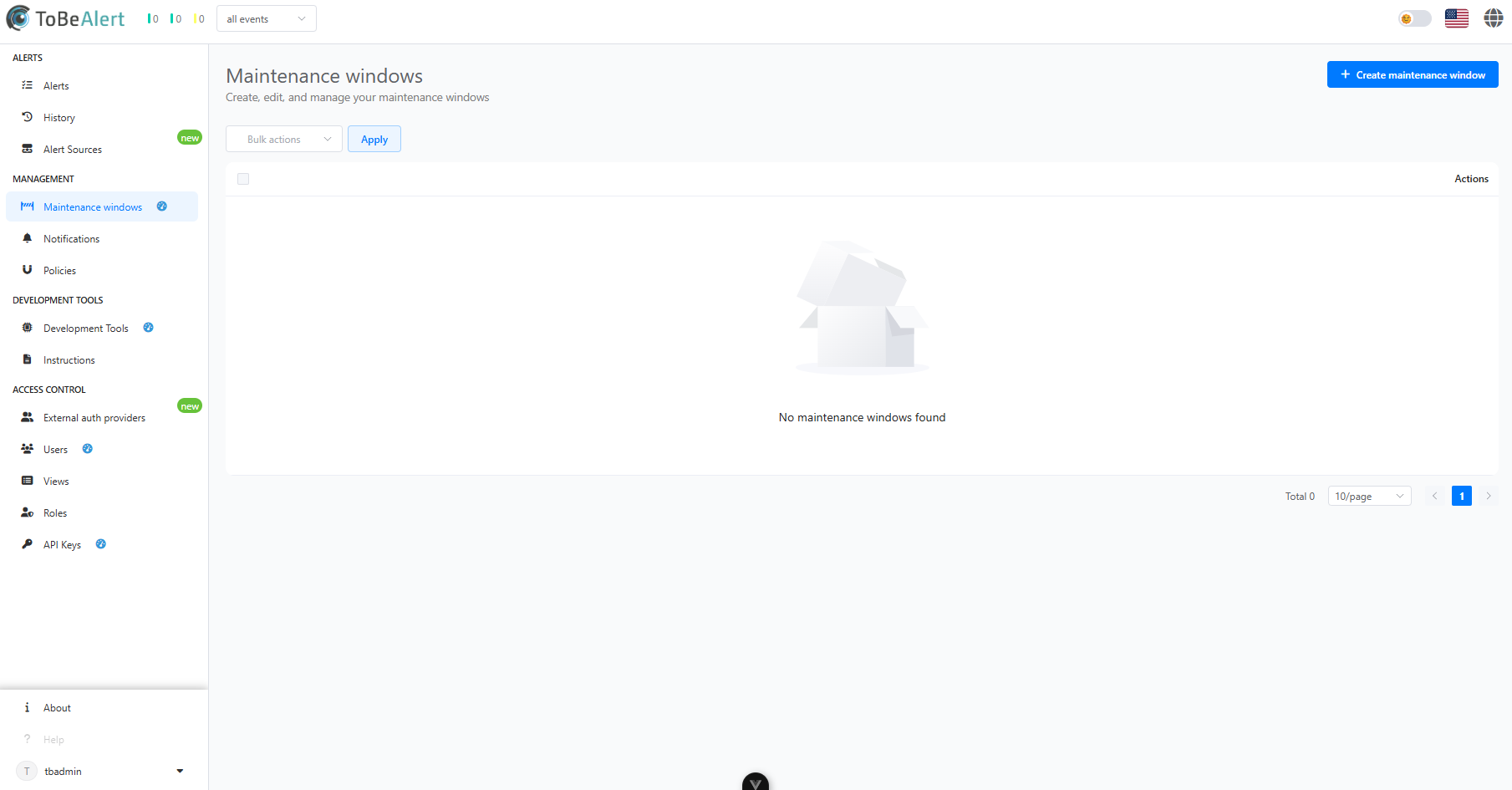
Navigate to the maintenance windows view on the Management section
-
Click the "Create maintenance window" button
-
Fill in the required parameters:
- Resource (optional)
- Event
- Environment
- Date/Time Range
- Group (optional)
- Origin (optional)
- Tags (optional)
- Service (optional)
-
Save the maintenance window configuration
Maintenance windows parameters
Each maintenance window can be configured with specific parameters to target exactly which alerts should be suppressed:
| Parameter | Description | Example |
|---|---|---|
| Resource | The specific resource affected by the maintenance window | web-server-01 |
| Event | The type of event to suppress | HighCpuUsage |
| Environment | The environment where the maintenance window applies | production |
| Date/Time Range | The start and end times for the maintenance window | 2025-04-01 10:00 - 2025-04-01 12:00 |
| Group | The organizational group associated with the maintenance window | infrastructure |
| Origin | The source of the alerts to be suppressed | monitoring-system |
| Service | The service affected by the maintenance window | web-service |
| Tags | Custom tags to categorize the maintenance window | maintenance, planned |
Managing maintenance windows
Maintenance windows list view
The maintenance windows view provides a comprehensive list of all maintenance windows with key information:
- Status (active, scheduled, expired)
- Time range
- Affected resources and environments
- Creator and creation time
- User who created the maintenance window
Maintenance windows actions
Several actions can be performed on existing maintenance windows:
- Edit - Modify the maintenance window's parameters
- Duplicate - Create a new maintenance window based on an existing one
- Enable/Disable - Temporarily activate or deactivate maintenance windows
- Delete - Remove maintenance windows that are no longer needed
Bulk operations
Multiple maintenance windows can be managed simultaneously using bulk operations:
-
Select multiple maintenance windows using the checkboxes
-
Choose an action from the bulk actions menu:
- Enable selected windows
- Disable selected windows
- Delete selected windows
Best practices
For effective maintenance windows management:
- Plan ahead - Create maintenance windows before maintenance begins
- Be specific - Target maintenance windows to specific resources or events
- Set appropriate durations - Make maintenance windows periods match maintenance operations
- Add descriptive information - Include details about the maintenance purpose
- Clean up expired blackouts - Remove or archive maintenance windows that are no longer needed