View tabs
Route: /dash
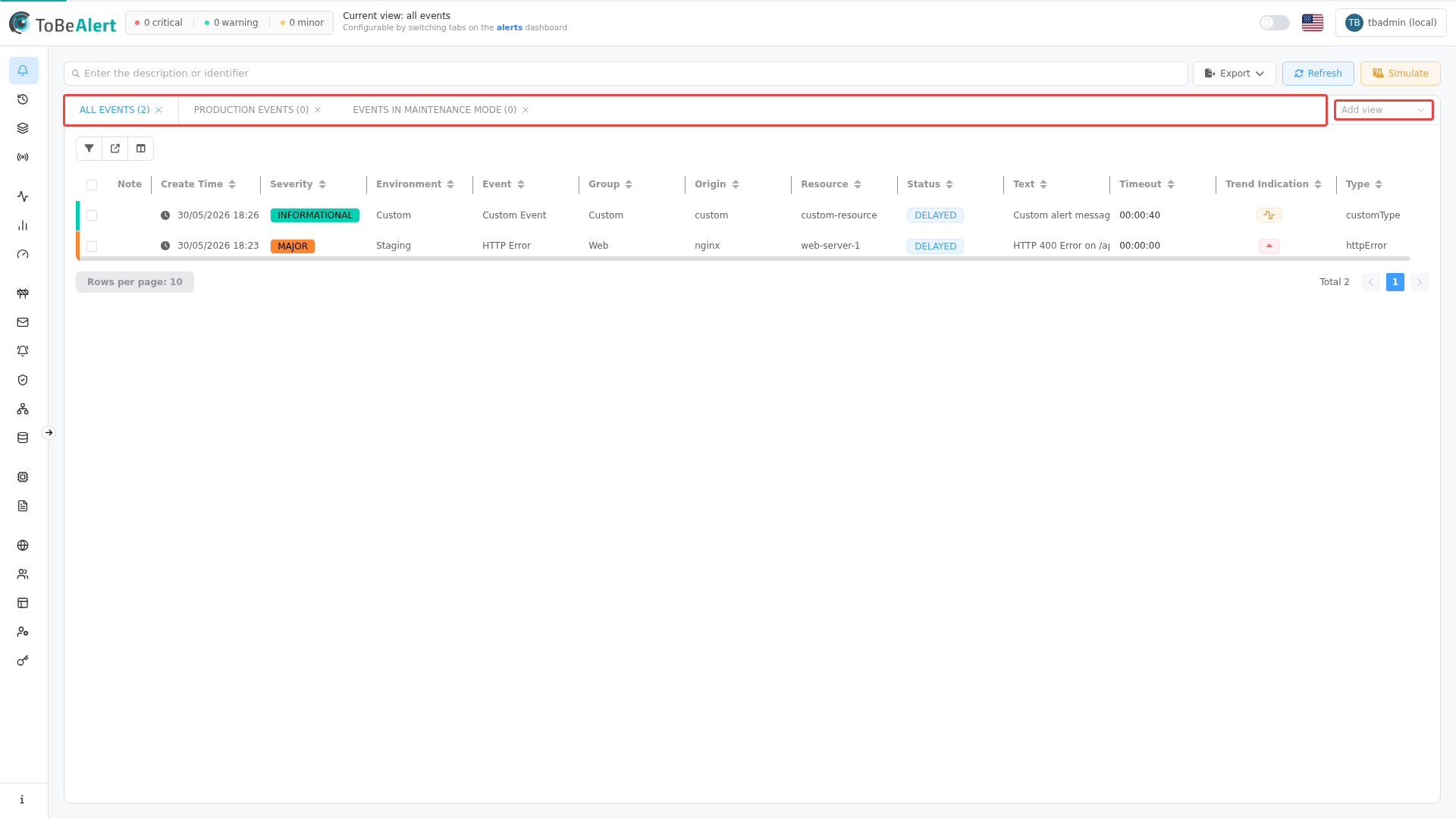
Each view tab on the alerts dashboard corresponds to one view assigned to your user. Tabs load alerts that match the view's Alerts Query; counts beside tab labels reflect the current filters.
See also: Overview · Applying views on the dashboard · Sidebar filters
| Task | Section |
|---|---|
| Switch views | Switch tabs |
| Add or remove tabs | Add view |
| Reorder tabs | Reorder tabs |
| Save layout changes | Save changes banner |
Switch tabs
- Open Alerts (
/dash). - Click a view tab — the label shows the view name in uppercase and a count in parentheses, for example
NOC (42). - The table reloads with alerts for that view. Sort order resets when you change tabs.
Switching tabs does not clear sidebar filters or TQL tags unless your saved defaults differ per session.
Add view
Tabs you closed can be restored without leaving the dashboard:
- At the right end of the tab bar, open the Add view dropdown.
- Select a view name that is not already open.
- The new tab becomes active and loads its alerts.
Only views assigned to your user appear in the list. Configure views under Access Control → Views.
Reorder tabs
View tabs are draggable:
- Click and hold a tab label.
- Drag it left or right to the desired position.
- When a yellow Changes detected banner appears, click Save changes to persist the order for your account.
Tab order is stored in your user settings (viewsOrder).
Save changes banner
When you resize table columns or reorder view tabs, a Changes detected banner appears above the tab content with Save changes. Click it to persist:
- Column widths for the alerts table
- View tab order
If you navigate away without saving, unsaved layout changes may be lost.
Tab counts
Parentheses beside each tab show how many alerts match that view with the current sidebar and TQL filters applied. Counts refresh when you change filters or click Refresh.
If your user has no views, the tab area is disabled and shows No assigned views. Contact your administrator to assign views under Access Control → Views.
Best practices
- Keep one tab per team or environment you monitor daily — close unused tabs and re-add them from Add view when needed.
- Save tab order after arranging tabs by priority (for example production views first).
- Do not confuse view tabs with sidebar filters — views define access; filters refine within the active tab.
- Check counts after applying filters to see which views still have matching alerts.