Alert details drawer
Route: /dash (drawer overlays the dashboard)
Double-click an alert row, click a Resource (or other) cell link, or choose Details from bulk actions to open the details drawer. Review fields, add notes, run actions, and turn field values into dashboard filters.
See also: Overview · Bulk actions and context menu · History
| Task | Section |
|---|---|
| Open and close | Open the drawer |
| Run actions | Action buttons |
| Search within the alert | Search in the drawer |
| Manage notes | Notes |
| Inspect fields | Information sections |
| Add filters from values | Click-to-filter |
Open the drawer
- Double-click a row, or select one alert and choose Details.
- The drawer opens from the right with a colored stripe matching alert severity.
- Click outside the drawer or use the close control to dismiss it.
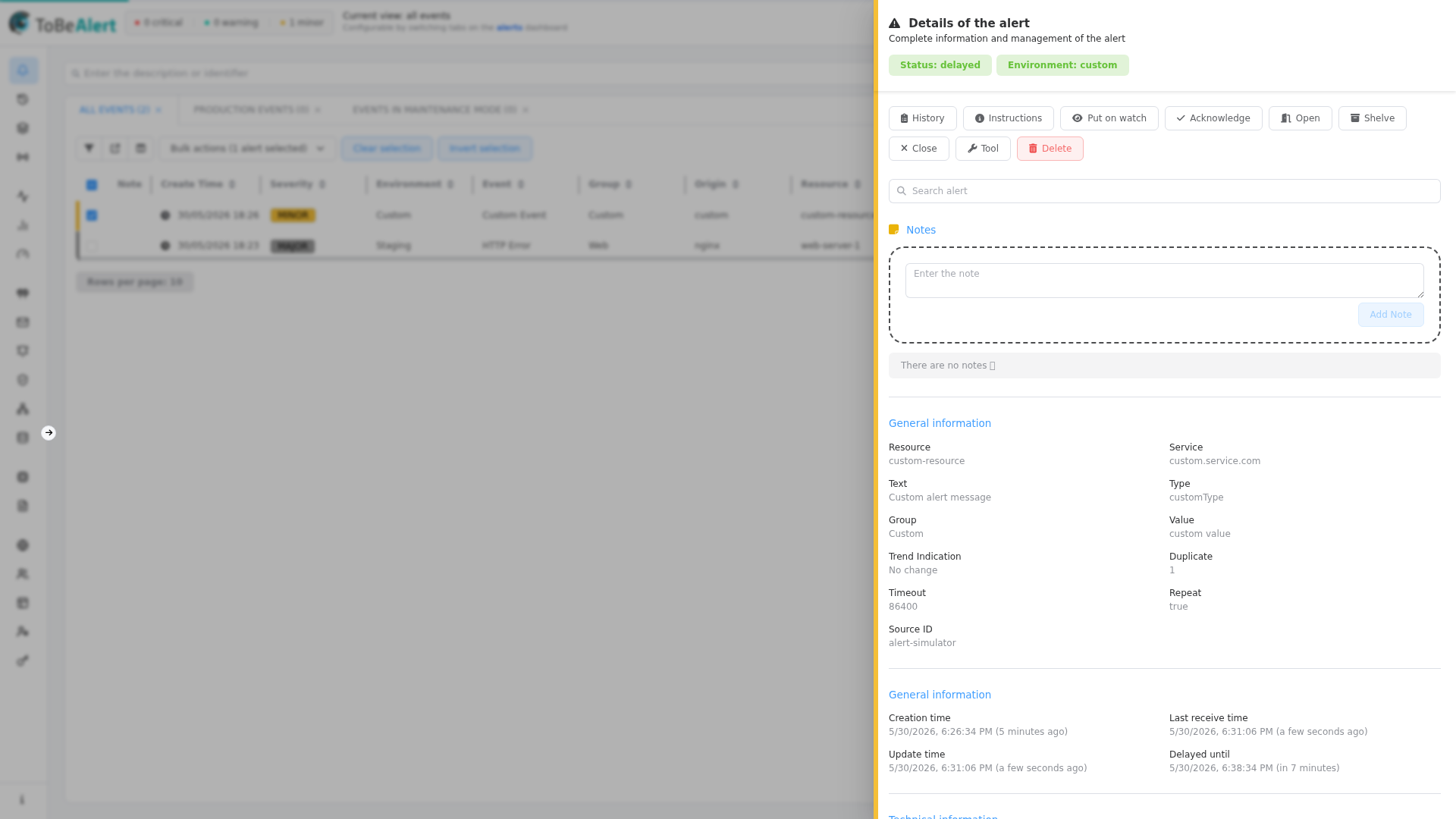
The header shows Details of the alert, the alert ID, and tags for Status and Environment.
Action buttons
Below the header, the drawer shows the same actions as bulk actions (except Details). Examples:
- Acknowledge, Open, Shelve, Close
- History, Instructions
- Tools — opens an inner Tools panel listing configured tools; click a tool card to run it on this alert
- Delete (with confirmation)
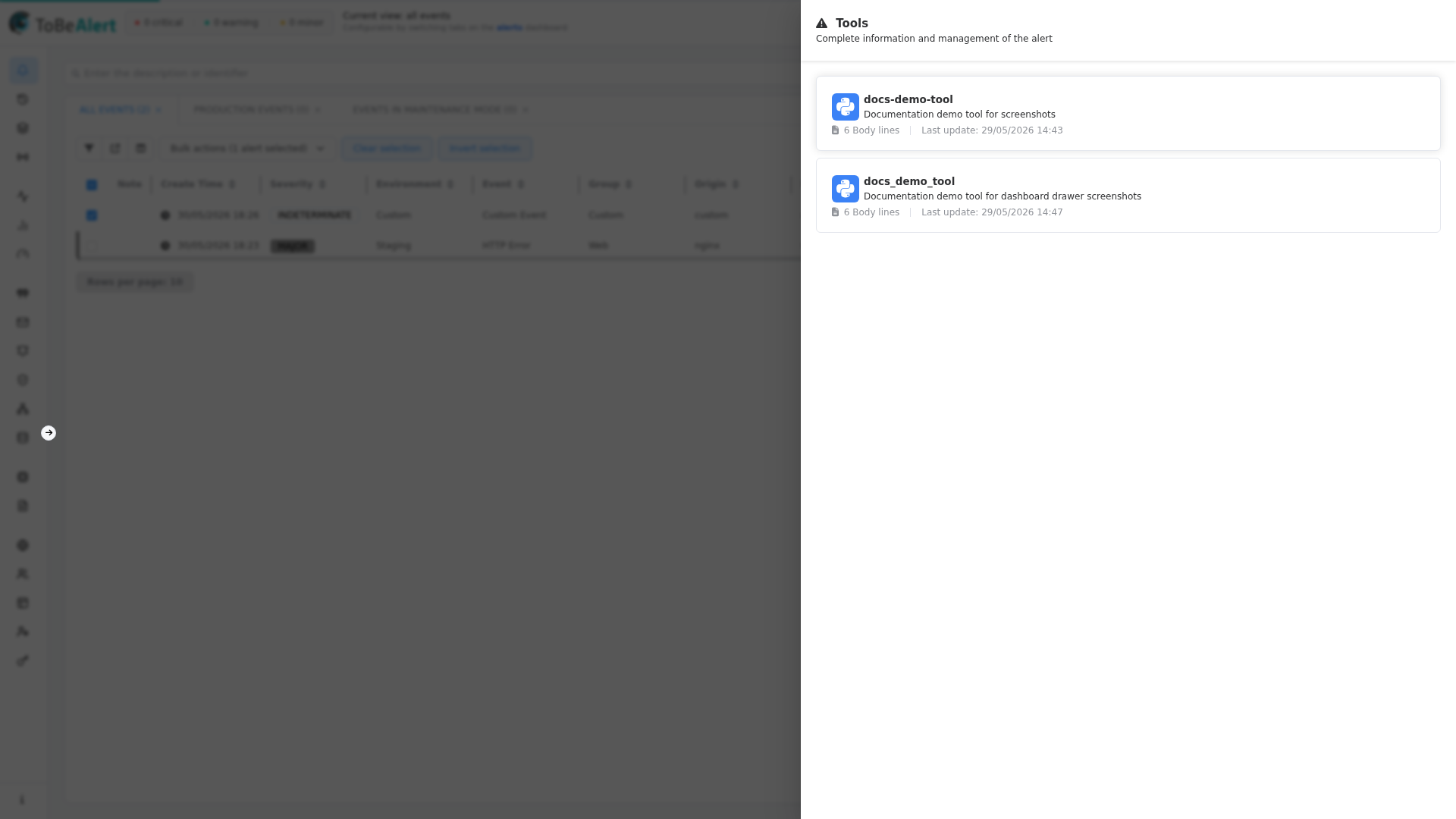
Buttons disable when the action does not apply to the current alert state or your permissions.
Search in the drawer
Use Search alert to filter and highlight content inside the drawer:
- Section titles
- Field labels and values
- Custom attribute names and values
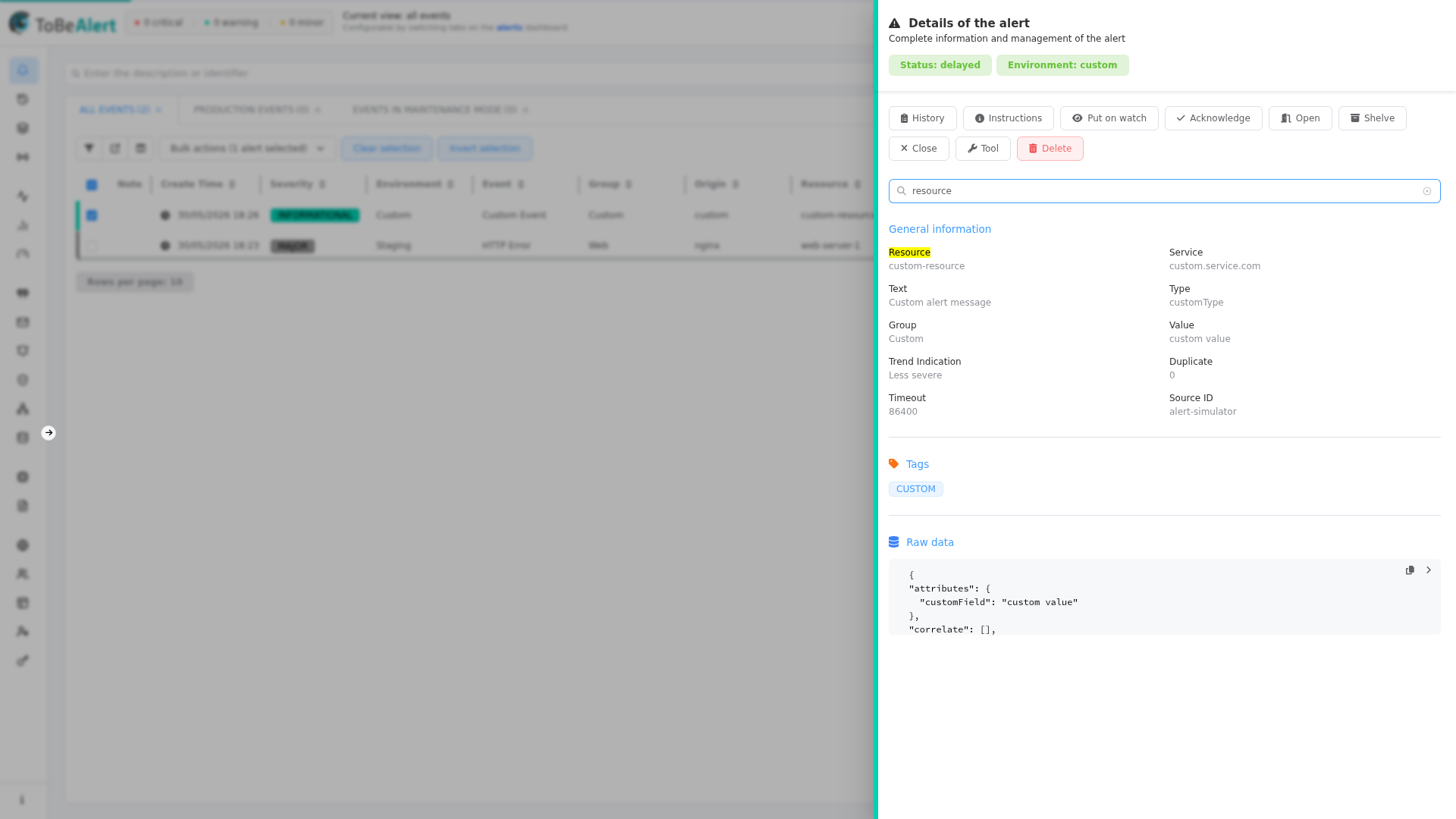
When search text is active, the Notes section is hidden so results focus on field data.
Notes
When not searching, the Notes section allows:
- Type text in the note field and click Add Note.
- View existing notes with author, timestamp, and severity/status at time of note.
- Delete a note if you are the author or an admin.
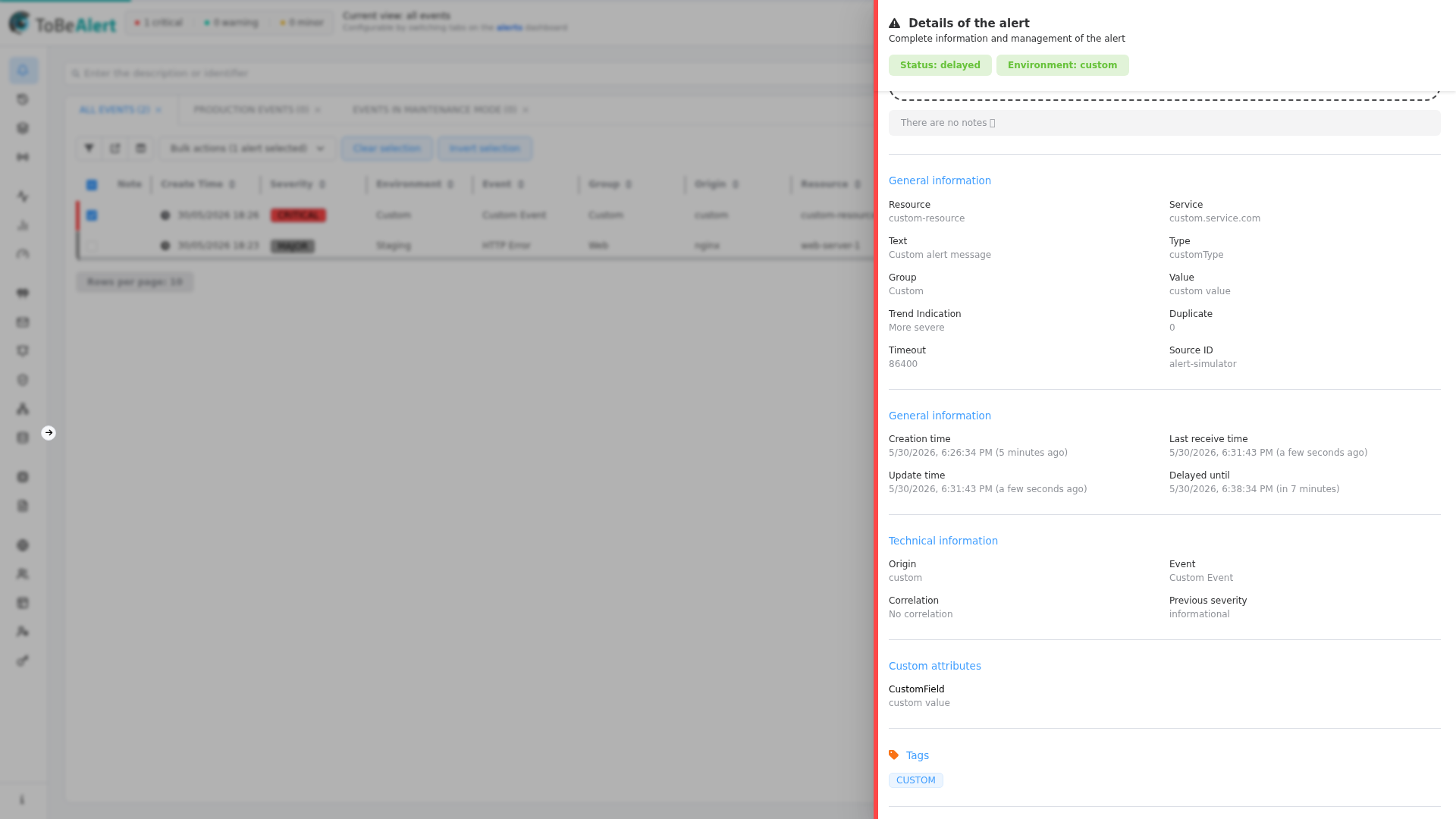
Notes appear in alert history as note_added / note_deleted events.
Information sections
Fields are grouped for scanning:
| Section | Contents (examples) |
|---|---|
| General information | Resource, service, text, type, group, value, trend, timeout, source |
| Dates | Creation time, last receive, update time, delayed until |
| Technical information | Origin, event, correlation, previous severity |
| Custom attributes | Key-value pairs from the alert payload |
| Tags | Clickable tag chips |
| Raw data | Collapsible JSON of the alert (excluding internal source metadata) |
Date values use your configured format and optional relative time.
Policy executions
When policies have run against the alert, a Policy Executions section lists policy names with last or next run times.
Click-to-filter
Many field values, attributes, and tags are clickable:
- Click a value — a TQL filter is added (for example
resource:eq:web-01ortags:eq:cpu). - The drawer closes and the dashboard applies the filter.
- If you were on another route, you are returned to
/dashwith the newqparameter.
If a value is a URL, the drawer opens the link instead of adding a filter.
Best practices
- Add notes in the drawer during investigation — they are visible to the whole team in history.
- Use search on large attribute sets instead of scrolling.
- Click-to-filter from the drawer when pivoting from one resource to all related alerts.
- Run tools from the Tools panel when you need descriptions and language icons before executing.
- Check raw data only when normalized fields are insufficient — avoid sharing screenshots with sensitive payload content.