Graph editor
Route: /service-topology/<topology-id> (also reachable by service name in the path)
The graph editor is a visual map of service, environment, and resource nodes connected by edges. You can overlay active alerts, configure per-node alert hierarchy rules, and persist the layout to the topology record.
See also: Overview · Topologies · Weight policies
Editor layout
| Area | Purpose |
|---|---|
| Header breadcrumb | Topology | Topologies / <topology name> — click the home link to return to the list |
| Header toggles | Show alerts, Fluid animations |
| Header actions | Reload alert count, Reload topology |
| Canvas toolbar (right) | Edit mode, Save changes, Alert-driven service topology, Reset changes, Import from JSON, Export to JSON |
| Canvas controls (bottom left) | Fit view, Undo, Redo, Toggle order, Order nodes |
| Search for a node | Jump to a node on the canvas (enabled in edit mode) |
| Minimap | Overview of the full graph |
| Alerts table | Opens below the graph when you click an alert badge or choose View alerts from a node menu |
Open the editor
- Open Management → Service Topology (Services tab).
- Click View (eye icon) on a row, or click the Service column.
- You can also open a topology from View Topology on the Services view, the alerts dashboard, or a Service topology widget on a service dashboard.
Rich vs clean topologies
Operators often maintain two kinds of maps:
| Scenario | Typical service | Graph content | What you see with Show alerts |
|---|---|---|---|
| Rich (alert-driven) | A service with active alerts (for example main-web-service) | Many environments and resources built from alert history | Severity colors on nodes and edges, alert badges, optional Fluid animations on edges |
| Clean (manual) | A service with little or no alert traffic (for example a documentation or staging service) | A small tree you draw by hand | Mostly green / neutral nodes — useful for layout and hierarchy work without alert noise |
The examples below use main-web-service for alert-driven and alert-overlay steps, and a separate manual topology for the clean tree.
View vs edit mode
| Mode | What you can do |
|---|---|
| View (default) | Pan and zoom, toggle Show alerts / Fluid animations, Reload alert count, Reload topology, Export to JSON, search nodes (read-only) |
| Edit mode | Drag nodes, add and delete nodes, connect edges, run Alert-driven service topology, Save changes, undo/redo, layout tools, Import from JSON |
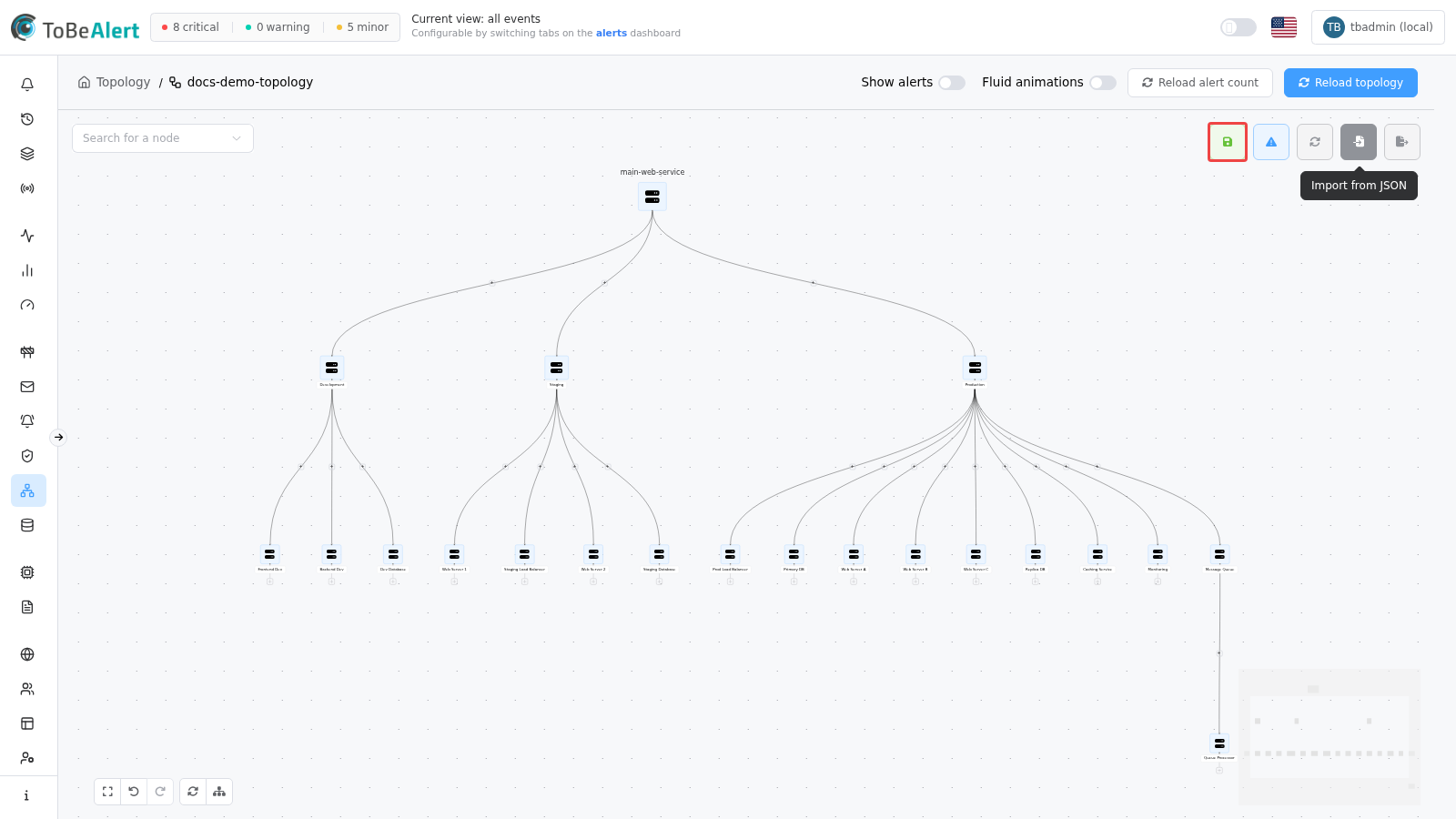
Click Edit mode (pencil icon) on the canvas toolbar to start editing. When finished, click Save changes (disk icon) to persist the graph to the topology record.
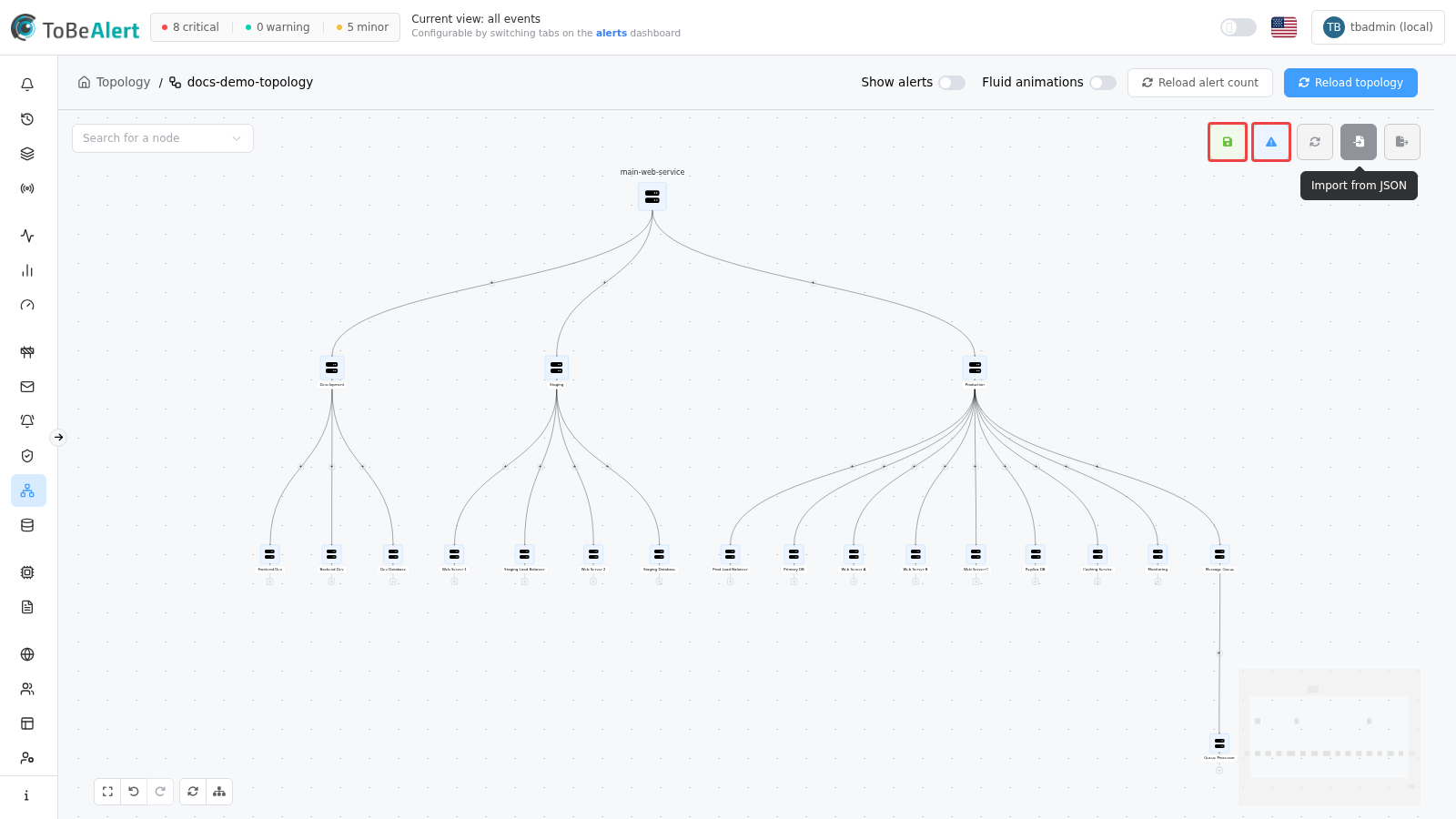
Reset changes discards edits in the current session. Reload topology reloads the last saved graph from storage — it is not the same as Reset changes.
Header controls
| Control | Description |
|---|---|
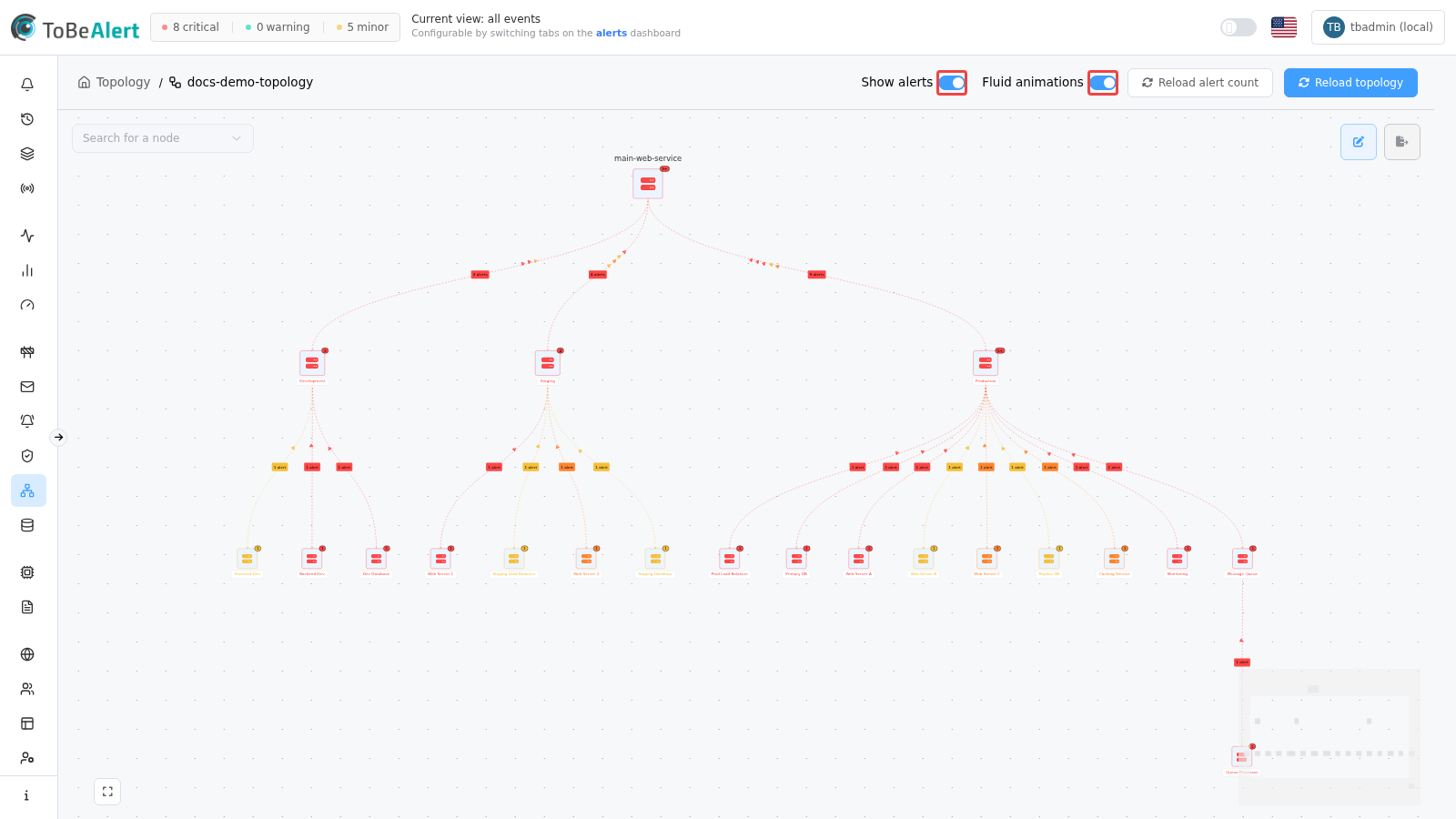
| Show alerts | Toggle alert badges, node colors, and edge labels on the graph |
| Fluid animations | Animate edges when alerts are shown |
| Reload alert count | Refresh alert data and repaint node/edge colors |
| Reload topology | Reload the saved graph from the database (discards unsaved canvas edits) |
After large alert bursts or policy changes, click Reload alert count before relying on node colors in the header toggles.
Graph toolbar (edit mode)
| Control | Description |
|---|---|
| Save changes | Persist nodes and edges to the topology record; exits edit mode on success |
| Alert-driven service topology | Add suggested environment and resource nodes from existing alerts for this service |
| Reset changes | Revert to the state at the last Reload topology / session start |
| Import from JSON / Export to JSON | Backup or migrate graph JSON |
| Undo / Redo | Ctrl+Z / Ctrl+Y (or Shift+Ctrl+Z) |
| Order nodes | Auto-layout the tree |
| Toggle order | Cycle layout orientation: top-bottom → left-right → circular |
| Fit view | Zoom to fit all nodes |
| Search for a node | Select a node to center the viewport on it |
Create nodes manually
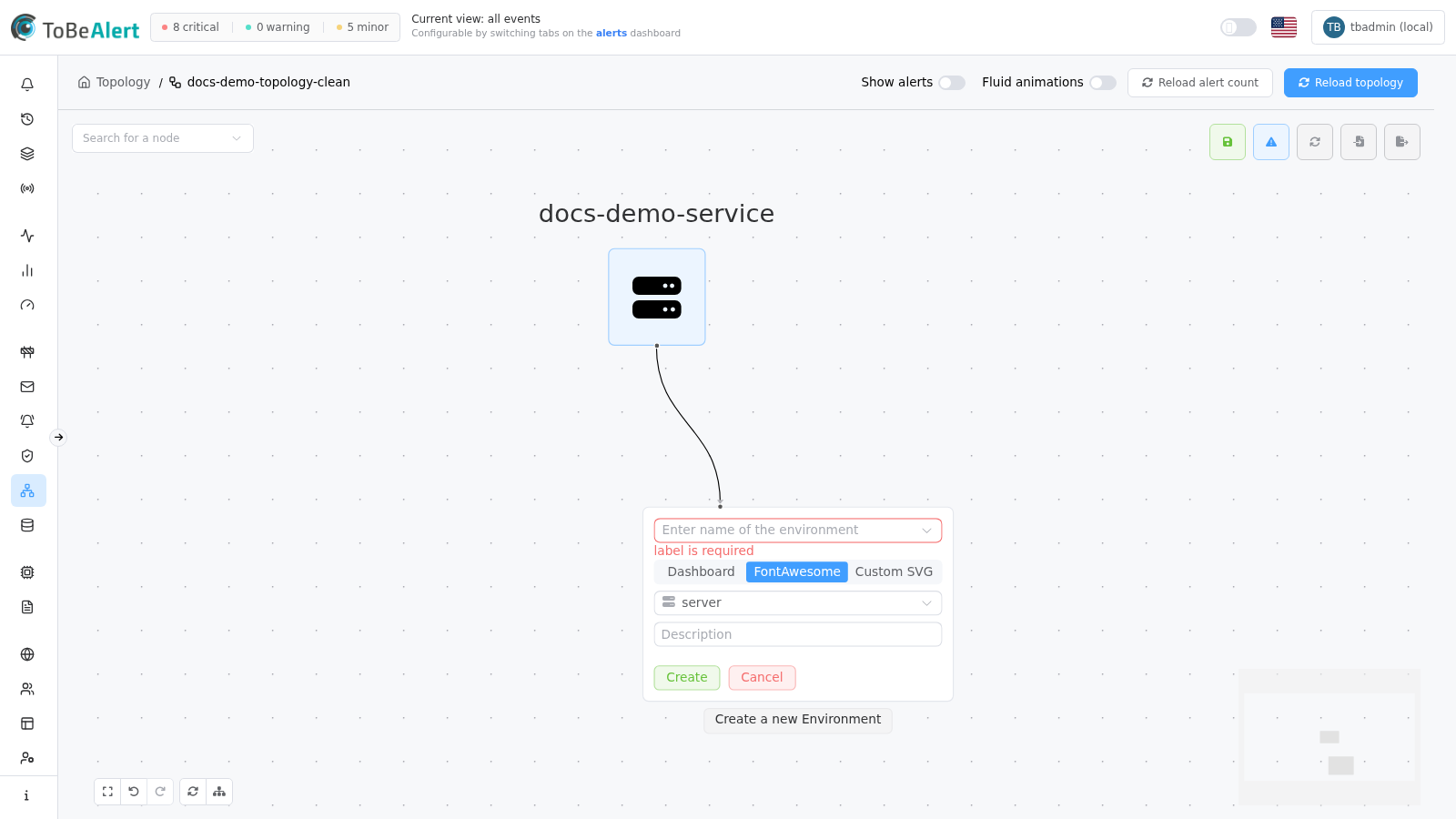
Build the hierarchy from the root service node downward: service → environment → resource. Each node accepts only one new child through the + handle at a time; add deeper levels from the leaf node you want to extend.
- Open the graph and click Edit mode.
- On a node without children, click the + handle below the node (service nodes get environment children; environment nodes get resource children).
- In the inline Create a new environment or Create a new resource card, enter or select a name, optionally pick an icon and Description, then click Create.
- Repeat for additional environments and resources.
- Click Save changes when the structure is complete.
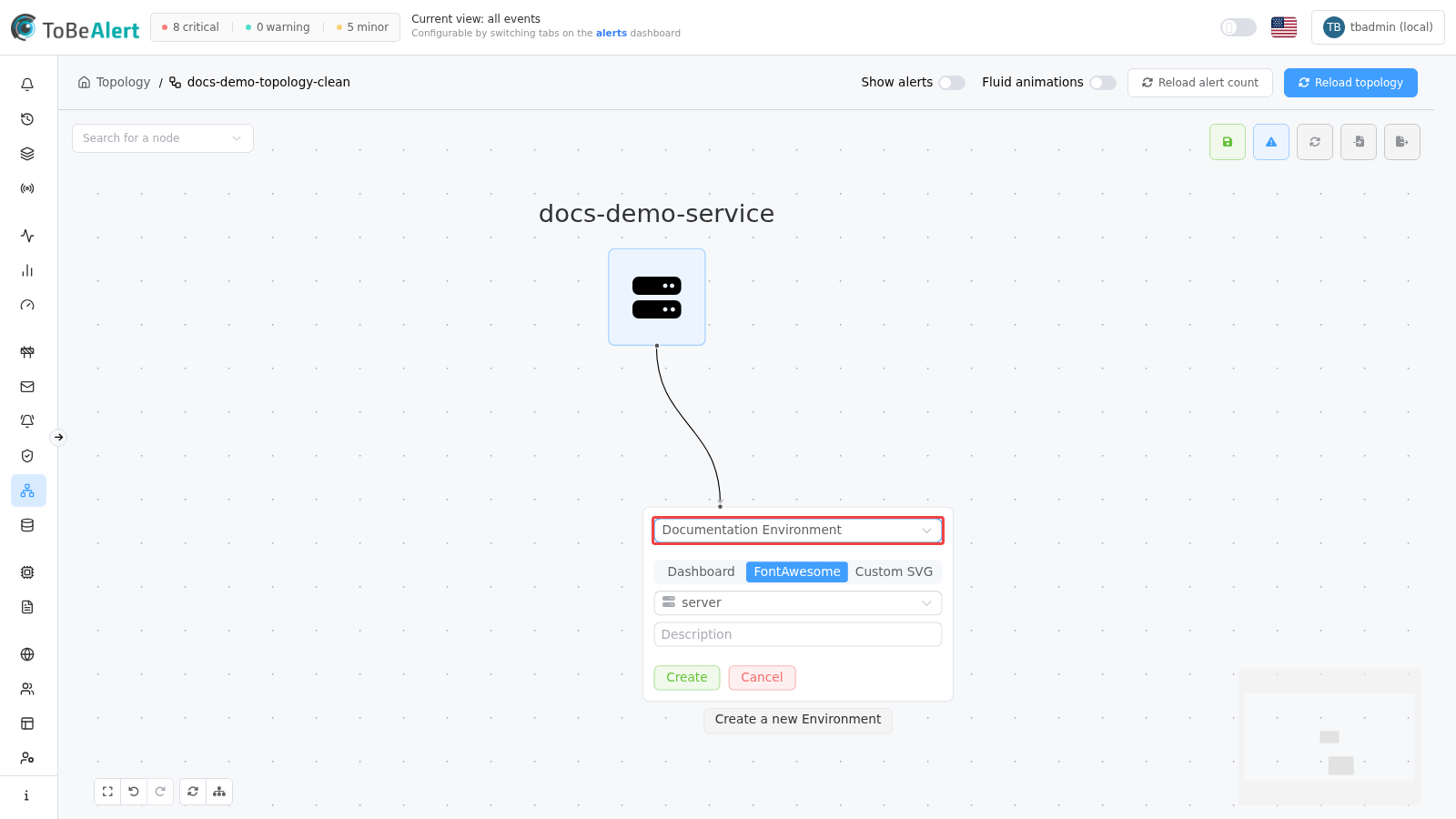
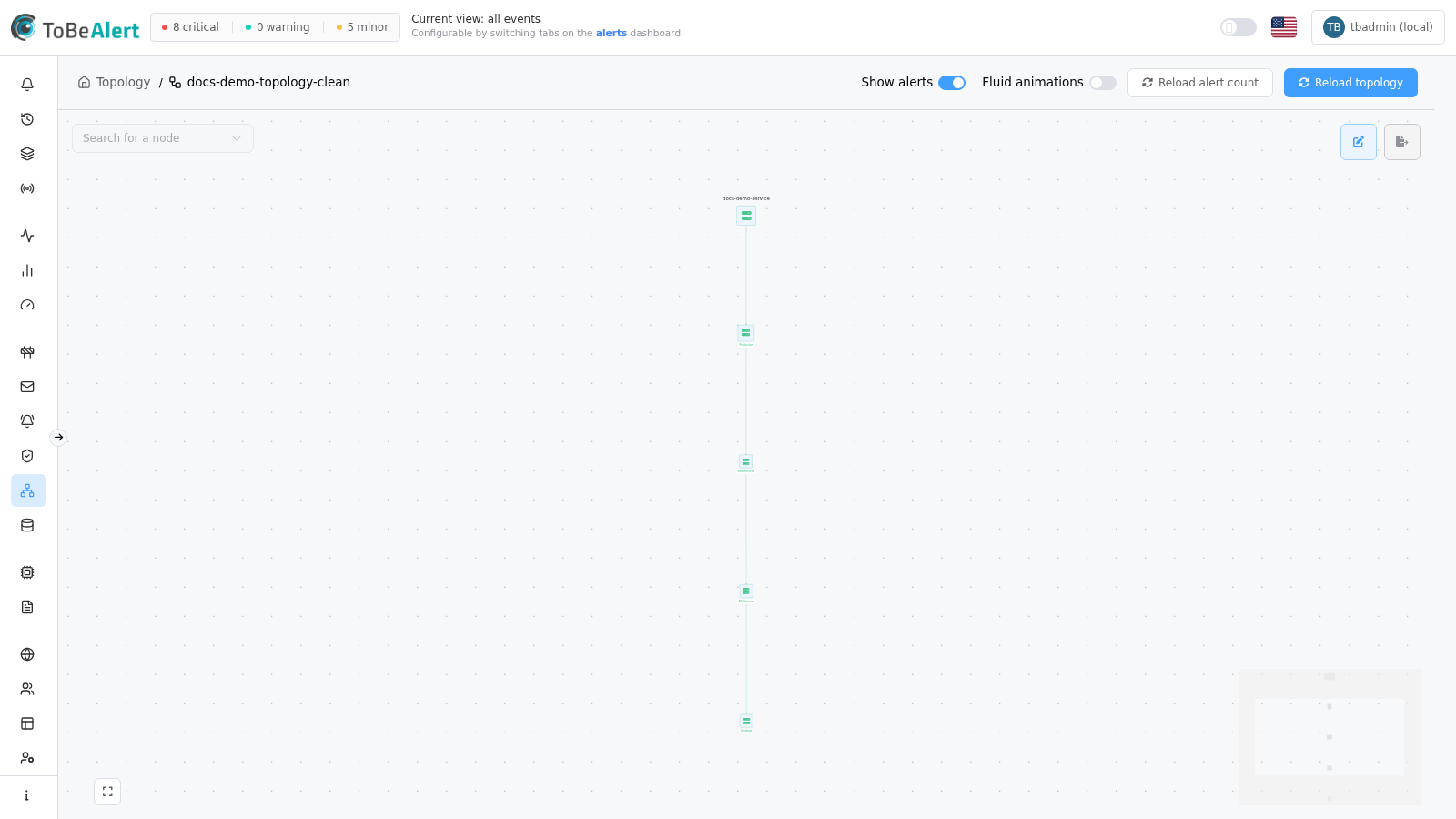
Clean manual tree example
When you build a small tree on a service without alert history, nodes stay neutral even with Show alerts on:
Node types
| Type | Role |
|---|---|
| service | Root service node (largest icon) |
| environment | Environment layer under the service or another environment |
| resource | Resource layer under an environment |
| build | Inline placeholder card while you are adding a new child |
Double-click a permanent node in edit mode, or right-click and choose Edit node, to open the full configuration dialog.
Alert-driven service topology
Use this workflow to bootstrap a substantial graph from alert history. It works best on a service that already has alerts — for example main-web-service linked to your topology’s Service to fetch field.
- Open the graph and click Edit mode.
- Click Alert-driven service topology (triangle-exclamation icon). A tooltip explains that suggested nodes come from existing alerts.
- Suggested environment and resource nodes appear with a pulsing style and dashed edges.
- Accept suggestions:
- Click an individual suggested node to promote it (and its connected suggested children).
- Click the green forward icon on a node to Add all recursively under that branch.
- On the service node, use Add all suggestions when suggested children are linked.
- Optionally click Order nodes to tidy the layout.
- Click Save changes.
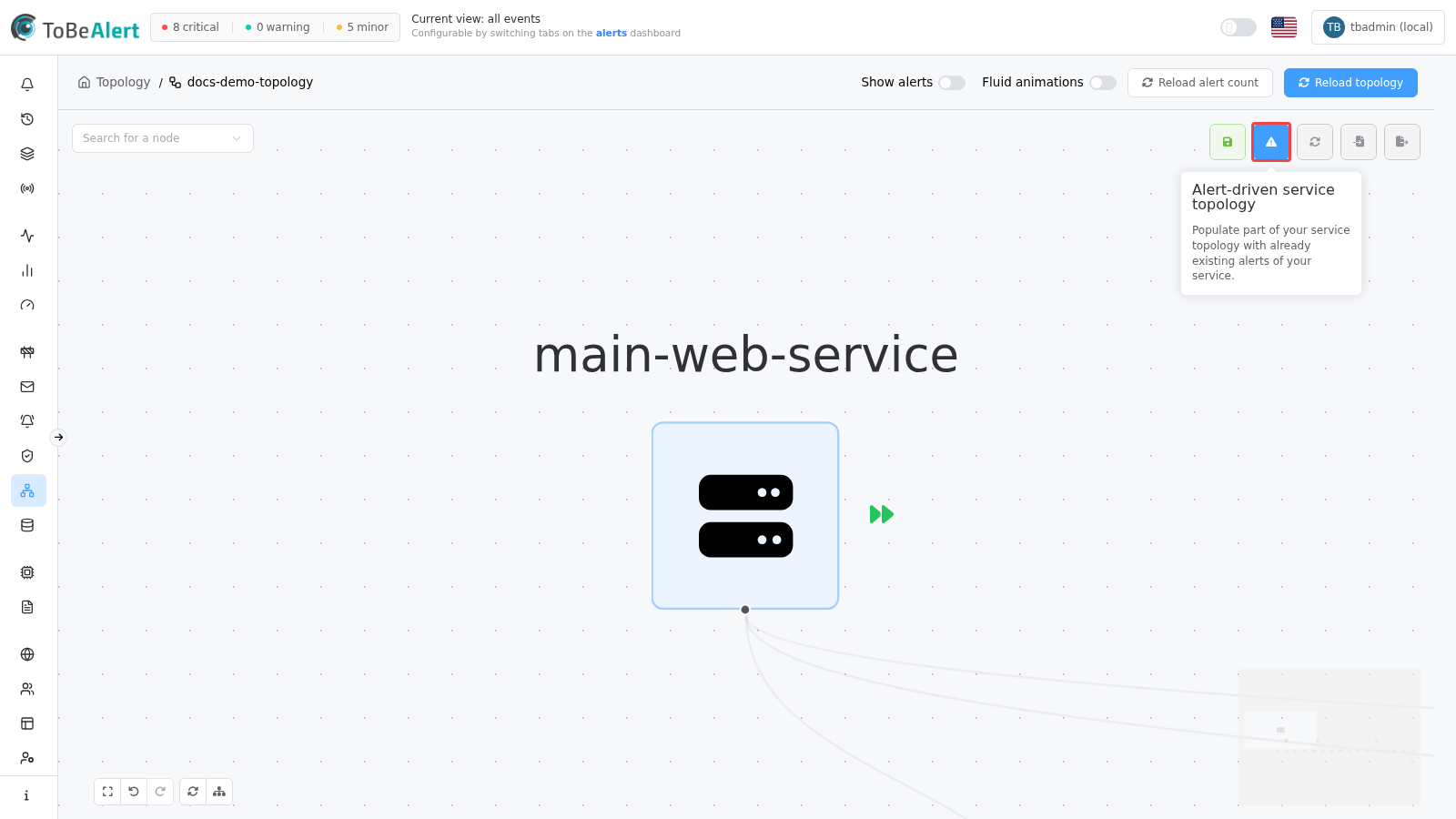
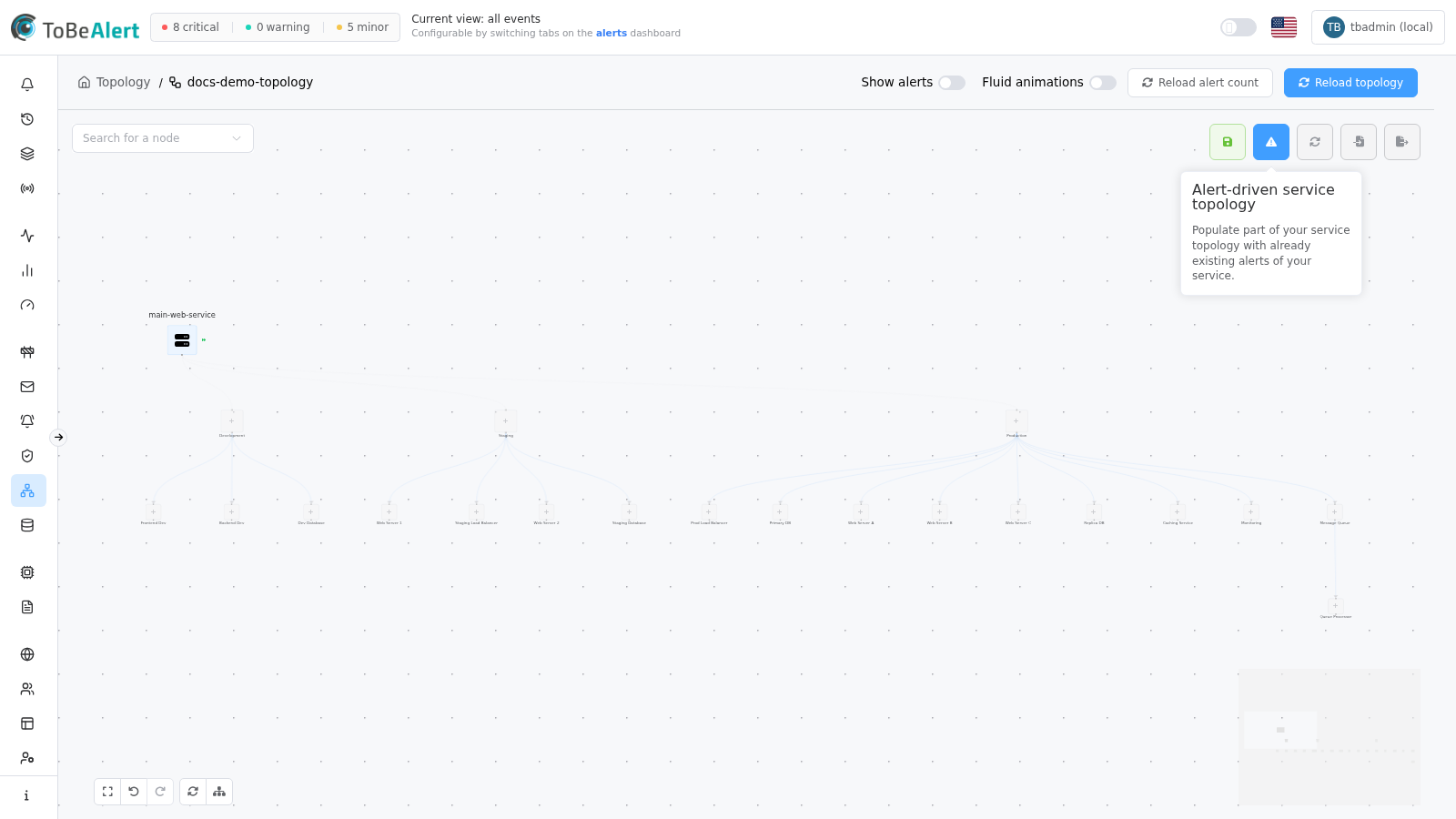
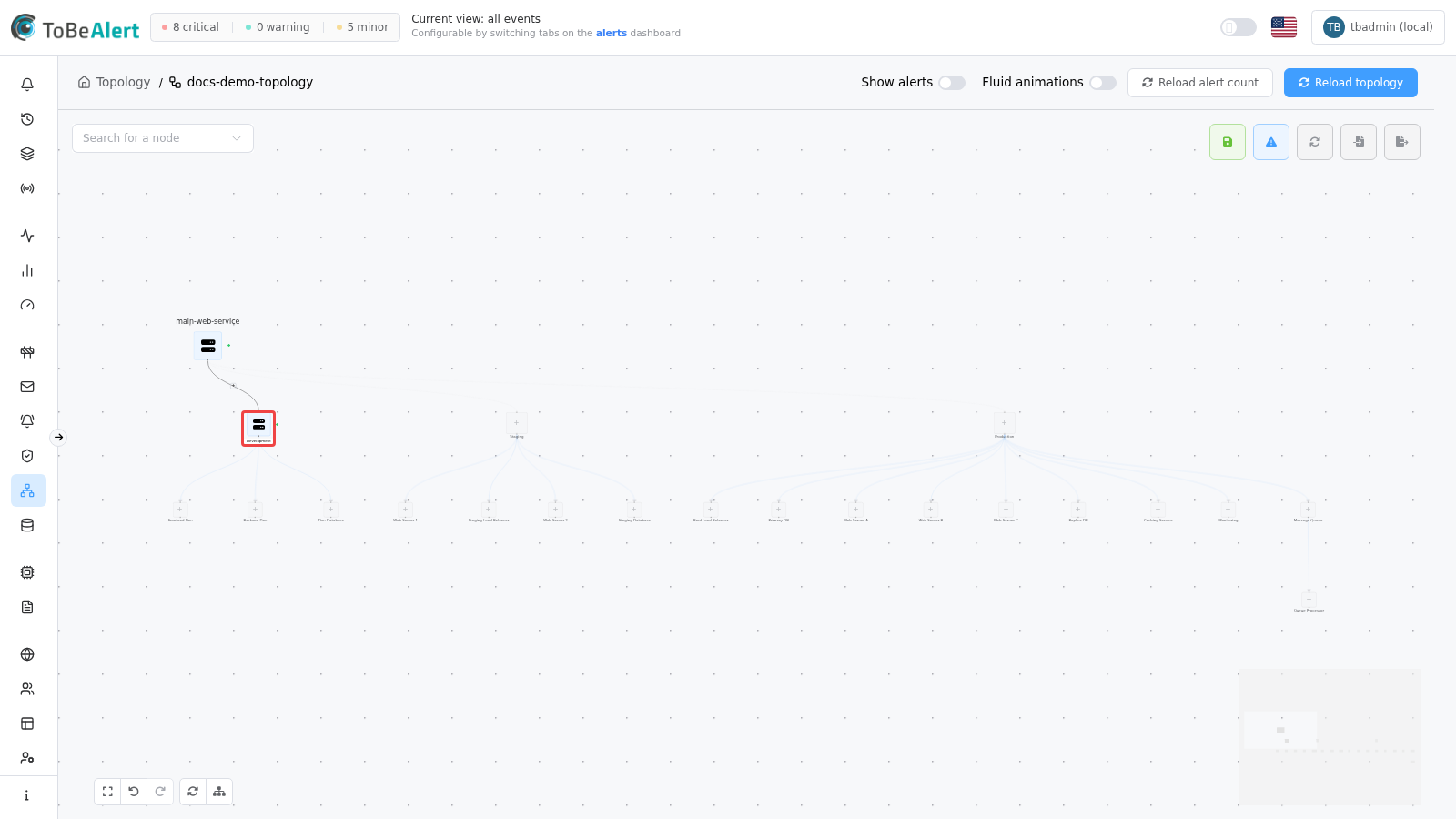
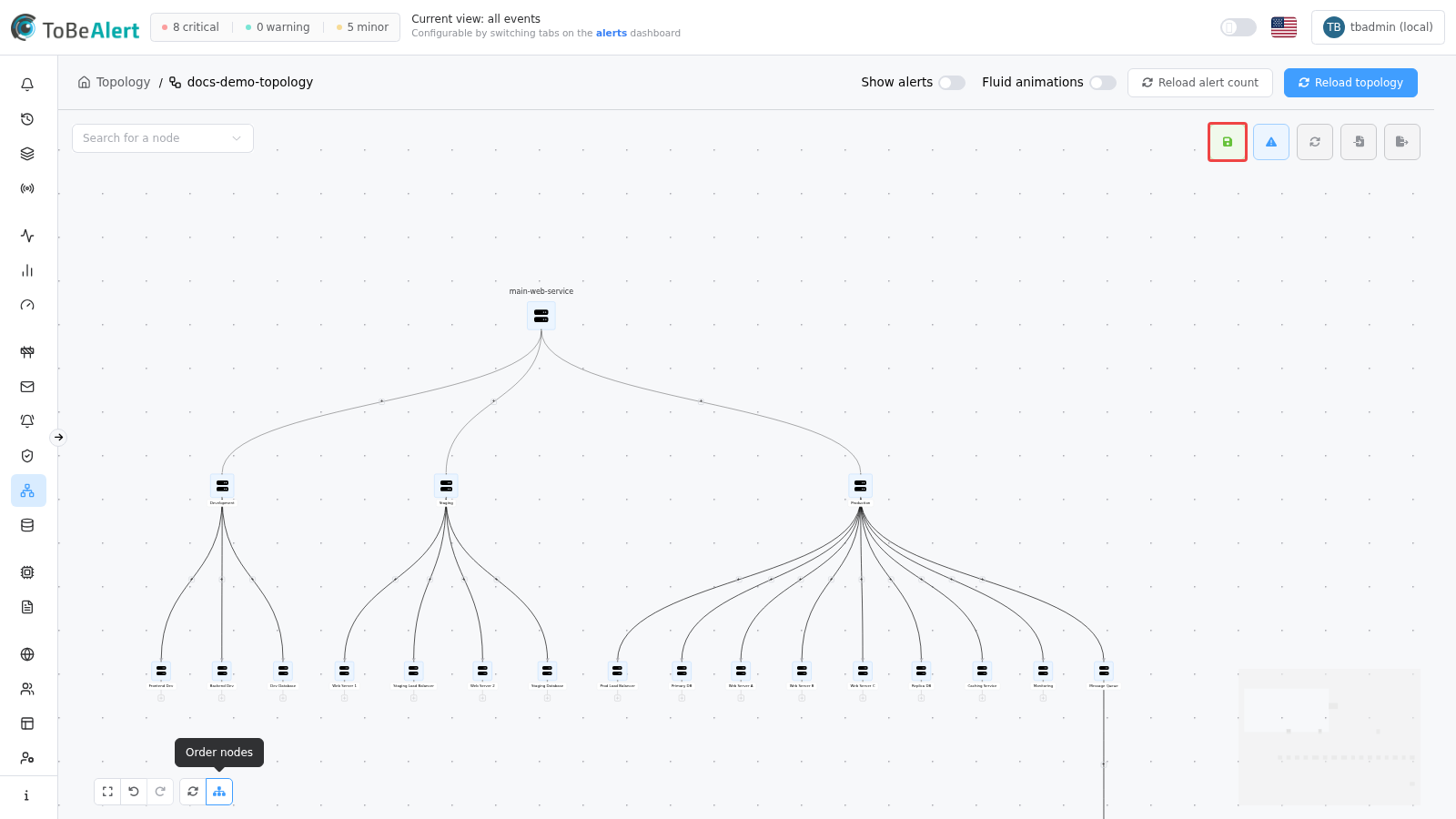
If the service has no alerts yet, Alert-driven service topology may add nothing. Create nodes manually or wait until alerts arrive for that service, then run the action again. Confirm the topology Service to fetch matches the service that receives alerts.
Show alerts on the graph
Use a saved, alert-rich tree (for example one built from main-web-service) to see severity colors clearly:
- Open the graph (view or edit mode).
- Click Reload alert count so counts and colors reflect the latest data.
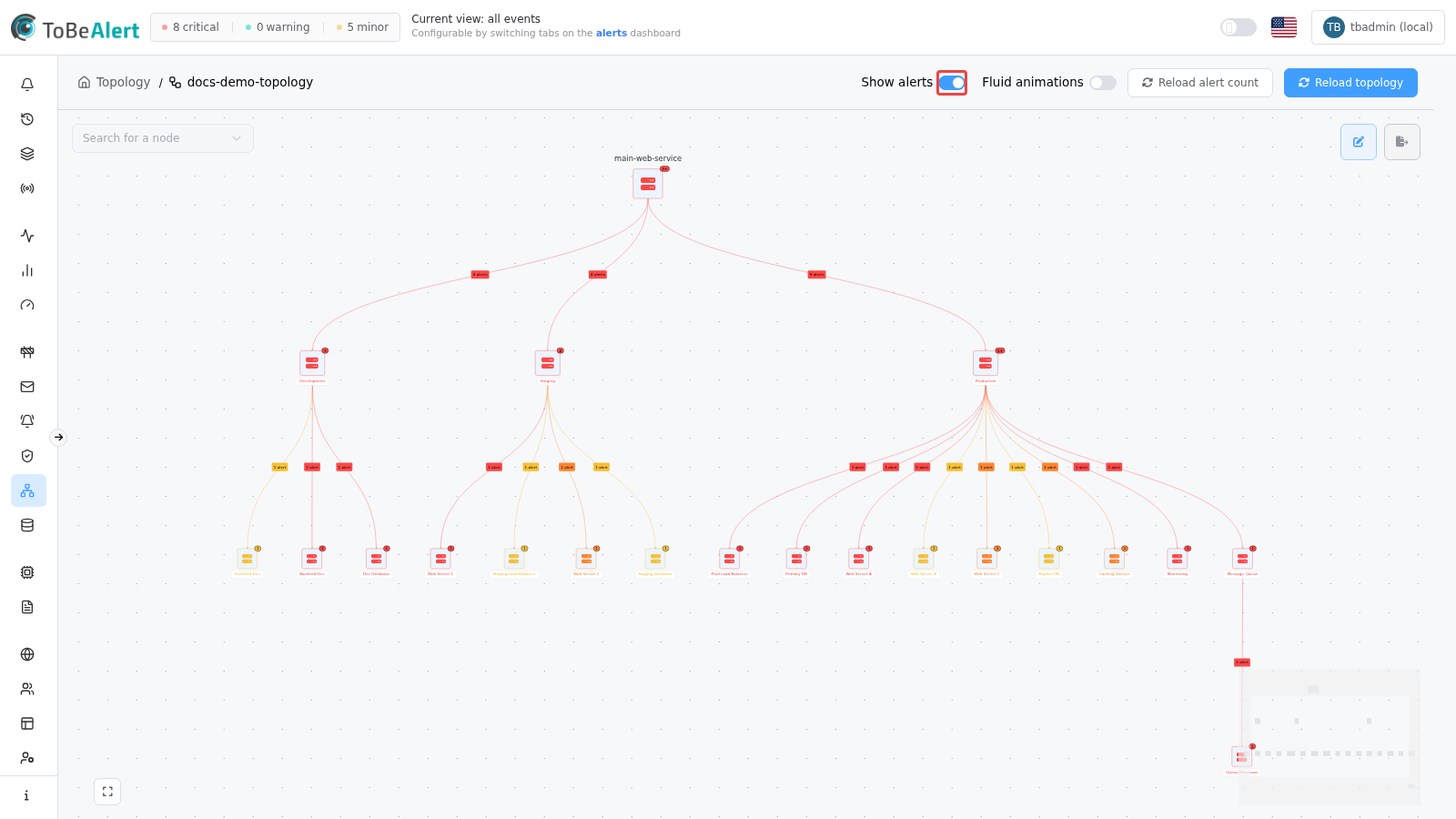
- Turn Show alerts on in the header.
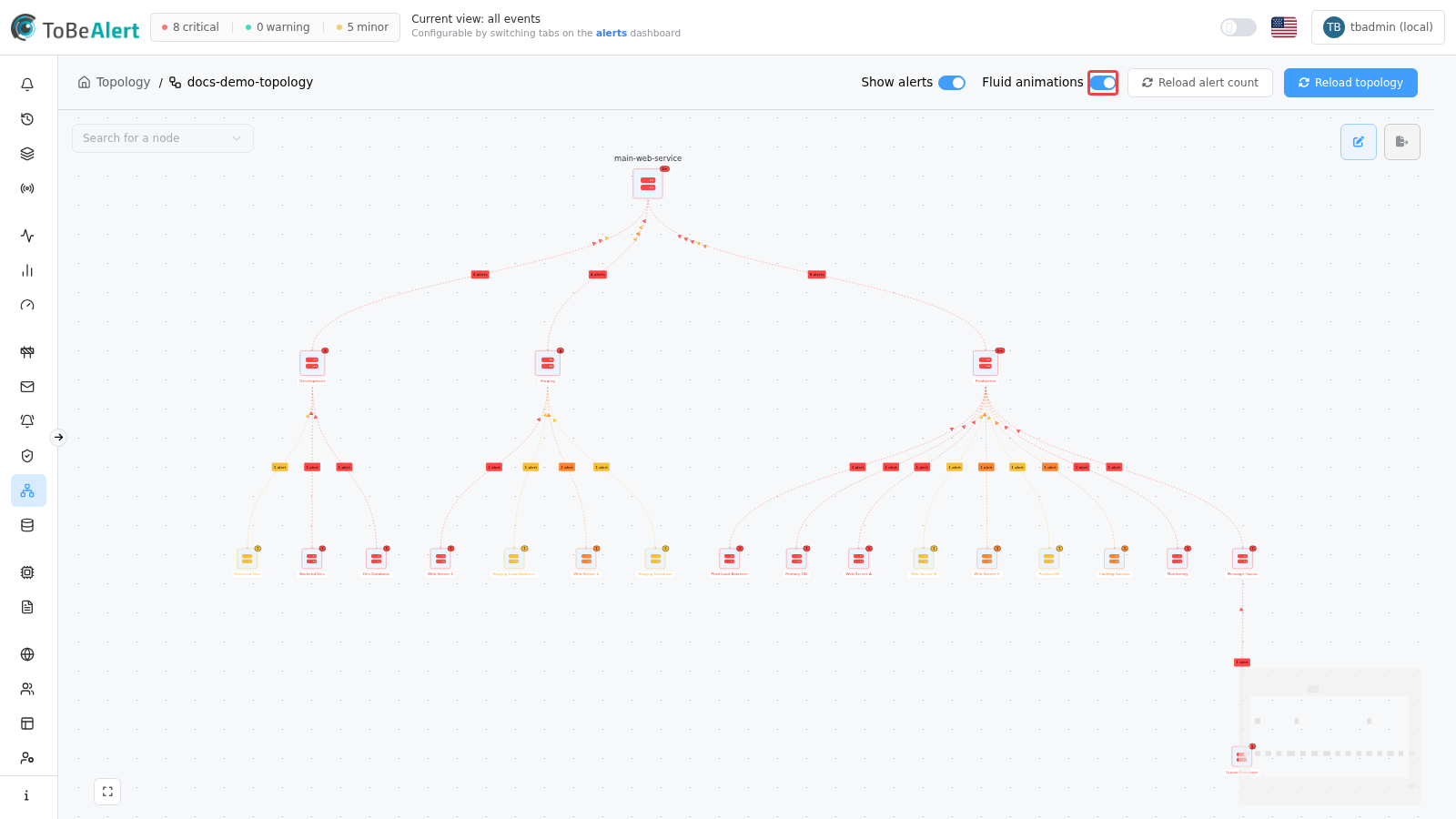
- Nodes and edges use severity colors; badges show alert counts. Edge labels can display text like 3 alerts on connected edges.
- Turn Fluid animations on to animate edges that carry alerts.
Alerts table
When Show alerts is on, click an alert badge on a node or choose View alerts from the node context menu. A filtered alerts table opens in the lower panel for that node’s alerts. Use Details on a row to inspect an alert. Close the panel with Close in the table header.
Node configuration dialog
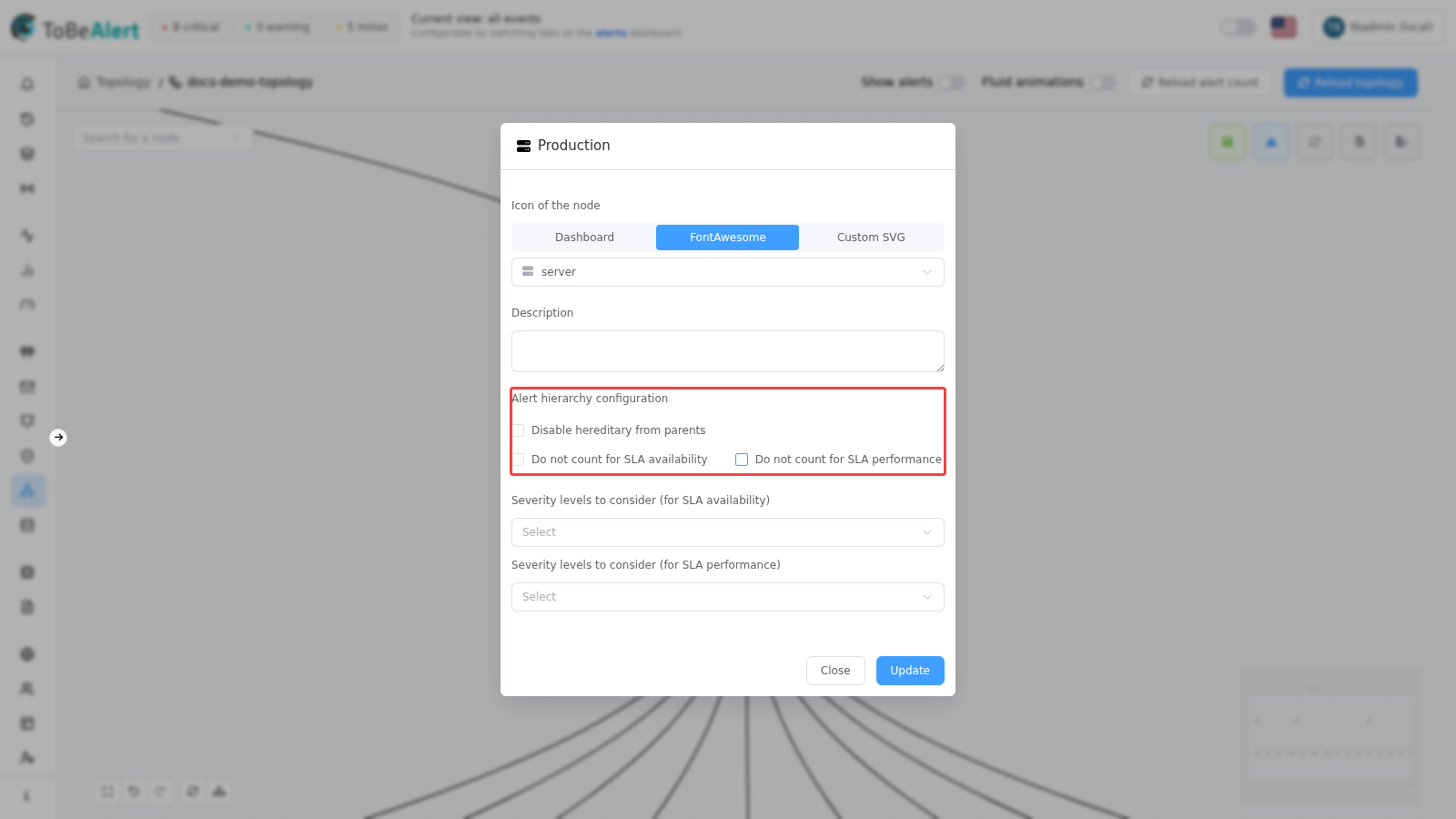
Open from Edit node in the context menu or by double-clicking a node in edit mode.
| Area | Description |
|---|---|
| Icon of the node | Font Awesome or custom SVG |
| Description | Optional notes |
| Alert hierarchy configuration | Per-node SLA/performance inheritance |
| Disable hereditary from parents | Stop inheriting severity rules from parent nodes |
| Do not count for SLA availability / Do not count for SLA performance | Exclude node from SLA roll-ups |
| Severity levels to consider (for SLA availability) | Fine-tune which severities count for SLA availability |
| Severity levels to consider (for SLA performance) | Fine-tune which severities count for SLA performance |
Click Update to apply changes to the canvas (still requires Save changes to persist to the topology record).
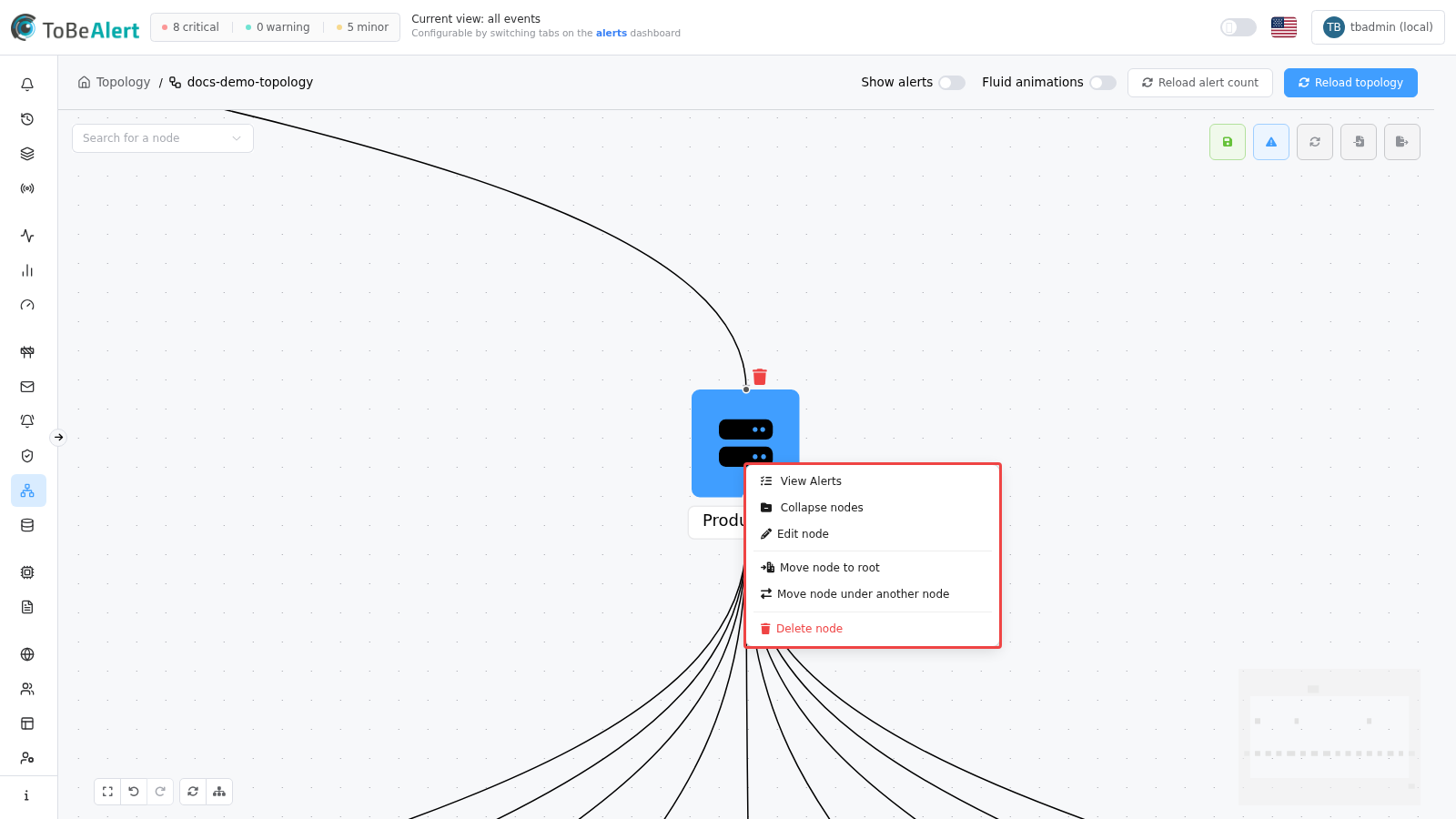
Node context menu (edit mode)
Right-click a node in edit mode:
| Action | Description |
|---|---|
| Edit node | Open configuration dialog |
| View alerts | Open the alerts table for this node (when alerts are present) |
| Collapse nodes / Expand nodes | Hide or restore child subtrees |
| Move node to root | Attach directly under the service root |
| Move node under another node | Reparent subtree — choose Select Target Node |
| Delete node | Remove node (and connected children when confirmed) |
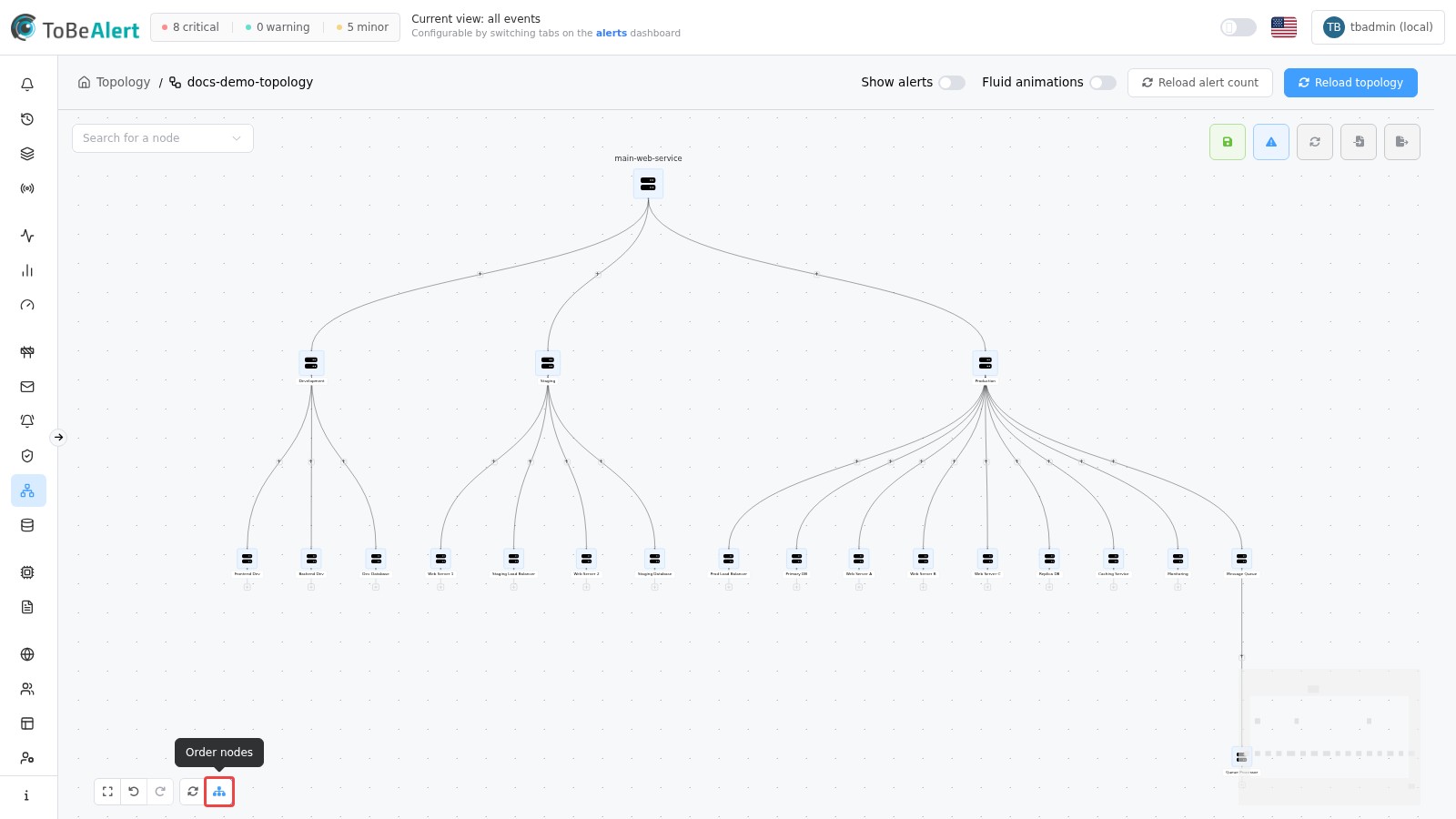
Layout and navigation
| Action | How |
|---|---|
| Order nodes | Click the sitemap icon in the bottom-left controls |
| Toggle order | Switch between top-bottom, left-right, and circular layouts |
| Fit view | Zoom to fit all nodes |
| Search for a node | Select from the dropdown (edit mode) |
| Pan / zoom | Drag the canvas background; use mouse wheel or minimap |
Save the graph
- Make structural or configuration changes in Edit mode.
- Click Save changes (disk icon). The map is not auto-saved on navigation.
- Edit mode closes after a successful save. Re-enter edit mode for further changes.
Use Export to JSON before large restructuring as an offline backup.
Best practices
- Enter Edit mode only when you need structural changes — reduces accidental drags.
- Save changes after meaningful edits; unsaved graph changes are lost on navigation unless you save.
- Run Alert-driven service topology on a service with real alert history (for example main-web-service), use Add all recursively, then Save changes before tuning layout or overlays.
- Reload alert count after incidents so severity colors reflect current state; toggle Show alerts and Fluid animations to validate the overlay.
- Keep a clean manual topology on a low-traffic service when you need screenshots or templates without alert coloring.
- Export to JSON before large restructuring as a backup.
- Configure hierarchy on leaf resources when SLA availability or performance should differ from parents.