Overview
Maintenance windows let you mark matching open alerts as Maintenance during planned work, so operators are not flooded with expected noise. When the window ends, affected alerts return to their previous status automatically.
| Topic | Documentation |
|---|---|
| Create, edit, enable/disable windows | Creating and managing |
| How alerts are matched and affected | Impact on alerts |
Where to find it in the UI
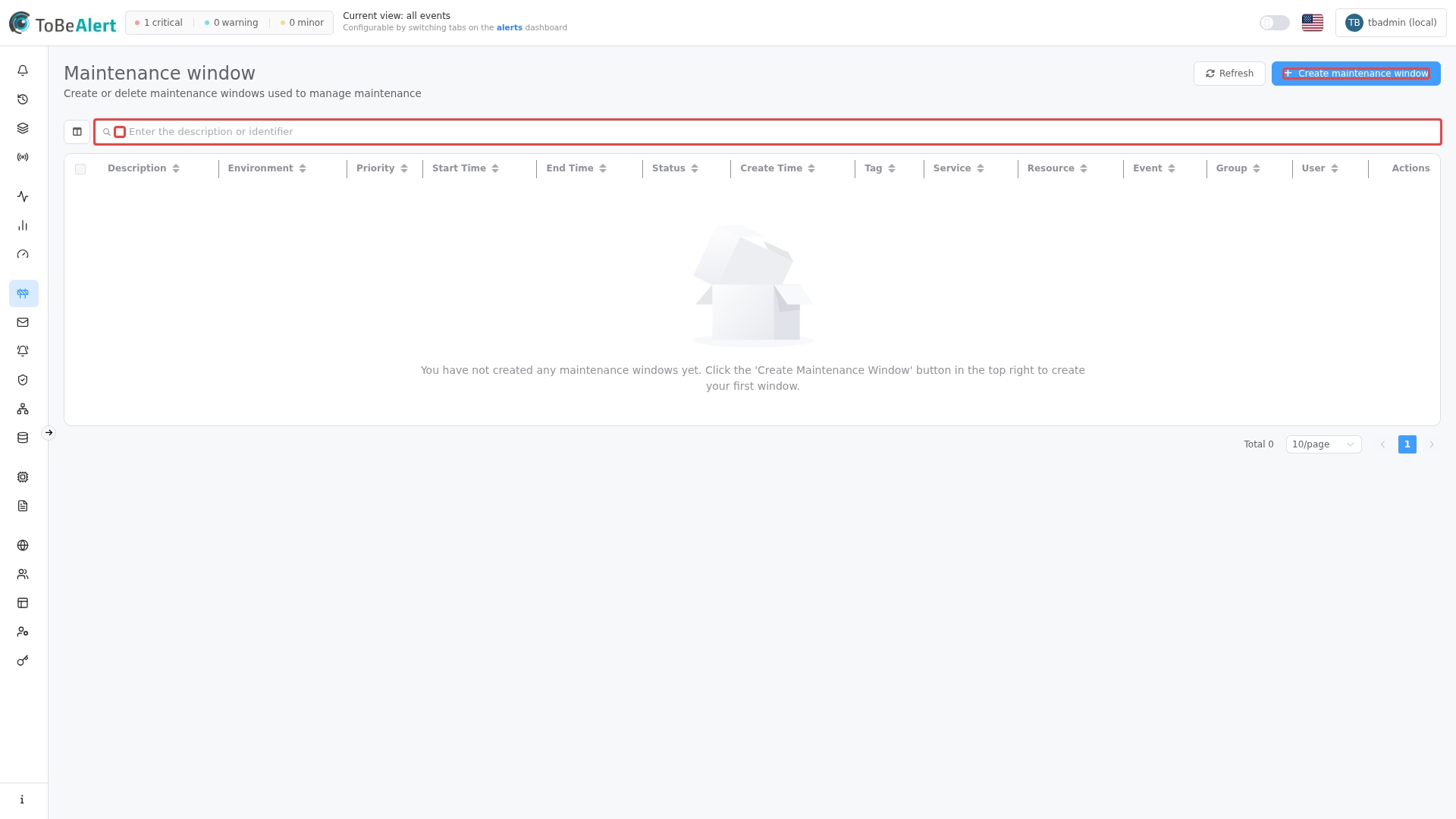
In the sidebar under Management:
- Maintenance Windows →
/maintenance-windows
Header actions: Refresh and Create maintenance window. The list supports search (Enter the description or identifier) and Toggle TQL filter mode — see TQL search and filters.
A license counter (active/max) appears when a limit applies — only active windows count toward the maximum.
Viewing, creating, editing, enabling/disabling, duplicating, and deleting maintenance windows require the appropriate permissions. If Create maintenance window or row actions are missing, contact your administrator.
How maintenance windows work (summary)
- You define a Time Range, a required Environment, optional scope fields (Resource, Event, Service, Tags, …), and a Priority.
- While the window is active (current time between Start Time and End Time), ToBeAlert periodically moves matching open alerts to status Maintenance.
- Alerts already closed, deleted, expired, or already in maintenance are not changed again by the same task.
- When no active window matches anymore, alerts in Maintenance are restored to the last non-maintenance status recorded in their history.
This is different from Shelve (a manual operator action) and from suppressing alerts when they are received. See Impact on alerts for details.
Window status in the table
| Status | Meaning |
|---|---|
| active | Current time is inside Start Time – End Time |
| pending | Start Time is in the future |
| expired | End Time is in the past |
Status labels appear in lowercase English in the table (active, pending, expired).
License limits
| Condition | Effect |
|---|---|
| Feature not enabled | Menu item may show Premium feature / Limited feature |
| Trial license | Create maintenance window is always disabled |
| Active window limit reached | Create disabled, tooltip Max items reached, warning icon |
Only windows with status active count against the license maximum.
Related modules
| Module | Relationship |
|---|---|
| Alerts dashboard | Matching alerts show status Maintenance; default filters often hide them |
| Alert filters | Include Maintenance in status filters to review affected alerts |
| Notification rules | Not automatically disabled for maintenance alerts — tune rules if needed |
| Policies | Independent — policies transform alerts; maintenance windows change status |
| Metrics | Maintenance status shifts Current Alerts distribution charts |
| Service KPIs | Exclude maintenance or test alerts via KPI filters so uptime stays accurate |
Best practices
- Schedule before work starts — use pending windows with accurate Start Time / End Time.
- Scope narrowly — set Resource, Service, or Tags instead of whole environments when possible.
- Confirm environment-wide windows — leaving Resource empty affects every matching open alert in that Environment (confirmation dialog).
- Use priority when overlaps are possible — lower number wins when multiple active windows match the same alert.
- Review maintenance alerts after the window — filter the dashboard by status Maintenance or check history for unexpected matches.
- Disable or delete expired windows you no longer need for audit clarity.